How can I verify that the BetterDisplay installer and app are genuine and unmodified?
Verify the downloaded installer’s signature and developer identity, then check the BetterDisplay app bundle itself. Starting with BetterDisplay v5.1.1, the installer disk image (.dmg) is signed and notarized as well as the app inside it.
Start with a download from the official website or repository. A valid signature from the expected developer establishes authenticity and detects changes to the signed contents. Notarization is Apple’s automated check for known malicious content and signing issues. These checks serve different purposes, so check both.
Quick check in Terminal
For a v5.1.1 or newer installer DMG, copy the entire line below into Terminal (Applications > Utilities) and press Return. Change the filename at the beginning to match your downloaded release. This example checks BetterDisplay-v5.1.1.dmg in your Downloads folder.
bd_dmg="$HOME/Downloads/BetterDisplay-v5.1.1.dmg"; if codesign --verify --strict --test-requirement='=anchor apple generic and certificate leaf[subject.OU] = "299YSU96J7" and certificate leaf[field.1.2.840.113635.100.6.1.13] exists' "$bd_dmg" >/dev/null 2>&1 && spctl --assess --type open --context context:primary-signature "$bd_dmg" >/dev/null 2>&1; then printf '%s\n' 'OK - Integrity verified'; else printf '%s\n' 'WARNING - Integrity check failed'; fi
The command verifies the DMG’s signed contents. It requires an Apple-issued Developer ID Application certificate for BetterDisplay’s Team ID 299YSU96J7. It also checks macOS’s security assessment and notarization. It prints OK - Integrity verified only when both commands succeed. Otherwise, it prints WARNING - Integrity check failed.
This DMG command works on installers for BetterDisplay v5.1.1 and newer. Earlier DMGs were unsigned and will not pass it. A warning means verification did not complete successfully. It can also result from an incorrect path, a folder-access restriction or an unavailable Apple service, so use the detailed checks below to see the reason.
To check the app bundle in Applications with the same clear result, copy this line. Change the path at the beginning if you installed the app elsewhere or want to check /Volumes/BetterDisplay/BetterDisplay.app inside the mounted installer.
bd_app="/Applications/BetterDisplay.app"; if codesign --verify --deep --strict --all-architectures --test-requirement='=identifier "pro.betterdisplay.BetterDisplay" and anchor apple generic and certificate leaf[subject.OU] = "299YSU96J7" and certificate leaf[field.1.2.840.113635.100.6.1.13] exists' "$bd_app" >/dev/null 2>&1 && spctl --assess --type execute "$bd_app" >/dev/null 2>&1; then printf '%s\n' 'OK - Integrity verified'; else printf '%s\n' 'WARNING - Integrity check failed'; fi
This second command checks the app’s signed contents and nested code, requires its expected bundle identifier and developer identity, and checks notarization. The v5.1.1 cutoff applies to the DMG command. The app command can also check an older signed, notarized BetterDisplay app with this identity. For the more complete app assessment available on newer macOS versions, see Check the BetterDisplay app bundle.
Recognize the installer design
The installer introduced in v5.1.1 has a blue-purple background, a large BetterDisplay Pro heading, the BetterDisplay app on the left and an Applications shortcut on the right, with arrows between them. License terms and a QR code appear below.
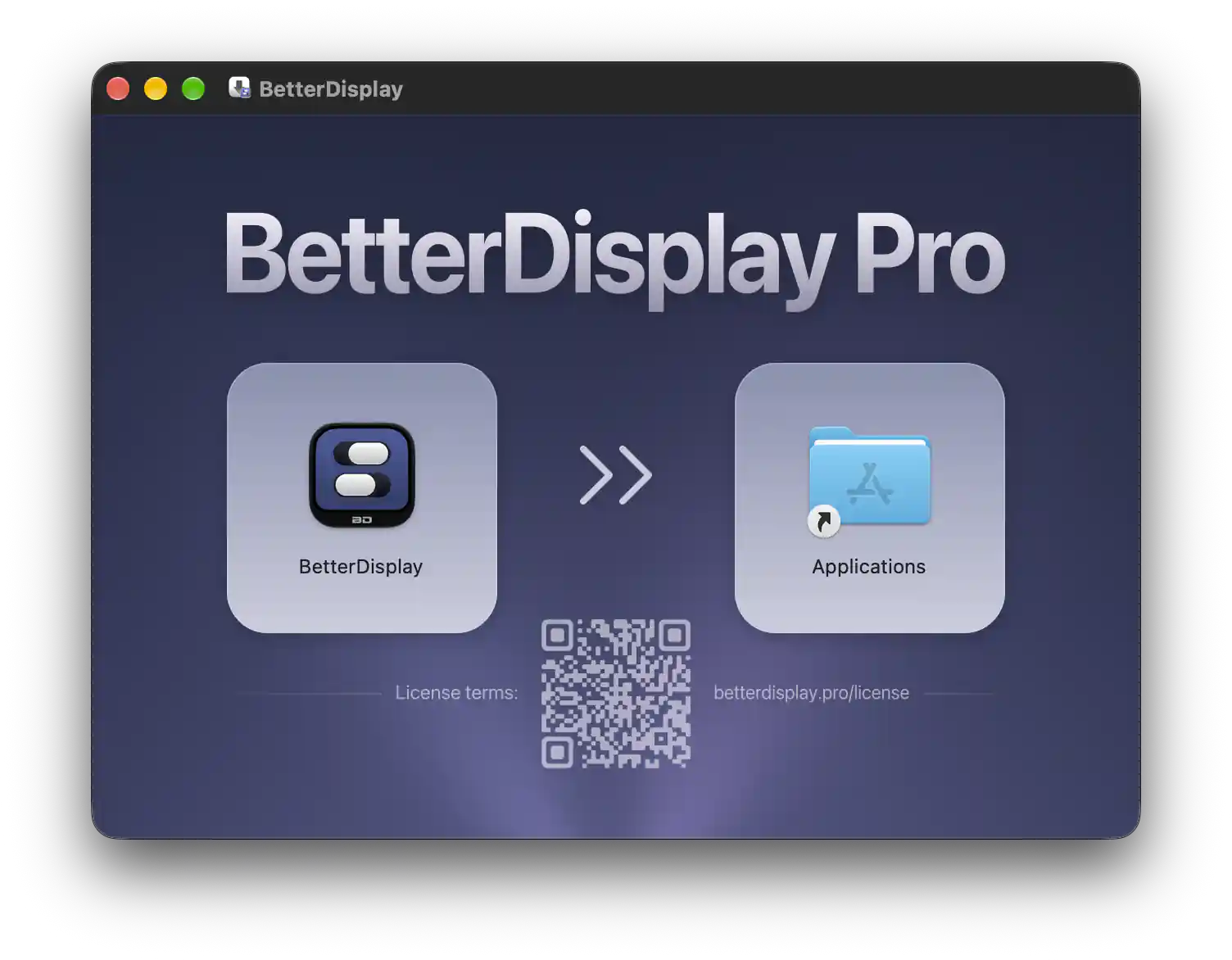
The installer design introduced in BetterDisplay v5.1.1.
Use this appearance as a visual reference. It can be copied. Use the checks below to establish authenticity and integrity.
Check the downloaded DMG
Open Terminal from Applications > Utilities. These commands only inspect the files and do not launch BetterDisplay. The example assumes the file is named BetterDisplay-v5.1.1.dmg in your Downloads folder. Replace the path with the actual downloaded file when checking another release.
Verify the disk image’s signature:
codesign --verify --verbose=2 "$HOME/Downloads/BetterDisplay-v5.1.1.dmg"Successful verification reports
valid on diskandsatisfies its Designated Requirement. This checks the DMG’s signed contents. You must also compare the signing identity with BetterDisplay’s identity below.Display the signing identity:
codesign --display --verbose=4 "$HOME/Downloads/BetterDisplay-v5.1.1.dmg"Find these exact lines among the output:
Authority=Developer ID Application: Istvan Toth (299YSU96J7)
TeamIdentifier=299YSU96J7
Other
Authoritylines describe Apple’s certificate chain. The file must use this developer identity. A different or missing identity, or an ad hoc signature, fails this check. Displaying signature details alone does not verify integrity, which is why the first command is also necessary.Check macOS’s security assessment and notarization:
spctl --assess --type open --context context:primary-signature --verbose=2 "$HOME/Downloads/BetterDisplay-v5.1.1.dmg"Look for
acceptedandsource=Notarized Developer ID. If anoriginline is shown, it should name the same BetterDisplay developer identity above. An accepted result still needs to match BetterDisplay’s developer identity.
Older installers: DMGs for BetterDisplay versions before v5.1.1 were not signed or notarized themselves. An unsigned-DMG result is therefore expected for those releases and does not by itself mean they were tampered with. Verify the app inside the image separately. The absence of a DMG signature means you cannot authenticate the entire older disk image using these signature checks.
Compare the installer’s SHA-256 digest
You can also compare the downloaded file’s SHA-256 digest with the value listed for the exact installer on the official GitHub releases page. This checks whether your file matches that published asset. It also works for an unsigned older DMG when a trusted digest is available.
- Open the release matching your downloaded version and expand its Assets list.
- Find the exact installer filename and copy its
sha256:value. Use the DMG’s digest, not a source-code archive or another package. - Run the command below, replacing the path with your downloaded file’s path.
- Compare the command’s 64-character value with the copied digest, ignoring its
sha256:prefix. Every character must match.
shasum -a 256 "$HOME/Downloads/BetterDisplay-v5.1.1.dmg"
If the values differ, download the exact asset again from the official release and repeat the comparison. Some older uploads have no listed digest. Without a trusted reference, calculating a hash alone does not verify the download.
Obtain the reference from the official repository. A matching digest from an unfamiliar download site only compares your file with that site’s copy. Hash comparison does not identify the signer or check notarization, so keep the signature and security assessments above.
Check the BetterDisplay app bundle
An app bundle is the BetterDisplay.app item you see in Finder, containing the executable and its supporting files. Check it independently of the DMG, including after copying it to Applications or updating the app.
The examples below check /Applications/BetterDisplay.app. To check the app in the mounted installer before installing it, use /Volumes/BetterDisplay/BetterDisplay.app instead. If your app or mounted volume has a different location, substitute its actual path.
Verify the app’s code signature, including nested code and both processor architectures:
codesign --verify --deep --strict --all-architectures --verbose=2 "/Applications/BetterDisplay.app"Look for
valid on diskandsatisfies its Designated Requirement, with no verification errors. A message about modified code, an invalid signature, or a missing or altered sealed resource means the bundle has not passed integrity verification.Display the app’s signing details:
codesign --display --verbose=4 "/Applications/BetterDisplay.app"Confirm the same
Authority=Developer ID Application: Istvan Toth (299YSU96J7)andTeamIdentifier=299YSU96J7lines used for the DMG. The app’s bundle identifier should also beIdentifier=pro.betterdisplay.BetterDisplay. A matching name or bundle identifier alone is insufficient because it can be copied.Assess the app with macOS’s security checks. On macOS Sonoma 14 or later, use:
syspolicy_check distribution "/Applications/BetterDisplay.app"A successful result says the app passed all pre-distribution checks and is ready for distribution. On older macOS versions, use:
spctl --assess --type execute --verbose=2 "/Applications/BetterDisplay.app"Look for
acceptedandsource=Notarized Developer ID. Apple recommendssyspolicy_checkon newer systems because it performs a more complete assessment of an app’s readiness for distribution.
If a check fails
First confirm that you used the correct path. No such file or directory means the command did not find the file, while Operation not permitted can mean Terminal lacks access to its folder. Fix the path or folder-access issue, then run the checks again.
If a signature or identity check fails for a release that should be signed, stop using that copy and download it again from an official source. A failed check can result from an incomplete download, damaged files or modification. Use the detailed error output to investigate the cause.
If signature and identity checks pass but the security assessment fails, check your internet connection and try again. macOS may need to contact Apple’s services, and a failed assessment can have causes other than tampering. If a fresh official copy still fails, contact the developer with the release version, macOS version and complete command output. Keep macOS’s security checks enabled while resolving the problem.