About
Use About to check which BetterDisplay version you are running or look for an update. The version text is useful when reporting a problem, and the pane also links to the website, license terms and privacy policy.
Where to find it: Settings > About.
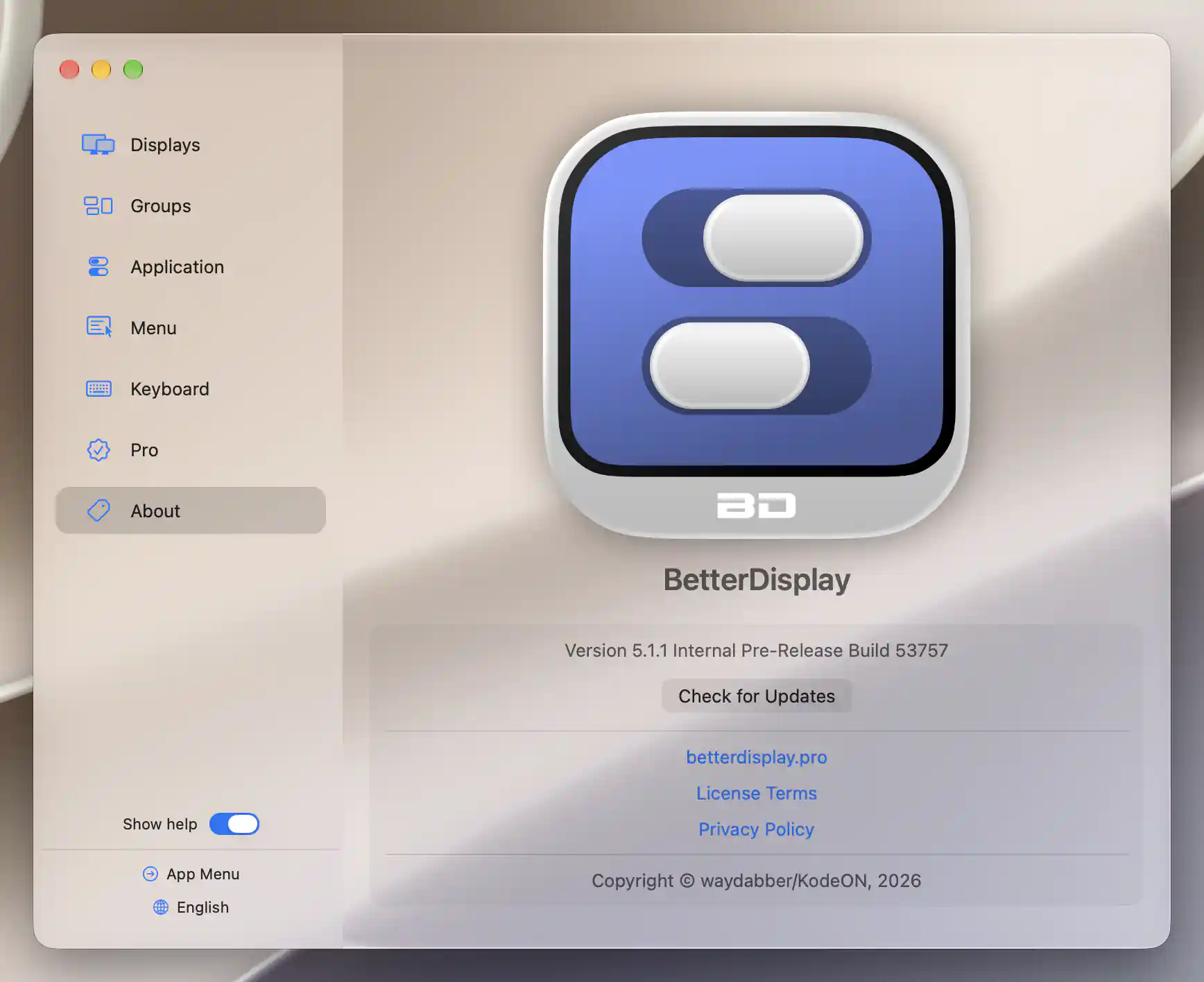
About shows the installed version, update check and information links.
Version and information links
The version line includes the version and build, plus release-channel information when applicable. Select and copy this text when you need to identify the installation precisely, rather than relying on the app name alone. The app identity and copyright are shown in the same pane.
betterdisplay.pro, License Terms and Privacy Policy open their respective web pages. They provide information; they do not change your display settings or activate a license.
Check for Updates
Select Check for Updates to look for an applicable release. An animated indicator replaces the button while the check runs. Click it if you want to cancel; cancellation also clears the inline status.
The result tells you whether a release was found, no applicable update was found, or the check failed. These are different outcomes, so read the message rather than treating any completed check as proof that you are up to date.
Read and reopen the result
Orange identifies an available update, green a known no-update result, and red an unknown or error result. The About sidebar also gains an update indicator when a release is available.
A check started here opens the separate update offer when it finds a release. Click a completed result to start the updater again and request the offer; a no-update result or checking error stays inline.
See Update offer for release notes, install, remind and skip choices, and Downloading, permission and installation for progress, authorization and relaunch. Checking does not install an update by itself. A network or checking error does not establish that you have the newest version.
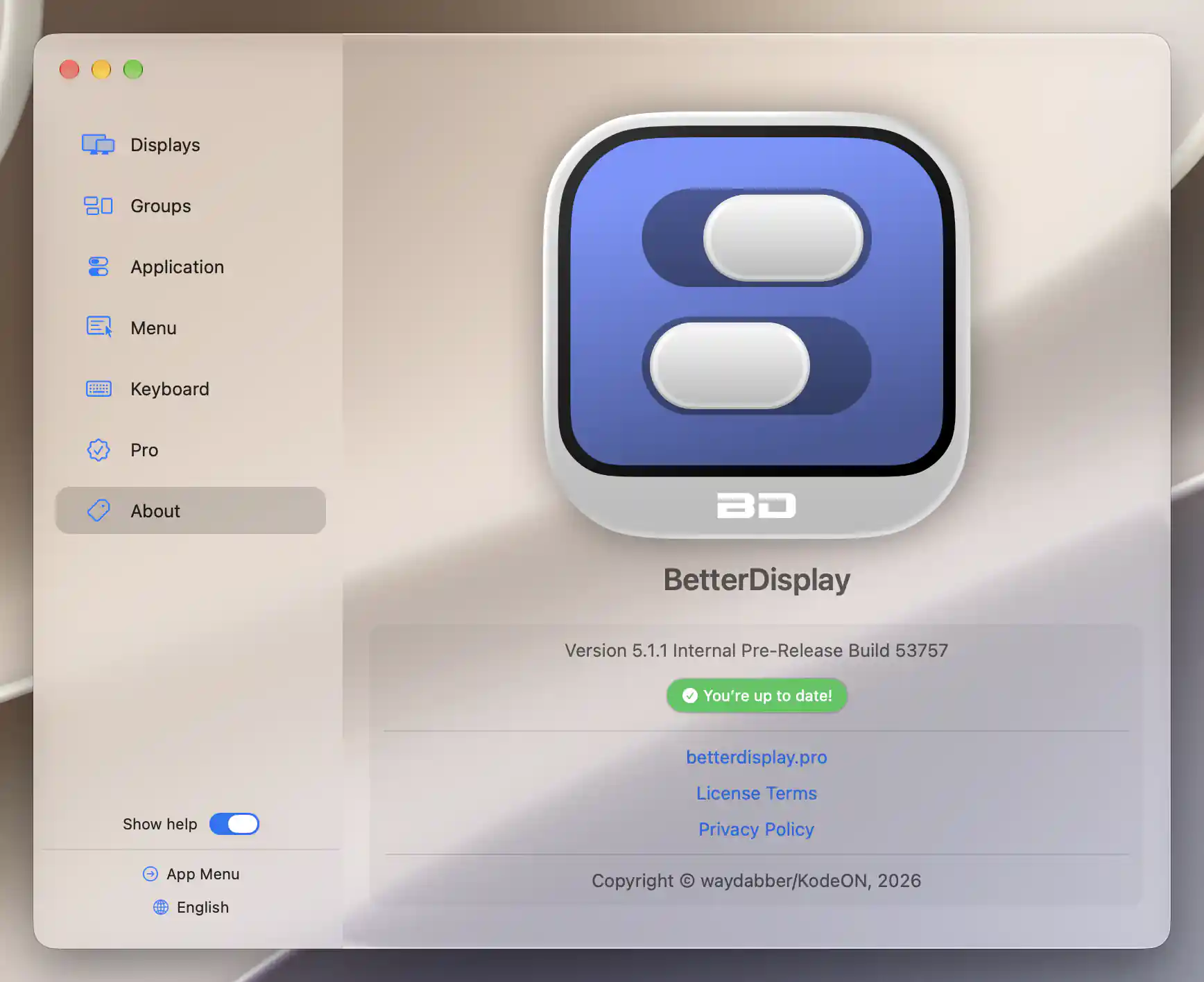
The green result confirms that no applicable update was found.
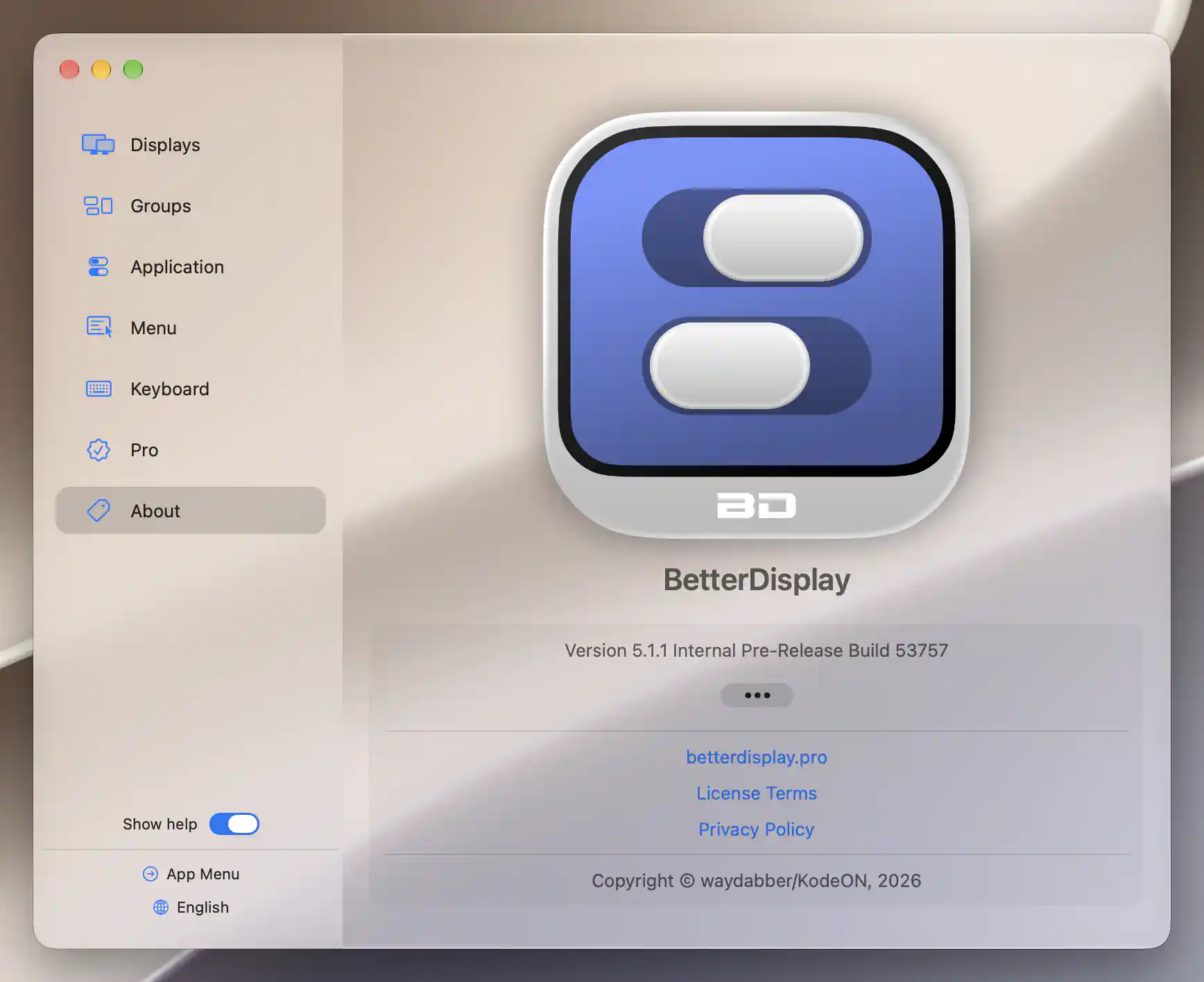
The animated indicator replaces Check for Updates while the request is in progress.
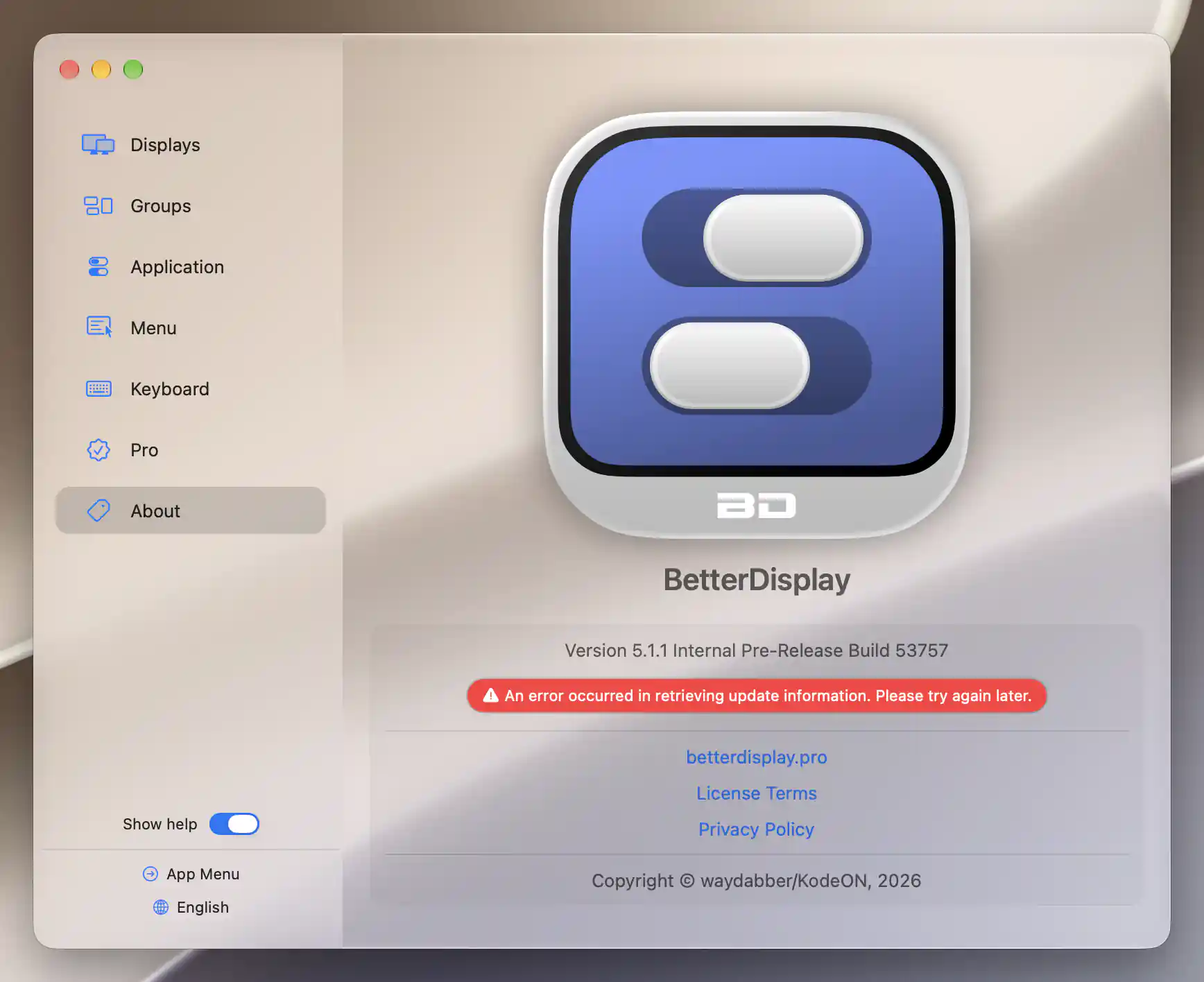
A red result reports that update information could not be retrieved.
See Settings for navigation and shared status indicators.
Additional information
This section explains licensing requirements and platform compatibility for the features described above.
Features requiring Pro license
The version display, information links and update checking do not require Pro. An offered app version can still have its own license-compatibility requirements.
Platform compatibility
All features described on this page are available on both Apple silicon and Intel Macs. Update checks need network access, and offered releases depend on the selected channels, processor architecture and supported macOS versions.