Updates
Choose how BetterDisplay looks for updates and whether you want stable releases or test versions. Checking, downloading and installing are separate stages: finding an update does not mean it has been installed. You can also start a manual check whenever you want a current result.
Where to find it: Settings > Application > Updates. Check for Updates switches to About.
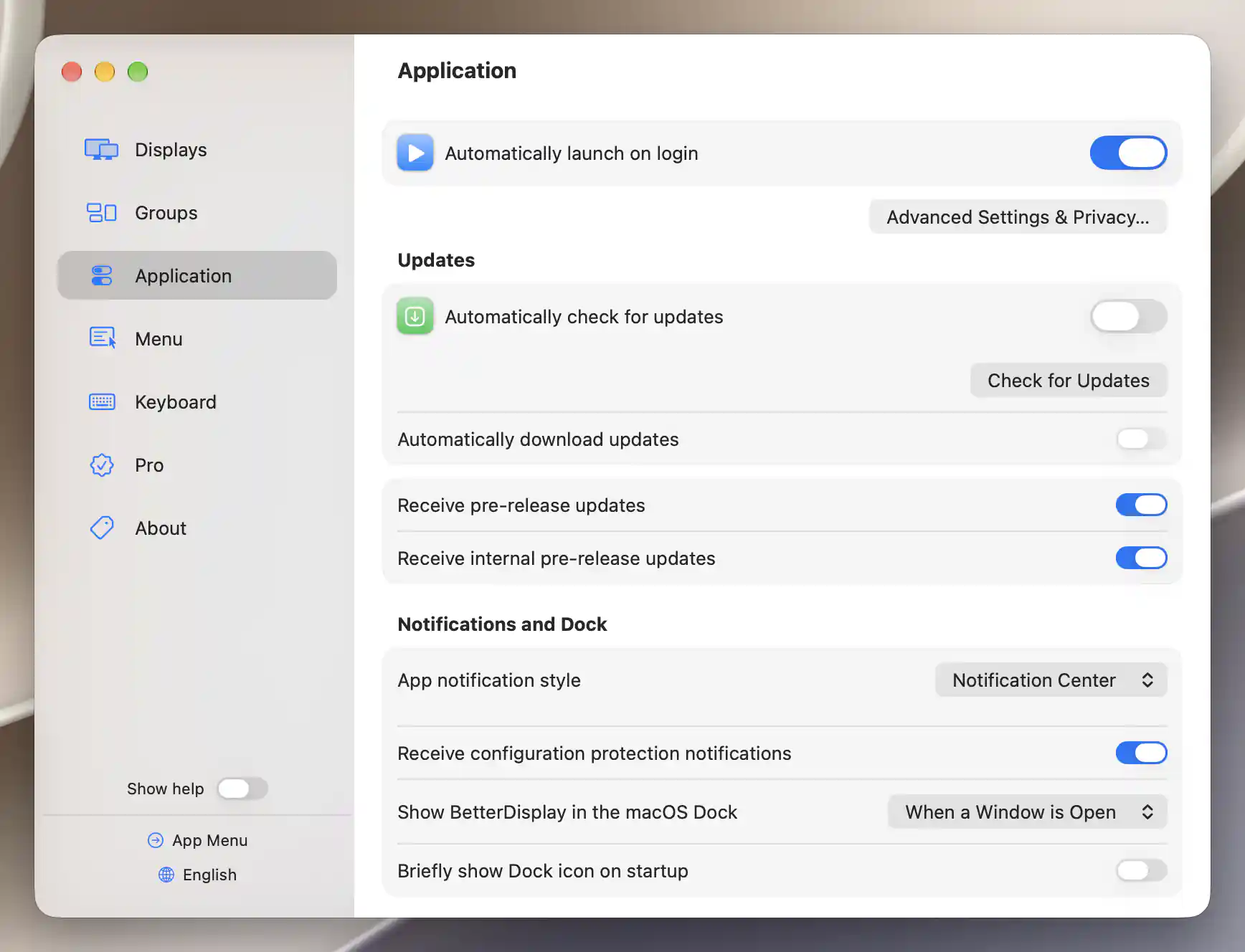
Update preferences include automatic checks, downloads and prerelease channels.
Checking and downloading
Leave Automatically check for updates enabled to receive periodic checks and update notifications. It is on by default and briefly unavailable while updater settings load. For an immediate check, select Check for Updates; BetterDisplay opens About and shows the result there.
Download automatically
Automatically download updates is off by default. With automatic checking enabled, you can turn it on to let available updates download and, where permissions allow, install automatically. The updater remembers both choices.
Turning off automatic checking disables the download option but keeps its saved value. Changing either preference is only a policy change; it does not establish that a download or installation has already completed.
See About for inline checking, cancellation and result messages. Checking from this Application pane first shows its result in About; selecting the available result opens the update offer. Checking directly in About requests the offer as soon as a release is found.
Notice an available update
Scheduled updates can announce themselves through the menu-bar/Dock indicator and an Install BetterDisplay Update notification, subject to notification permissions. A scheduled offer can also open directly, for example near app launch. Otherwise, select the update action to bring it forward.
Release channels
Receive pre-release updates opts into test releases. Enabling it reveals Receive internal pre-release updates, which can include unstable, unfinished or experimental changes. Not every internal release is offered through automatic updates. Both preferences are remembered and are off by default.
An available-update indicator means a newer offered build has been found, not that installation has completed. A failed check is different from a successful no-update result.
Update offer
The update window lets you compare the offered and installed versions before proceeding. Read the release notes when supplied; they can contain links and scrolling content. A loading indicator appears while remote notes arrive, and a notes-loading failure does not mean the update itself is unavailable.
With notes present, you can resize the window and BetterDisplay remembers the size. Releases without notes use a compact window. The available actions explain what happens next:
- Install Update starts downloading, or continues with an already downloaded update. Installation can require quitting BetterDisplay.
- Remind Me Later closes the offer without recording a skipped version. Later automatic checks can offer it again. This button is hidden when automatic checking is off; closing the window also dismisses the current offer.
- Skip This Version remembers the skipped version for automatic checks and discards a prepared copy if necessary. Releases at or below a skipped ordinary version are suppressed; a feed-designated major upgrade can suppress that upgrade line. A manual check clears the skipped selection and can offer it again.
- Automatically download and install updates in the future changes the same saved preference as Automatically download updates above. It appears when automatic checking is enabled and the release can be installed through this window.
Offers with different choices
An information-only release has Learn More… instead of Install Update; it opens the release’s information page and closes the offer. It has no automatic-download checkbox. A critical release that is not a major upgrade hides Skip This Version and Remind Me Later. These differences depend on the offered release.
Resume a prepared update
If installation has already been prepared and can resume, the offer uses Install and Relaunch and, when the later action is available, Install on Quit. The first requests immediate installation and reopening; the second leaves the prepared installation waiting for the app to quit. A merely downloaded release can still show Install Update because extraction and preparation remain. Dismissing it keeps that download available to resume.
Downloading, permission and installation
Follow the download
The progress window shows Downloading update…, a progress bar and transferred bytes. Choose Cancel to stop the download. If its total size is unknown, you see the downloaded bytes without a total.
The next stage, Extracting update…, prepares the downloaded files. Cancellation is disabled during that stage.
Allow installation when authorization is needed
If replacing the app requires administrator authorization, macOS can request permission after extraction starts. The updater requests permission to update BetterDisplay; authenticate to allow the installation or cancel to stop that attempt. This depends on the app’s location, ownership and permissions. It is separate from automatic checking: the current app enables automatic checks by default and does not show an initial “check automatically?” consent window. Change that preference in this pane.
Install and reopen BetterDisplay
Ready to Install presents Install and Relaunch when another explicit installation choice is needed. Selecting it asks BetterDisplay to quit, applies the update and reopens the app. While replacement is underway, Installing update… has no enabled action. If quitting is delayed, the progress window can close; bringing the update forward again can show Install and Relaunch to retry. Some prepared or automatic updates pass through these stages without showing every window.
When the update completes, BetterDisplay normally reopens without a separate success alert. If installation finishes without reopening, an Update Installed alert identifies the new version. Check the installed version in About afterward.
No-update and error results
Ordinary manual checks report their result inline in About or Tools. You’re up to date! means no newer applicable release was found for the selected channels; a compatibility result can instead say Your macOS version is too old or Your macOS version is too new. These are different from a network or checking failure, and do not establish what other release channels contain.
Results outside an inline check
A separate no-update dialog can be used when a result arrives outside the active inline-check state. Its explanation can identify the latest version or required macOS range. Version History appears only when release-history or release-note links are supplied; Learn More… can appear for an incompatible release with an information link. Both open their supplied web page.
When an update fails
Errors during an inline check stay inline. Errors later in the update flow use a separate alert with the error description and any recovery suggestion; otherwise its title is Update Error!. Cancel Update closes that failed update attempt. An error is not a successful no-update check or completed installation.
Additional information
This section explains licensing requirements and platform compatibility for the features described above.
Features requiring Pro license
Update preferences, checks and installation actions do not require Pro. A newer app version can have separate license-compatibility requirements.
Platform compatibility
All features described on this page are available on both Apple silicon and Intel Macs. The update feed, processor architecture and macOS compatibility determine which release is offered. Installation can also depend on the app’s location, ownership and administrator authorization.