Settings
Settings is where you configure your displays, display groups and BetterDisplay itself. Use the sidebar to choose a subject, then select an overview or an individual device or group where the pane offers that choice. The shared UI features described here help you navigate and understand how changes are applied.
Where to find it: Select Settings in the App Menu.
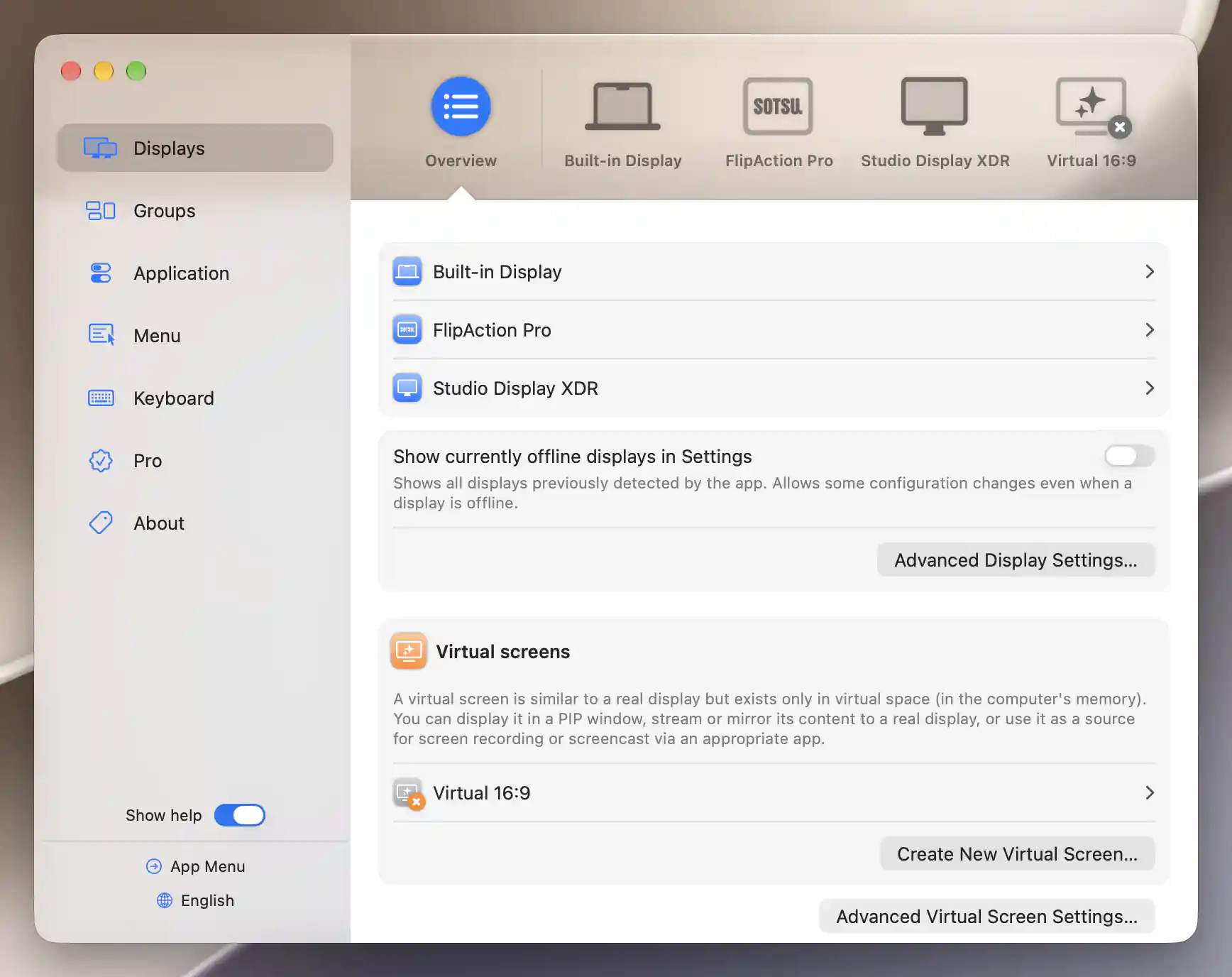
The sidebar keeps the seven panes, help, App Menu and language selection in one place.
Find the right pane
The sidebar lists Displays, Groups, Application, Menu, Keyboard, Pro and About, in that order. Displays and Groups include selectors for their overview and individual items.
The selected item tells you what you are editing. It is separate from whether a display is connected or whether a group is enabled or currently active. For example, choosing a group in Settings selects its preferences; it does not by itself activate the group.
Read the sidebar indicators
An indicator draws attention to a condition in its pane. Keyboard can show an Accessibility warning when native keyboard control needs permission. Pro indicates trial, licensing-disabled or license issues, while About indicates an available update. Select the corresponding pane to see the details.
Show help controls the explanatory text throughout Settings, and its value is remembered. The App Menu button opens or closes the menu without leaving Settings, which is useful when you want to see the effect of a menu preference.
Settings remembers its selected pane and the window’s position and size. Closing the window leaves BetterDisplay running.
Language
The language button at the bottom of the sidebar opens a list of supported languages, sorted by their displayed names. Hover over a language to see a checkmark for the current choice or a restart symbol for a different one.
Selecting the current language simply closes the selector. Choosing another language saves that choice, relaunches BetterDisplay and reopens Settings in the selected language. To leave the language unchanged, close the selector with its globe or close arrow.
Edit settings and use sheets
Switches express preferences, and disabled UI items show that a prerequisite is not currently met. This can depend on the selected device, another preference or a permission. Read the nearby help before changing an advanced setting. A Pro badge identifies a feature that requires Pro; its feature page explains any exceptions. An Experimental badge identifies a feature whose behavior may need particular care.
Expandable sections and buttons reveal related settings without crowding the main pane. Many sheets have a Done button and can be resized, with their size remembered. Done closes the sheet; it does not mean every sheet waits until that moment to apply changes. Each feature’s explanation identifies any separate save, apply or restart requirement.
Choose an icon
The shared symbol picker is used for display, virtual-screen, group, custom-control and menu-bar icons. Type into Search… to filter symbol names and related search terms, or browse the grid by scrolling.
Select a symbol to change the current choice; its name appears at the bottom. Remove clears the custom symbol and is disabled when none is selected. Done closes the picker. The available symbols come from the installed macOS version, so different Macs can have different choices.
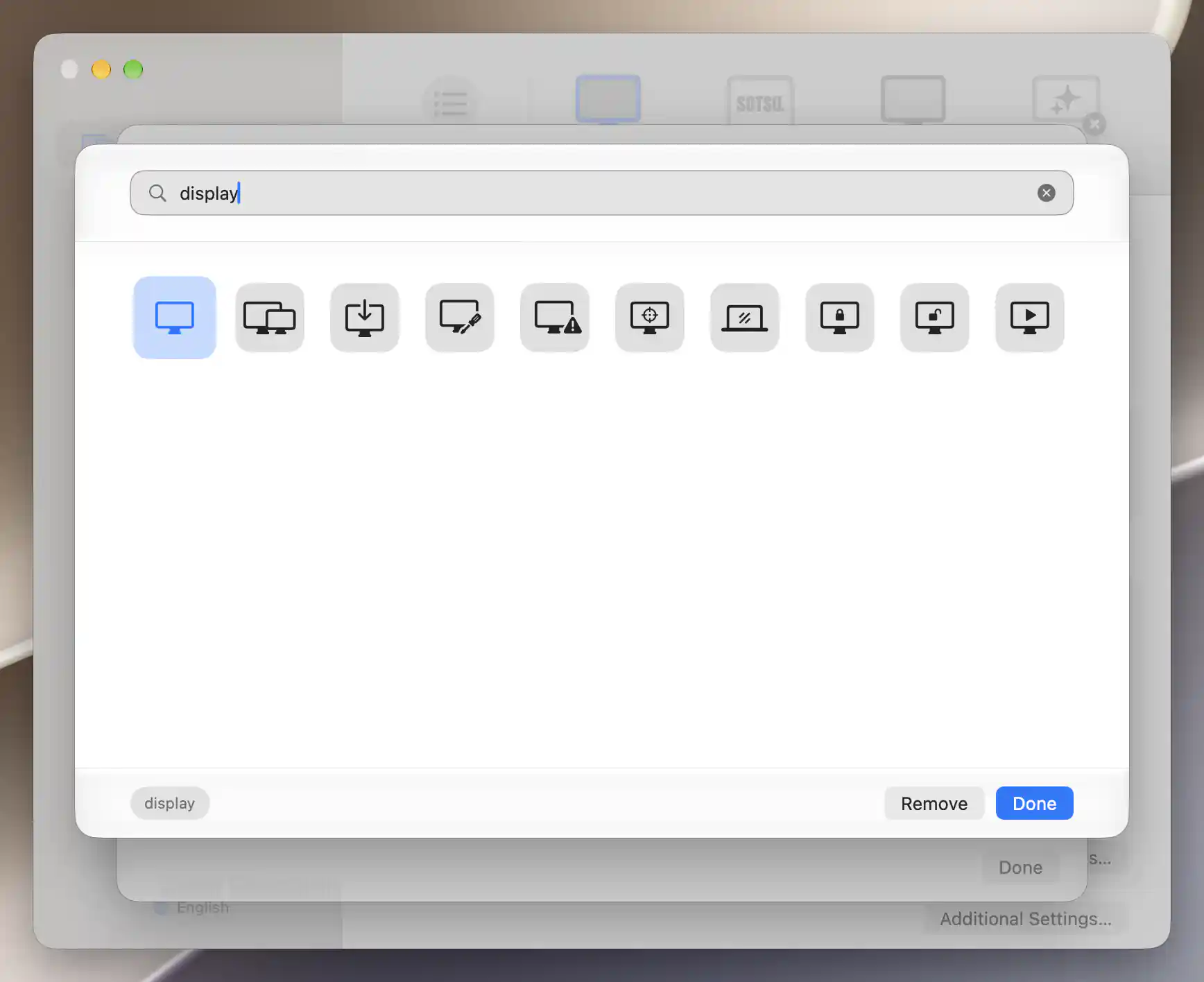
Filtering by a name narrows the symbol grid; the selected symbol’s name appears beside Remove and Done.
System configuration changes
Some display settings prepare system overrides instead of applying an ordinary preference immediately. In that case, a red sidebar notice offers Apply and Undo. Apply writes all pending changes; Undo discards those pending changes. These actions concern the staged overrides, not every preference you have edited in Settings.
Applying can request privileged-helper approval or show an error. Follow the approval dialog if one appears. If the operation fails, the error explains the failure.
Activation after applying
After applying overrides, an orange notice can say Configuration changes require reboot or activation. On Apple silicon, Activate appears when an affected, connected external display supports activation.
Choose Cancel in the confirmation to leave activation undone. Dismiss hides the orange notice; dismissing it does not activate the changes or reboot the Mac.
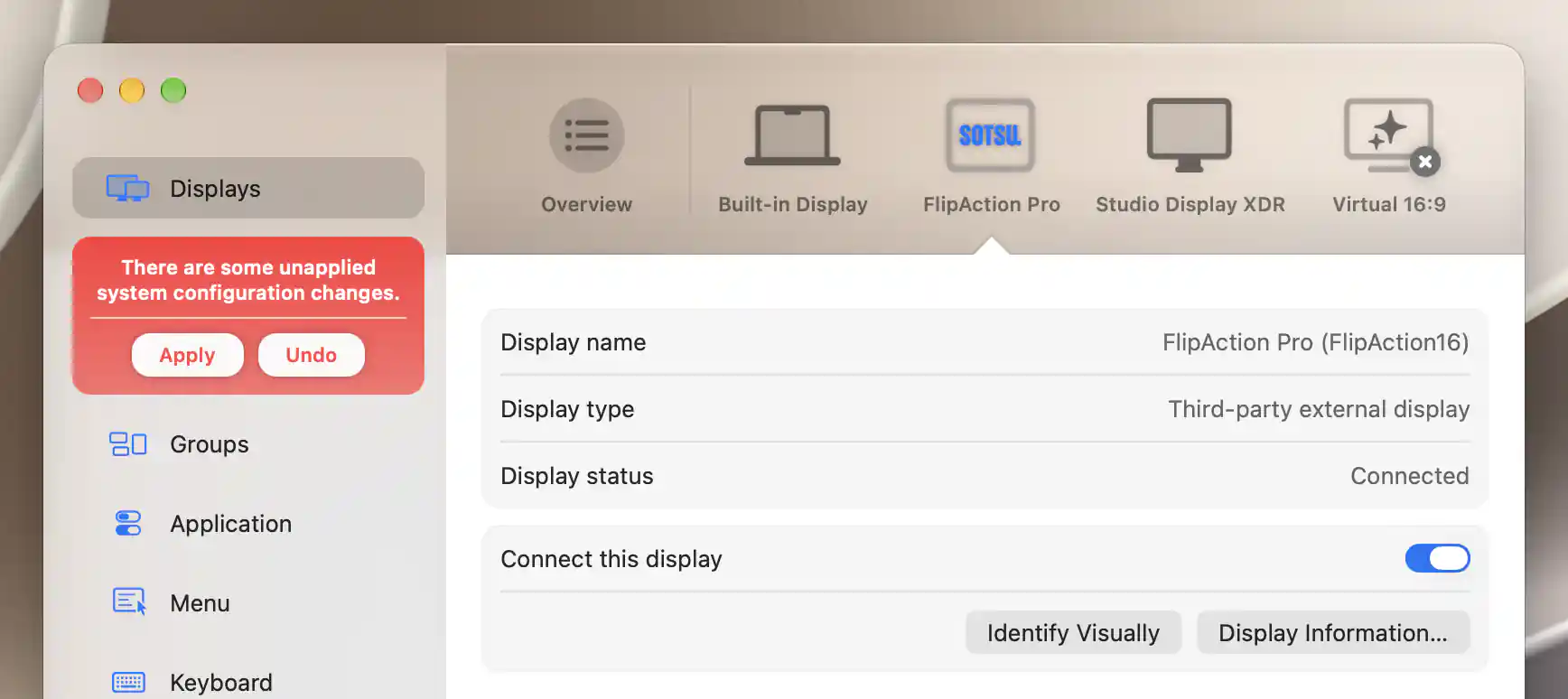
Apply installs pending system configuration changes; Undo discards the staged edits.
See About for the app version and update-check options.