Startup and Advanced Settings & Privacy
Use these settings to decide when BetterDisplay starts, what reporting it permits, and how it keeps your app configuration. The advanced sheet also provides backup, import and reset actions. These affect the app as a whole, so distinguish an ordinary preference change from replacing or clearing saved settings.
Where to find it: Settings > Application, then Advanced Settings & Privacy….
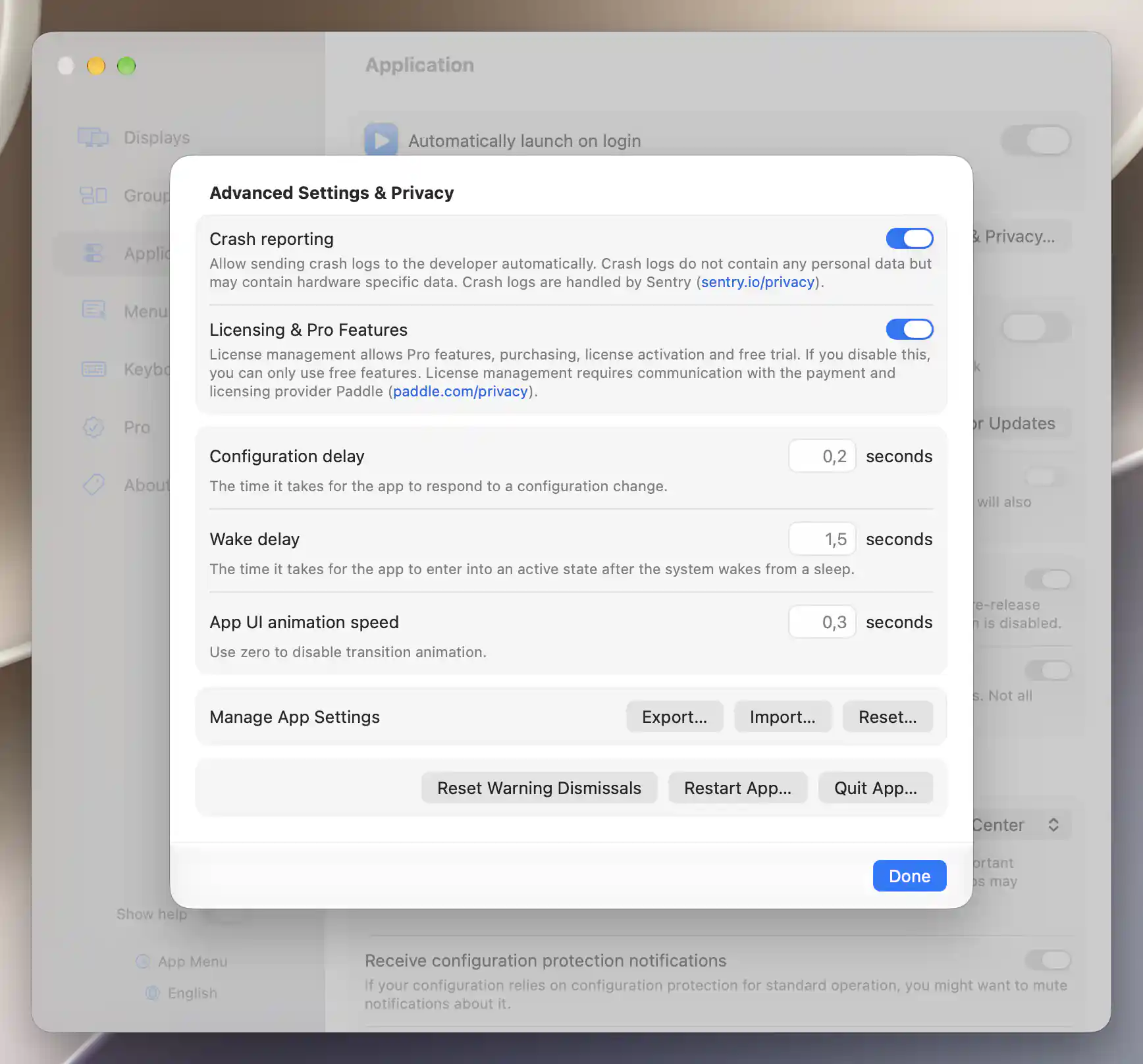
Advanced settings group privacy choices, timing and app-configuration management.
Startup
Enable Automatically launch on login when you want BetterDisplay ready after signing in. Turning it off removes the app’s login-item registration.
The switch is briefly unavailable while the status loads, then reflects what macOS reports. You can also manage BetterDisplay under System Settings > General > Login Items.
Privacy preferences
Crash reporting allows automatic crash reports through Sentry and is enabled by default. The choice is saved. The app explains that reports can contain hardware-specific data, which is relevant when deciding whether to leave reporting enabled.
Licensing permission
Licensing & Pro Features, when this distribution shows it, permits license management, purchasing, activation and the free trial. License management communicates with the licensing provider.
Turning the permission off leaves only free features available; it does not remotely delete an activation. Changing the switch refreshes license state and app configuration. Use the Pro pane when you want to manage the activation itself.
Timing and animation
These fields let you adjust how quickly the app responds around configuration changes, wake and interface transitions. Leave an optional field empty to use its automatic or displayed default, rather than treating an empty field as zero.
- Configuration delay changes how long the app waits before responding to a configuration change. The automatic value is 0.2 seconds; an explicit value is limited to 0–10 seconds.
- Wake delay delays the app’s return to active operation after system wake. The automatic value is 1.5 seconds; an explicit value is limited to 0–10 seconds.
- App UI animation speed sets transition duration, limited to 0–2 seconds. Use zero to disable transition animation. An empty field uses the displayed default.
These preferences are remembered. Leaving an optional field empty restores its automatic/default behavior.
Manage App Settings
Back up or move a configuration
Choose Export… to save the stored preferences as a property-list file, then select a destination in the save dialog. Use Import… to select one such file and replace the app’s stored preferences with its contents. If either operation fails, Operation failed explains the error and OK dismisses it.
Return the app to its defaults
Reset… opens a confirmation so you can review the choice first. Reset restores app defaults and restarts BetterDisplay; Cancel preserves the settings. Custom display configurations already stored in macOS are outside this app reset and remain in place.
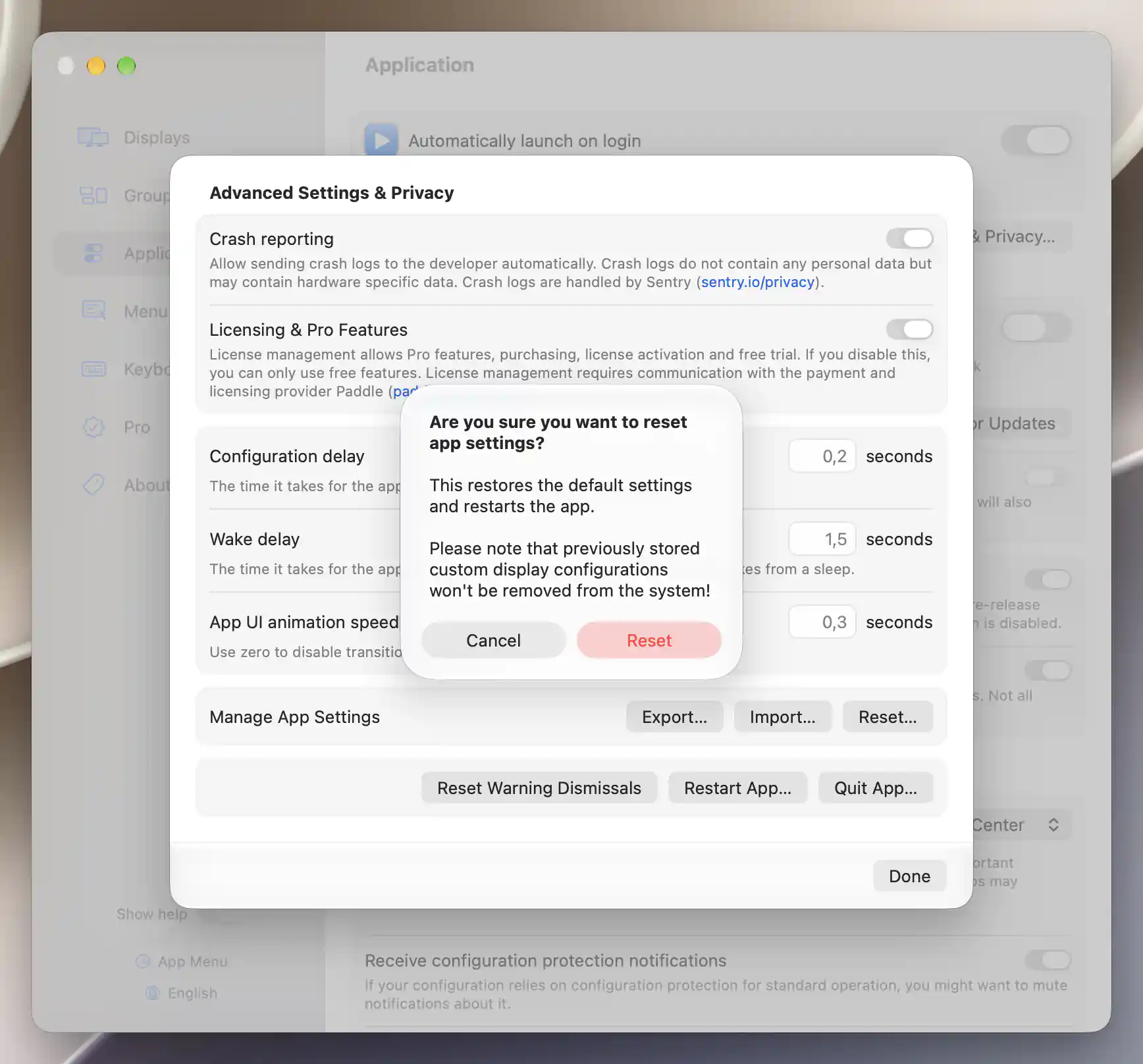
Reset requires confirmation and preserves custom display configurations stored in macOS.
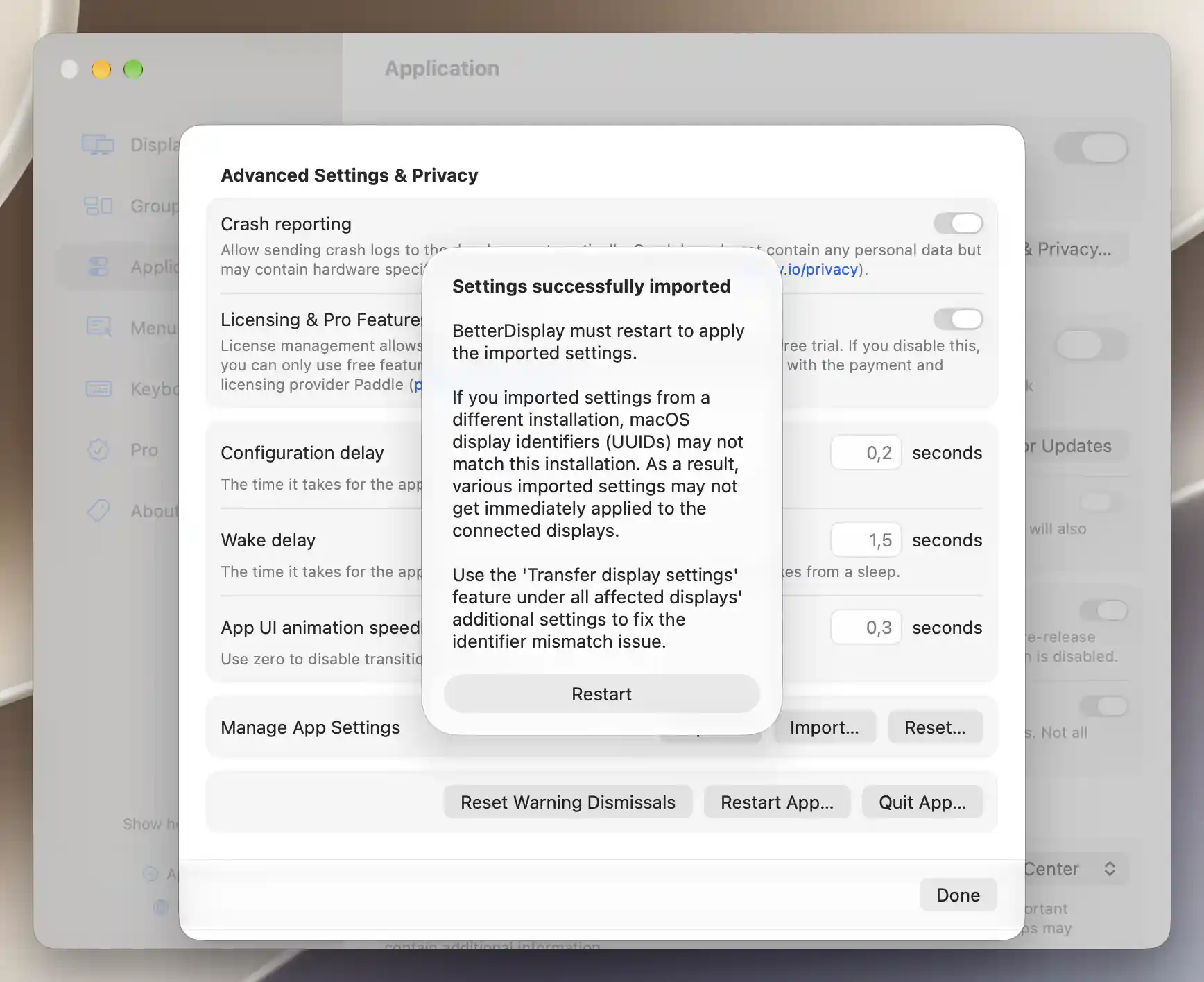
After importing settings, restart BetterDisplay; the notice also explains how to handle display identifiers from another installation.
Warning dismissals and app lifecycle
Use Reset Warning Dismissals when you want previously dismissed warnings to appear again. It acts immediately and acknowledges the change, while keeping the rest of your preferences.
Restart App… and Quit App… each ask for confirmation. Choose the named action to proceed or Cancel to leave the app running as it is.
See Settings for shared editing conventions.
Additional information
This section explains licensing requirements and platform compatibility for the features described above.
Features requiring Pro license
The startup, privacy, timing and app-settings management options described here do not require Pro. Licensing permission enables the trial and license-management mechanisms; it does not by itself supply an active entitlement.
Platform compatibility
All features described on this page are available on both Apple silicon and Intel Macs. Login-item status is supplied by macOS, and the licensing switch depends on the app distribution.