Resolution Slider and Display Mode Menu
These preferences help you shape the list of resolutions you work with and choose how the resolution slider expresses scale. You can keep the slider focused on matching desktop shapes, display a percentage or think in terms of magnification instead. The settings present existing display modes; they do not create new modes or guarantee that a display can use a listed one.
Where to find it: Settings > Menu > Resolution Slider and Display Mode Menu, including their settings sheets.
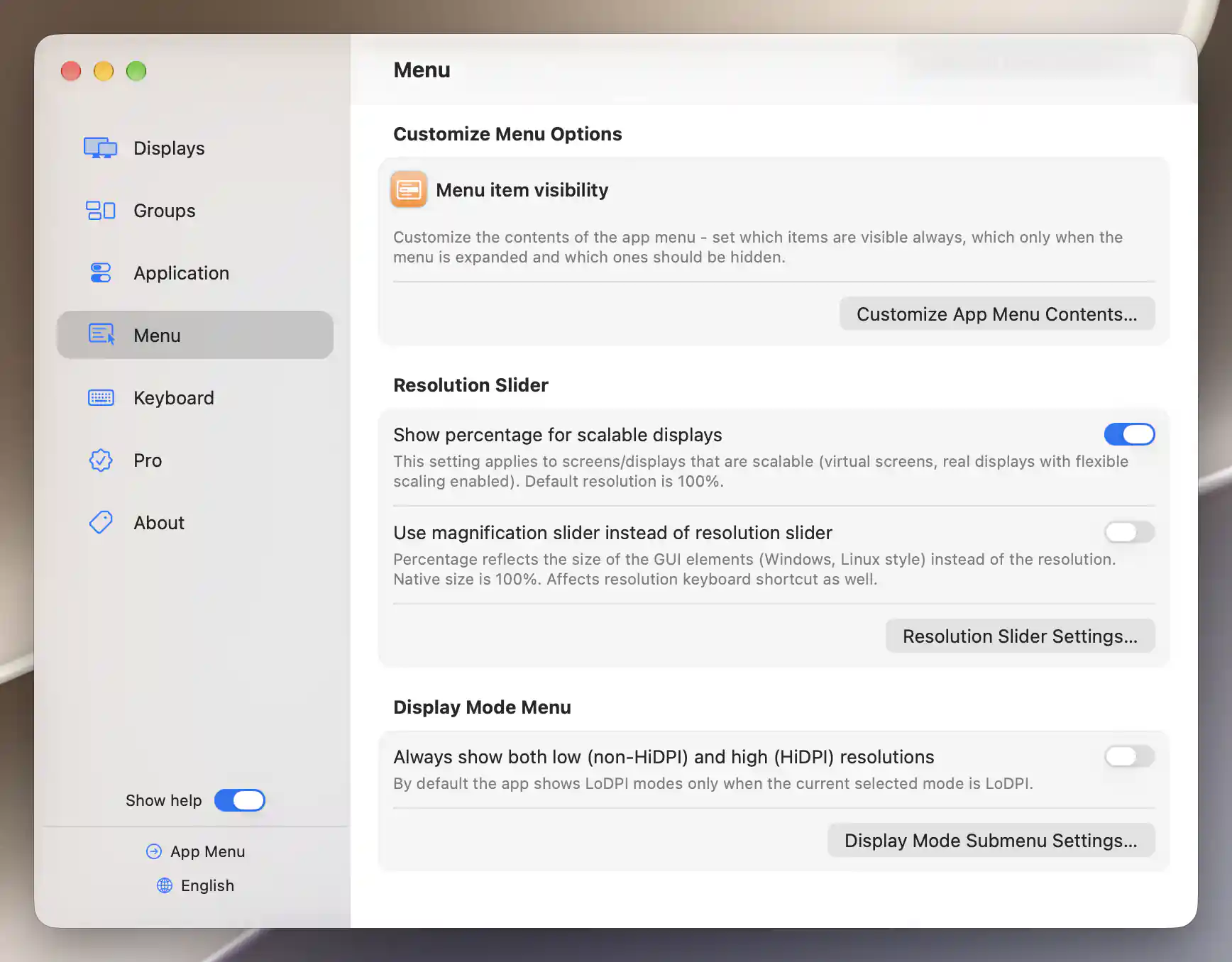
Resolution slider and Display Mode menu preferences.
Resolution or magnification
The slider can describe a change from two useful viewpoints: the amount of desktop space, or the size of the interface elements shown within it. Choose the presentation that best matches how you think about adjusting your display.
Show percentage for scalable displays is on by default. In resolution presentation, the percentage compares the selected size with the display’s default size, which is the 100% baseline. Virtual screens and real displays with flexible scaling are typical uses.
For the rendering background and a practical comparison, see choosing a comfortable macOS scaling mode.
Percentage display also needs Only resolutions that match native aspect ratio enabled and at least twelve eligible slider resolutions. Without those conditions, the slider uses its ordinary resolution presentation even if the percentage preference remains on.
Think in terms of larger or smaller interface elements
When percentage display is enabled, Use magnification slider instead of resolution slider becomes available. It is off by default. Turning it on expresses the size of interface elements rather than the size of the desktop: higher magnification means larger elements and less effective desktop space.
Magnification uses native size as its 100% reference, whereas the ordinary resolution percentage uses the default size. Virtual screens and displays without the necessary size metadata use a reference derived from the available resolutions. The slider direction reverses to follow the meaning of magnification, and resolution keyboard shortcuts use the same convention.
These preferences immediately rebuild the slider’s choices and formatting. They do not select a different resolution by themselves. The slider appears only for a display that is not a mirror target and has more than one eligible resolution.
Resolution Slider Settings
Keep the desktop shape consistent
Only resolutions that match native aspect ratio is on by default. It filters the slider and corresponding resolution shortcuts by aspect ratio, keeping modes with matching proportions and omitting differently shaped ones.
Rotated matches are accepted, and virtual screens are exempt from the ratio filter. A built-in notched display with its notch disabled uses the corresponding notch-free ratio. If you turn the filter off, percentage and magnification presentation also stop applying, even if the percentage preference is still enabled.
Invalid modes and visible dimensions
Allow resolutions marked as invalid is off by default. It admits additional slider choices on some setups and also affects resolution shortcuts.
Show current resolution values, on by default, displays width × height alongside the slider value. This lets you keep the actual desktop dimensions in view when the main value is a percentage. The menu-wide Show slider labels and values preference also controls the visible labeling.
Other conditions that shape the list
The slider preserves the current refresh rate and bit depth. It also follows the current HiDPI/non-HiDPI class, with an exception for the native resolution, respects display-specific size limits and normally excludes modes below 720 pixels high. Duplicate sizes are consolidated.
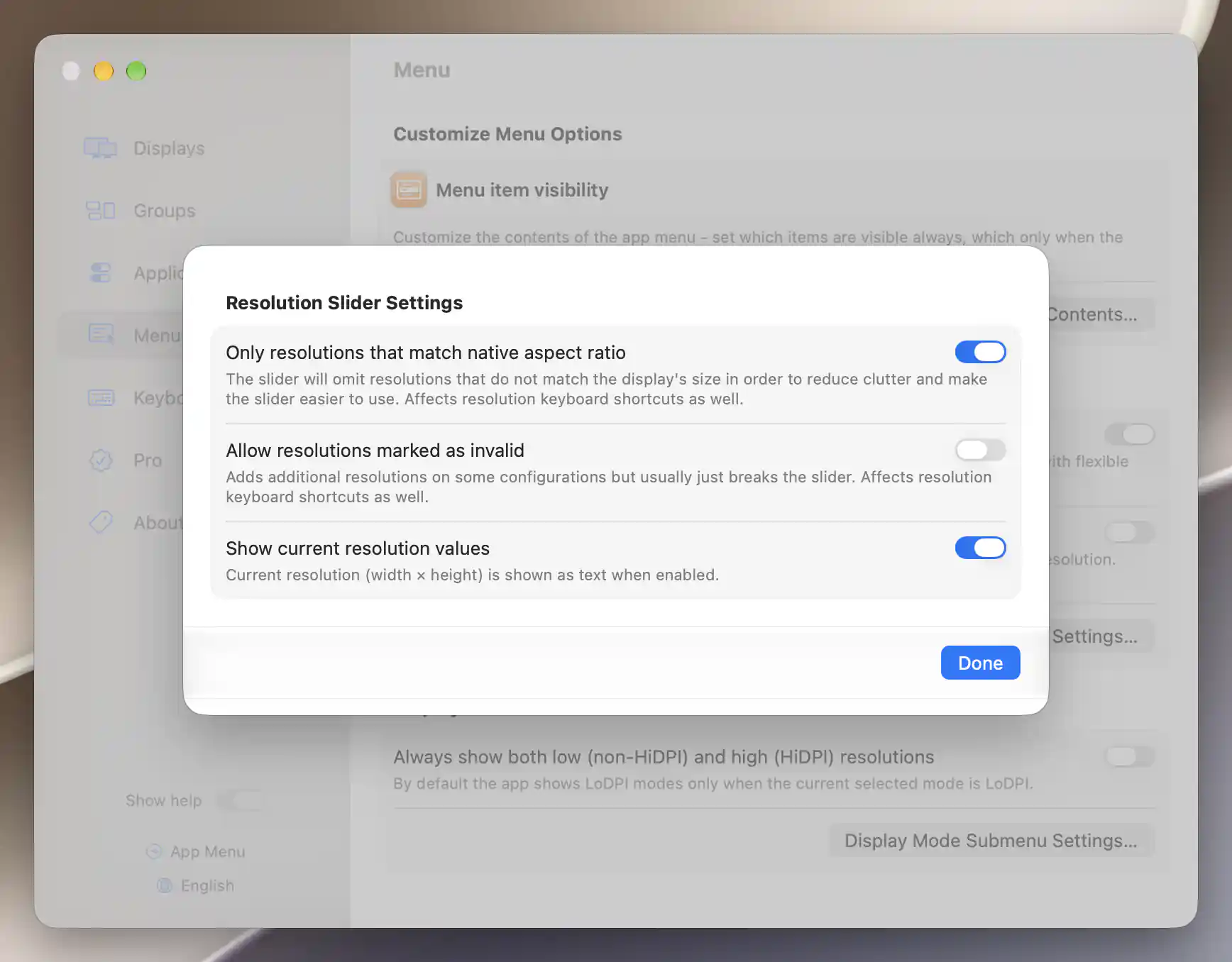
Resolution slider filtering and value display options.
Display Mode Menu
The full mode list has a separate preference for rendering scale. Always show both low (non-HiDPI) and high (HiDPI) resolutions is off by default. Normally, its default filter includes LoDPI modes when the active mode is LoDPI and favors HiDPI modes when the active mode is HiDPI.
Enable the preference to include both available classes in that default filter. It does not erase an individual display’s custom filter or Show All selection, which can still change what the list shows.
Display Mode Submenu Settings
Show display modes marked as unsafe or invalid is off by default. Turning it on includes those modes in the menu’s mode filtering. This is separate from the slider’s invalid-mode setting: admitting unsafe modes to Display Mode does not admit them to the slider.
Allow resolution change for mirror target displays is off by default. A mirror target receives another display’s mirrored desktop. Enable this option when you intend to make low-level resolution changes to that target through Display Mode.
The same option allows the target’s Refresh Rate submenu when alternative rates exist, and its Color Depth submenu on Intel when alternative depths exist. These menus still need a connected display and suitable alternatives. The resolution slider remains unavailable for mirror targets.
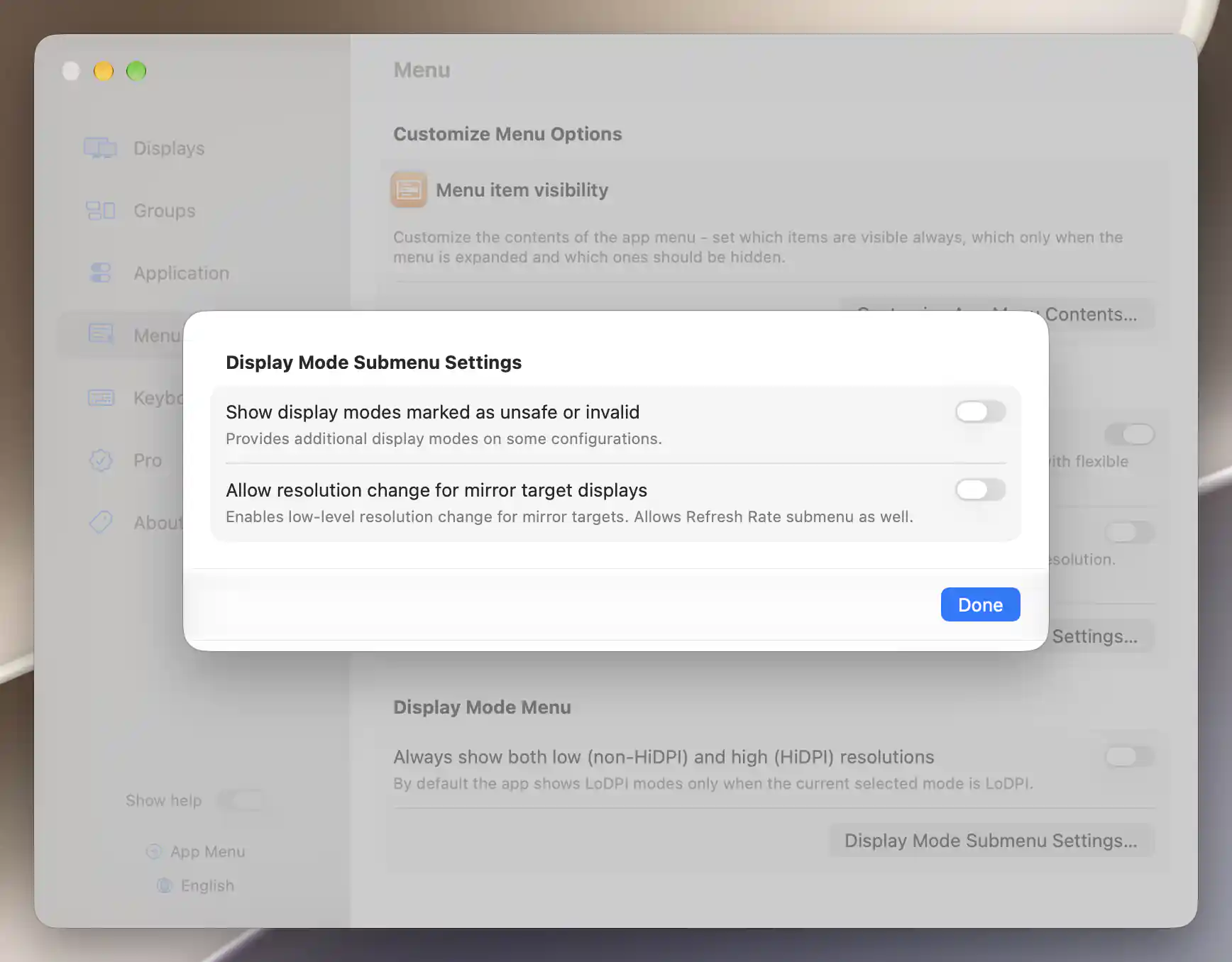
Advanced Display Mode options on Apple silicon.
All preferences on this page are saved without a separate Apply or restart step. Choosing a resolution is a separate action in the App Menu or through a shortcut.
Additional information
This section explains which features require Pro and how availability differs between Mac platforms.
Features requiring Pro license
- Resolution keyboard shortcuts, including their use of the magnification convention.
The filtering and formatting preferences on this page, and ordinary resolution-slider selection, do not themselves require Pro. Configuring other features such as flexible scaling has its own requirements.
Platform compatibility
Resolution filtering, percentage/magnification presentation and the mirror-target option are available on both Apple silicon and Intel Macs, subject to the display’s eligible modes.
For mirror targets, the option can expose Refresh Rate on either platform when alternatives exist. The dedicated Color Depth submenu is Intel-only. The slider remains unavailable for mirror targets on both platforms.