How can I fix Paddle activation errors?
If BetterDisplay is unable to activate your Pro license, first check that the purchase email address and complete license code are in their separate fields. Then check the app’s access to Paddle’s activation servers. Activation is handled entirely by Paddle’s licensing component inside BetterDisplay. A Paddle error does not by itself mean your license is invalid.
Paddle is unable to complete license activation
Paddle may display the message “We were unable to complete the license activation of the requested product.” This FAQ covers that “unable to complete” activation error and other “unable to activate” problems, including incorrect entries, missing internet connectivity, firewall rules and general network issues.
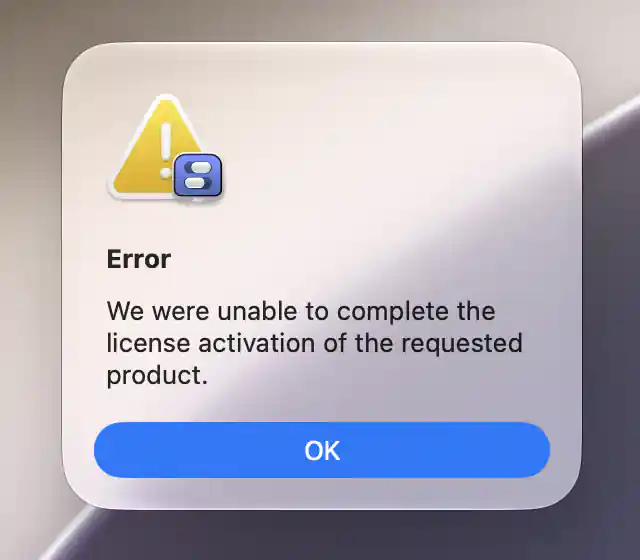
Paddle’s activation error does not identify the underlying cause on its own.
Check the email address and full license code
Open Settings > Pro > Already Have a License?. If a license is already present, the button is Manage License. The Pro pane reference explains the dialog.
- Copy the email address used for the purchase into the field below Email Address.
- Copy the entire license key from Paddle’s original license email into the separate field below License Code. Do not put the key into the email field. This is a common entry mistake.
- Check that you included the final character and did not add spaces or line breaks. A screenshot of a previous activation dialog may show only part of the key because the entry field crops its contents. Use the original email instead of transcribing that screenshot.
- Choose Activate, wait for the result, and check that Settings > Pro shows Pro License Activated.
If the license email went to the wrong address, follow purchase email recovery. For a missing receipt or license email, contact Paddle buyer support.
Check whether the license covers this app version
An Outdated License notice means the key does not cover the newer major app version. Read the v5 upgrade FAQ or the v4 upgrade FAQ for the version you are using. Network troubleshooting or clearing local licensing data cannot extend a license’s version coverage.
Check internet access and firewall rules
Paddle’s licensing component needs an outgoing HTTPS connection to its activation servers under *.paddleapi.com. The production licensing host used by BetterDisplay is v3.paddleapi.com. The wildcard means the subdomains of paddleapi.com, not a literal server name.
Open Settings > Pro to check BetterDisplay’s own access to the licensing server. With licensing enabled, the pane checks access even without an activated license. If the request fails, an orange Unable to Reach Licensing Servers notice appears. New license activations and license management may not work properly until connectivity is restored. Check your network connection and firewall settings. Leave the pane open while reviewing the checks below. It retries every five seconds and removes the notice once the request succeeds.
- Check that your Mac can open websites. If it cannot, resolve the general connection problem first. Apple’s internet troubleshooting guide explains where to check network status.
- In BetterDisplay, try Check for Updates… from the app menu, or Settings > Application > Check for Updates. A completed check, including an up-to-date result, shows that the app reached its update service. If this also fails with a connection error, inspect app-specific firewall rules and the wider network connection. The failure alone does not identify the cause.
- In any firewall, security app or network filter you use, check for blocked outgoing connections from BetterDisplay. Allow the app’s HTTPS licensing traffic to
*.paddleapi.com(TCP port 443). A browser working normally does not show that BetterDisplay has the same access. Managed networks may require help from their administrator. The firewall configuration reference also covers checkout domains. - If you use a VPN, proxy or filtered network, try activation on another trusted connection, such as a personal hotspot. If it works there, review the original connection’s filtering, DNS or proxy settings.
Licensing and updates use different services. A successful update check does not show that Paddle is reachable. You may still have a rule that blocks only Paddle. If the issue appears temporary, try again later before resetting local data.
Optional Terminal checks
These checks can help identify a general problem reaching Paddle. They do not submit your license details or perform activation. Open Terminal and test the actual hostname, not the wildcard:
ping -c 4 v3.paddleapi.com
Replies show that the hostname resolved and the server answered an ICMP ping. A “cannot resolve” message points toward a name-resolution problem. Servers and networks can ignore ping while still allowing HTTPS, so a timeout alone does not show that the connection is blocked. A successful ping also does not test the activation service or BetterDisplay’s own access.
For a check closer to the connection activation needs, try:
curl -I --connect-timeout 10 --max-time 20 https://v3.paddleapi.com/
An HTTP response, even 404 or another error status for this root URL, means Terminal reached an HTTPS server. DNS, connection or certificate errors need investigation. This checks Terminal’s access only. A firewall can allow Terminal and still block BetterDisplay.
Also inspect the Mac’s hosts file for any active entry mentioning Paddle:
cat /etc/hosts
The hosts file can override where a hostname connects. Ignore comment lines beginning with #. An entry sending a Paddle hostname to 127.0.0.1, 0.0.0.0 or another unrelated address can prevent it from reaching the real server. Some third-party tools or older software installations can leave domain-specific rules behind. If you find an unexpected Paddle entry, ask whoever manages those rules to remove or correct it, then retry activation. Leave unrelated entries intact. Even if there is no Paddle entry in the hosts file, filtering elsewhere may still block the connection.
Reset local Paddle licensing data as a last resort
If the purchase details and network checks do not resolve the error, you can clear Paddle’s local licensing data and try a fresh activation. Save your purchase email address and full license code first, and confirm that the license covers this app version. This removes the local activation state. Read the outdated-license caution above before proceeding.
Quit BetterDisplay completely.
In Finder, choose Go > Go to Folder… and paste:
~/Library/Application Support/BetterDisplayKeep a backup copy of the folder’s contents, then move those contents to the Trash. The path is inside your own user’s Library folder. The
~symbol means your home folder.Open BetterDisplay again and activate with the purchase email address and complete license code in their separate fields.
Check Settings > Pro for Pro License Activated. Keep the backup until the issue is resolved.
This is a licensing-data reset. The separate app-preferences reset FAQ addresses configuration problems. Resetting preferences is not a required activation troubleshooting step.
If activation still fails
Contact the developer through the Contact section on betterdisplay.pro. Include a screenshot of the complete error, an explanation of what happens, the troubleshooting you have tried and the Paddle order number from your receipt. Include your purchase email address, BetterDisplay version and macOS version so the purchase and installation can be identified. Send purchase details privately. Do not post your full license key in a public thread.
For an activation limit or a move to a new Mac, follow license transfer and activation recovery. If activation succeeds but later disappears repeatedly, see repeated deactivation.