Pro
Use the Pro pane to see whether this installation has access through a trial or an activated license. From here you can purchase or enter a license, manage activations, and understand a licensing notice. Start with the status shown in the pane: it tells you more than whether a checkout window has been opened or closed.
Where to find it: Settings > Pro. Pro badges and licensing notices elsewhere can lead here.
License management must be enabled, including for the trial. Purchase and activation communicate with the licensing provider; check the refreshed app status afterward to confirm the result.
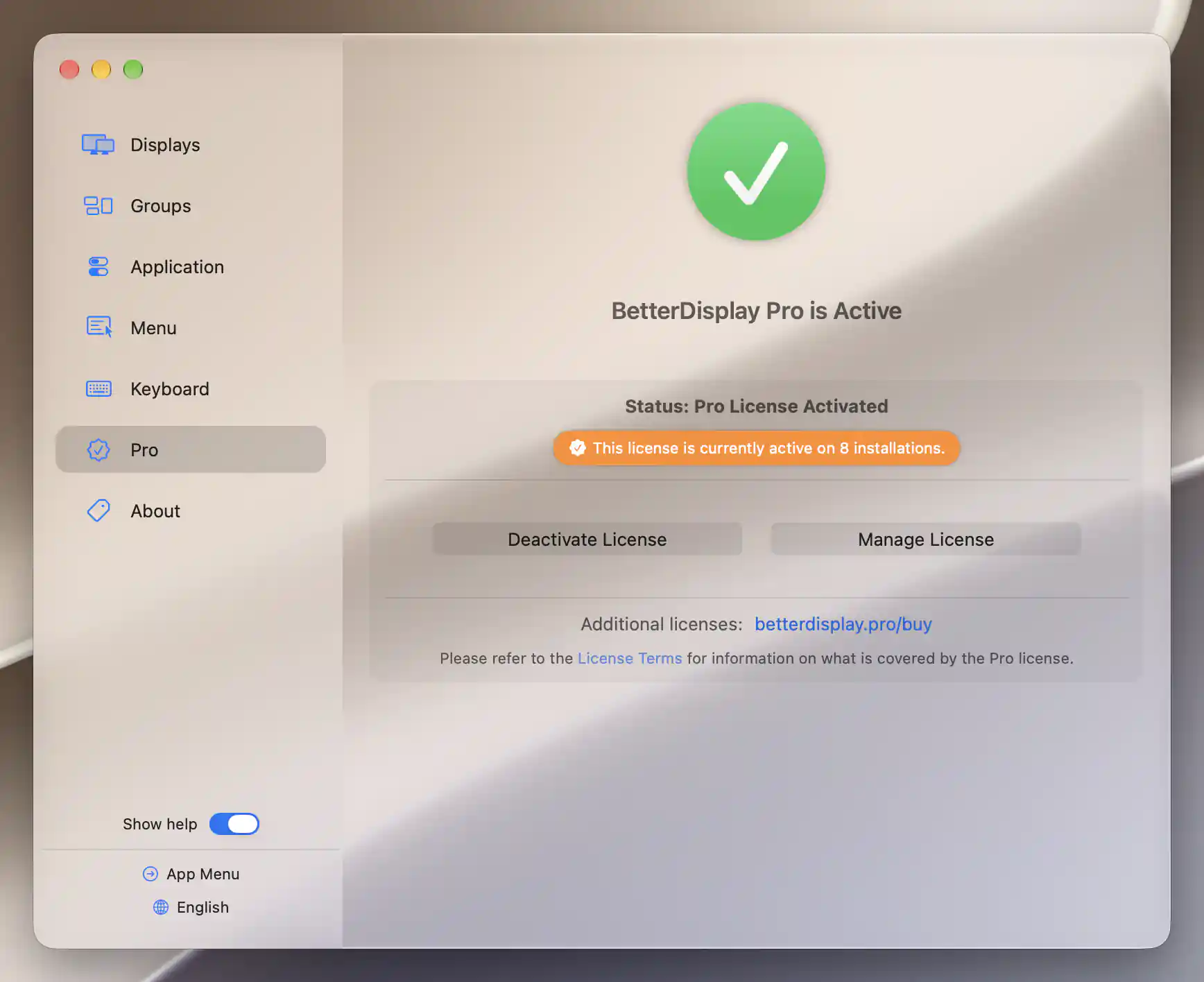
An activated license shows its current status and the available management actions.
Status and licensing permission
When licensing is disabled, the pane reports Licensing & Pro Features Disabled and offers Licensing & Pro Features. Enabling it initializes licensing and refreshes the app's configuration. The same permission is available in Application settings. Turning permission off limits the app to free features; it is distinct from remotely removing an activation.
Read the current status
- Unlicensed, Trial Active means the trial is active, with remaining days shown when available.
- Unlicensed, Trial Expired is accompanied by Pro is Inactive.
- Pro License Activated identifies an activated license.
- Outdated License calls for attention to the version-compatibility notice described below.
A trial or active license can make the features available, while an outdated-license notice can add conditions to continued use or reactivation.
Purchase and enter a license
Choose Buy BetterDisplay Pro to open checkout, or Already Have a License? to activate a purchase you already made. When a license is present, the latter button reads Manage License. Paddle provides these windows.
Activate an existing purchase
Enter Email Address and License Code, then choose Activate. Activating License can appear while the request is processed. Cancel leaves the form, and Buy Now offers a purchase alternative. After activation finishes, check the refreshed Pro-pane status.
Complete a purchase
The checkout interface supplies an Enter License alternative and can report Completing Purchase. Its payment form, available methods, error messages and commercial details are supplied by the provider and may vary. Closing a window does not by itself prove activation succeeded. The app refreshes licensing after checkout or activation finishes.
Additional payment methods & licenses or Additional licenses links to the purchase website. License Terms opens the applicable terms. Use those destinations for current prices, purchase methods and coverage; this reference does not freeze commercial terms into the interface description.
Manage activations
An activated license can offer management of one installation or several. When the app receives an eligible small multi-installation activation list, its main action is Manage Activations; otherwise it offers Deactivate License. Selecting the activation-count notice opens the applicable confirmation too.
The choices depend on the returned license data. A count notice alone does not mean every license offers the same management actions.
Manage Activations offers:
- Remove This Activation: deactivate only this installation.
- Remove Other Activation(s): remove the other reported activations while retaining this installation.
- Remove All Activations: remove the reported activations, including this installation.
- Cancel: make no removal request.
The simpler Do you want to deactivate the license? confirmation offers Deactivate and Cancel, and reminds you to save your license details for future activation. Removal affects entitlement, not just the visibility of a notice. Requests require a successful response from the licensing service; inspect the refreshed status afterward.
License notices
License Issue Detected means the installation was remotely deactivated or its hardware identifiers no longer match its activation. The notice asks you to reactivate; Dismiss hides the notice without repairing the activation.
Version compatibility and an existing activation
An Outdated License error says the license cannot activate the current app version and directs you toward a new license. A separate upgrade-continuity notice can appear while an existing activation remains usable. It explains that deactivation or reinstallation will prevent reactivation of that version with the old license. Deactivate and Buy or Enter New License deactivates, then opens checkout; Dismiss retains the current activation and hides that warning. The smaller outdated-license banner can reveal the warning again.
Automatic replacement of an older activation
The maximum-activations notice reports that an older activation was automatically removed to make room for the new one. Its Dismiss only clears the notice; it is separate from choosing to remove activations manually.
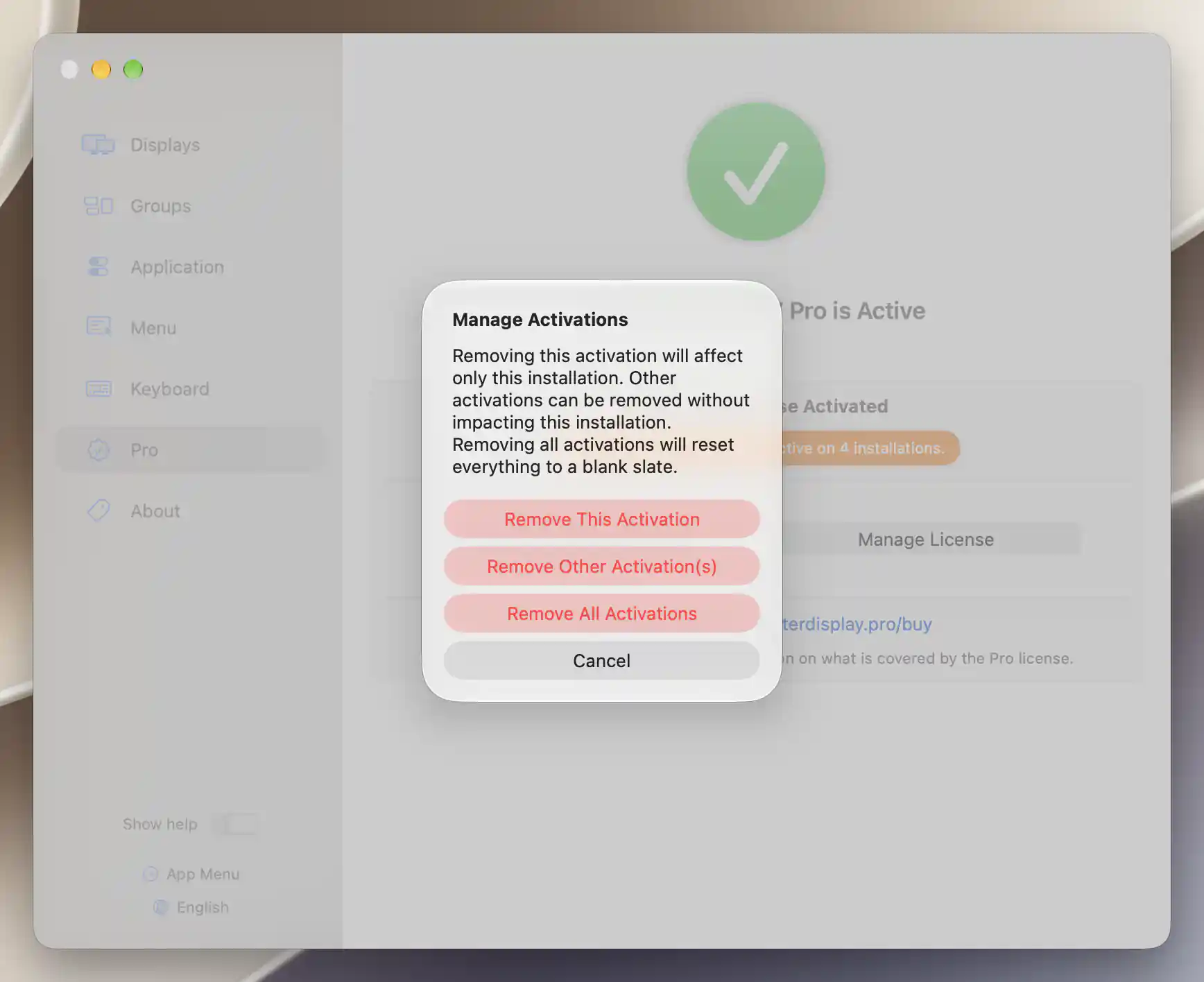
Manage Activations distinguishes removing this installation, other installations or all activations; this example uses the separate DEV sandbox.
The App Menu and Settings may hide or disable individual Pro features as entitlement changes. An enabled preference does not establish that a particular display supports the feature.
Related pages
- Getting a Pro license covers purchasing, activation, transfers and troubleshooting.
- License terms, refunds and privacy explains the purchase conditions.
- BetterDisplay v5 upgrade FAQ explains outdated licenses and upgrade eligibility.
- Scripted license management covers automated deployment and remote activation removal.
Additional information
This section explains licensing requirements and platform compatibility for the features described above.
Features requiring Pro license
No existing Pro entitlement is required to open this pane, purchase a license or enter one. License-management actions need the corresponding license state and a successful provider response. Individual app features have their requirements listed on their own pages.
Platform compatibility
All features described on this page are available on both Apple silicon and Intel Macs. License state, supported app version and provider responses determine which management actions appear; purchasing or activation requires communication with the licensing service.