Device header and connection
Use the device header to find the features for a display or virtual screen and see how it is being used. Click its name to expand its menu section, or use its switch to change the display's connection or screen state. The switch's purpose depends on how you have configured that device.
Where to find it: App Menu > device header. Expand the device and its more-options area to find separate connection commands when enabled. When only one device is listed, its header is normally hidden; you can make it visible in Settings > Menu.
Physical-display connection commands require connection management, which is enabled by default. Disconnecting normally requires another eligible display to remain connected.
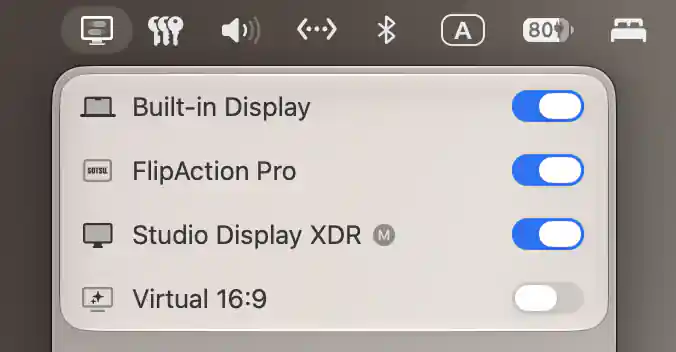
Three connected physical displays and a disconnected virtual screen; the M badge marks Studio Display XDR as the main display.
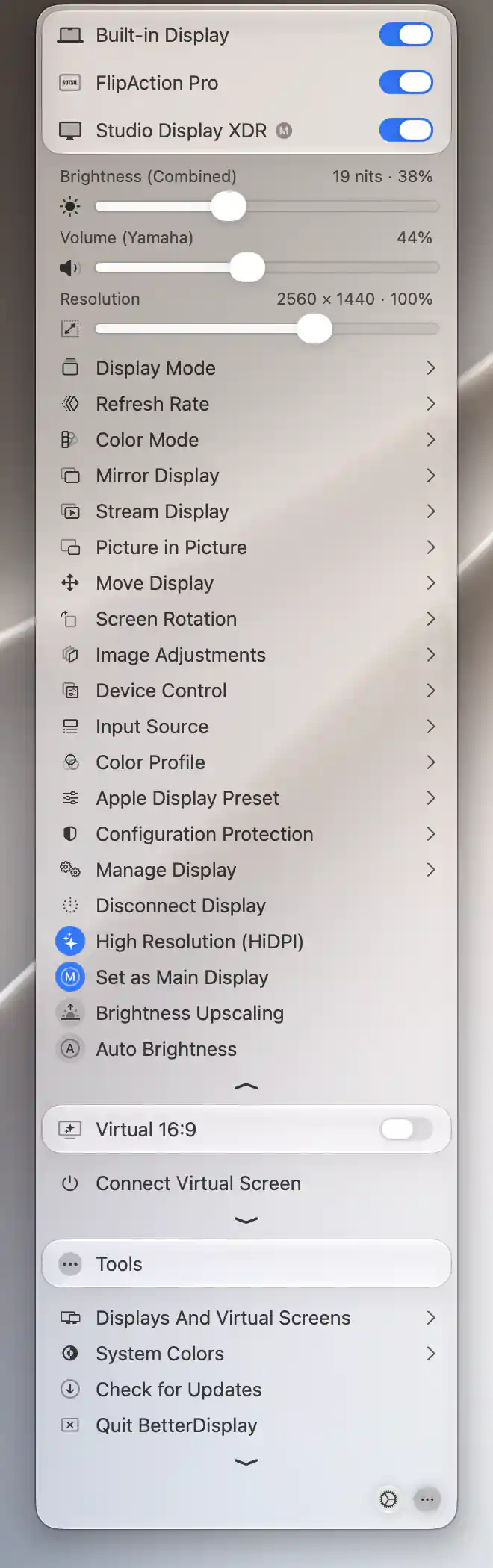
Header switches show connection state; separate commands appear below the expanded display menus.
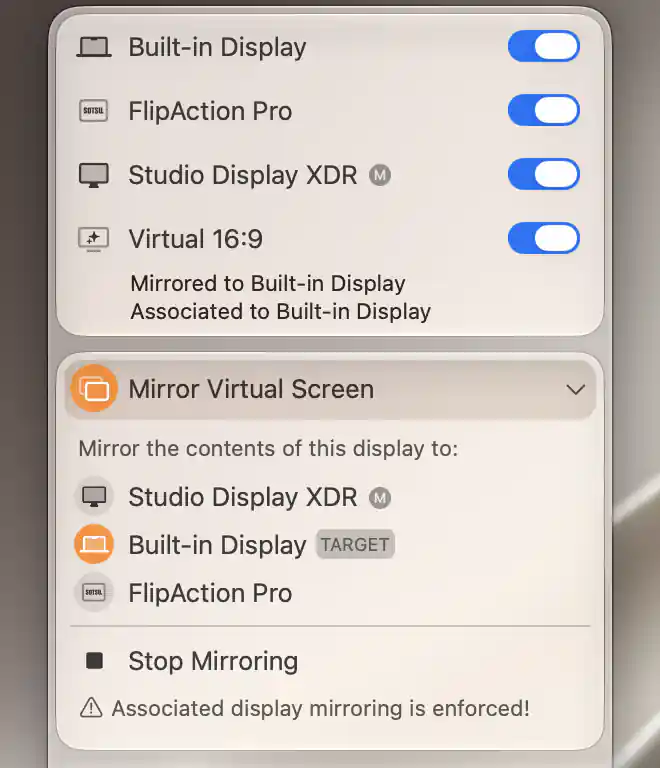
The expanded header identifies the active mirror target and associated display.
Name, markers and secondary status
Each header brings a device's menu items together under its displayed name and icon, including any custom name or icon you have chosen. Click the name area to expand or collapse that section. The M marker identifies your main display; a sleep-prevention marker tells you that this connected device is configured to keep the Mac awake.
The expanded header also helps you understand relationships between screens. Its status can identify the source or target of mirroring, show streaming to or from another screen, or show an association with one or several displays. If a virtual screen is being used as a mirror or stream target, a warning draws attention to that role: receiving another screen's image is different from being the source of that image.
A device can remain listed after it has been disconnected. When there is no header switch to show its connection state, the header displays Disconnected instead. A remembered entry does not mean the hardware is currently attached or reachable, and most adjustments require a connected display.
Header switch
Before using the switch, it helps to distinguish a display's connection from its screen or power state. Disconnecting removes the display from the desktop layout. Screen control can instead darken the panel while keeping that connection. These choices are useful for different purposes: removing desktop space you are not using, or darkening a screen without removing it from the layout.
Choose the switch's purpose in Display menu on/off switch behavior, under the selected display's Additional Settings > Display Connections in Settings. BetterDisplay remembers this choice for the display.
- Default and Connect/Disconnect manage its logical connection. Turning the switch off disconnects the display from the desktop layout; this is different from sending the monitor a hardware power command.
- Screen Control uses an available controller's screen or backlight command. It can darken the panel while retaining the display connection. The switch appears only when that controller supplies a state for it to show.
- DDC Power Off sends a supported DDC power-off command. This is a power-off action: do not rely on the app to turn the monitor back on. You will need to turn it on manually.
- Disabled removes the switch from the header.
Choosing Screen Control or DDC Power Off does not remove a separately enabled logical connection command. You can therefore keep a screen or power action on the switch and still use Connect Display or Disconnect Display when you need to change the desktop layout.
If the switch is missing or unavailable
The switch is hidden if you have hidden it globally, selected Disabled, or chosen an action the display does not support. A visible connection switch can also be disabled during an exclusive system virtual-display session. Its presence and availability therefore reflect both your preferences and what can be done with the device at that moment.
Screen and power confirmations
DDC screen control displays a compatibility warning because some monitors cannot reliably turn their screen off or back on. Turning off the main or only physical display adds a confirmation. DDC Power Off also warns about compatibility and the need to turn the monitor back on manually.
Read the warning before choosing Proceed, which executes the command. Choose Cancel to leave the operation undone.
Connect and disconnect
Use Disconnect Display when you want to remove a display from the desktop layout, and Connect Display to request its connection again. These commands perform the same logical connection operation as a header switch configured for connection control. They are normally omitted when the switch already provides that action, but Menu settings can keep the duplicate commands visible.
When the Disconnecting a Display confirmation appears, choose Disconnect to carry out the action. The warning and the expected result differ between Apple silicon and Intel Macs, so read the guidance for your Mac before proceeding.
Disconnection on Apple silicon
On Apple silicon, disconnecting should remove the display from the layout and make it enter standby. Some displays are not compatible with this behavior and may not turn off or remain off.
If you later cannot reconnect the display through the app, try reconnecting it physically. For a MacBook display, close and reopen the lid.
Disconnection on Intel Macs
On Intel Macs, software disconnection does not fully put the display to sleep and may behave unexpectedly. BetterDisplay normally also dims it while disconnected, then restores the saved brightness after reconnection. This brightness adjustment depends on a suitable brightness control being available.
Why some displays cannot be disconnected
The default safety rules keep at least one eligible physical display connected. An app-managed virtual screen or an ordinary system virtual display does not count as a replacement; a registered DisplayLink display can count. Having another screen listed is therefore not always enough to allow disconnection.
iMac built-in panels and built-in displays on base Apple M3 Macs have an additional protection: their specific safety override must be enabled before disconnection is permitted. Advanced overrides can change the safety rules, but simply enabling connection management does not override them.
Reconnection and automatic recovery
BetterDisplay has a reconnect-when-none-remain preference, enabled by default. When it cannot find an eligible actual display, it requests reconnection. Generic wake-replacement entries and ordinary system virtual displays do not satisfy that check.
This recovery requires connection management and is disabled by the option that allows all displays to be disconnected. It is a recovery measure, not a guarantee against every hardware failure. Reconnecting a physical display through the app is also blocked during an exclusive system virtual-display session. Normal reconnection does not reopen a built-in display while the MacBook lid is closed.
Virtual screens and notices
A virtual screen has a saved configuration as well as an active connection. Connect Virtual Screen creates that active connection; Disconnect Virtual Screen removes it without deleting the configuration. You can therefore disconnect the screen without losing its setup.
Associated-display rules can manage that connection automatically. When those rules enforce connection or disconnection, the header switch is disabled and the separate command reads Connect (Automatic) or Disconnect (Automatic). To change this behavior, change the association policy. The disabled command is an indication of automatic control, rather than a failed attempt to connect.
If an attempted connection does fail, BetterDisplay reports Unable to connect virtual screen.
Notices beneath the header
Notices draw attention to a device preference or an available setup action. Click Here To Allow Sleep turns off the selected device's sleep-prevention preference and updates sleep prevention across displays. Another display's policy may still keep the Mac awake.
When an optional adaptation is queued, Install Display Adaptation… opens that display in Settings. Otherwise, Configure Device Control… can open DDC configuration for an unadapted connected display. That configuration notice disappears when you dismiss it.
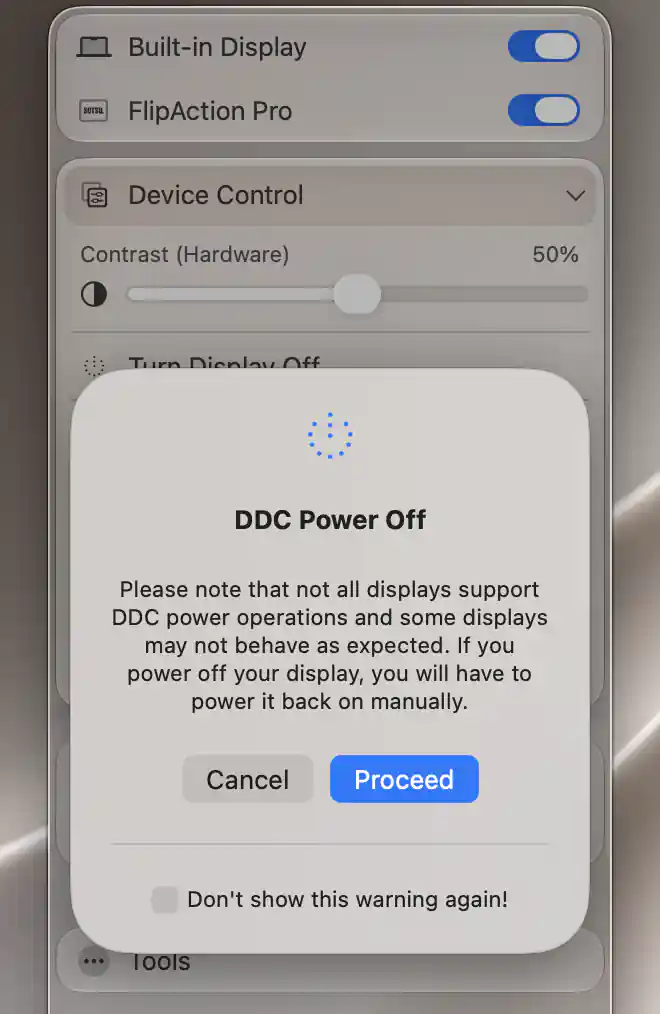
DDC power-off requires confirmation and may require manually powering the display back on.
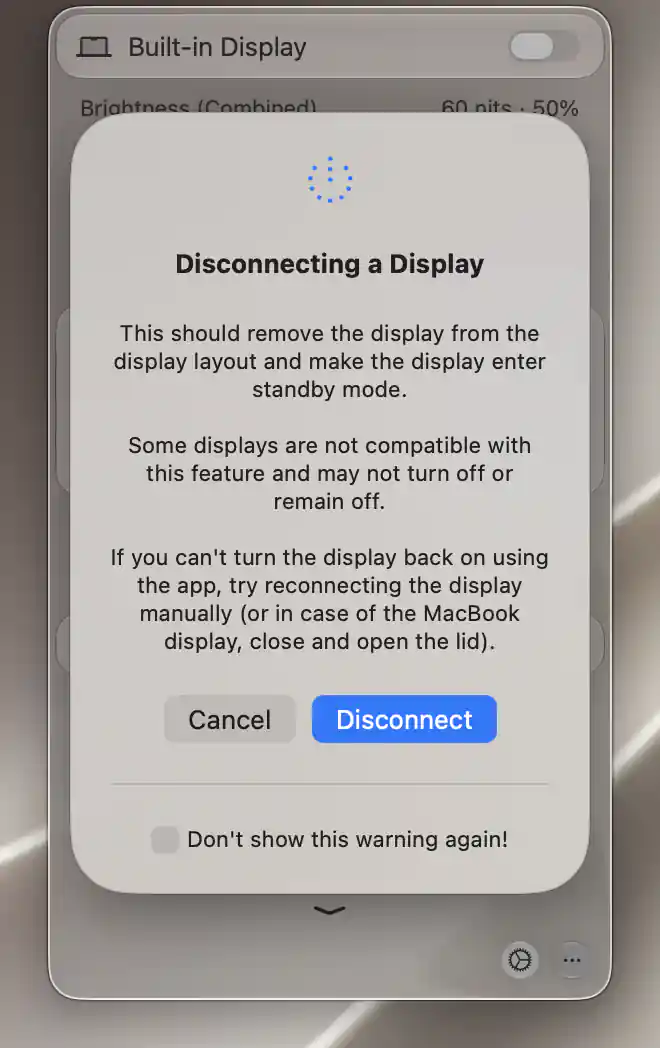
The disconnect confirmation explains standby compatibility and recovery options before the display is disconnected.
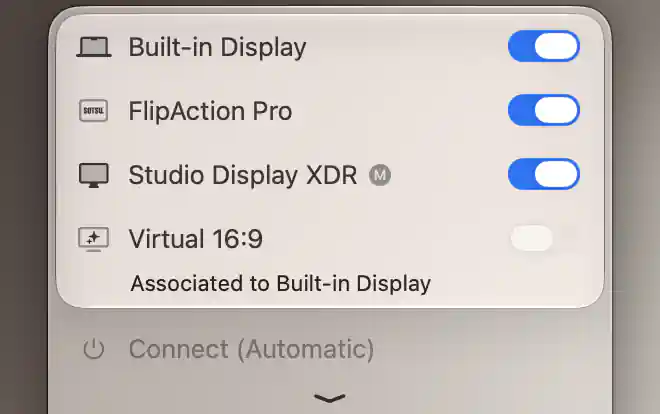
An enforced association policy controls connection automatically and disables the manual connection command.
See App Menu for navigation and the right-click Connect All Displays recovery entry.
Additional information
This section explains which features require Pro and how availability differs between Mac platforms.
Features requiring Pro license
- Physical-display connection management, including Disconnect Display and the header switch's connection action. Reconnecting a display previously disconnected by the app remains available without Pro; other connection actions can be disabled when Pro is unavailable.
- Automatic reconnection when no eligible display remains.
- Auto-disconnect on external display connection for the built-in display.
Platform compatibility
The device header and connection commands are available on both Apple silicon and Intel Macs, with different behavior and safety limits:
- Apple silicon: disconnecting normally removes the display from the layout and requests standby. Auto-disconnect on external display connection for the built-in display is available on this platform. Built-in displays on base Apple M3 Macs require their specific safety override before disconnection.
- Intel: software disconnection does not fully put the display to sleep. BetterDisplay can dim it and restore its brightness on reconnection when a suitable control is available. Read the Intel disconnection warning before using this feature.
Built-in iMac panels also require a specific safety override. On either platform, individual screen and power commands depend on the display and its controller; having a supported Mac does not guarantee that a monitor supports every command.