Displays And Virtual Screens
Use this submenu for actions that span your display setup: create or reconnect virtual screens, bring physical displays back, or recover a connection that is not behaving as expected. Virtual-screen definitions and physical displays have separate action groups. Choose the group according to what you want to affect, rather than assuming a bulk action includes every device.
Where to find it: App Menu > Tools > Displays And Virtual Screens.
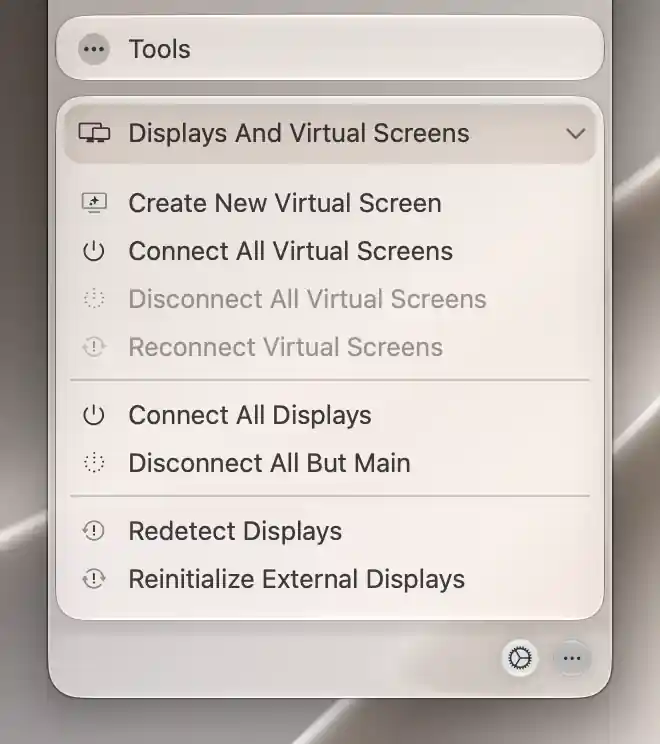
The virtual-screen actions reflect the current connection state; physical-display recovery actions appear below.
Virtual screens
Create New Virtual Screen opens the creation sheet in Settings > Displays and selects its overview. It does not create a screen until you complete that sheet.
Connect All Virtual Screens connects saved definitions that are disconnected. Disconnect All Virtual Screens removes connected virtual desktops while keeping their definitions. A choice is unavailable when no screen has the relevant state.
Reconnect Virtual Screens cycles all currently connected virtual screens, including associated screens. It does not connect definitions that were already disconnected or discard their saved configuration. See Virtual screen.
Physical displays
Choose Connect All Displays to request reconnection while connection management is enabled. Reconnecting a built-in display that was automatically disconnected can suspend that automatic policy. The app reports the suspension, which lasts until you manually disconnect the built-in display again or restart BetterDisplay.
Keep only the main display connected
Disconnect All But Main needs enabled connection management and a disconnectable external display. Its Disconnecting Displays confirmation explains standby compatibility and manual recovery. Choose Disconnect to proceed or Cancel to keep the displays connected. A remembered warning dismissal can skip later confirmations.
The action preserves the main display, and desktop built-in safety preferences still apply.
The platform-specific consequences and last-display safety rules still apply to bulk connection operations. Read Device header and connection before using them, especially on Intel Macs.
Detection and recovery
Begin with Redetect Displays when you want macOS to detect displays again and BetterDisplay to refresh its configuration. This keeps the saved settings.
On Apple silicon, Reinitialize External Displays is enabled when a suitable external display is available. It reinitializes supported display connections and can temporarily blank them. It is a stronger recovery action than refreshing the app’s list.
Identical displays
When two otherwise indistinguishable displays are identified in the wrong order, [display name] - Swap Position can correct their relationship. A row appears for each recognized swappable set.
The action exchanges the arrangement, supported modes/orientation and HDR choices, along with BetterDisplay’s stored identification mapping. It changes more than the names shown in the menu.
All these rows describe current availability. A missing hardware-specific action is not made available by changing its menu visibility preference.
Additional information
This section explains which features require Pro and how availability differs between Mac platforms.
Features requiring Pro license
- Disconnect All But Main.
- [display name] - Swap Position.
Connect All Displays has a Pro-related badge but remains available as a recovery action without enforcing entitlement. Virtual-screen bulk connection actions, redetection and the listed hardware-recovery commands have no separate Pro requirement. Custom virtual-screen creation choices have their own requirements.
Platform compatibility
Virtual-screen lifecycle actions, ordinary connection management and swapping suitable displays are available on both Apple silicon and Intel Macs. Reinitialize External Displays, Reset VMM7100 HDMI Adapter and the built-in automatic-disconnection policy require Apple silicon. Physical disconnection retains the Intel safety warning and display-specific restrictions in the linked connection page.