App Menu
The App Menu is the everyday starting point for adjusting your displays. Each device has its own section, so you can choose a display and find its adjustments and actions together. Tools contains shared actions that work across displays or with selected content.
Where to find it: Click the BetterDisplay menu-bar icon.
The available features depend on your displays, their enabled control methods, permissions and macOS version. Menu customization can also hide menu items, so an absent item does not always mean the display lacks that feature.
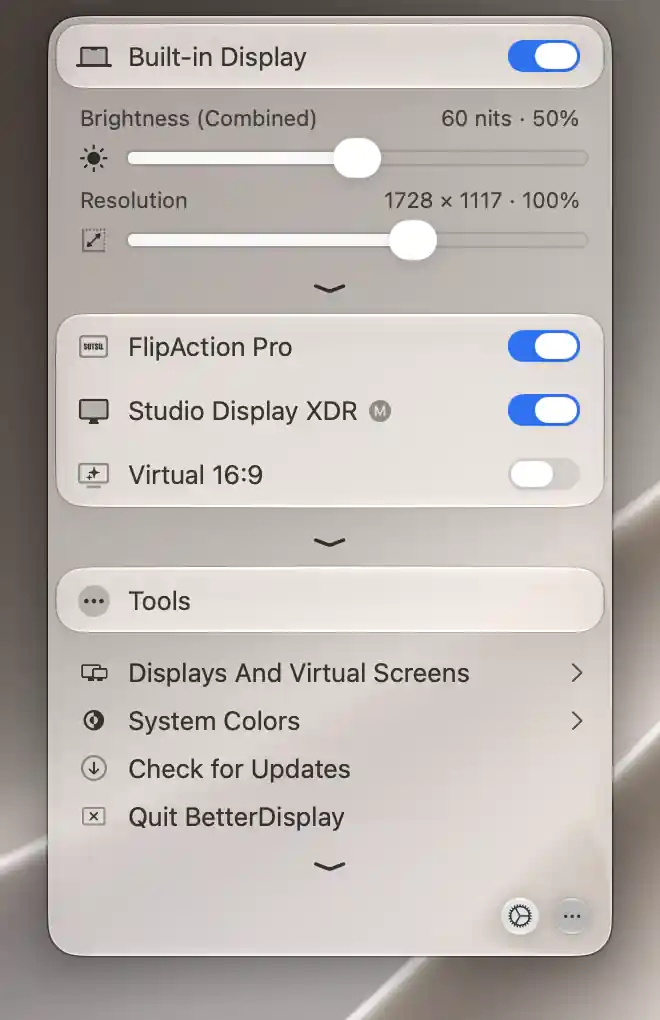
Expand a device header to reveal its brightness and resolution, then use Tools or the bottom Settings button.
Open, navigate and close
Click a device header to expand or collapse its menu items. This lets you keep the devices you are working with in view while putting others aside. BetterDisplay remembers each device’s collapsed and more-options states, although menu behavior preferences can close sections automatically.
When only one device is listed, its header is normally omitted and its menu items stay visible. You can keep the header visible through Settings > Menu if you prefer the same layout regardless of how many devices are present.
Reveal additional options
The chevron beneath a section reveals its additional options. It appears only when that section has available content assigned to this level. By default, opening another device’s more-options area closes the previous one; this tidies the menu and does not disconnect either display.
Select a named feature, such as Display Mode, to expand its options. With the default preferences, expanding a feature hides its sibling sections to make room, and closing the App Menu closes expanded features. You can change both behaviors in Settings > Menu.
Popover presentation works differently: hover over a feature to reveal its submenu beside the main menu. Sidebar presentation uses expanded sections within the menu instead.
Close the menu when you are finished
Click the menu-bar icon again, click outside the attached menu or press Escape to close it. The menu remains available while you interact with one of its own submenus or dialogs so you can finish that operation. Closing it does not quit BetterDisplay or undo a display adjustment.
Presentation and buttons
Standard is the default presentation. The optional Sidebar places the menu at the screen edge with a dark backdrop when Control Center-style glass support is available on macOS 26 or later. Sidebar keeps the button row at the bottom; Standard also lets you place it at the top.
The gear button opens Settings, and the ellipsis button shows or hides Tools. If Tools is configured as a collapsible section, use its header instead. An optional quit button exits BetterDisplay and is hidden by default. These presentation and placement choices are remembered in Settings > Menu.
Keep the menu open as a window
Detaching and changing detached transparency require Pro. With menu detaching enabled, drag an empty menu background or button-row background to detach it. The detached window stays open when you click elsewhere, which can be useful while making several adjustments. You can move it by its title area, and its close button closes the menu window.
A detached menu uses ordinary window presentation rather than the screen-edge Sidebar. Its transparency is configurable, so it can remain visible without completely obscuring the content behind it.
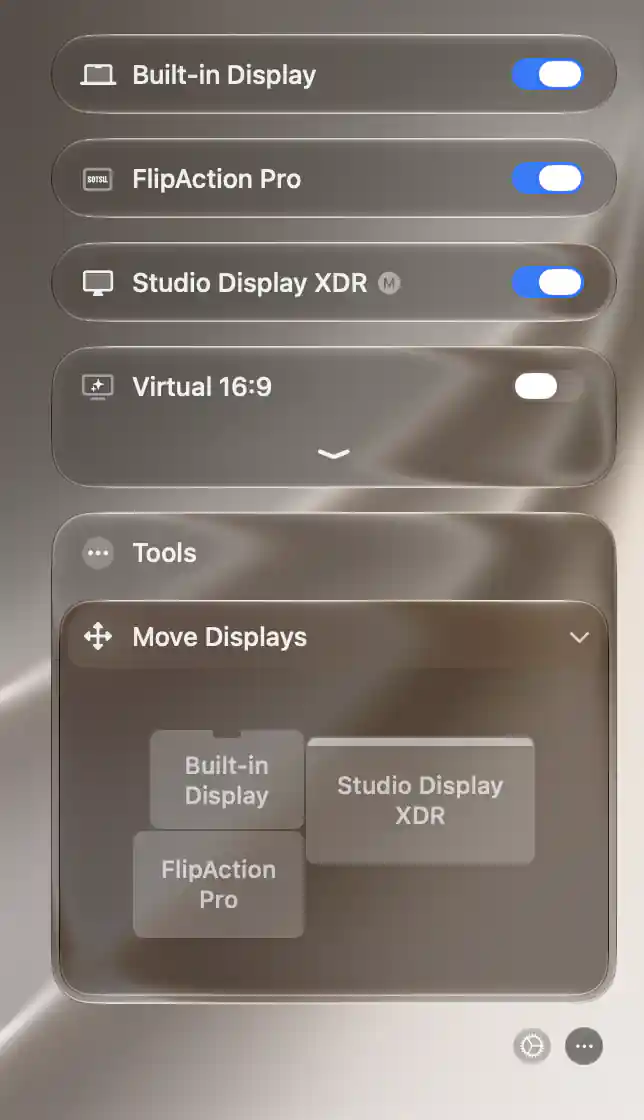
Sidebar presents devices and expanded features as glass sections along the screen edge.
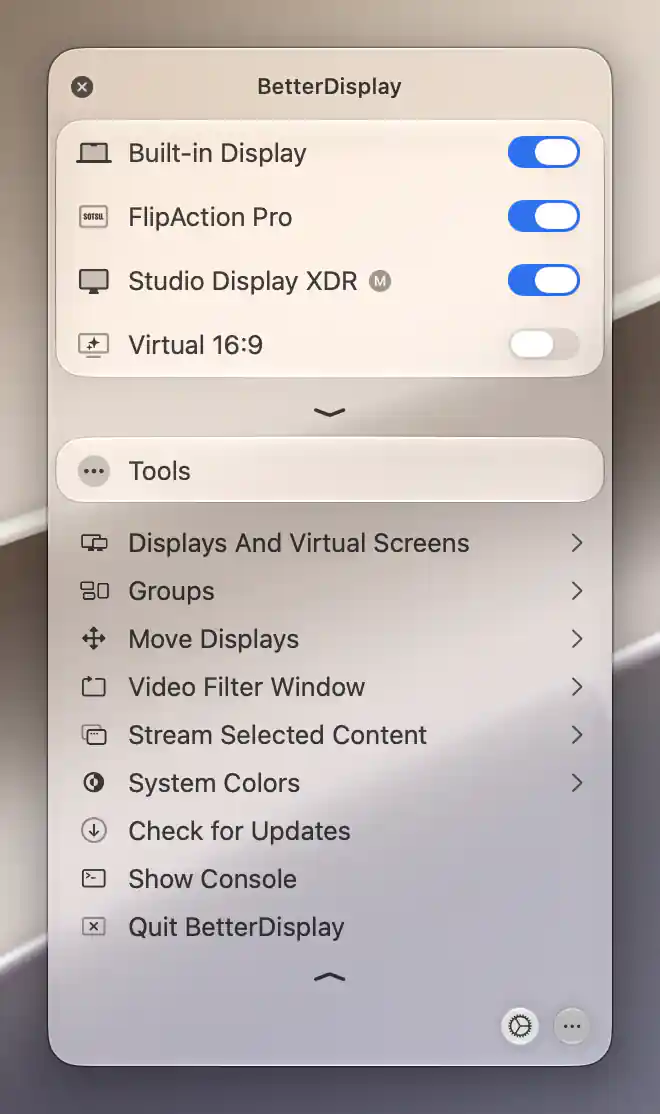
Drag the menu away from the menu bar to keep it open as a separate window.
Notices
The button row also brings actions needing attention into view. Install App Update… opens the updater’s release interface and takes priority over the permission and licensing notices. A first-use Settings hint can temporarily occupy that area.
Set Up Permissions opens Keyboard permission setup. Licensing Disabled, the remaining-trial-days message, Get BetterDisplay Pro and Outdated License open the Pro pane for the corresponding status.
Only the applicable highest-priority notice is shown. Hiding menu warnings changes what appears in the bar; it does not grant a permission or resolve a license issue. Update notices remain available separately from that warning preference.
Right-click quick menu
Right-click the menu-bar icon to open a native menu of app-wide actions. This is a separate menu from the device blocks and Tools described above.
Settings and display recovery
Settings… opens Settings. Connect All Displays requests reconnection when display connection management is enabled. On Apple silicon, reconnecting the built-in display can suspend its automatic-disconnection policy until you manually disconnect it again or restart BetterDisplay.
Redetect Displays asks macOS to detect displays again and refreshes BetterDisplay’s configuration. Reinitialize External Displays goes further: it restarts supported external display connections on Apple silicon and can briefly blank the screens. It is disabled when no suitable display is available.
Swap identical displays requires Pro and appears only when BetterDisplay finds a swappable set. It exchanges their arrangement, supported mode/orientation and HDR choices, along with the app’s identification of the matching devices.
System appearance and app actions
Enable Dark Mode, Enable Night Shift and Enable True Tone toggle their system appearance features. Checkmarks show the current state; Night Shift and True Tone are disabled when unavailable.
Check for Updates… opens the updater, and Show Console opens diagnostic output. Restart relaunches BetterDisplay; Quit BetterDisplay exits it.
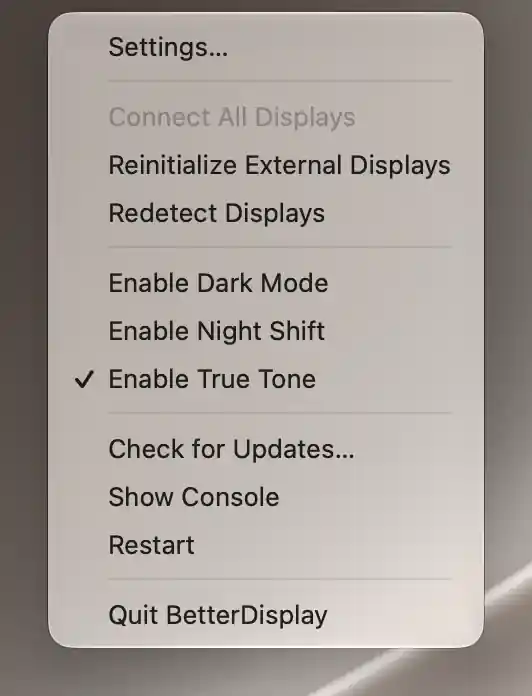
The quick menu reflects system appearance and disables Connect All Displays when connection management is turned off.
See Device header and connection for connection limits and recovery, Sliders for adjustments, and About for update status.