Console
Console gives you a place to read BetterDisplay’s diagnostic output and enter its integration commands. It is useful when you want to inspect a command response or collect relevant details about a problem. The command prompt and diagnostic log share the window, but they serve different purposes.
Where to find it: App Menu > Tools > Show Console, the menu-bar icon’s right-click Show Console, or an assigned Show console shortcut.
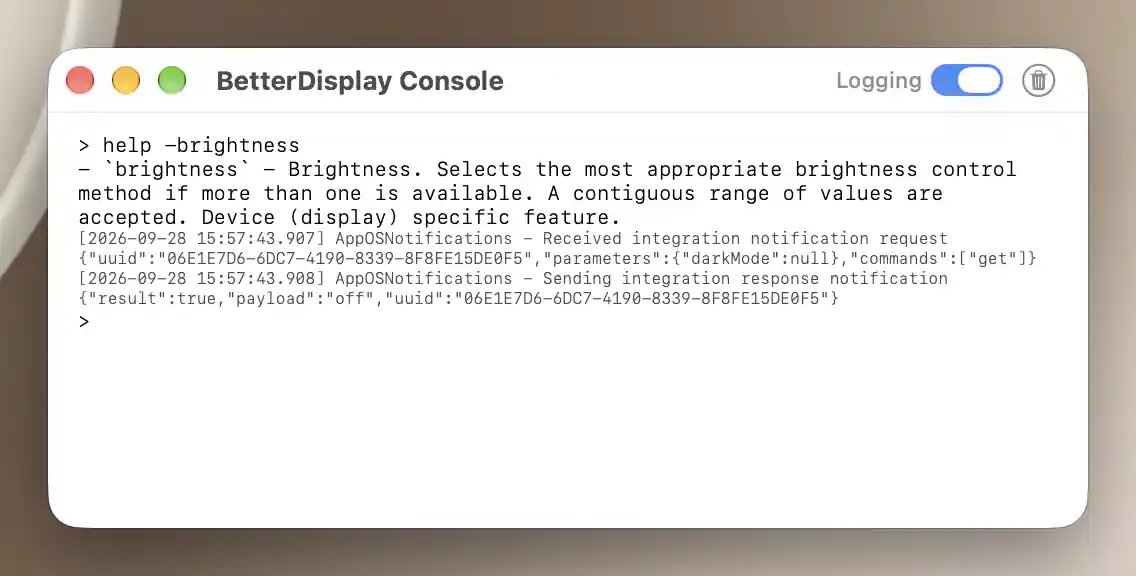
Logging adds diagnostic lines between command results and the next prompt.
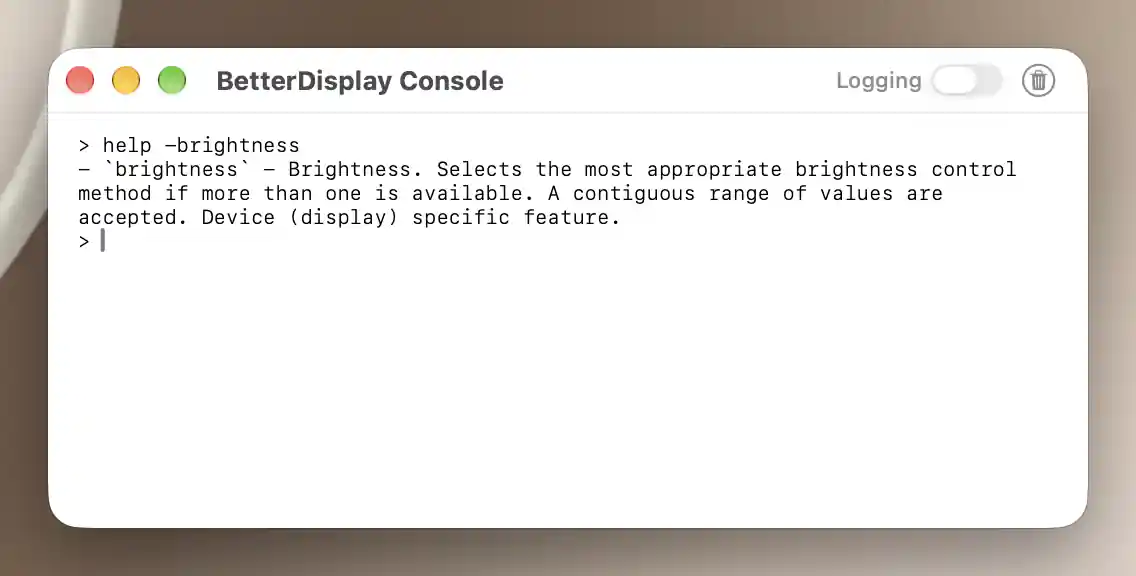
Use a focused help command to read a parameter description without changing a display.
For a step-by-step introduction, see App console in the Integration section. It explains how to use CLI recipes here without their executable prefix.
Commands and responses
Start with help to read the built-in integration help. To run a command, type it after the > prompt and press Return. Console sends the request to BetterDisplay’s integration system, rather than to a general-purpose system shell.
Enter arguments and read failures
Whitespace separates arguments. Use single or double quotes to keep a value containing spaces together; a backslash escapes the next character. Commands and literal parameters remain left-to-right even in a right-to-left interface.
An unmatched quote produces Failed. Unclosed quote. A failed operation can show Failed. with an explanation. Read that response before assuming the requested change occurred.
Earlier output can be selected and copied but cannot be edited as though it were the active input. Only the current prompt’s input is editable. The window can be resized and remembers its frame. Closing it leaves the app running.
Logging and clearing
This built-in app console is the simplest way to check BetterDisplay's logs. Apple's macOS Console is a separate app that can also display these diagnostic messages. See Enable macOS Console logging for system-log filters and verbose Terminal output.
Enable Logging when you want diagnostic messages alongside command responses. It is off by default, and the preference is remembered. New log lines appear while logging is active and the window is visible, without replacing the command you are typing.
Reopening Console can show entries retained in the app’s in-memory log buffer. That buffer is bounded, so older output can be trimmed; it is not an unlimited session archive.
You can also enter clear to clear output or exit to close the window while leaving BetterDisplay running. These console-only operations produce no additional result text.
Start with a clear view
Select Clear Console, the trash icon, to remove displayed content and the stored log buffer and start a fresh prompt. It acts immediately, without confirmation.
Clearing output leaves display settings and the session’s command history intact. Up can still recall a command after its displayed response has been cleared.
The text can contain hardware identifiers or command values. Select only the relevant portion when copying a diagnostic report. Console’s command interface is independent of enabling the external HTTP or URL server; see App Integration for those access preferences.
Additional information
This section explains which features require Pro and how availability differs between Mac platforms.
Features requiring Pro license
Opening Console, logging, history and clearing output do not require Pro. Commands retain the license requirements of the actions they request.
Platform compatibility
All features described on this page are available on both Apple silicon and Intel Macs. An individual command may need a particular display, controller or platform feature.