App Integration
App Integration lets other software work with BetterDisplay. A script can request an adjustment, a URL can invoke an app action, or another app can receive feedback to display. Start by enabling the access method your integration uses, then configure its connection details.
Where to find it: Settings > Application > Integration, with additional settings under Integration Settings….
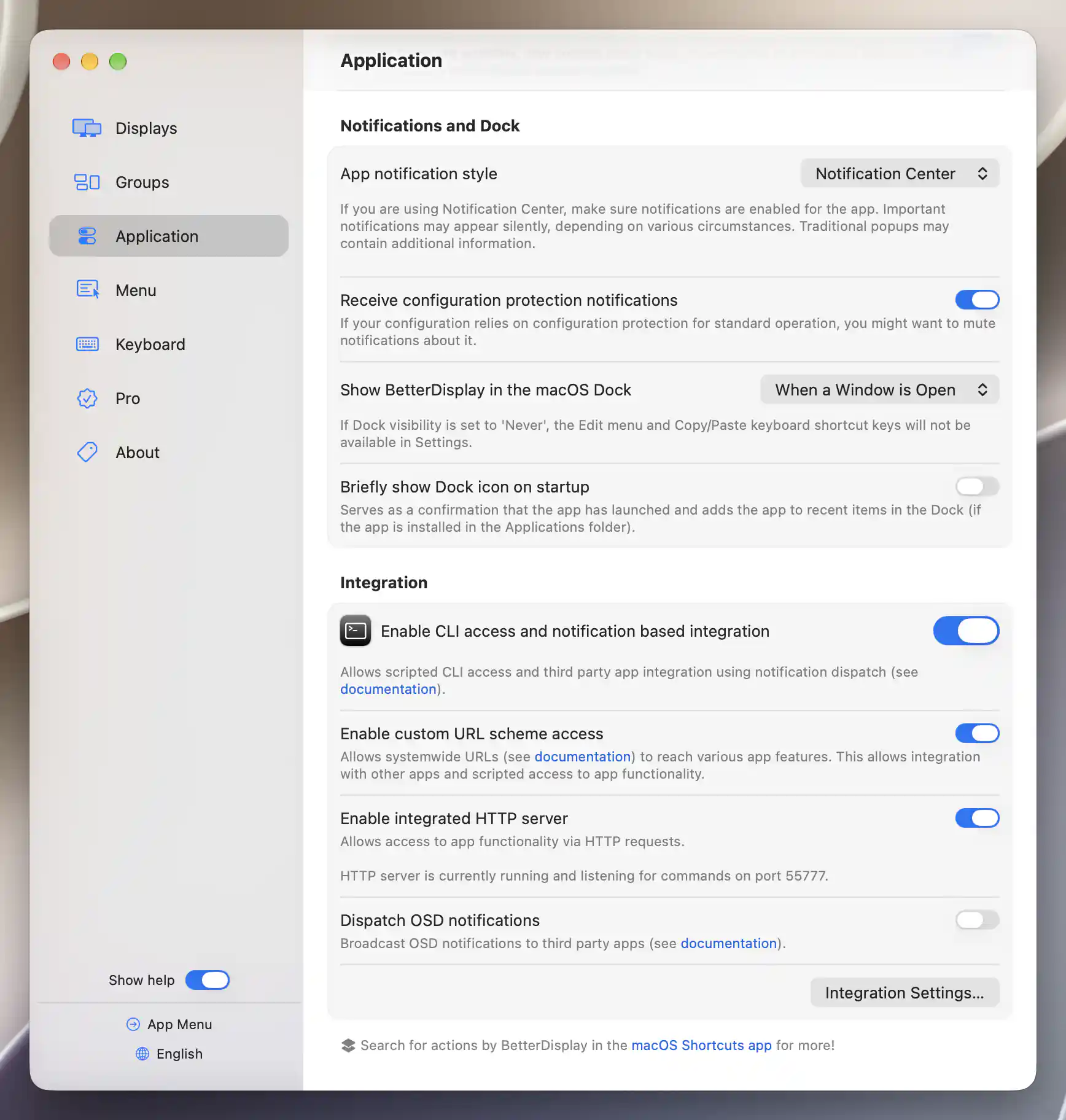
Integration methods appear below notification preferences, with the HTTP server running on port 55777.
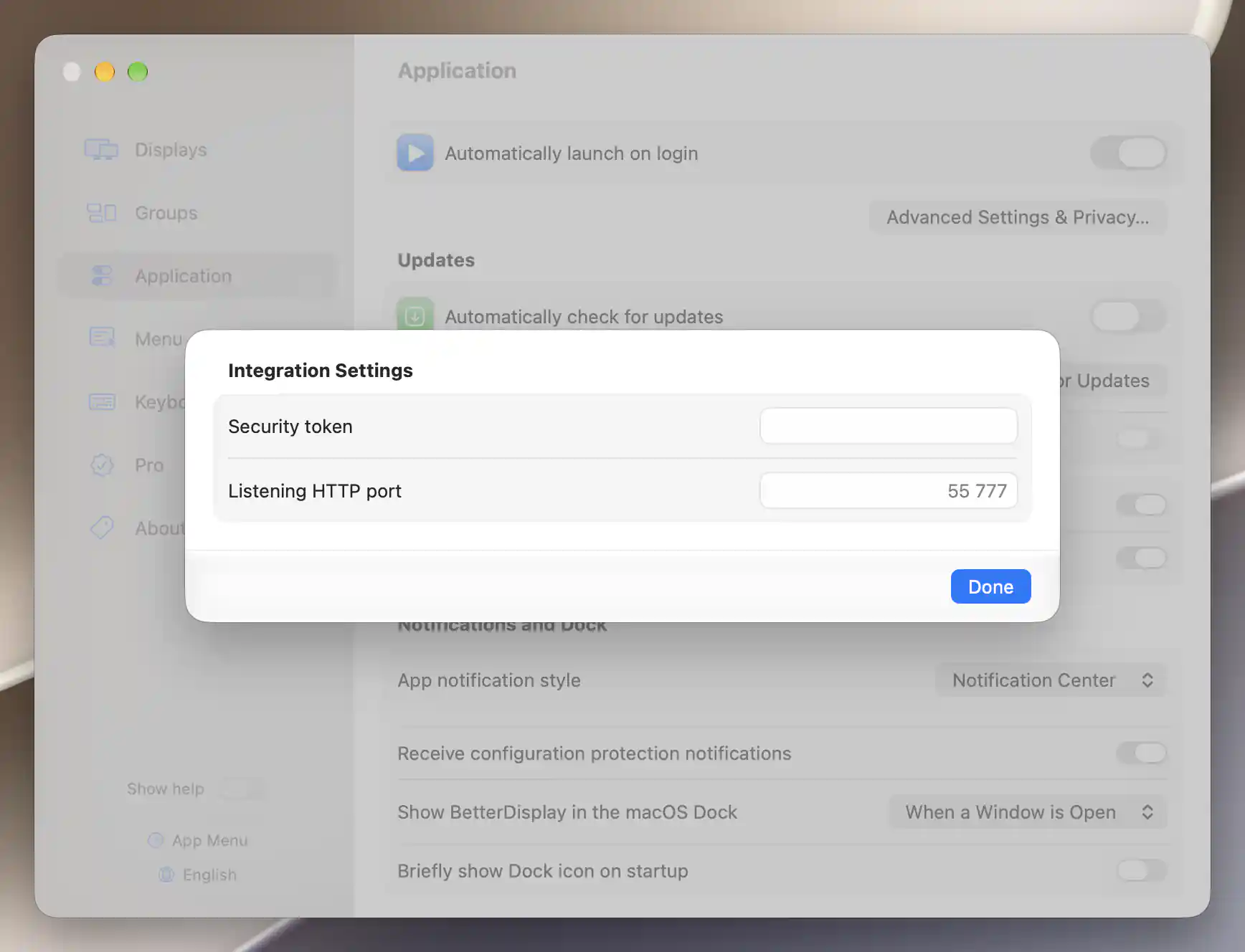
Integration Settings contains the security-token and HTTP listening-port fields.
Access methods
Choose the entry point that matches the software sending the request:
- Enable CLI access and notification based integration permits command-line and notification-dispatch requests. It is on by default.
- Enable custom URL scheme access lets systemwide URLs request app actions. It is off by default.
- Enable integrated HTTP server accepts commands through HTTP. It is also off by default.
Check that HTTP access is running
Turning on HTTP access asks BetterDisplay to start its server; turning it off stops the server. A running-status line appears after a successful start and identifies the listening port. Look for that status before relying on an HTTP integration: the saved switch and a running server are separate states. Changing the port also reconfigures the server.
The app also exposes actions in the macOS Shortcuts app. The link at the bottom opens Shortcuts, where you can search for BetterDisplay actions.
Integration Settings
Require a matching token
Security token is editable when URL or HTTP access is enabled. A nonempty token requires incoming requests through those paths to supply the same value; leaving it empty means no token is required. Set it deliberately before relying on either access method.
For a new HTTP setup, keep the server off while preparing the token. Temporarily enable Enable custom URL scheme access to make the field editable, commit the token, restore that option’s original state, then enable HTTP. Preserve a shared token used by existing clients. See the Home Assistant tutorial for a complete example.
HTTP requests supply the token as a query parameter. The server uses plaintext HTTP and listens on network interfaces, so a token does not encrypt traffic or restrict listening to the local Mac. Request URLs and app logs can contain the token; keep them private.
Choose the listening port
Listening HTTP port is editable when HTTP integration is enabled. Leaving it empty uses 55777; explicit values are limited to 1–65535. The server’s current running message uses the effective value.
These are app-wide access settings, separate from assigning an individual display control to a script or service. They do not define which physical display a command targets; command parameters and the requested operation do that.
OSD dispatch
Dispatch OSD notifications lets another app present BetterDisplay adjustment feedback. Sending the notification does not turn off BetterDisplay’s own overlay.
If both presentations are enabled, the pane warns that you may see duplicate or mixed-style overlays. Choose the presentation you want in Keyboard settings so each adjustment produces the intended feedback.
Additional information
This section explains licensing requirements and platform compatibility for the features described above.
Features requiring Pro license
The access-method, token, port and feedback-dispatch preferences do not require Pro. Requested actions still retain their own feature requirements; enabling an access method does not unlock them.
Platform compatibility
All features described on this page are available on both Apple silicon and Intel Macs. The requested operation can have separate display or platform requirements. A saved HTTP setting does not establish that the server started successfully.