Does BetterDisplay support presets?
Yes. Presets are currently supported via macOS Shortcuts: create a named shortcut that applies your preferred display settings, then run it whenever you want to restore that setup. BetterDisplay does not include a separate built-in preset system because it would duplicate Shortcuts, which is more flexible and can combine BetterDisplay actions with actions from macOS and other apps.
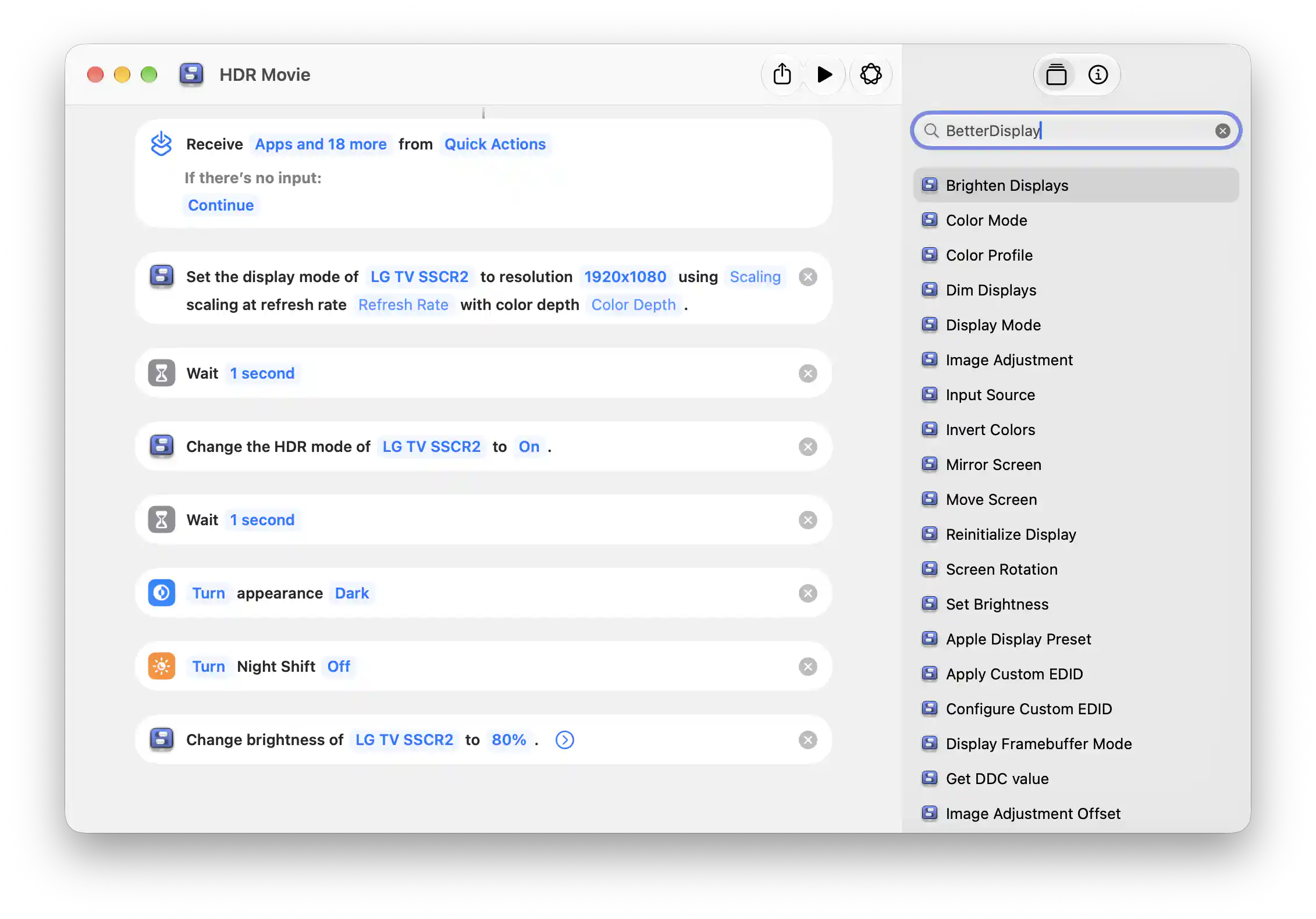
An example Shortcut configuring an LG TV for HDR viewing.
Create a preset
- Open Shortcuts and create a new shortcut. In the editor’s action search field, search for BetterDisplay to list its available actions.
- Add the settings you want the preset to apply, such as Display Mode, Toggle HDR Mode, Set Brightness or Image Adjustment. Choose a specific display and the intended values in each action. Use explicit On or Off selections instead of toggles for repeatable results.
- Add actions from macOS or other apps if useful. The example above also switches to dark appearance and turns off Night Shift.
- Name the shortcut for its purpose, such as HDR Movie, and run it with BetterDisplay running. Check that each action produces the intended result on your displays.
- Create a separate shortcut for each setup you want to recall, such as a work setup or your usual desktop settings. You can also assign a keyboard shortcut in Shortcuts for quick access.
A shortcut applies the settings you specify; it does not automatically capture every current BetterDisplay setting or save the previous state for later restoration. Available display modes and adjustments depend on your display, connection and configured controllers, and each action retains its feature’s requirements.
Read macOS Shortcuts for the action catalog, parameters and feature requirements. For specific recipes, see saved brightness levels on several monitors and an HDR viewing setup.
For a complete two-display recipe with a restore shortcut and keyboard triggers, follow Create one-key Work and Evening display presets.