macOS Shortcuts
BetterDisplay's actions let a shortcut change display settings without assembling command-line arguments. Combine them with actions from other apps to prepare a workspace, adjust an image or start a saved Picture in Picture setup.
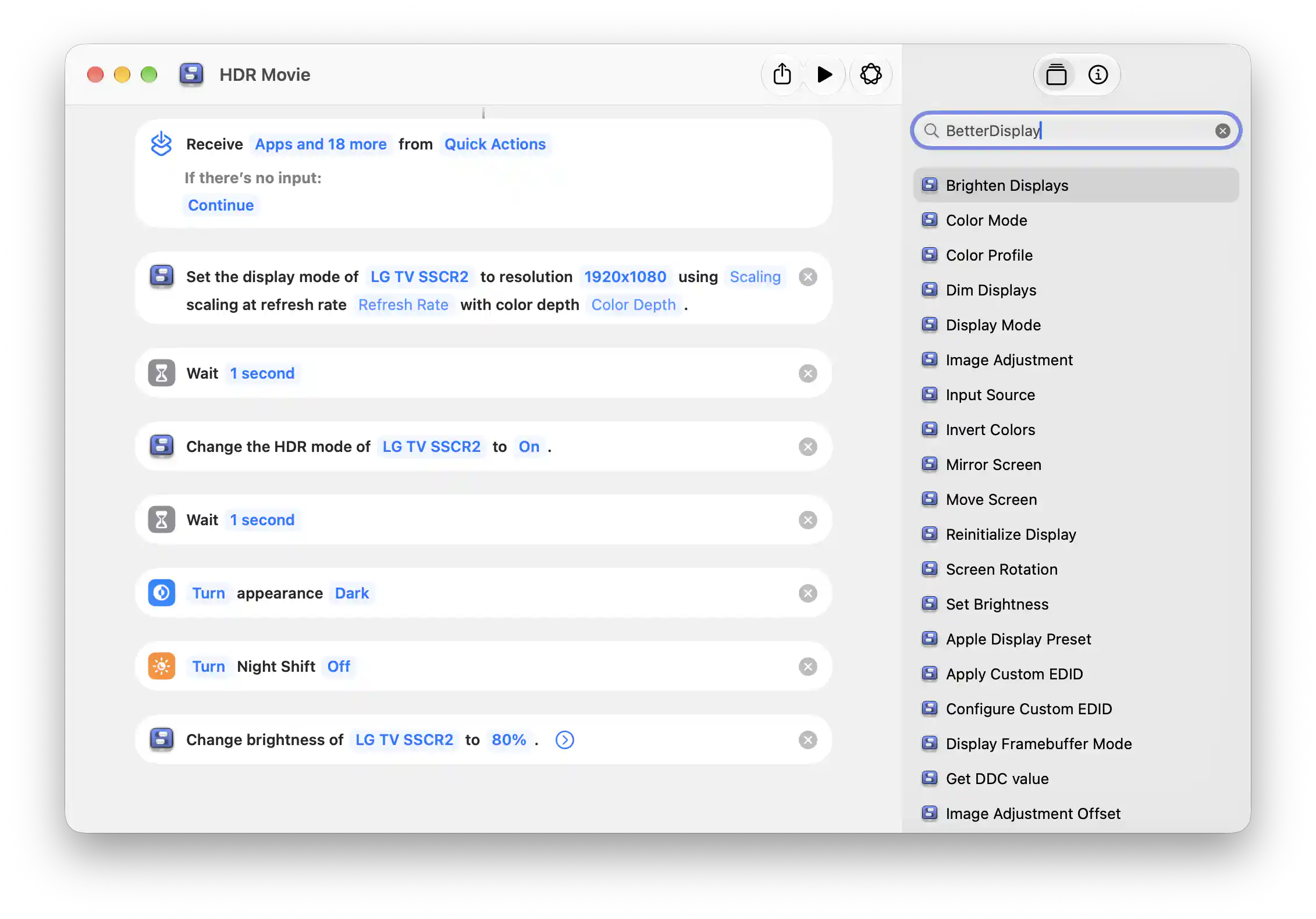
An example Shortcut configuring an LG TV for HDR viewing.
Find BetterDisplay actions
- Open the macOS Shortcuts app.
- Create a new shortcut to open its editor.
- In the editor’s action search field, type BetterDisplay. The results list BetterDisplay’s available actions; browse them to see what you can add to your shortcut.
The screenshot above shows this search beside a completed shortcut. Add an action from the results, then choose its display and other parameters.
Build your first shortcut
- Open the macOS Shortcuts app and create a shortcut.
- Search for BetterDisplay, then add an action such as Set Brightness.
- Choose a display and a value, then run the shortcut with BetterDisplay available.
- Add further actions to build the sequence you need. Start with one display and one adjustment so you can check the result before expanding it.
You can also open Shortcuts from Settings > Application > Integration. This page describes macOS Shortcuts actions, distinct from BetterDisplay's keyboard shortcuts.
Display pickers include remembered displays as well as connected ones; choosing a remembered display does not make every operation available while it is disconnected. Resolution, profile, preset and input-source choices depend on the selected display. Example names and modes below illustrate the action sentences; choose entries that actually exist in your setup.
Create presets with Shortcuts
Shortcuts is a great way to create presets: save a named sequence of BetterDisplay actions that applies the display settings you want, then run it whenever you need that setup. BetterDisplay does not have a separate built-in preset system because it would duplicate macOS Shortcuts, which is more flexible and can combine display settings with actions from other apps.
For example, the HDR Movie shortcut above selects a display mode, enables HDR and sets brightness for an LG TV, while macOS actions switch to dark appearance and turn off Night Shift. Create separate shortcuts for working, movie viewing or evening settings. Choose explicit values instead of toggles so rerunning a preset requests the same setup.
See Does BetterDisplay support presets? for a quick preset recipe and links to more focused examples.
To put tested brightness, input and mode choices on physical keys, follow the Stream Deck tutorial. It assigns separate Shortcuts hotkeys and keeps explicit return requests.
To run tested brightness presets at different times, follow the daytime and evening scheduling tutorial, which covers time triggers, confirmation and restoration.
Values, optional fields and results
Brightness, volume and ranged image adjustments use a normalized 0–1 scale, presented as percentages where the action uses a slider. Image-adjustment setters translate that scale to the feature's own minimum and maximum. Image Adjustment Offset instead accepts a signed percentage change. The brightness actions offer Range includes software brightness upscaling (on by default), which changes how the normalized brightness range is interpreted.
Actions with an optional On/Off choice generally toggle the current state when that choice is omitted. Set an explicit state when a shortcut should produce the same outcome each time. Most actions return a Boolean operation result; read actions return the requested number or Boolean, and can return no value when the request fails. A successful dispatch is not a guarantee that external hardware completed the action.
The following catalog lists every declared BetterDisplay App Intent. Each example below shows an action sentence as it appears in the Shortcuts editor. Blue chips mark the parameters filled with representative values; replace them with selections from your own setup.
Brightness, audio and image adjustments
Dim Displays
Decreases eligible displays by one step on a 0–16 normalized brightness scale.
Example in Shortcuts:
Dim all displays.
Brighten Displays
Increases eligible displays by one step on a 0–16 normalized brightness scale.
Example in Shortcuts:
Brighten all displays.
Set Brightness for All Displays
Set the brightness of all displays to a specified value.
Example in Shortcuts:
Change brightness to50%for all displays.
Set Brightness
Set the brightness of a display to a specified value.
Example in Shortcuts:
Change brightness ofDesk Displayto50%.
Set DDC Volume
Set the audio volume of a display using DDC to a specified value.
Example in Shortcuts:
Change DDC audio volume ofDesk Displayto30%.
Image Adjustment
Set any adjustment control of a display to a specified value. The percentage value will be converted to the feature's own specific min-max range.
Example in Shortcuts:
ChangeContrastofDesk Displayto value50%.
Choices include brightness methods, volume, hardware contrast and RGB adjustments, software gain/gamma/color temperature, underscan, and compositor-filter adjustments. A listed choice still needs a configured controller that supports it.
Get Image Adjustment Value
Get the current value of any adjustment for the display. The value will be converted to a scale of 0-1.
Example in Shortcuts:
Get value ofContrastforDesk Display.
Toggle Image Adjustment Filter
Set or toggle an on/off image adjustment filter of a display.
Example in Shortcuts:
ChangeMonochromeofDesk DisplaytoOn.
Filter choices are Invert Colors, Monochrome, Thermal, X-Ray, Median and Comic Effect. Availability depends on the display’s configured image-adjustment method.
Get Image Adjustment Filter State
Get the current state of an on/off image adjustment filter for the display.
Example in Shortcuts:
Get state ofMonochromeforDesk Display.
Image Adjustment Offset
Set any adjustment control of a display by a specified offset. The percentage value will be converted to the feature's own specific min-max range.
Example in Shortcuts:
ChangeContrastofDesk Displaywith an offset of-10percent.
Image Adjustment for All Displays
Set any image adjustment control for all displays to a specified value. The percentage value will be converted to the feature's own specific min-max range.
Example in Shortcuts:
ChangeContrastto value50%for all displays.
Direct DDC access
Send DDC command
Send a DDC command (with value) to a display.
Example in Shortcuts:
Send DDCLuminancewith50toDesk Display.
The named-command action also offers alternate DDC addressing. Use it only for monitors that need that method. Values are raw monitor values, not the normalized image-adjustment percentages.
Send Custom DDC command
Send a custom DDC command (with value) to a display.
Example in Shortcuts:
Send DDC16with50toDesk Display.
Get DDC value
Get a control value using DDC from a display.
Example in Shortcuts:
Get DDC value ofLuminancefromDesk Display.
Get Custom DDC value
Get a control value using DDC from a display for a custom VCP.
Example in Shortcuts:
Get DDC value of16fromDesk Display.
Display modes, profiles and placement
Screen Rotation
Set the (hardware) orientation of a display. Not all displays may support the feature.
Example in Shortcuts:
Set the rotation ofDesk Displayto90°.
Color Profile
Change the color profile of a display.
Example in Shortcuts:
Set the color profile ofDesk Displaytoyour installed color profile.
Apple Display Preset
Change the Apple Display Preset of a display.
Example in Shortcuts:
Set the Apple Display Preset ofDesk Displaytoyour available Apple Display Preset.
Display Mode
For the difference between desktop dimensions and rendering detail, see macOS scaling, HiDPI and LoDPI.
Change the display mode (resolution, scaling, exposed refresh rate, color depth) of a screen.
Example in Shortcuts:
Set the display mode ofDesk Displayto resolution1920 × 1080usingHiDPIscaling at refresh rate60 Hzwith color depth8-bit.
Input Source
Change the display input source (for displays with supported controllers).
Example in Shortcuts:
Set the input sourceDesk DisplaytoHDMI 1.
Color Mode
Change the display connection color mode (bit depth, encoding, chroma subsampling, range).
Example in Shortcuts:
Set the color mode ofDesk Displayto8-bitwithRGB4:4:4encoding andFull Rangerange if supported by the current display mode.
This changes the connection format, not an ICC profile. Choose only a combination supported by the current display mode and connection.
Move Screen
Move a screen next to another one in the display layout.
Example in Shortcuts:
Move the displayDesk Displayto theRight → CenterofSecond Display.
Display state and image-adjustment switches
Toggle DDC Mute
Mute or unmute display using DDC (if the display is configured so).
Example in Shortcuts:
Change DDC audio mute ofDesk DisplaytoOn.
Toggle HDR Mode
Enables or disables HDR for the selected display when a compatible HDR mode is available.
Example in Shortcuts:
Change the HDR mode ofDesk DisplaytoOn.
Toggle Brightness Upscaling
Enable or disable software brightness upscaling for a display.
Example in Shortcuts:
Change the brightness upscaling ofDesk DisplaytoOn.
Toggle Direct Brightness Upscaling
Enable or disable direct brightness upscaling for an XDR display.
Example in Shortcuts:
Change the direct brightness upscaling ofDesk DisplaytoOn.
Connect or Disconnect a Display
Soft-connect or disconnect a display or virtual screen.
Example in Shortcuts:
Change the connection state ofDesk DisplaytoOn.
Connection management and its safety restrictions still apply. Automatic connection rules can subsequently change the state again.
Toggle Auto Brightness
Enable or disable auto brightness for an Apple display.
Example in Shortcuts:
Change auto brightness ofDesk DisplaytoOn.
Invert Colors
Enables or disables color inversion for the selected display.
Example in Shortcuts:
Change color inversion ofDesk DisplaytoOn.
Toggle Image Adjustments
Enables or disables the display’s configured image adjustments without resetting their saved values.
Example in Shortcuts:
Image adjustments forDesk DisplayareOn.
Set Screen as Main
Makes the selected display the main screen.
Example in Shortcuts:
SetDesk Displayas main.
Mirroring, recovery and EDID
Mirror Screen
Add another screen as a mirror target for a screen.
Example in Shortcuts:
MirrorDesk DisplaytoSecond Display.
Turn Off Screen Mirroring
Turn off mirroring for a screen.
Example in Shortcuts:
Turn off mirroring forDesk Display.
Reset Image Adjustments
Reset image adjustments for a display.
Example in Shortcuts:
Reset image adjustments forDesk Display.
Reinitialize Display
Requests reinitialization of a natively connected external display; the image can disappear while its connection is rebuilt.
Example in Shortcuts:
ReinitializeDesk Display.
Display Framebuffer Mode
Change the framebuffer mode for a display (standard, inverted, grayscale, inverted grayscale).
Example in Shortcuts:
Change framebuffer mode ofDesk DisplaytoGrayscale Appearance.
Configure Custom EDID
Stores a complete base64-encoded custom EDID for the display. Applying it is a separate action.
Example in Shortcuts:
Configureyour complete base64 EDIDas custom EDID forDesk Display.
Apply Custom EDID
Apply the configured custom EDID for a display.
Example in Shortcuts:
Apply configured custom EDID forDesk Display.
Applying EDID can interrupt the image. Review the EDID settings and prepare a way to restore the factory configuration first.
Restore Factory EDID
Restore the factory EDID for a display.
Example in Shortcuts:
Restore factory EDID forDesk Display.
Picture in Picture and streaming
Toggle Picture in Picture
Start or stop Picture in Picture for a display.
Example in Shortcuts:
Turn Picture in Picture configuration1forDesk DisplaytoOn.
Toggle Screen Stream
Start or stop Screen Stream for a display.
Example in Shortcuts:
Turn streaming fromDesk DisplaytoSecond Displaywith stream configuration1toOn.
When you need an action that is not listed
Use Shortcuts' Run Shell Script action to invoke the CLI for features without a dedicated App Intent, such as display-group policies, custom controls or detailed stream-filter configuration. Use an absolute executable path so the shortcut does not depend on your interactive shell's search path:
/Applications/BetterDisplay.app/Contents/MacOS/BetterDisplay set -name="Desk Display" -brightness=50%
CLI access must be enabled for this route. The CLI examples show recipes, and the CLI reference lists the complete parameter surface. Do not interpret the absence of a named Shortcuts action as the absence of CLI support.
Additional information
This section explains feature licensing and compatibility.
Features requiring Pro license
Shortcuts does not bypass the requested feature's license requirements. Advanced image adjustments, rotation, display placement, connection management, brightness upscaling, EDID overrides and streaming can require Pro according to their underlying feature and controller. See the corresponding User Interface articles and CLI parameter annotations for the detailed conditions.
Platform compatibility
App Intents are available through macOS Shortcuts on supported macOS versions (macOS 13 and later), on both Apple silicon and Intel Macs. The requested feature may be more restricted: connection color modes, framebuffer appearance changes, reinitialization and custom EDID application need supported Apple silicon display paths; DDC needs compatible hardware and a configured controller. Apple Display Presets and Apple automatic brightness need a supporting Apple display. PIP and streaming require the relevant screen-capture permissions.