Apple Display Preset
Apple Display Preset lets you choose among the viewing configurations provided by a compatible display, including reference modes and custom presets. A preset can set brightness limits and the available HDR headroom as well as define the intended viewing configuration. This makes it useful when you need to switch between existing setups for different kinds of work.
Where to find it: App Menu > display > Apple Display Preset, usually under the more-options chevron.
The display must be connected and expose Apple display presets. This is a display capability, so the menu is not guaranteed to appear on every Apple-made display.
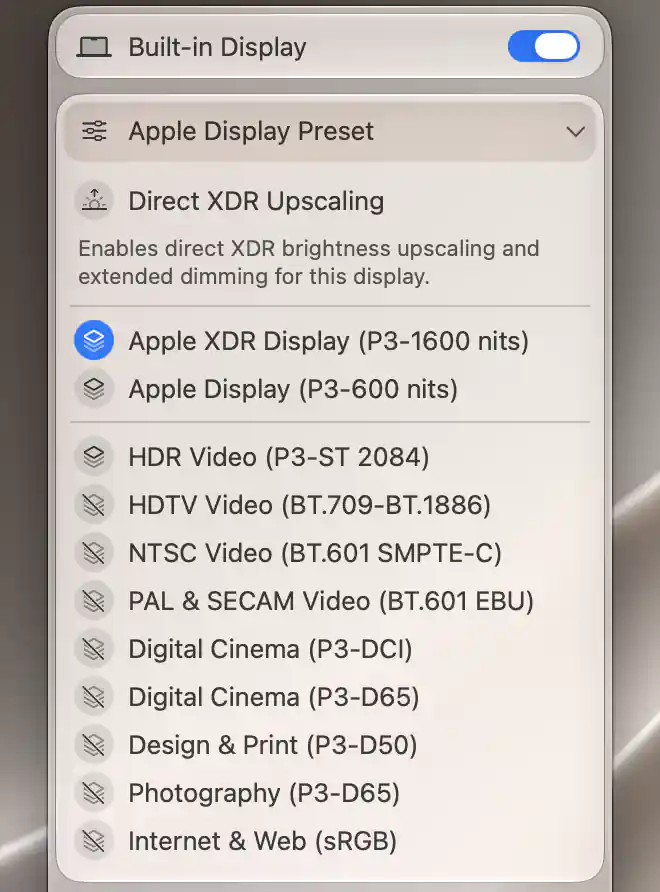
Apple presets separate everyday display modes from reference modes for specific media workflows.
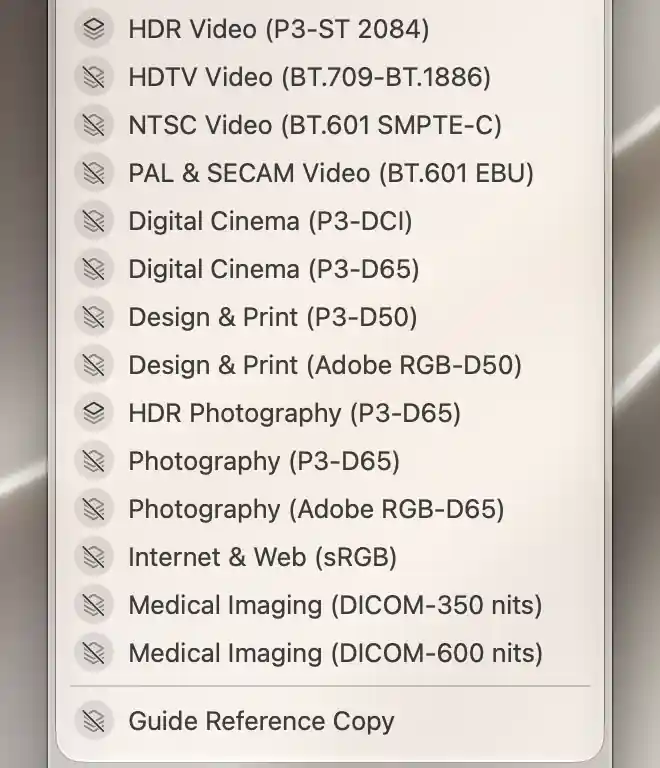
Custom Apple display presets appear in a separate group below the factory presets.
Select a preset
Select the preset you want to use. It applies immediately, with no additional Apply step. The active choice is highlighted, and the list refreshes while the menu remains open so it can reflect a preset changed elsewhere.
The valid presets are organized into three groups, with separators where needed: factory non-reference presets, factory reference presets and writable custom presets. Icons distinguish presets that report HDR capability from those that do not. If no valid presets can be listed, the menu shows No Apple Display Presets Found.
This menu selects existing presets. It does not create a new custom preset or edit the contents of one.
Why brightness controls can change with a preset
A preset’s limits affect what other BetterDisplay controls can do. For example, a preset that specifies fixed brightness has no usable range for the ordinary Apple hardware brightness control, so that control becomes unavailable. The preset’s SDR and HDR luminance limits also determine whether there is room for software brightness upscaling.
An HDR-capable preset can report extended dynamic range even when it does not use the same HDR switch as an ordinary external display. On Apple silicon, Color Mode helps you inspect the relationship between the active preset and the connection format.
If Direct XDR Upscaling is active, choosing an ordinary preset exits that direct-control mode. Your selected preset becomes the return choice while BetterDisplay restores the original brightness and automatic-brightness environment. You do not need to turn direct control off in a separate step first.
Direct XDR Upscaling
Direct XDR Upscaling enables direct hardware brightness upscaling and extended dimming on a compatible built-in display. Selecting it reconfigures the brightness controller, and the active indication moves to Direct XDR Upscaling instead of an ordinary preset row. This is the same built-in direct-control feature offered through the display’s settings.
When the entry is available
The display needs Apple brightness control, Apple presets and a default preset whose HDR luminance exceeds its SDR luminance. Apple hardware brightness control and the advanced permission to use built-in direct control must also be enabled in the display’s settings. Because all of these conditions matter, the entry can be absent even on an XDR-capable Mac.
While direct control is active
Direct control uses a compatible Apple preset and turns automatic brightness off. BetterDisplay saves the original preset, brightness and automatic-brightness state so it can restore them when the controller is removed.
The direct-control choice is remembered for the display. To return to an ordinary preset, select it in this menu; BetterDisplay exits direct control and uses that selected preset. The available brightness limits still depend on the display and its configured range.
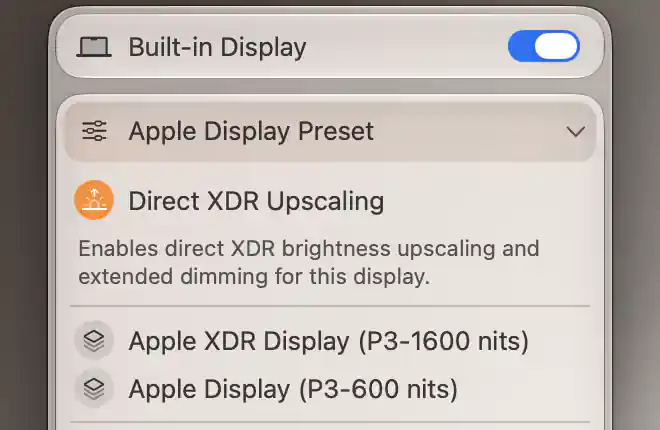
Direct XDR Upscaling enables extended hardware brightness adjustment on a compatible built-in panel.
See HDR and Nits for the range and brightness terminology used by these controls.
Additional information
This section explains which features require Pro and how availability differs between Mac platforms.
Features requiring Pro license
- Direct XDR Upscaling.
- Software brightness upscaling, whose available range can be affected by presets.
Ordinary Apple preset selection does not require Pro.
Platform compatibility
Apple preset selection is available on both Apple silicon and Intel Macs when the display exposes compatible presets. Direct XDR Upscaling is determined by the built-in display’s brightness-control, preset and luminance capabilities; processor type alone does not establish support.
The linked Color Mode interface requires Apple silicon. Software upscaling also depends on the control method: color-table upscaling requires Apple silicon, while an Intel Mac needs a compatible software-overlay setup instead.