Color Mode
A display connection can carry the same image in several different formats. Color Mode lets you inspect and choose among them, including their color depth, encoding, range and HDR state. It is useful when you want to understand the active format or compare alternatives available at the current refresh rate.
Where to find it: App Menu > display > Color Mode, usually under the more-options chevron.
The submenu requires Apple silicon, a connected display and available connection-mode information. The formats offered depend on the display and the connection carrying its image.
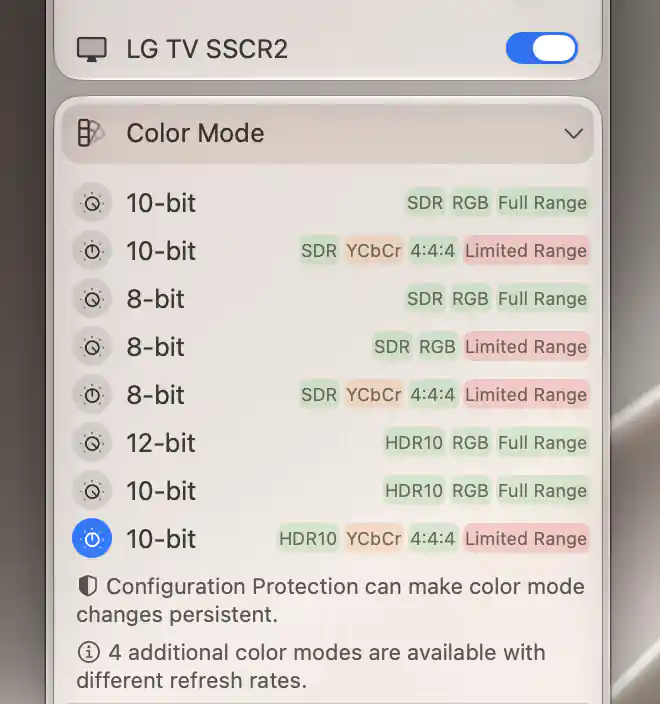
Each connection format combines its bit depth, encoding, chroma sampling and color range.
Read the format tags
Start with the active row: it describes the connection format currently in use. A star marks the system’s preferred mode, which is a separate indication from the active selection.
Each row shows the connection bit depth, or Internal for a built-in panel. The remaining tags describe how color is carried:
- RGB or YCbCr identifies the color encoding.
- Chroma sampling tags, such as 4:4:4, describe the handling of color detail.
- Full Range or Limited Range identifies the range used for the encoded values.
- The SDR/HDR tag identifies the available encoding. Dolby modes omit the separate RGB/YCbCr tag.
These tags describe different parts of one format. For example, two rows can have the same bit depth but differ in their color encoding or range. Read the row as a whole when comparing them.
Presets and fixed internal connections
On a display managed by Apple presets, the tags can instead read Preset HDR or Preset SDR. The active Apple Display Preset is then part of understanding what the mode means. If a built-in panel has only one internal mode, the menu explains that its internal connection is fixed.
The list normally matches the current connection resolution and refresh rate. If additional formats exist at other rates, the menu states how many more modes are available. Changing Refresh Rate can therefore change the choices here; the list is not a fixed catalog for the display.
Select a mode
Select a row to apply its format immediately. A regular HDR choice can turn HDR on as well as select the connection format, and a regular SDR choice can turn HDR off. If a change fails, BetterDisplay rereads the actual configuration so that the menu can reflect the resulting state.
Choosing a mode also updates applicable existing SDR/HDR color-mode protection. Configuration Protection can restore those choices after other configuration changes, but selecting a mode does not enable protection automatically. An unprotected format should not be assumed to survive every reconnection or mode switch.
Effects on brightness and system color features
Changing HDR state can reconfigure software brightness upscaling. If the global option to turn off Night Shift and True Tone in HDR is enabled, BetterDisplay turns those features off when entering HDR. On leaving HDR, it restores them when it was BetterDisplay that previously turned them off.
Mixed choices behave differently from regular SDR/HDR choices: they deliberately change the connection without making the corresponding framebuffer or Apple preset configuration agree. The advanced section below explains this distinction and its risks.
Advanced choices
The ordinary list is the starting point for selecting a format. The advanced options expose additional combinations and compatibility overrides when the display provides them.
Mixed modes
Show Mixed Modes is off initially. It includes formats that disagree with the current framebuffer or Apple preset’s SDR/HDR configuration. The toggle appears for suitable advanced lists, or when mixed modes are already enabled. An already active mixed format remains visible even after the option is turned off.
These choices can be useful for investigating a mismatch, but they can also produce unexpected behavior or a blank screen. Selecting a mixed mode changes the connection without making the rest of the SDR/HDR configuration match it.
Forced HDR
Allow Forced HDR is also off initially. Where available, it admits HDR modes outside macOS’s normal resolution and refresh-rate limits. A Forced tag identifies those choices.
Enabling the switch permits the choices; it does not select one by itself. The switch can remain visible while enabled even if the current configuration no longer offers a forced choice.
The mixed-mode and forced-mode switches are remembered for this display. The opening modifier is an inspection aid rather than a global preference.
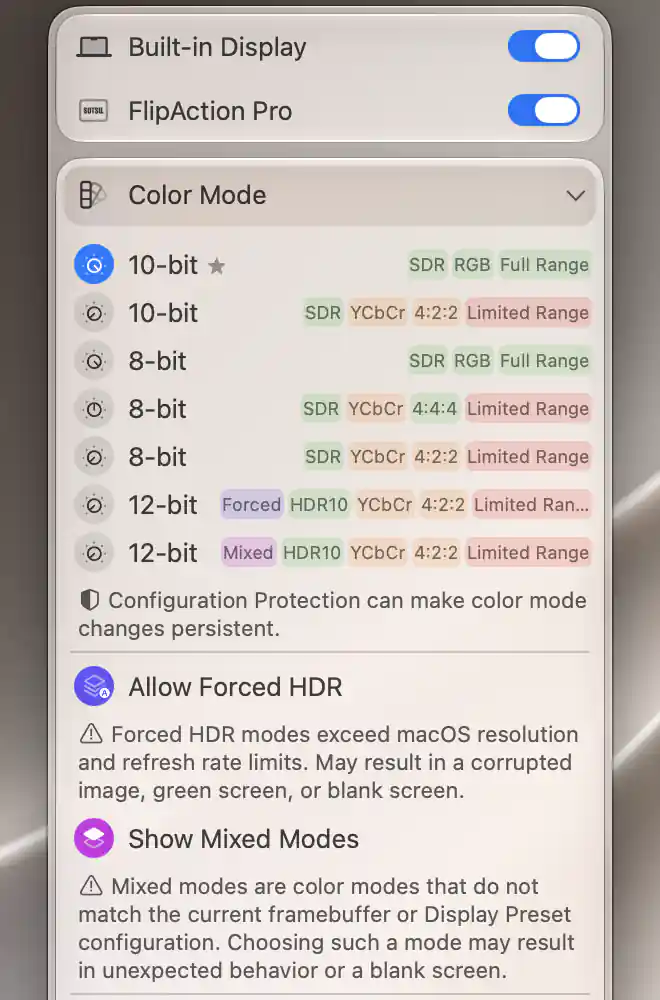
These switches reveal additional formats; their warnings explain why selecting those formats requires care.
Additional display settings
Some displays expose settings for the rendered image as well as its connection format. These appear only when the relevant setting or capability is available.
Uniformity correction and dithering
Uniformity Correction appears for a built-in display when its correction setting can be read. Select it to toggle the correction. GPU Dithering similarly appears when the GPU’s dithering setting is readable and lets you toggle dithering. Successful changes to these two settings are remembered per display and restored when BetterDisplay configures it again.
When dithering is enabled and the connection depth is lower than the framebuffer depth, a note identifies both depths. It explains that the GPU may use temporal dithering to improve colors. Toggling dithering is distinct from changing the framebuffer depth itself.
Appearance remapping
Where framebuffer color remapping is available, Standard Appearance, Inverted Appearance, Grayscale Appearance and Inverted Grayscale Appearance apply the named transformation immediately. Standard removes this remapping.
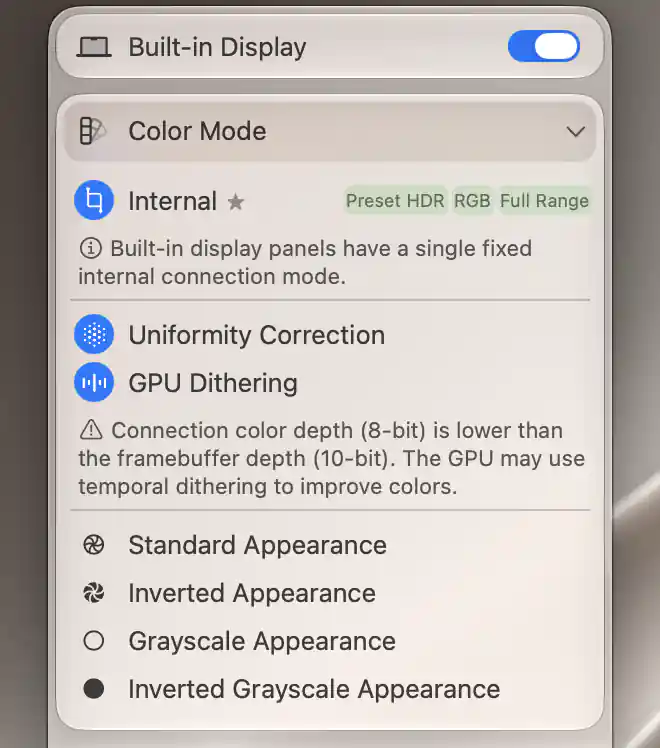
Color Mode also exposes supported panel adjustments and explains a connection-to-framebuffer depth mismatch.
Additional information
This section explains which features require Pro and how availability differs between Mac platforms.
Features requiring Pro license
- Selecting a row whose SDR/HDR encoding differs from the current connection encoding. This includes a change between distinct HDR encodings; the row’s Pro badge identifies the requirement.
- Show Mixed Modes and Allow Forced HDR.
- Configuration Protection for saved SDR/HDR color modes, and software brightness upscaling affected by HDR changes.
Ordinary format choices that retain the current SDR/HDR encoding, and the available uniformity, dithering and appearance-remapping settings, have no separate Pro requirement.
Platform compatibility
Color Mode and the framebuffer settings described here require Apple silicon. Intel Macs use the separate Color Depth submenu for eligible framebuffer-depth changes.
Apple silicon alone does not guarantee these features: connection information must be available, and individual formats, Apple presets, built-in uniformity correction, GPU dithering and appearance remapping depend on the display and supported capabilities.