Image Adjustments
Use Image Adjustments to choose how BetterDisplay dims a screen, changes its colors and extends SDR brightness on supported HDR/XDR displays. These settings decide which software methods and ranges are available. The App Menu then provides the sliders for making the actual adjustments.
Where to find it: Settings > Displays > display > Image Adjustments. Linked virtual displays can expose the same settings.
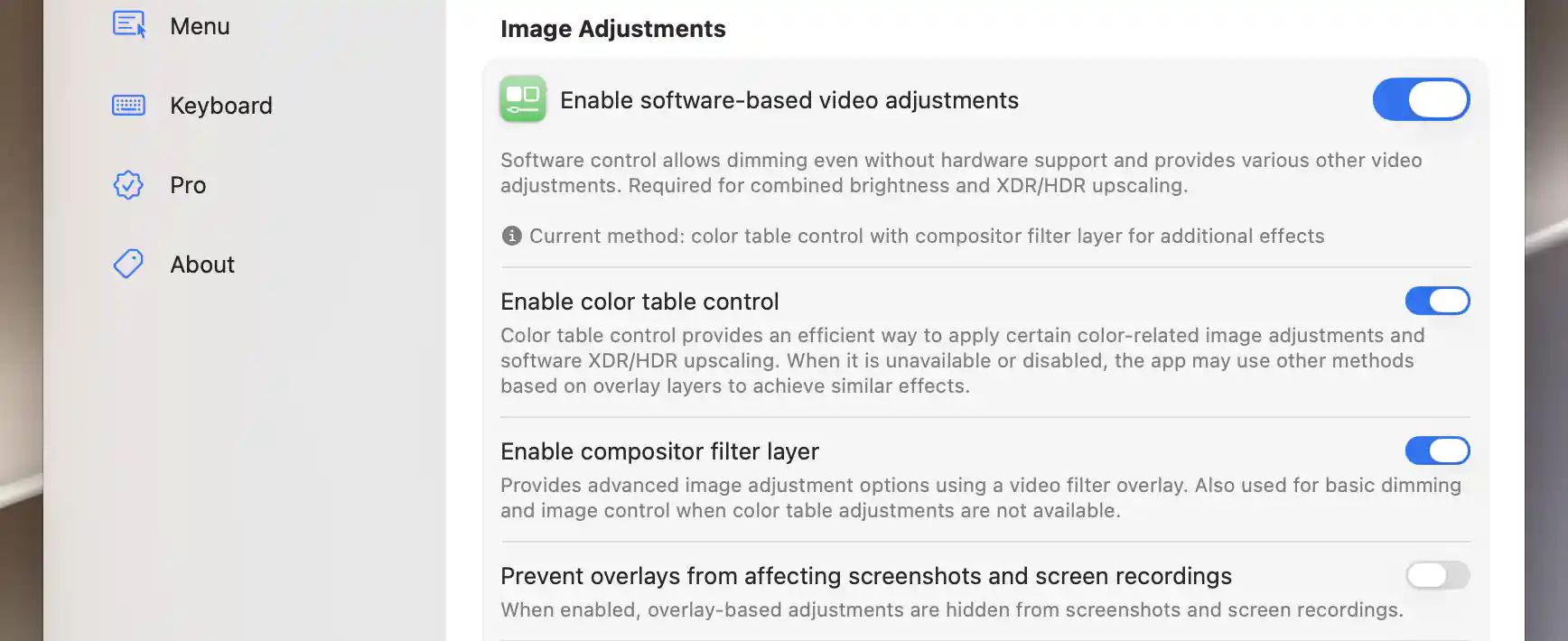
The current method combines color-table control with a compositor filter layer.

Excluding overlays from captures also prevents their effects in screen streams and PIP windows.
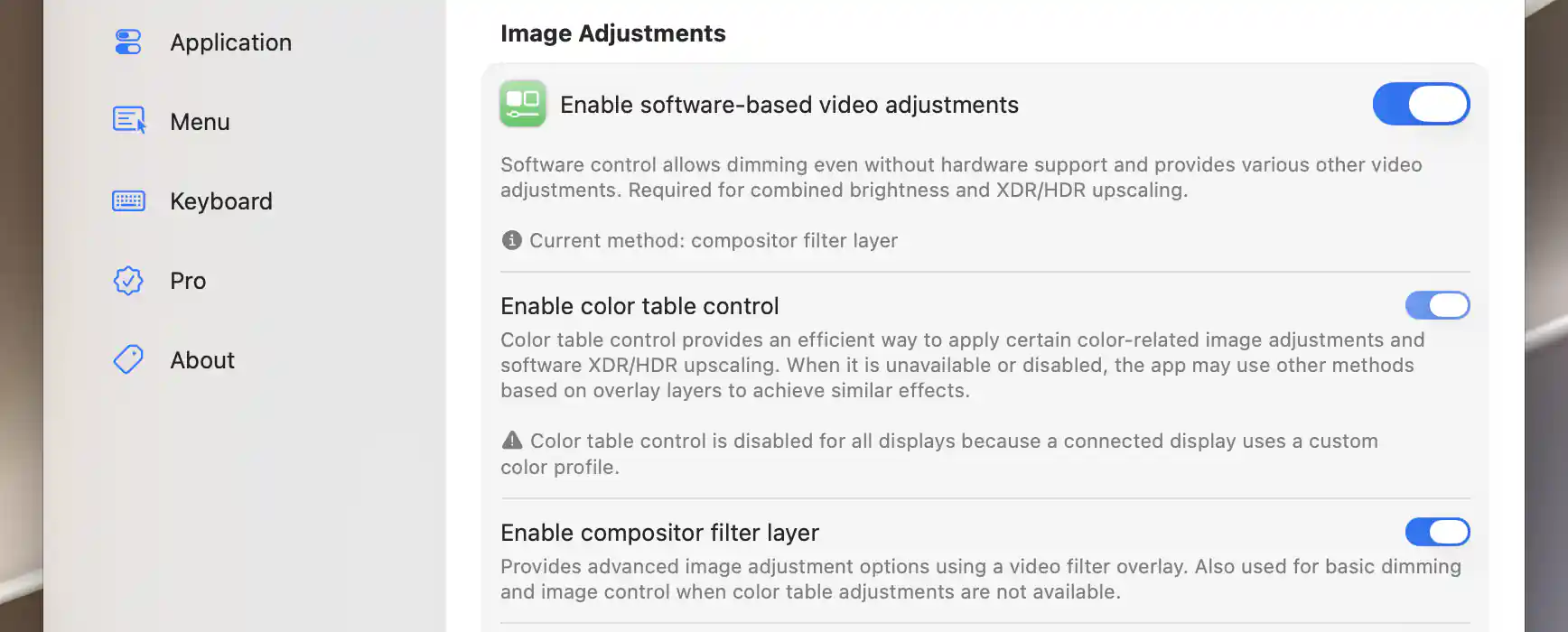
A custom profile activates the app-wide color-table safeguard.
Choose software methods
Enable software-based video adjustments is the master permission for software dimming and image effects. It starts on and is also needed for combined brightness and software upscaling. Changing it reconfigures the controllers immediately.
Current method tells you what the app is actually using: color-table control, compositor filtering, overlay dimming, Metal-assisted overlay adjustments, or None. This status matters because a saved switch can remain on even when its required method is unavailable.
Color tables and compositor filtering
Enable color table control, on by default, needs display capability, global permission and no custom-profile block. The warnings distinguish these three reasons for unavailability. The global color-table settings explain how one connected custom profile can block this method on all displays.
On certain system-virtual displays, Force support for color table adjustments overrides a missing capability report. It does not establish actual hardware support.
Enable compositor filter layer is also on by default. It permits a compositor filter for additional effects, and for basic adjustments when color tables cannot be used.
Overlay processing and capture
When neither color-table control nor compositor filtering is selected, Use Metal for image adjustments provides more overlay effects at an additional processing cost. It starts off, but the fallback upscaling path uses it automatically. Some Intel integrated-GPU configurations show a performance warning.
Prevent overlays from affecting screenshots and screen recordings is available for overlay/compositor paths and starts off. Turning it on hides those overlays from capture.
Software upscaling and combined brightness
Enable software HDR/XDR brightness upscaling (if available) extends the available SDR brightness range on an Apple XDR display or a suitable external display in HDR mode. It starts off.
The method differs by Mac platform. Color-table upscaling is supported on Apple silicon. Intel uses the compositor/Metal overlay path with color-table control disabled, and the paths can have different system-load costs.
Calibrate Upscaling… becomes available when the preference is on and HDR/XDR is active. An external HDR display still in SDR shows Calibrate (Requires Enabled HDR)… instead. Calibration finds an unclipped software-upscaling limit; it is not a hardware colorimeter measurement.
Combine brightness methods in one control
Combined brightness, on by default, brings available hardware brightness, software dimming and upscaling into one control. It appears when that combination is available. Its status names the active hardware controller or explains that combined brightness is not active.
Disabling software adjustments or preferring software-only brightness can change whether combined brightness is available.
Calibrate Upscaling
The sheet shows a near-white smiling face on a white background and a live brightness slider. Increase the slider as far as you can while the face remains barely visible. If it is invisible even at the lowest setting, follow the guidance to correct the display's hardware contrast or gamma first.
For Apple preset-capable XDR displays, the interface recommends Set Default - Auto Calibrate, allowing the range to adapt to the active preset and environment.
What calibration temporarily changes
Opening the sheet neutralizes the selected software controller's adjustments and turns Night Shift and True Tone off. Save Calibration stores your selected limit, or automatic behavior if the chosen value matches the default. Discard Calibration leaves the new limit unsaved.
Both exits restore the stored non-brightness adjustments and the previous Night Shift/True Tone states. Software/combined brightness returns to its neutral level. Discard therefore does not promise to restore the brightness-slider value you had before opening calibration.
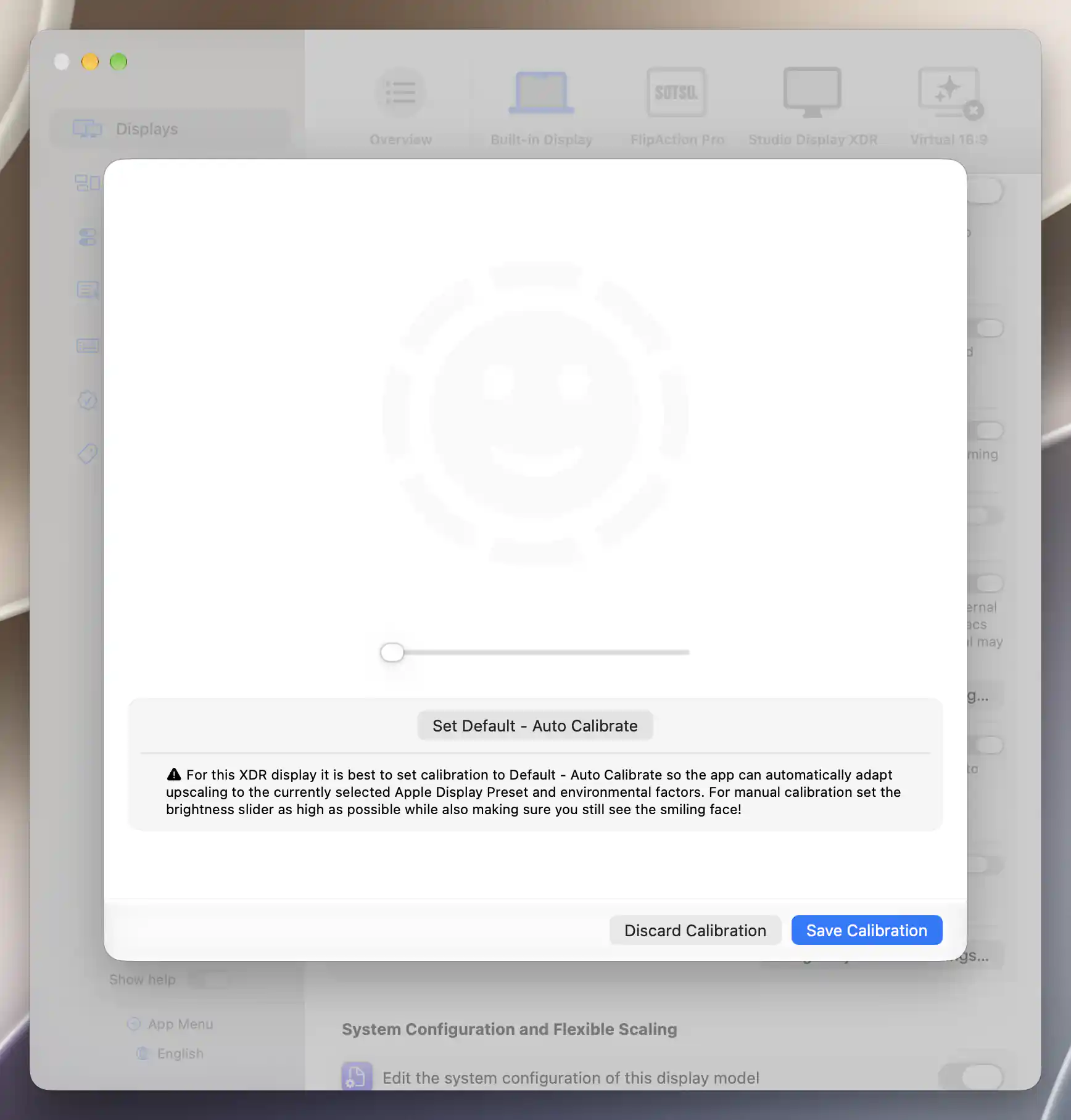
The calibration sheet provides a near-white test face and automatic calibration guidance; screenshot pixels do not measure panel clipping.
Dimming on lock or screen saver
Dim display brightness on screen saver or lock can lower a display to a chosen brightness while you are away. It starts off and appears when a hardware or software brightness controller is available. Dimming happens only if the original brightness is above the selected level, whose blank/default value is 50%.
For the main display, the minimum is 30% with combined/software brightness and 10% with Apple hardware brightness. DDC can reach zero. On return, the saved earlier value is restored when applicable.
This setting is separate from a device-controller option that turns off a non-main display's backlight.
Image Adjustment Settings
Open Image Adjustment Settings… to refine the per-display behavior. The rows depend on which methods are available.
Overlay and software preferences
- Elevated dimming or image adjustment overlay priority, initially on, lets overlays cover the lock screen and other spaces where the ordinary layer is ineffective.
- Prefer software contrast control, initially off, chooses software over available DDC contrast for the main slider and keyboard. It is offered for suitable third-party displays with color-table and hardware contrast support.
- Redefine 0% software brightness level compresses the software range above the chosen floor, including the software portion of combined brightness. Blank is 0%, and the accepted range is 0–100%.
- Software dimming gamma adjustment strength sets the gamma contribution to dimming on a color-table path. Blank is 0%, with an accepted range of 0–100%.
Combined-brightness ranges
These settings describe how the combined scale uses its hardware, dimming and upscaling portions:
- Combined brightness - software dimming switchover point sets where software dimming supplements the lowest hardware level. It accepts 1–99%. The displayed defaults are 25% for Apple and 50% for third-party displays; the active Apple combined controller uses 20% while upscaling is in use.
- Combined brightness - XDR/HDR upscaling maximum scale value sets the top of the logical combined scale. It is not a measured luminance. The default is 160%, the range is 101–999%, and upscaling must be enabled.
- Combined brightness - minimum allowed hardware brightness level sets a hardware floor before software dimming takes over. The default is 0%, with a range of 0–99%. This controls the adjustment range; it does not guarantee any particular panel backlight-modulation behavior.
Compatibility and transitions
Disregard SDR peak brightness adjustment availability selects the older brightness-control behavior on displays with the newer macOS SDR-peak control. Control Center can still adjust that system value.
Force-enable underscan slider, offered on Apple silicon and initially off, exposes the native control despite missing capability detection.
Smooth transitions, on by default, controls gradual adjustments. Turn it off for more direct changes and fewer DDC operations.
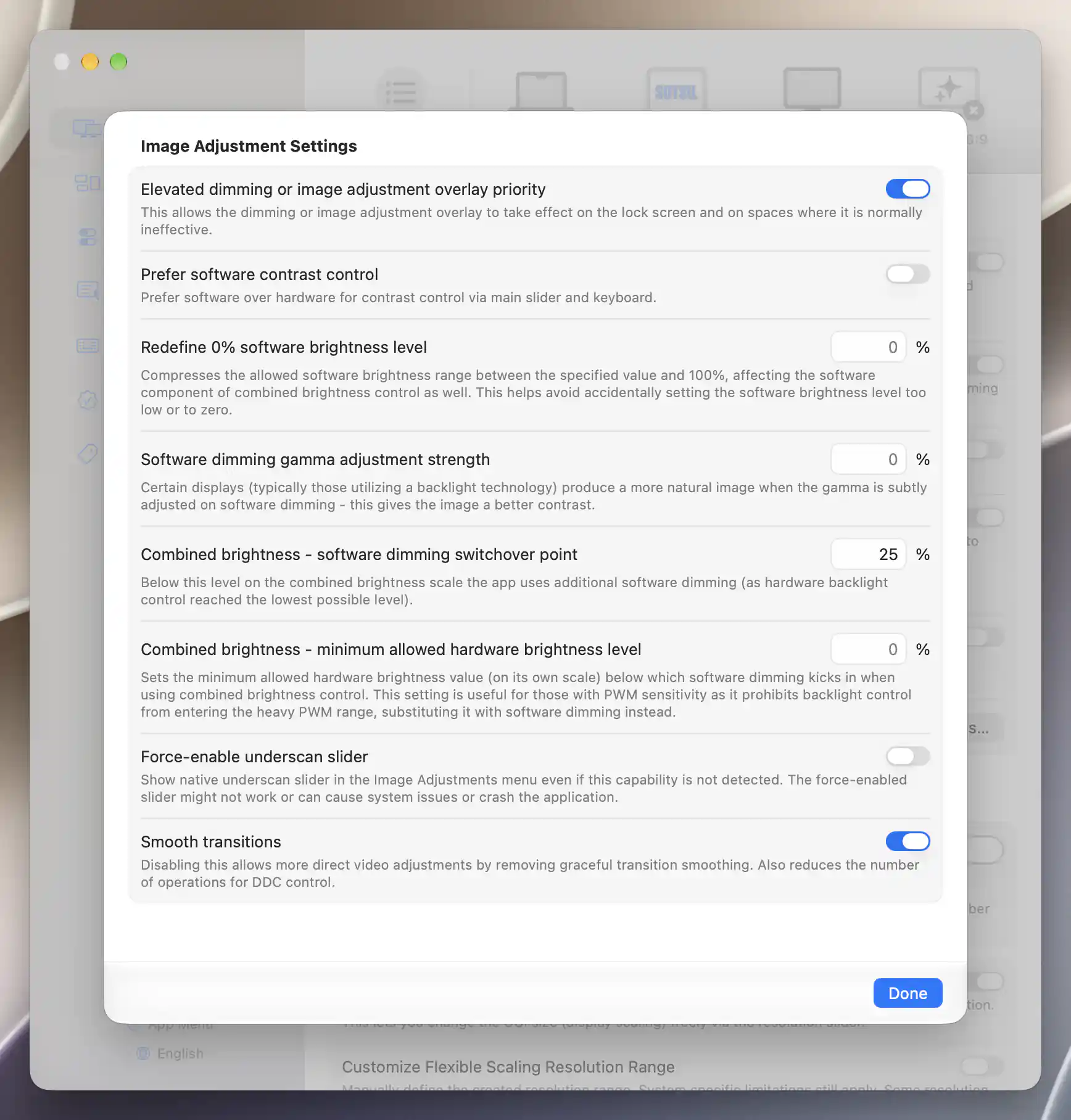
Overlay priority and software dimming settings are shown with the display’s existing combined-brightness values.
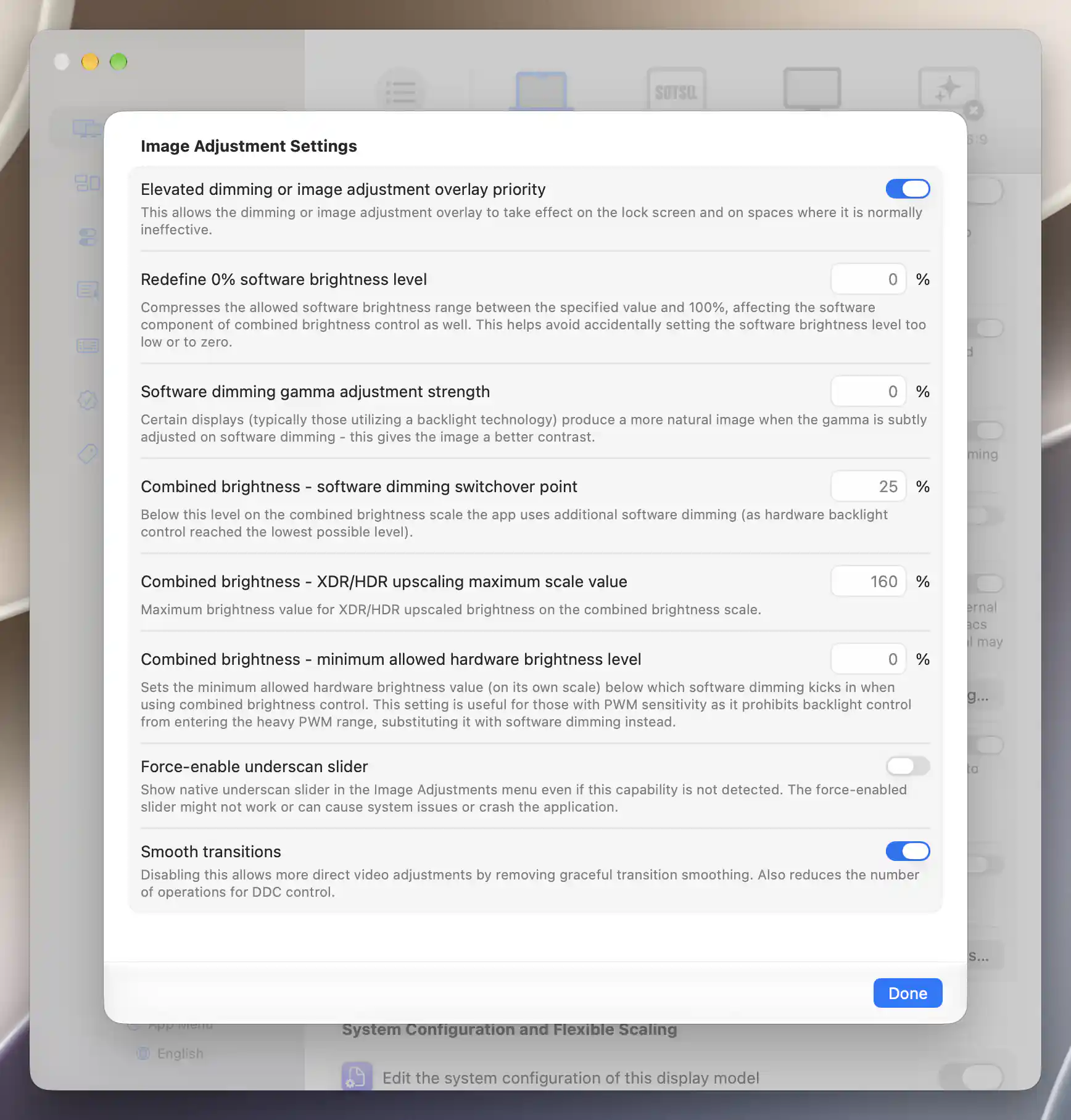
The XDR display adds an upscaling maximum scale field to the software and combined-brightness ranges.
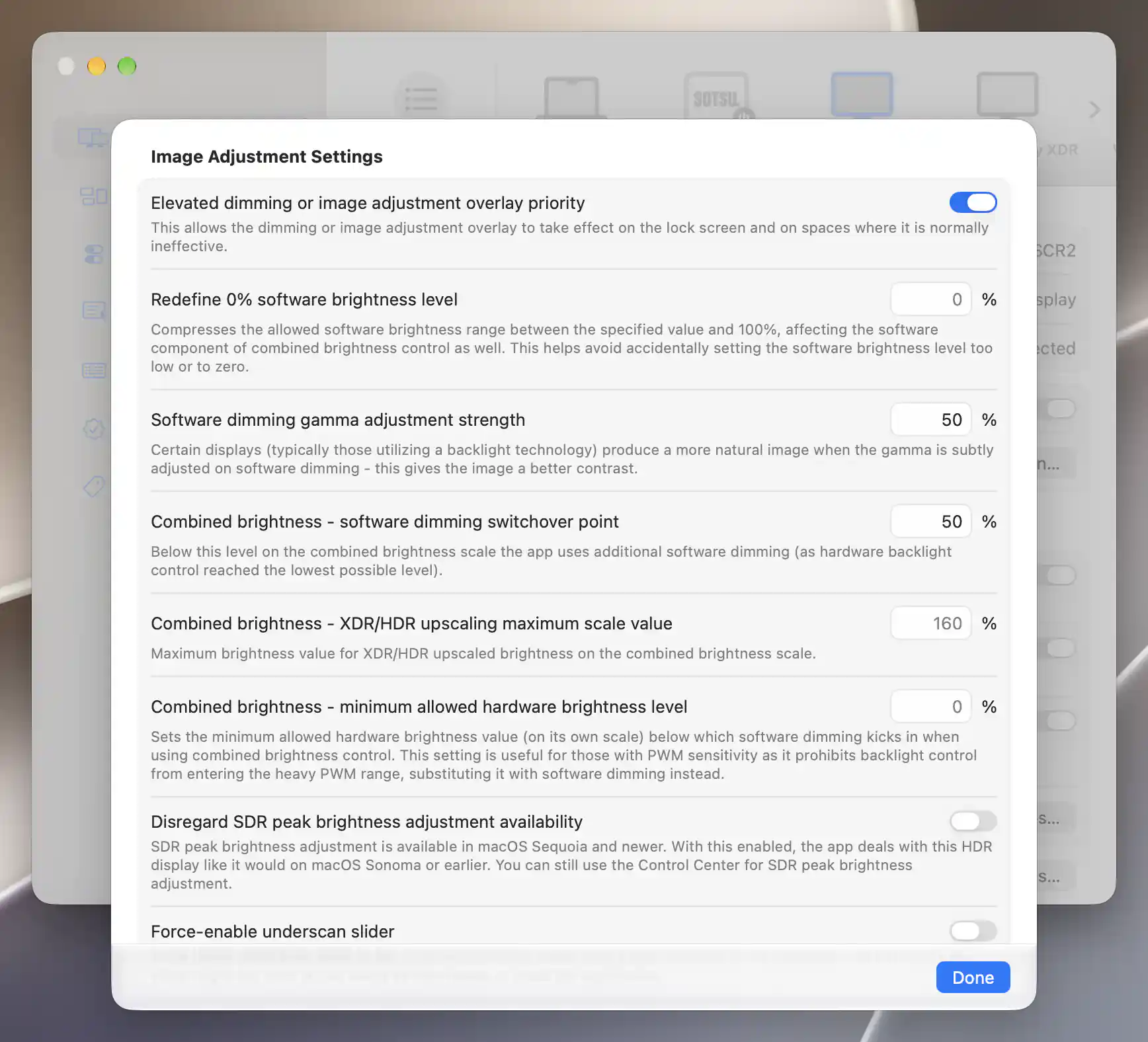
The SDR peak-brightness compatibility preference is available for the LG TV in native macOS HDR mode.
Settings are saved without a separate Apply step. Use the Image Adjustments menu to change or reset effects, and global restoration settings for startup/wake restoration.
Underscan fits the image inside the available area. Its native control is separate from stream-image scaling.
Follow the XDR/HDR desktop brightness tutorial to choose, enable and check an upscaling method.
Additional information
This section explains which features require Pro and how availability differs between Mac platforms.
Features requiring Pro license
- Software HDR/XDR brightness upscaling and its calibration.
- Dim display brightness on screen saver or lock.
- Combined brightness - XDR/HDR upscaling maximum scale value.
- Combined brightness - minimum allowed hardware brightness level.
The other method and range preferences described here are not independently Pro-gated. Individual image effects adjusted from the App Menu have their own requirements.
Platform compatibility
Software adjustments are available on both Apple silicon and Intel Macs, subject to their controller and display capabilities. Color-table HDR/XDR upscaling requires Apple silicon; Intel uses compositor/Metal overlay upscaling with color-table control disabled. Some Intel integrated-GPU configurations show a performance warning.
Force-enable underscan slider is Apple-silicon-only. Upscaling requires an Apple XDR display or a suitable external display in HDR mode, and a forced method does not guarantee hardware support.