Move Display
Move Display arranges the screens that make up your extended desktop. A useful arrangement makes the pointer pass between screens where you expect it to: for example, a monitor physically on your right can also sit to the right in the desktop layout. Use Align to choose a precise relationship to another display, or Arrange to position the screens by dragging.
Where to find it: App Menu > display > Move Display, usually under the more-options chevron. You can also open the arrangement-only interface from Tools > Move Displays.
The selected display must be connected and must not be a mirror target. At least two connected, non-mirror-target displays are needed, because this feature arranges one desktop area relative to another.
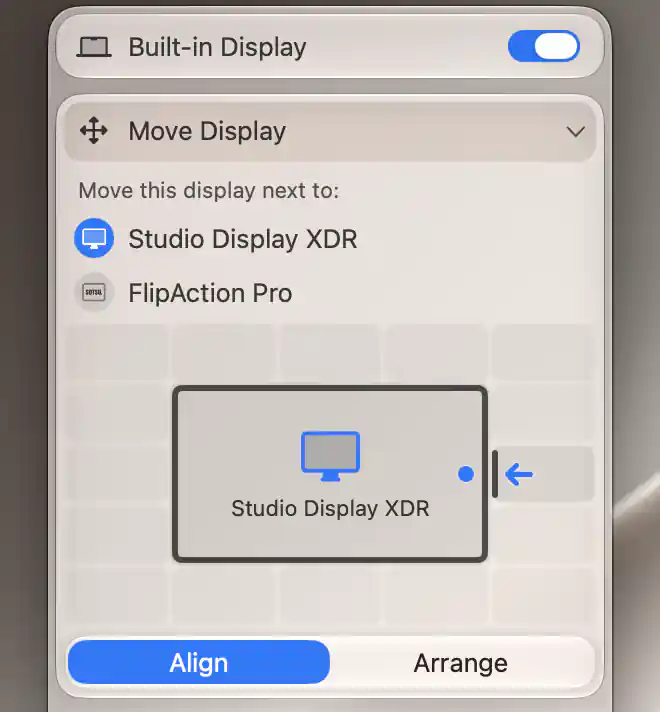
Hover an alignment position to preview its arrow and reference anchor before moving the display.
Align to another display
Start with the central tile: it names the reference display around which you will position the selected display. If several other displays are eligible, choose one from Move this display next to:. With only one eligible reference, BetterDisplay selects it automatically. The reference you choose is remembered for this display.
The sixteen surrounding tiles describe the possible relationships. You can place the display to the left or right and align its top, center or bottom; place it above or below and align its left edge, center or right edge; or choose one of the four outer corner relationships. For example, the right-hand center choice places the selected display beside the reference with their centers aligned.
Hover over a tile before selecting it. The arrow shows the direction of the move, and the anchor on the central tile shows the alignment point. When both displays have visible screens, an arrow overlay identifies the display being moved and a dot marks the reference anchor on the other screen.
Select a tile to apply that placement. The current relationship is outlined, and the result briefly shows a checkmark or an × according to whether the requested alignment was achieved. Other displays can move in the system layout to avoid overlaps and keep the arrangement together. These changes affect desktop coordinates; they do not move a physical monitor.
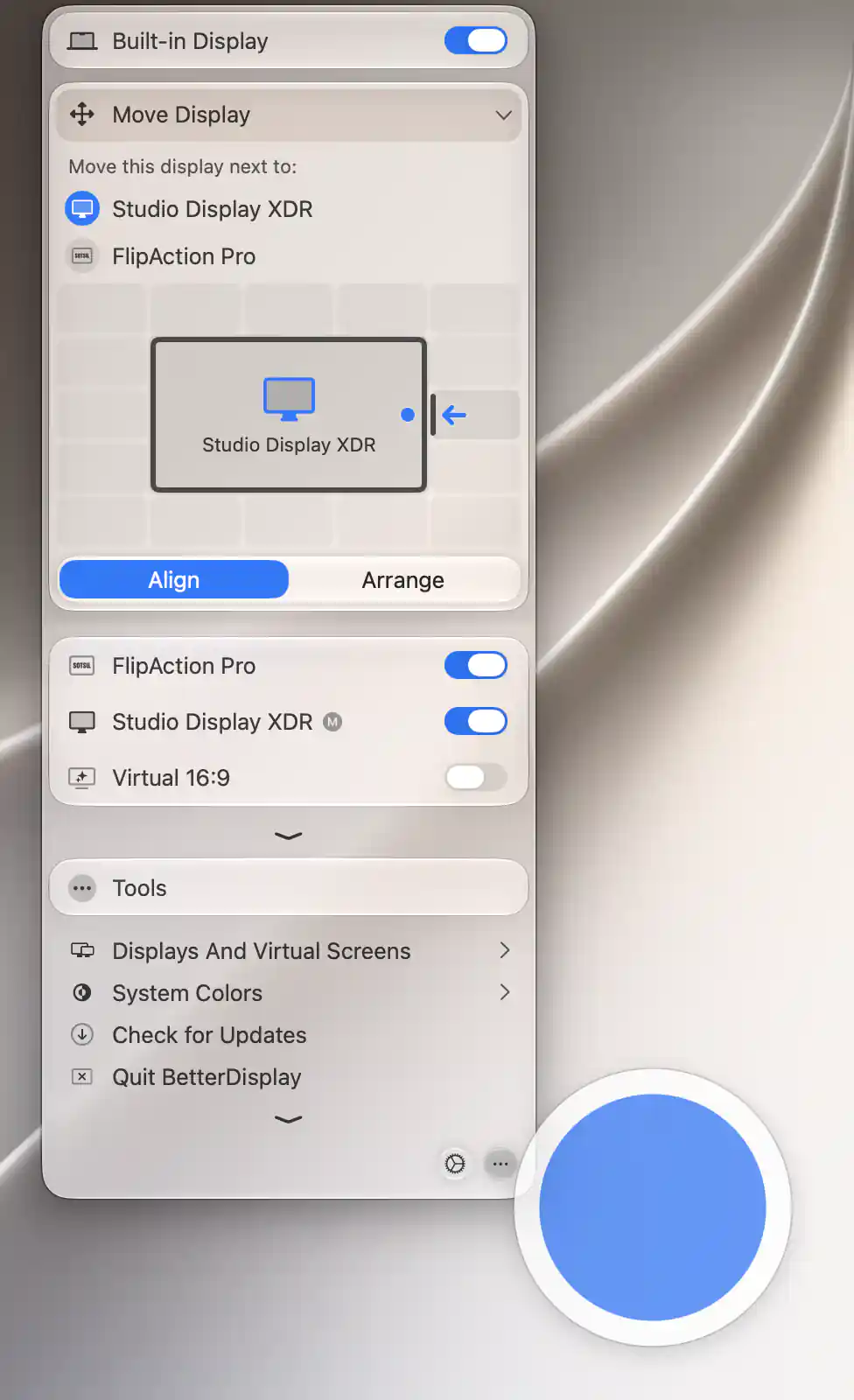
The dot overlay marks the reference display’s alignment anchor.
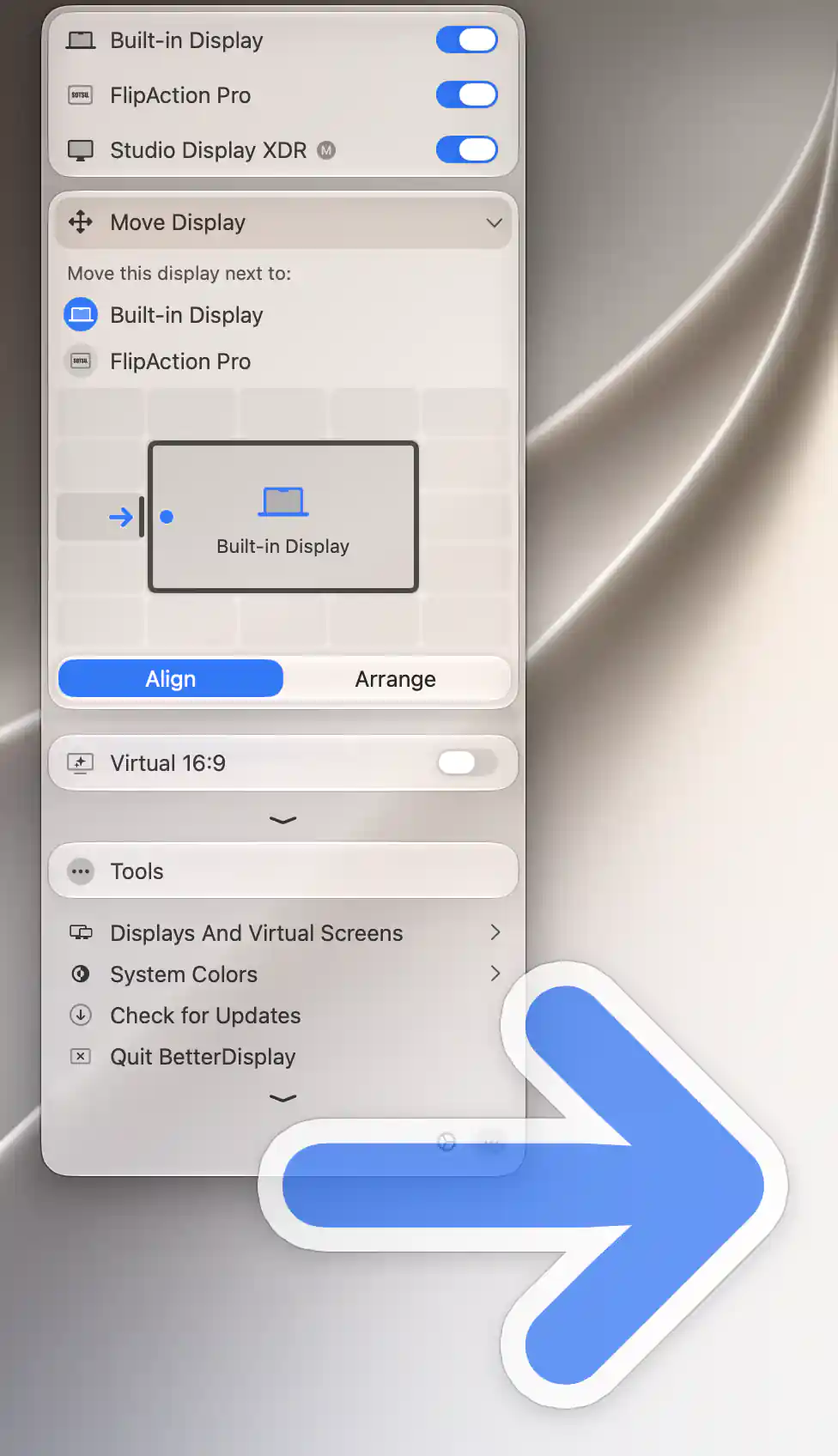
The arrow overlay identifies the display selected to move.
Arrange by dragging
Choose Arrange at the bottom when it is easier to work with the whole layout. The canvas shows every connected non-mirror-target display and emphasizes the one whose menu you opened. You can drag any front display rectangle, not only the emphasized one.
A small bar marks the main display. Stacked outlines behind a screen represent its mirrored targets; they are background indicators rather than separately draggable desktop areas. A notched display can also show its notch in the diagram.
Drag a rectangle toward the position you want. Its real screen is highlighted while you move it, helping you match the diagram to your desk. The canvas previews the change, and releasing the rectangle applies it to the system layout. The canvas then recenters around the result.
Snapping and identification
Nearby edges snap together. Additional alignment points help line up the top, center or bottom of side-by-side screens, or the left, center or right of screens arranged vertically. Dragging across the seam between two screens can insert a screen between them.
Option-click a rectangle without dragging to identify its real screen. The diagram keeps physical left/right positioning even when the interface language reads right to left. Your Align/Arrange choice is remembered across device menus.
Persistence and layout protection
A move immediately becomes a persistent system layout; there is no separate Apply button. Moving the main display's rectangle leaves it as the main display.
An active display group's Layout Protection can alter or override the move. BetterDisplay shows a warning for this condition and reapplies the group's rules after a layout change. If a display keeps returning to a protected position, review that rule before trying the same drag again.
The set of connected displays also matters. Connecting or disconnecting a screen while you are preparing a move can prevent the requested arrangement from being applied.
Additional information
This section explains which features require Pro and how availability differs between Mac platforms.
Features requiring Pro license
- Align placements and reference-display selection.
- Group Layout Protection, when used to maintain an arrangement.
The Arrange drag interface does not require Pro.
Platform compatibility
All features described on this page are available on both Apple silicon and Intel Macs. Arrangement requires at least two connected non-mirror-target displays; the final layout remains subject to macOS and active group rules.