Move Displays
Use Move Displays to make the desktop arrangement match the screens on your desk. Its canvas brings the displays together, so you can drag their rectangles into position without opening one device’s menu first.
Where to find it: App Menu > Tools > Move Displays. Expand Tools’ more-options chevron if necessary.
This entry appears when at least two connected displays are not mirror targets. Active group layout protection can still override a move.
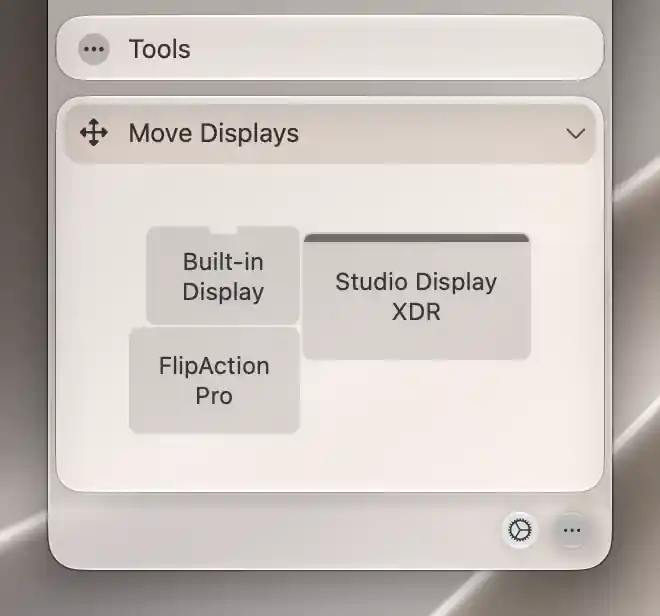
The canvas reflects the current desktop arrangement, with a bar marking the main display.
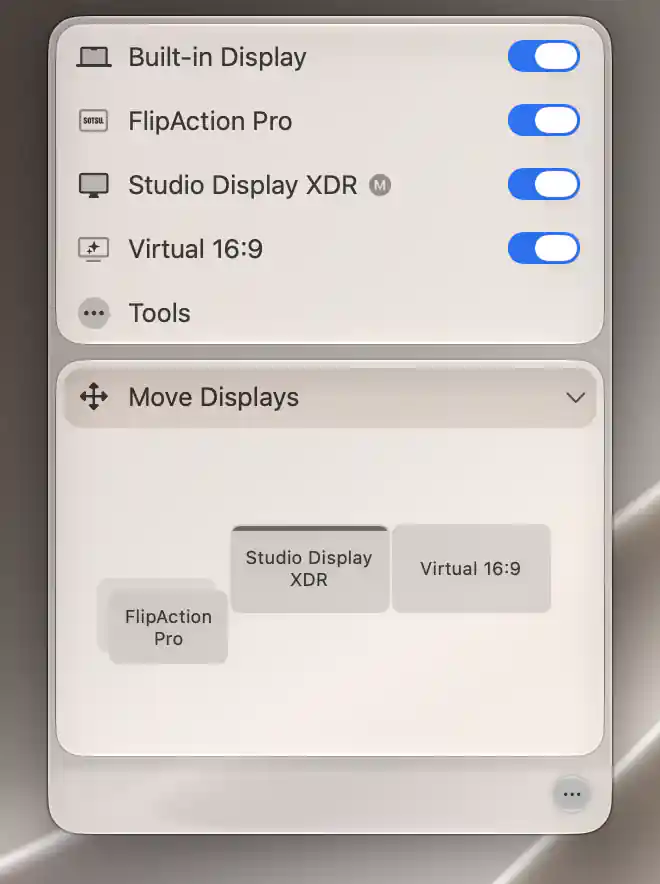
Mirrored displays appear as a stack; the bar above Studio Display XDR marks the main display.
Arrange the desktop
Drag a front rectangle and release it where you want that display to sit. The physical screen is highlighted during the drag so you can follow which one is moving, and the canvas recenters afterward.
The small bar marks the main display. Stacked outlines represent screens mirroring the front source. Move that source rectangle; the outlines are not independently positioned desktops.
Edges and centers snap to nearby displays to help you line them up. Inserting a display into an existing arrangement can move others aside to avoid overlap, so inspect the whole result after releasing.
The diagram expresses physical left/right and above/below relationships, including in a right-to-left language. Moving rectangles changes the desktop layout, not which display is designated main. Changes apply immediately and macOS receives them as a persistent configuration; no separate Apply step is needed.
Protected layouts and precise alignment
If a display moves back after your adjustment, check Layout Protection. A warning appears when active rules may affect the result. Those rules are reapplied after a move and can restore a different arrangement.
For an exact side, corner or centered relationship, open a specific display’s Move Display menu and choose Align. That page also explains shared snapping, insertion, identification and persistence behavior. This Tools entry always uses the free arrangement canvas and has no Align selector.
Additional information
This section explains which features require Pro and how availability differs between Mac platforms.
Features requiring Pro license
The free-arrangement canvas does not require Pro. Group Layout Protection is a separate Pro feature and can override a manual move.
Platform compatibility
All features described on this page are available on both Apple silicon and Intel Macs. The canvas needs at least two connected displays with independently movable desktop bounds; mirror-target outlines cannot be moved independently.