Layout Protection
Layout Protection helps your displays return to a familiar arrangement after their modes or connections change. You save relationships—such as one display sitting to the right of another—and BetterDisplay can restore them when the rule applies. A group can also protect which member is the main display.
Where to find it: Settings > Groups > group > Layout Protection.
The group must be active and Enable layout protection must be on; the feature starts off. A position rule needs both the display being positioned and its reference display to be connected group members. Ordinary mirrored targets do not have independently movable desktop bounds.
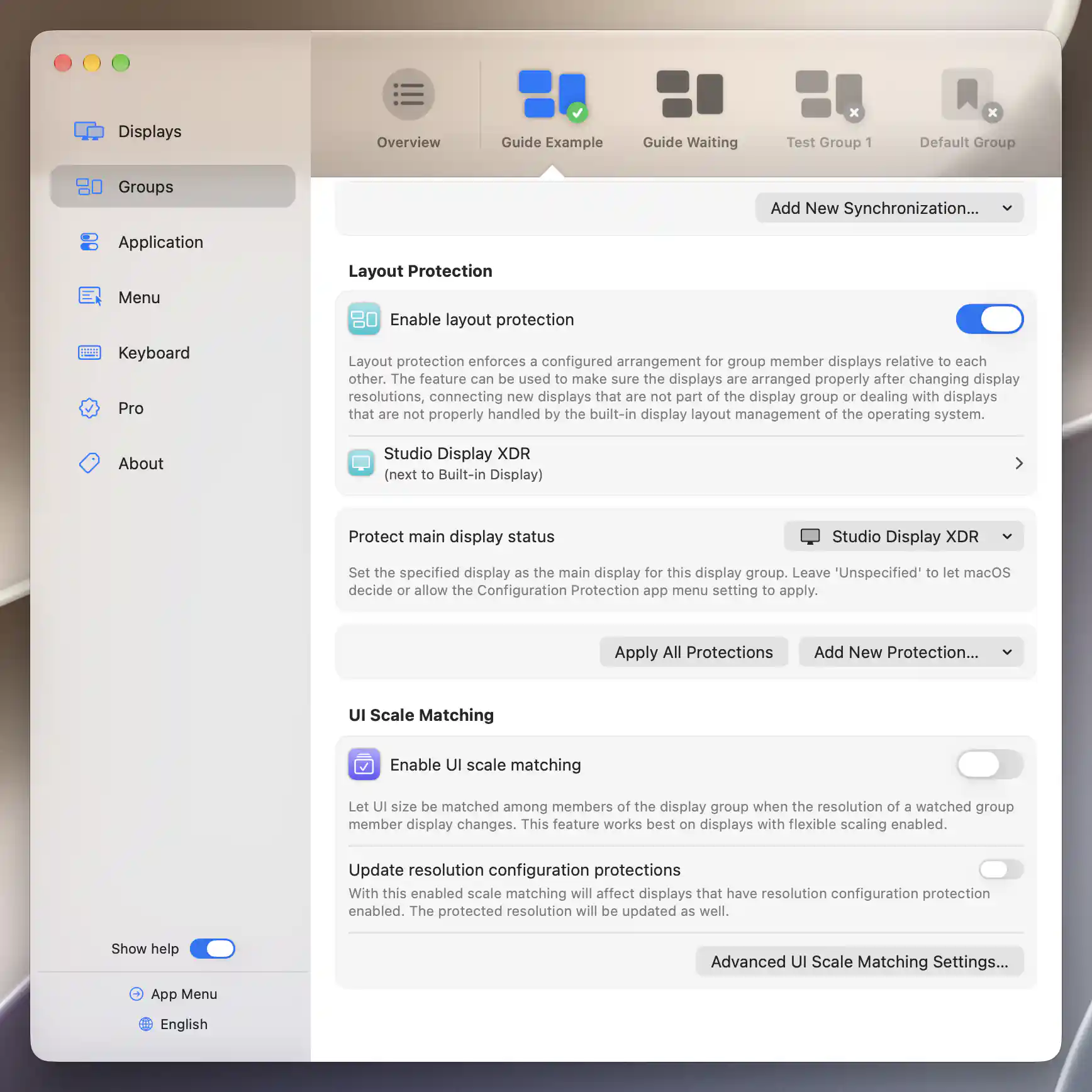
Layout protection keeps relative placement and main-display selection together in the group.
Add a positioning rule
Choose Add New Protection…, then the display you want to position. The menu omits display/orientation combinations that already have a rule. A new entry starts enabled, but needs a reference display and a position before it can do anything.
- Open the rule and use Arrange [display] next to to select another group member as its reference.
- Under Position of [display], choose Left of, Right of, Above or Below that reference.
- Keep the default centered edge alignment, or adjust the anchor offsets described below.
These positions describe physical desktop directions, including in a right-to-left interface. By default, the centers of the adjoining edges line up.
Edit the reference and position
Select an existing rule to open its editor. Protect the position of [display] controls that individual rule independently of the group-wide feature switch. A warning tells you if protection is disabled for the group, a participating display is disconnected, or the relative position is undefined.
The reference list labels disconnected members accordingly. No selection clears the reference, while Cancel leaves it unchanged. The direction selector also offers No selection to clear the position.
Different arrangements for portrait and landscape
The creation menu normally offers a rule for any orientation. Hold Option while selecting the group to reveal separate portrait and landscape entries in Add New Protection. This lets the same monitor sit in different places depending on its current orientation.
A matching orientation-specific entry takes precedence over the general rule.
Anchor point offsets
Anchor points let you refine how the adjoining edges meet. Turn on Adjust anchor point offsets to reveal two sliders, a graphical preview and live anchor markers on the participating screens.
Move an anchor along each display's adjoining edge. For side-by-side displays, the direction is Top/Bottom; for vertically stacked displays, it is Left/Right. BetterDisplay aligns those two anchors, allowing top-edge, bottom-edge or offset arrangements instead of centered alignment.
Read the position labels
The labels show percentage distance from the nearer edge: the center is 50%, and an edge is 0%. Millimeter distances also appear when physical dimensions are available.
Physical dimensions affect the preview and distance labels, while the actual desktop arrangement uses the displays' logical bounds. If the size estimates are wrong, correct the physical dimensions in the selected display's Additional Settings.
Orientation feedback
A portrait/landscape mismatch can produce Visualization is not indicative… feedback. This means the preview does not show the orientation for which that rule is intended. The matching rule is chosen when the display has the appropriate orientation; the preview alone does not prove that the rule currently applies.
The on-screen anchor indicators disappear when you leave the editor or close Settings.
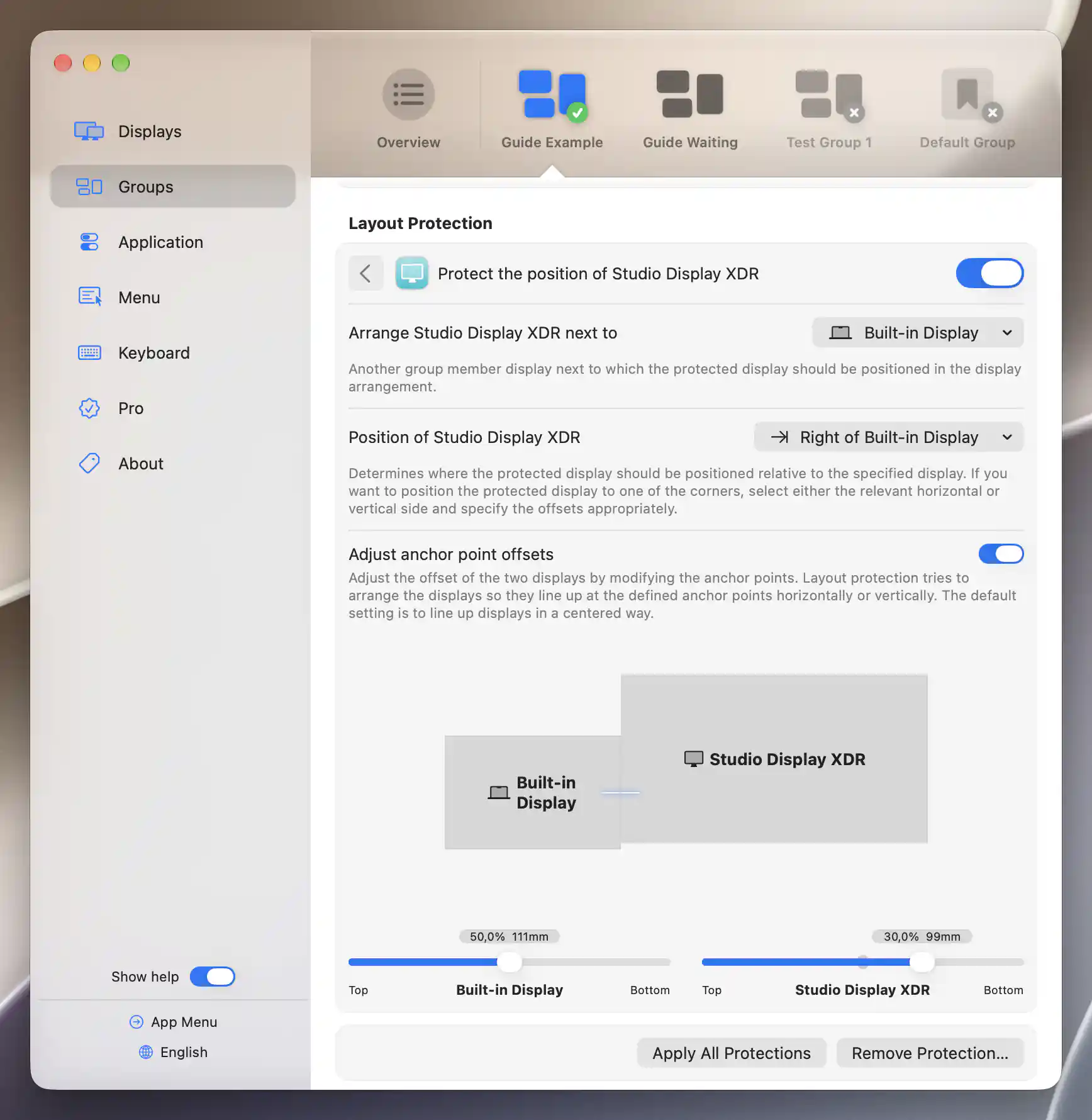
Adjust each anchor independently to align displays at the desired physical height.

The anchor marker appears at the screen edge while its layout rule is open.
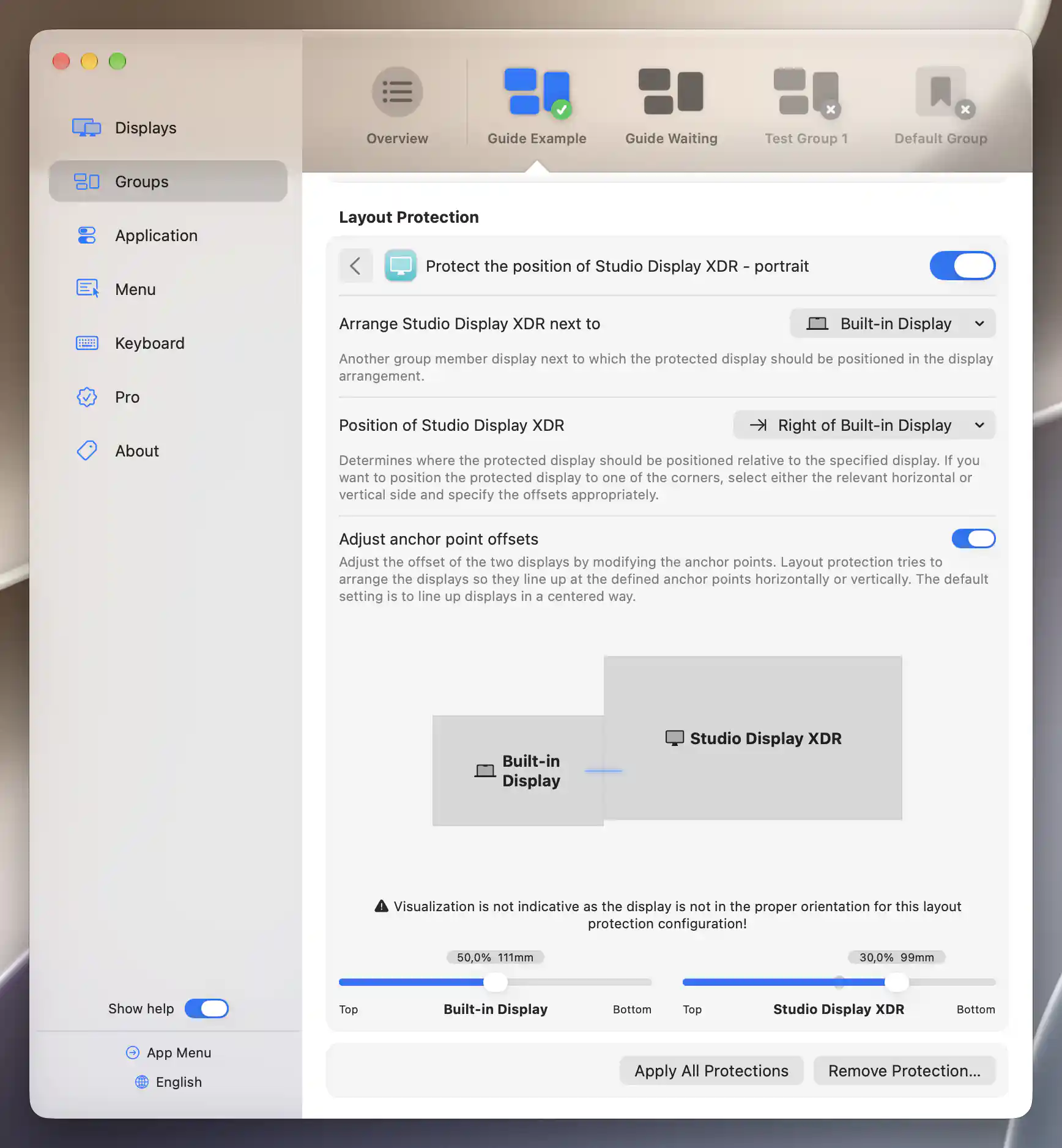
A portrait-specific rule warns when its diagram does not represent the display’s current orientation.
Main display and applying rules
Keep a member as the main display
Protect main display status selects the member to make main whenever the applicable group protection runs. It depends on the group being active, layout protection being enabled and the selected member being connected.
Choose No selection to leave the setting Unspecified, allowing macOS or the device's separate Configuration Protection setting to decide. You can Option-select a member to identify its screen before choosing it.
Apply the saved arrangement
Rules are saved as you edit them. Apply All Protections enacts the actionable layout and main-display rules from all active groups, not only the group you are editing. The Settings button is disabled while this group's layout protection switch is off. Even with the button available, an inactive group or absent required display can leave a rule without an effect.
If active groups supply competing rules for the same protected display, the higher-priority group wins. Directly opposing pairs are not both applied. Other displays may move to resolve overlaps, and the resulting arrangement is stored in the system.
Automatic enforcement and removal
Layout protection also runs during relevant display reconfiguration and mode changes. Settings > Groups > Overview > Advanced… > Apply all layout protections on startup is a separate preference and starts off. The Groups menu has another preference for applying protections after group changes made there.
Remove Protection… opens a confirmation naming the display and orientation. Choose Remove to delete the rule and its settings, or Cancel to keep them.
Immediate Move Display/Move Displays commands reposition displays directly. Group Layout Protection instead saves relationships to reapply, while a device's Configuration Protection covers its selected mode and other individual properties. Use UI Scale Matching when you want equal physical interface size rather than a particular arrangement.
Additional information
This section explains which features require Pro and how availability differs between Mac platforms.
Features requiring Pro license
- Group layout-position and main-display protection.
- Applying protections manually or automatically, including the optional startup setting.
Platform compatibility
All features described on this page are available on both Apple silicon and Intel Macs. Positioning requires connected group members with usable desktop bounds; ordinary mirrored targets do not have independent positions. Physical-dimension data improves the preview and distance labels, while actual positioning uses logical desktop bounds.