Custom Controls
A custom control gives an adjustment or action a name BetterDisplay can use throughout the app. You can then connect that definition to a display integration or DDC function, and use suitable controls in group synchronization. Defining the control is the first step; assigning what it actually does is a separate step.
Where to find it: Settings > Displays > Overview > Custom Controls…. DDC and Control Integration configuration can also open this manager and return you to the originating sheet afterward.
The definition stores a name, kind and stable identity. It does not send a command to a display by itself, so you can create the definition before configuring its display implementation.
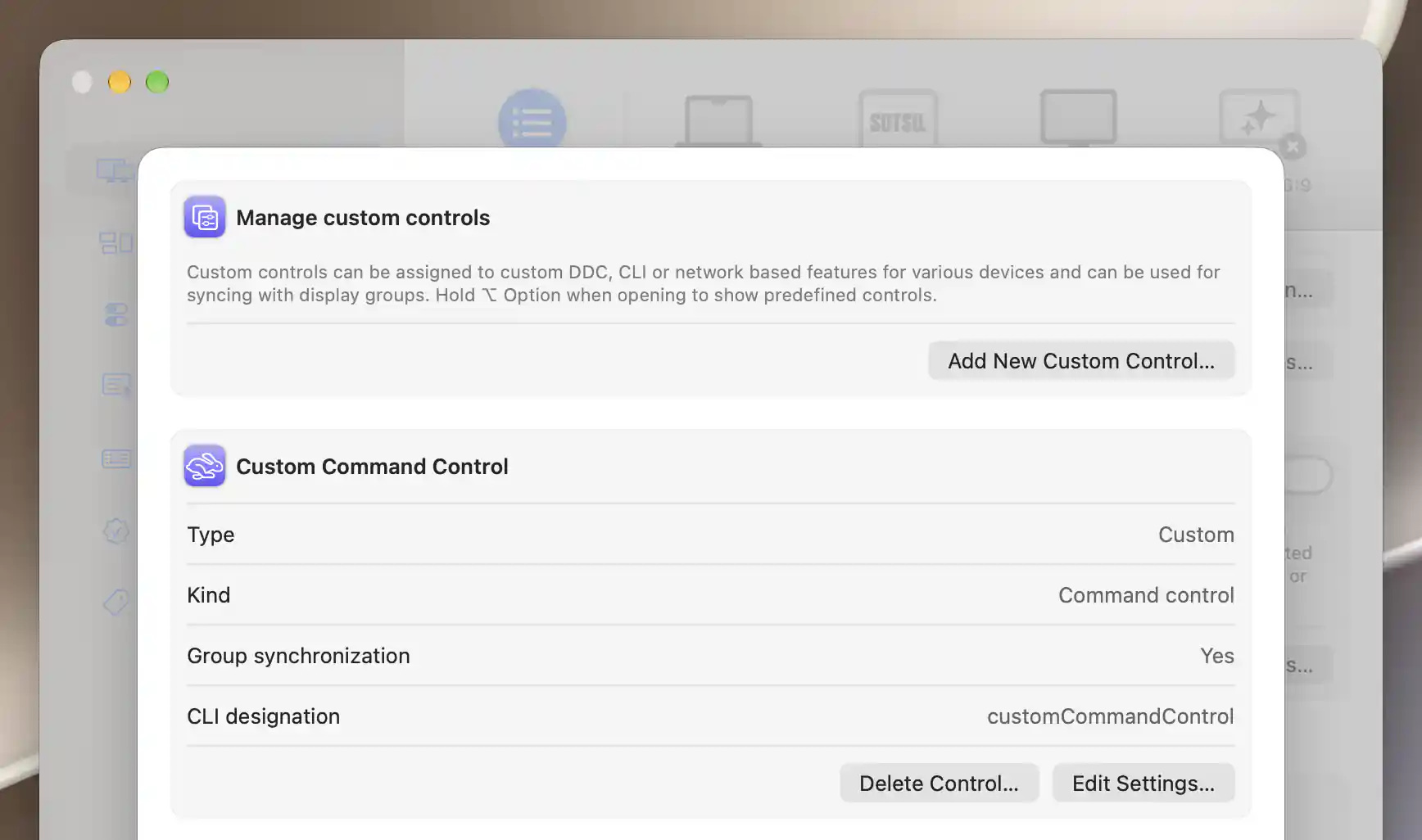
The manager lists each custom control with its identifying and synchronization settings.
Add a control
Select Add New Custom Control…, then choose the kind that matches the behavior you want:
- Range-based control, the default, represents a value that moves through a range, like brightness.
- Toggle (on/off) control represents a state you can turn on or off.
- Command control triggers an action instead of maintaining an adjustable value.
Enter a Control name that will make sense wherever the control appears in the app. A name is required. Choose a distinct, descriptive one even though a repeated display name is not the same validation error as a repeated CLI designation.
Identity, icon and synchronization
Open Additional Settings… to configure details that determine how the control is recognized and used:
- Custom control icon accepts an SF Symbol name. You can also use Browse… to open the shared symbol picker. If the symbol name is unavailable, BetterDisplay uses the default icon for the control's kind.
- CLI designation is the stable identifier used by integrations and the command-line interface. Leave it empty to generate one from the control name, with a number added when needed to avoid an existing identifier. If you enter one explicitly, it must not clash with a custom or predefined control; a collision warning disables creation.
- Group synchronization is shown for range-based and toggle controls and defaults to on. It makes that control eligible for configuration in a group's synchronization settings. It does not select a group or create a synchronization relationship by itself.
Select Add Custom Control to save the definition at the top of the list. It is unavailable until the name and designation are valid. Cancel abandons the new definition.
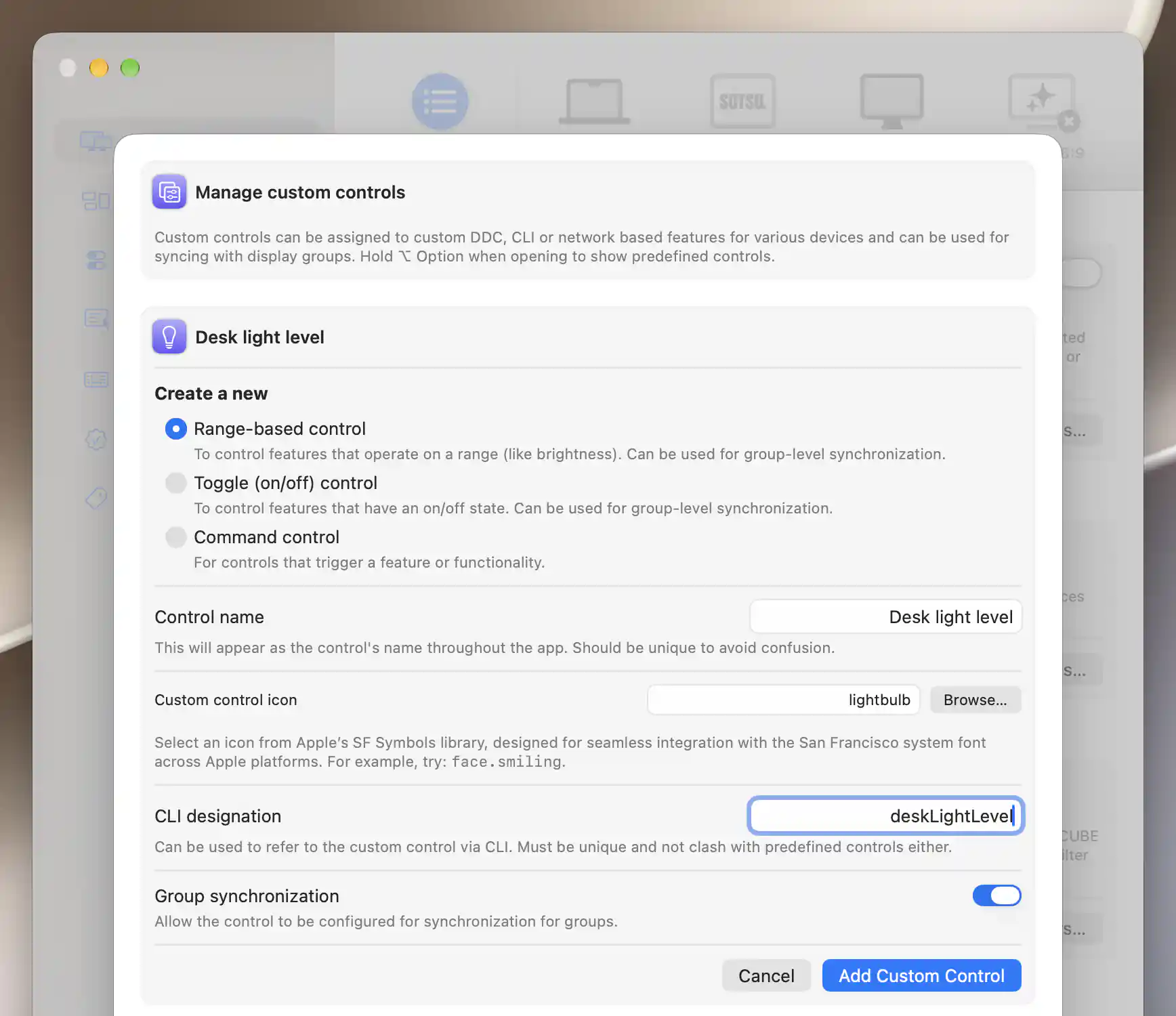
A range-based control can expose a named value and participate in group synchronization.
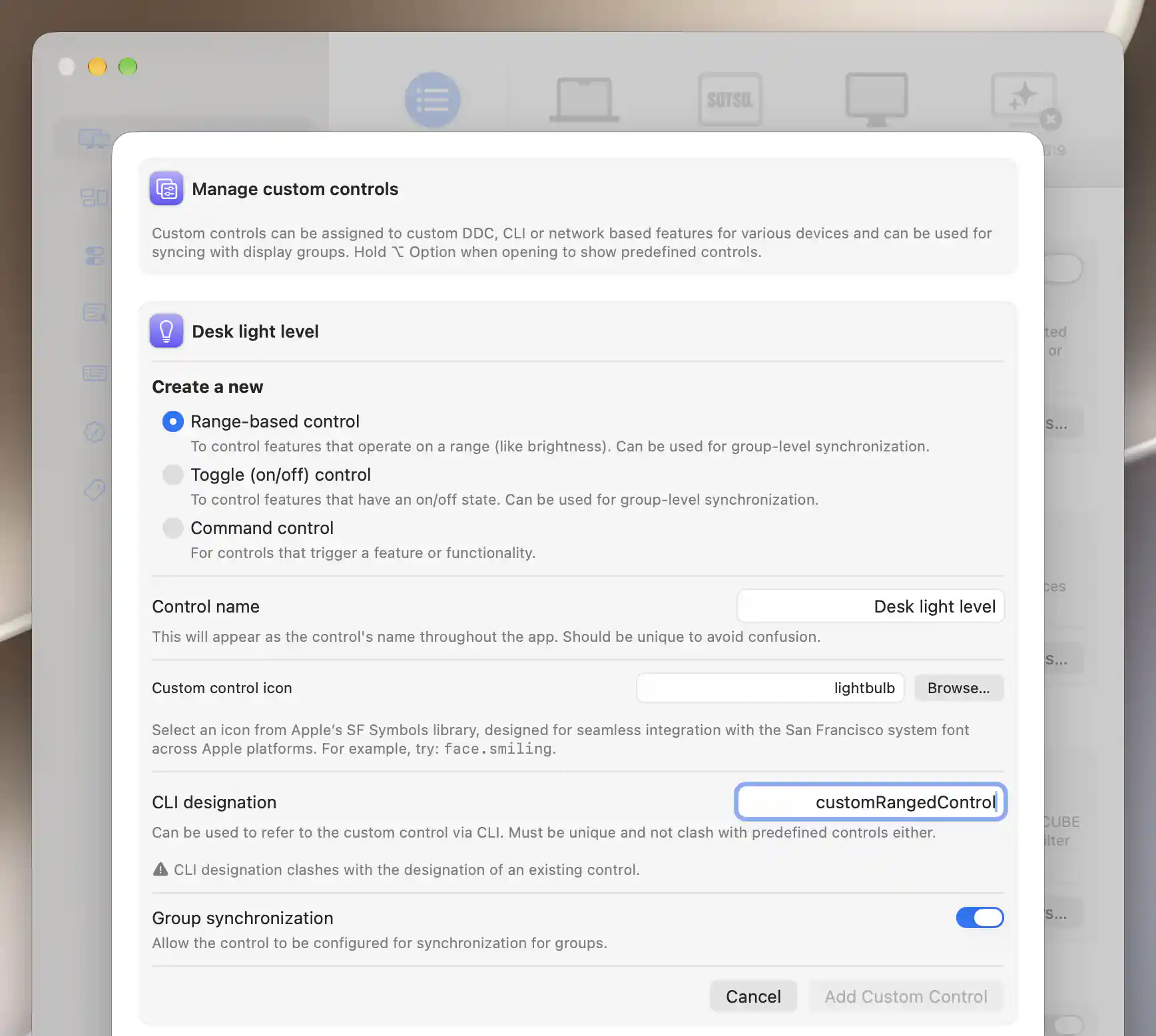
An existing CLI designation prevents the new custom control from being added.
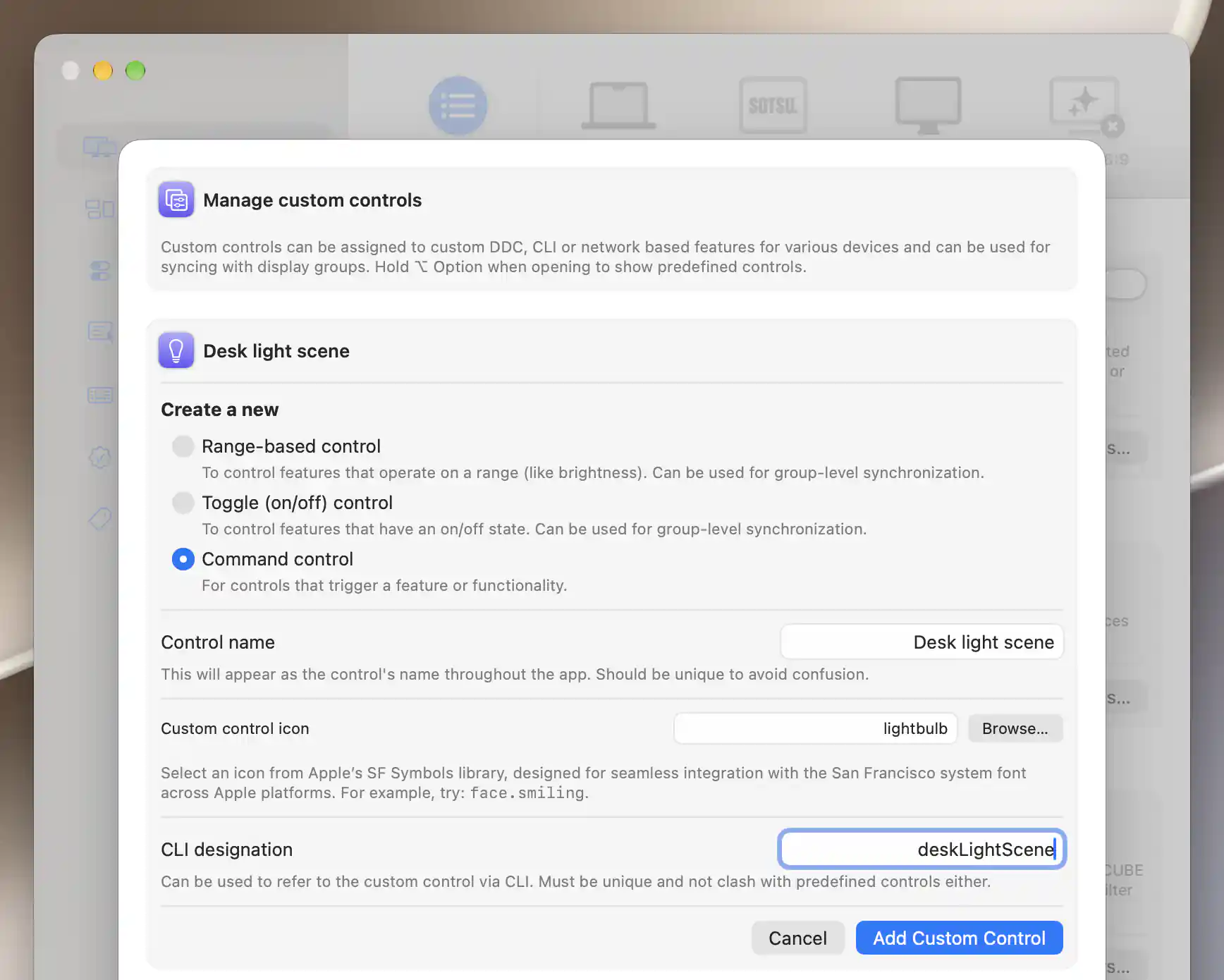
Command controls trigger an action and omit the new-control synchronization switch.
Inspect and edit
Each saved entry shows Type, Kind, Group synchronization, and CLI designation. These properties help you check what the control represents and how integrations refer to it.
Edit Settings… changes only the name and icon. Choose Done to save or Cancel to restore the stored values; an empty name prevents saving. The kind, designation and synchronization eligibility are chosen at creation and cannot be changed in this edit form.
When you arrive from another configuration sheet, the completion button can read Back to DDC Controls… or Back to Control Integration Configuration…. Returning is possible only while the display is still connected and the relevant feature remains available. Otherwise, the manager finishes with Done.
Delete and assign
Once the definition exists, configure its implementation in the display's DDC or Control Integration settings. This is where a named control gains an actual display operation. You can then select it in group synchronization where appropriate.
A command triggers its assigned action; range and toggle controls supply the values or states needed for ordinary synchronized adjustments. Check the entry's Group synchronization property instead of assuming every visible definition has a useful synchronization implementation.
Removing a definition
Delete Control… removes an unused definition immediately. If the control is assigned to a display or used in a display group's synchronization configuration, a confirmation explains that those assignments will be removed too. Delete removes the definition, display implementations and group synchronization configuration; Cancel preserves them.
Renaming and deleting therefore have different consequences. Editing the name keeps the control's identity, whereas deleting it and creating another removes the original assignments.
Additional information
This section explains which features require Pro and how availability differs between Mac platforms.
Features requiring Pro license
- Adding custom controls, including saving with Add Custom Control.
- Editing an existing custom control's name or icon.
Existing definitions can still be inspected or deleted when Pro editing is unavailable. Assigning controls to DDC, Control Integration or group synchronization follows those features' own requirements.
Platform compatibility
All features described on this page are available on both Apple silicon and Intel Macs. A saved definition does not establish hardware support: the assigned DDC or integration mechanism must be available and capable of the intended operation. Available SF Symbol names can depend on the macOS version.