Displays Overview
Displays Overview is the starting point for configuring your display setup. Choose a display or virtual screen when you want to change that device, or use the overview settings when you want to change behavior across devices. The lists also help you distinguish what is connected now from configurations BetterDisplay remembers for later.
Where to find it: Settings > Displays > Overview.
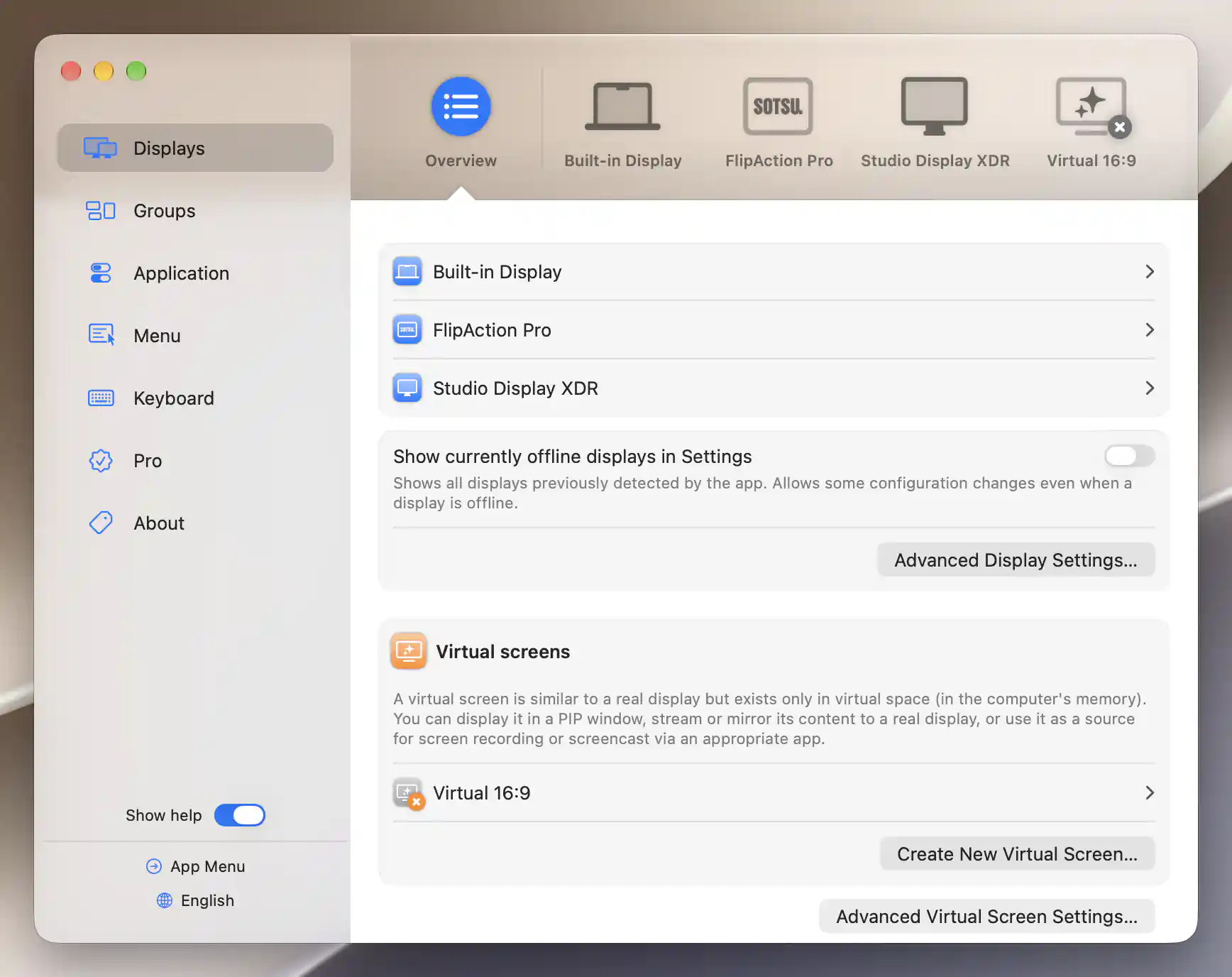
Connected physical displays appear above the saved, disconnected virtual screen.
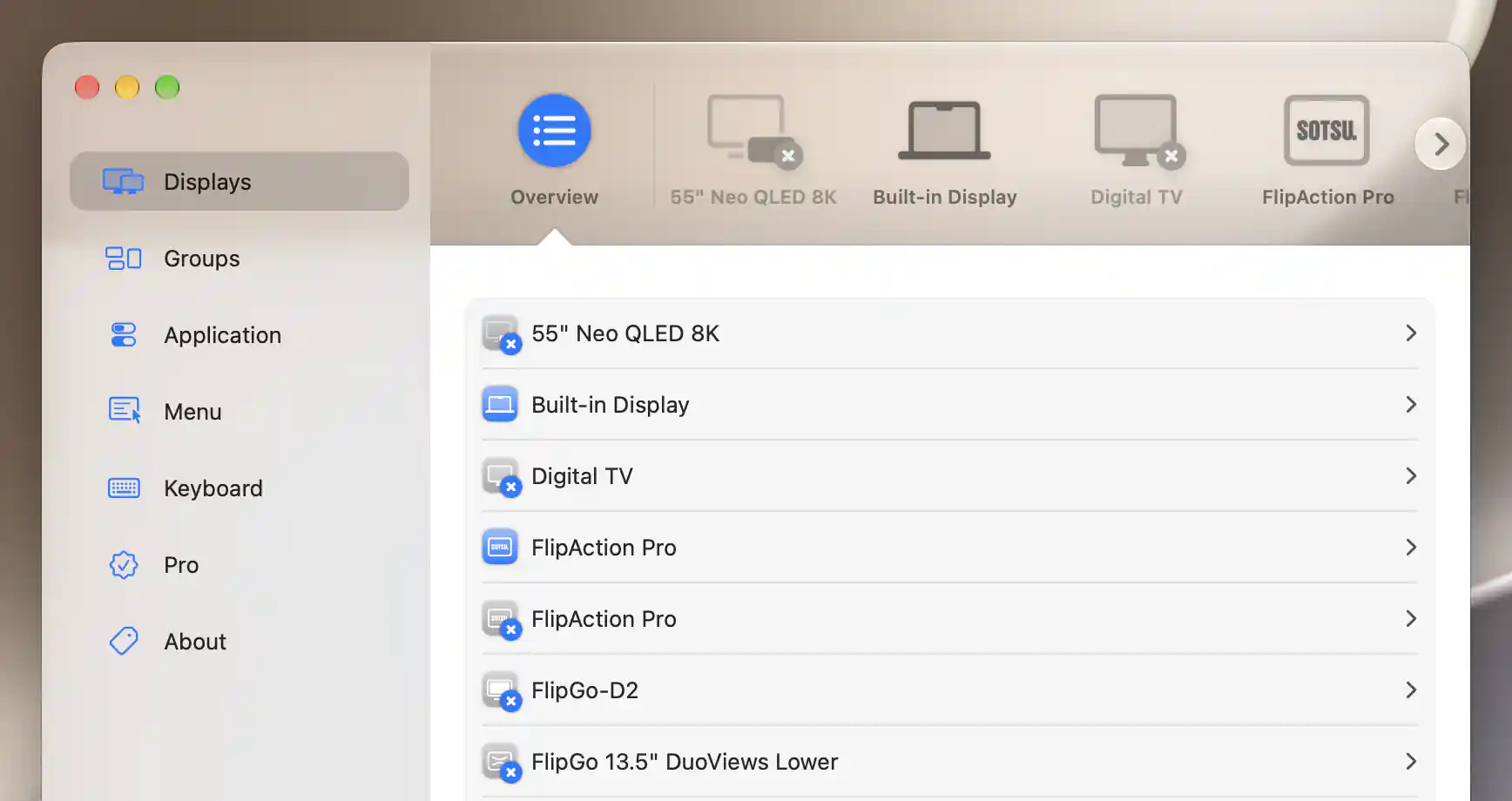
Offline physical displays remain available as dimmed rows with unavailable badges.
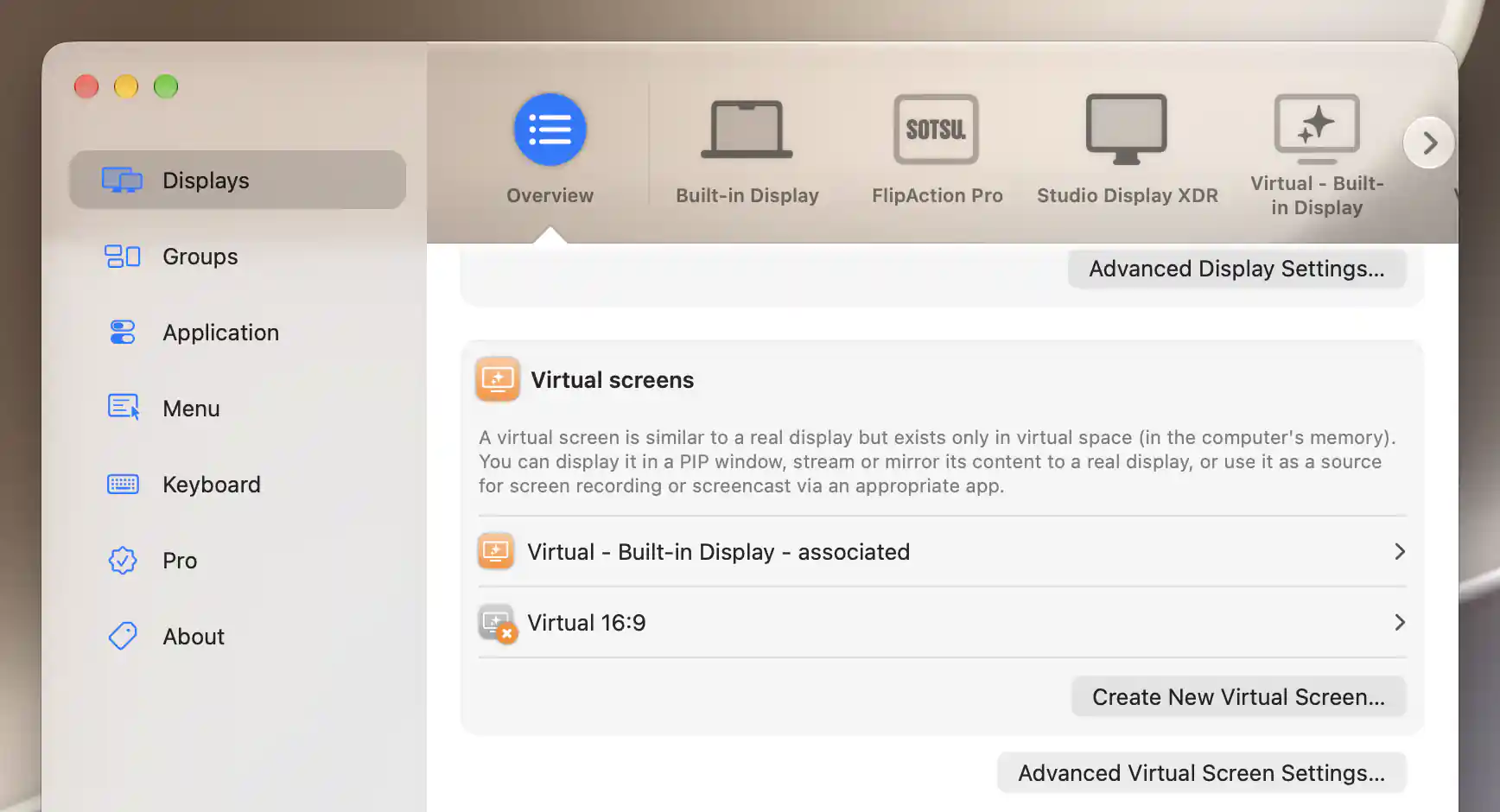
Associated virtual screens are labeled in the overview beside saved disconnected definitions.
Select and identify a display
Click a display row to open its settings. Connected displays have fully emphasized icons; disconnected and remembered offline entries are dimmer and carry status badges. A power badge identifies a display disconnected through the app, while an unavailable badge identifies a remembered offline display. Being listed does not necessarily mean the device is currently connected or controllable.
Show currently offline displays in Settings lets you include remembered displays and edit settings that do not need a live connection. It is off by default. If no display is detected, the overview shows an error notice instead of a normal display list.
The Virtual screens list keeps software-defined displays separate from physical displays. A virtual screen has a saved definition, so it can appear here even while disconnected. Entries with a display association are labeled associated.
Use Create New Virtual Screen… to add a definition, or Advanced Virtual Screen Settings… for global virtual-screen preferences and bulk management.
Advanced Display Settings
Open Advanced Display Settings… for preferences shared across your display setup. The first group covers color behavior, stream targets, discovery and mode-switch transitions.
Color behavior
Turn off Night Shift and True Tone in HDR mode can help preserve more accurate HDR color reproduction by setting aside those system effects while HDR is in use. It defaults to off. When BetterDisplay switches a non-virtual display to HDR, the option disables effects that are currently enabled and available. On returning to SDR, it restores only the effects it turned off; it does not enable one that was already off.
Some Apple displays use presets to manage their color reproduction. Unlock Color Profile management for Apple displays, off by default, exposes color profile management for those displays too. A profile may still influence rendering, but Apple presets work best with the factory profile. Changing the option reconfigures displays immediately.
Streams, discovery and mode changes
Switch to native mode for full screen stream target defaults to off. When a stream starts on a separate display, BetterDisplay saves that target's current mode and switches to its default mode; stopping the stream restores the saved mode. Despite the option's label, this is not a guarantee that a particular physical-native pixel resolution will be selected.
DisplayLink auto-discovery requests display information through installed DisplayLink support during configuration. It defaults to on. Use up-to-date DisplayLink drivers, and turn discovery off if it causes trouble with those displays.
Quick mode switch appears on Intel Macs and defaults to on. It skips macOS fade-out/fade-in animations for mode and layout changes made through BetterDisplay. The change applies immediately.
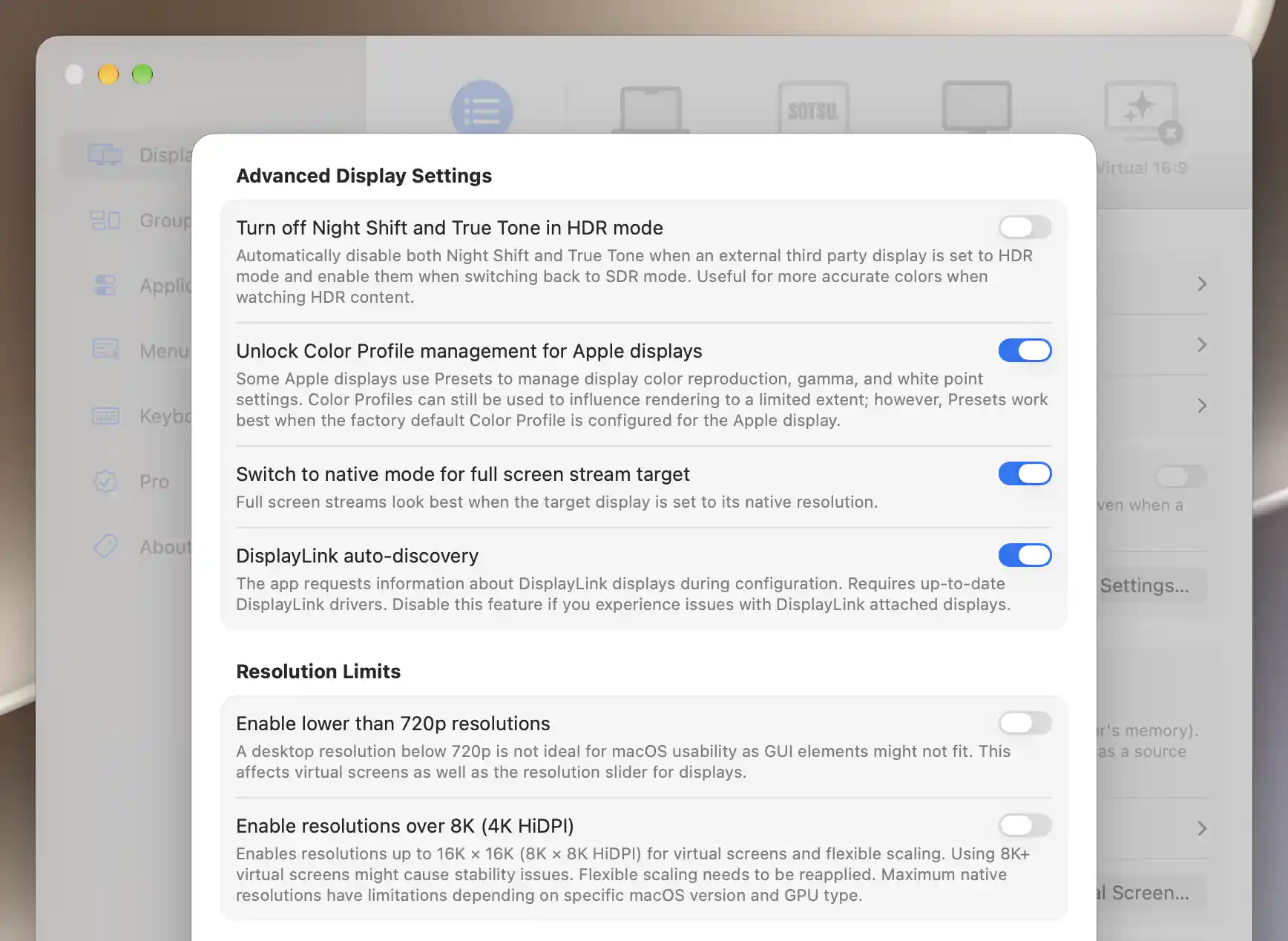
Advanced display preferences and resolution limits apply across the display setup.
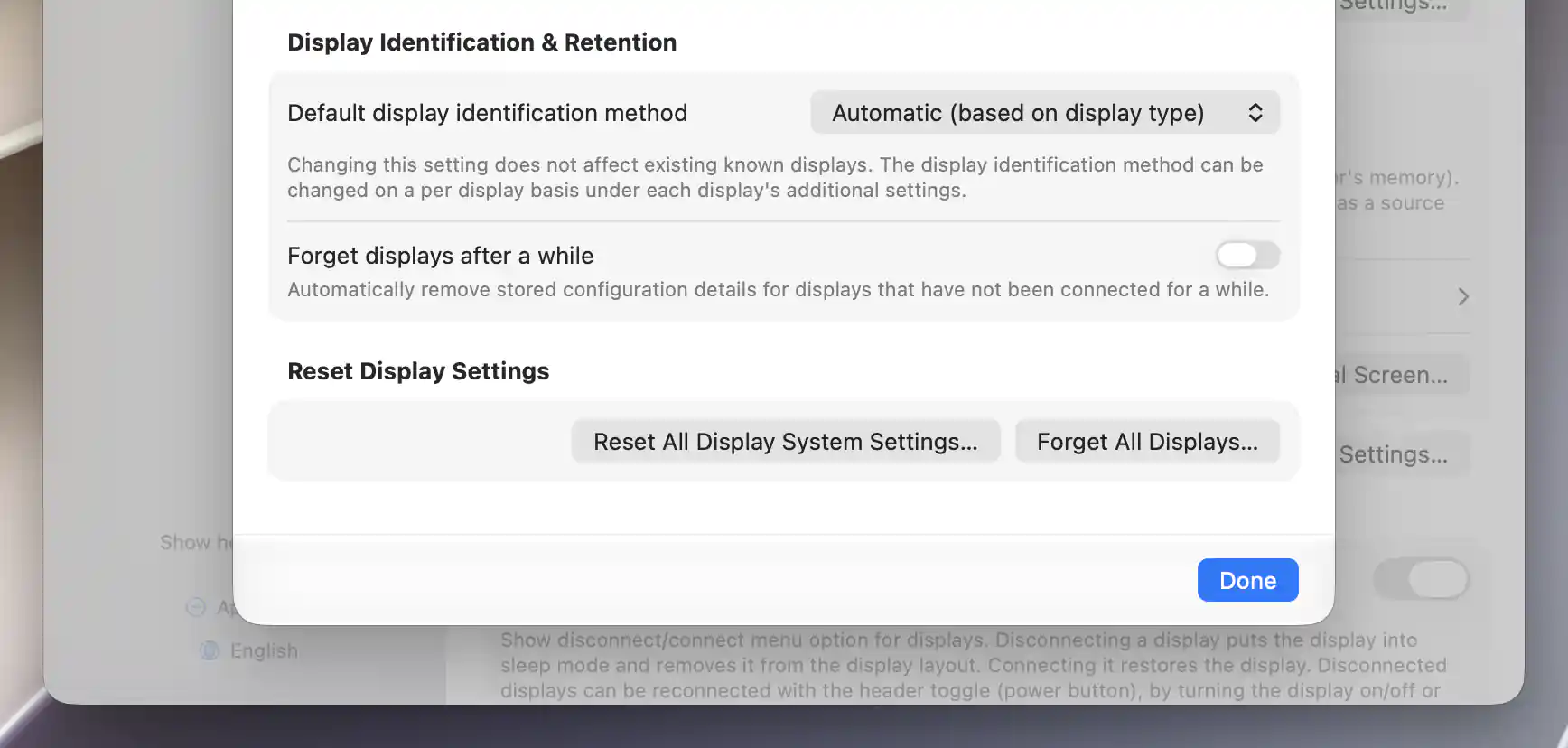
Identification and retention determine how BetterDisplay recognizes and remembers displays.
Resolution Limits
The resolution-limit preferences let BetterDisplay offer a wider range of desktop sizes. Both are off by default, and the additional choices still depend on what macOS and the display configuration can use.
Enable lower than 720p resolutions allows smaller modes in virtual screens and the display resolution slider. This can be useful for a deliberately small desktop, but macOS interface elements may no longer fit. Display mode lists update immediately. If virtual screens are connected, a confirmation offers Disconnect and reconnect or Do not reconnect; accepting cycles all currently connected virtual screens.
Enable resolutions over 8K (4K HiDPI) raises the high-resolution limit for virtual screens and flexible scaling. The interface describes the expanded limit as 16K × 16K, or 8K × 8K HiDPI; the current virtual-screen mode generator caps each physical axis at 15,360 pixels. Actual limits also depend on macOS and the GPU, and very large virtual screens may be unstable.
For the underlying rendering method, see what flexible scaling and custom resolutions change.
Reapply flexible scaling to use the changed high-resolution limit. A reconnect prompt appears if a connected virtual screen uses generated modes rather than its own resolution list. Accepting still reconnects all connected virtual screens; declining keeps the new preference saved but does not reconnect those screens immediately.
Display Identification & Retention
BetterDisplay needs a way to recognize a returning display before it can apply that display's saved settings. Default display identification method chooses that rule for newly known displays; the default is Automatic (based on display type). It does not change known displays. To change an existing display's rule, use its Additional Settings. See Display identification for the difference between app identity and physical identity.
The available methods compare different combinations of information:
- System UUID match uses the system's identifier.
- Basic (match vendor, model, serial), Match vendor, model, name, Match vendor, model, Match vendor, serial, and Match name only use the information named in their labels.
- Basic + extended identifiers adds product-name, alphanumeric serial and manufacture-date information.
- Basic + extended + port, available on Apple silicon, and Basic + extended + location additionally distinguish connection paths.
- Full EDID match compares the display's EDID data and falls back to the system UUID when that data is unavailable.
A less specific rule may treat similar displays as the same device. A connection-based rule can distinguish otherwise identical displays, but ties their recognition to where they are attached. Choose the rule with that tradeoff in mind.
How long absent displays are remembered
Forget displays after a while is on by default. When enabled, it shows two retention fields. Remember displays for at least defaults to 90 days, after which old stored configurations can be removed if the display remains absent. The fields save as you type; clear a field to use its default.
Reset Display Settings
Use the reset actions only when you intend to remove saved display configuration. The system reset and BetterDisplay's forget action have different scopes, so read the confirmation carefully before choosing one.
Reset All Display System Settings… opens a destructive confirmation. Reset System Settings removes macOS display configuration, generated factory display profiles and installed display overrides. It then forgets BetterDisplay's saved displays and requests a reboot. Reset & Clear NVRAM also clears NVRAM firmware preferences, including startup-disk and boot-related settings. Cancel leaves the reset unperformed.
Save other work before accepting: successful completion requests a system restart. The operation uses the privileged helper or administrator authorization. Follow any required helper-approval flow; an administrator prompt can be used as a fallback. Cancellation stops the operation.
Forgetting BetterDisplay's display records
Forget All Displays… has its own Forget / Cancel confirmation. Forget removes BetterDisplay's remembered display settings, removes those displays from virtual-screen associations, and removes stored override settings for their vendor/model combinations. BetterDisplay then redetects and reconfigures the displays.
This action does not perform the macOS system-reset/reboot operation or discard the virtual-screen definitions themselves. It still affects more than current slider values: override settings are shared by matching vendor/model, so removing them can affect matching displays.
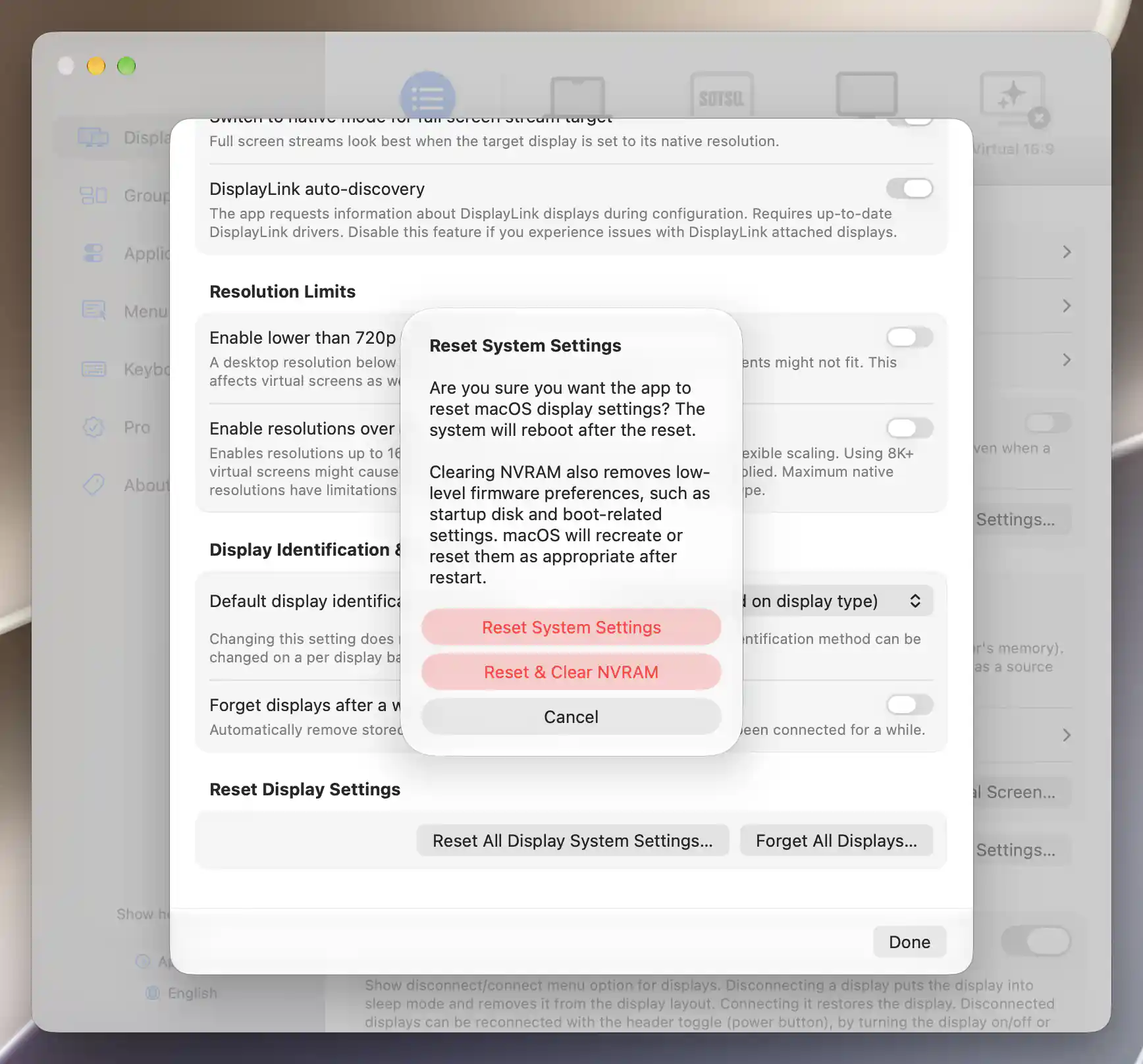
The system-reset confirmation explains the reboot and NVRAM consequences.
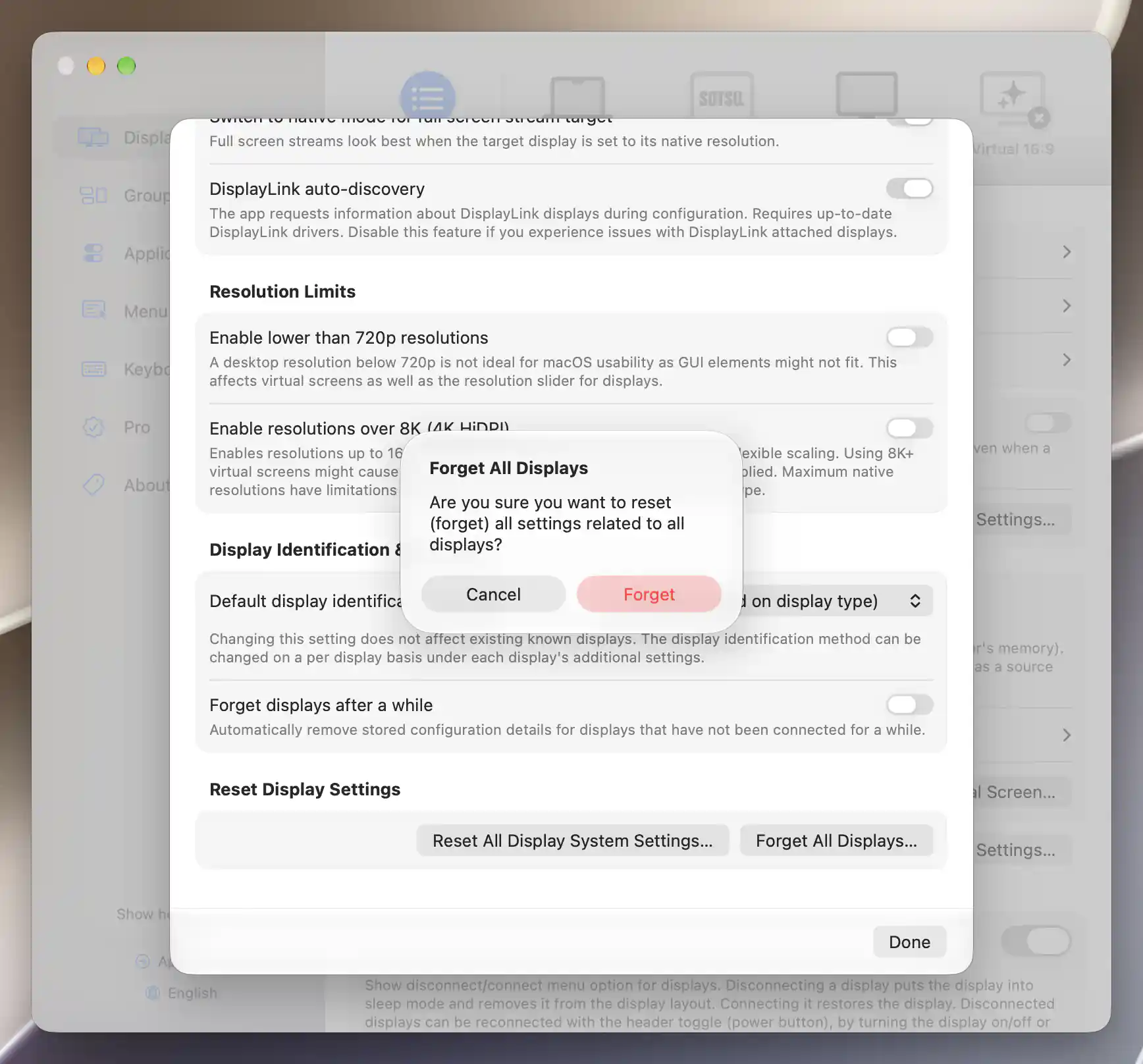
Forgetting display records has a separate confirmation.
For the remaining overview groups, see Display Connections, Custom Controls, Custom LUT Filters, and Software XDR/HDR Upscaling and Dimming.
Additional information
This section explains which features require Pro and how availability differs between Mac platforms.
Features requiring Pro license
- Turn off Night Shift and True Tone in HDR mode.
- Switch to native mode for full screen stream target.
- DisplayLink auto-discovery.
Viewing the lists, identifying a connected display, and the other overview preferences described above do not themselves require Pro. The separate connection, virtual-screen, custom-control, LUT and brightness features have their own requirements, explained on their pages.
Platform compatibility
The overview is available on both Apple silicon and Intel Macs. Quick mode switch is Intel-only; Basic + extended + port identification is Apple silicon-only. DisplayLink discovery needs installed, up-to-date DisplayLink support. HDR effects and Apple color-profile management depend on the display and supported system features.
Resolution availability depends on the macOS version and GPU; increasing a global limit does not guarantee that a particular mode will connect. Reset operations require privileged-helper or administrator authorization.