Use external monitors with your MacBook open and its built-in screen disconnected
Keep your MacBook open so you can use its keyboard and trackpad, while your external monitors provide the active desktops. On a supported Mac, BetterDisplay can disconnect the built-in screen without unplugging anything; try it manually first, then choose whether it should happen automatically at your desk.
Before you begin
- Start with an Apple silicon MacBook and at least one working external monitor connected through a native video connection. Keep the lid open throughout the initial test. Both the built-in screen and the external monitor should show a usable desktop before you begin.
- Check your model's external-display limits, including the permitted resolution and refresh rate. Disconnecting the built-in screen does not promise an extra native display. Apple lists the limits for MacBook Pro; use your exact MacBook Air model's technical specifications for an Air. Apple's two-display configuration for the base M3 MacBook Air and MacBook Pro requires a closed lid, so it is not this open-lid workflow.
- Move Settings and any important windows onto an external monitor. Record your current display arrangement, built-in brightness, connection preferences and any keyboard bindings you change. Removing a desktop can move windows and change which display is the main display.
- Plan recovery before disconnecting: keep the external monitor awake and know how to return to the built-in display using Settings or its app-menu power switch. If the Mac shows Allow disconnecting the built-in display on this M3 Mac, leave it off and stop this procedure. That safeguard applies to affected base Apple M3 hardware and warns that reconnection may require a restart; it does not mean every M3 Pro or M3 Max has the same restriction.
Soft disconnection removes the built-in display from the desktop layout. Turning its brightness down or blanking it can leave an active desktop where windows and the pointer can still go. Closing the lid is a different macOS operating mode and makes the built-in keyboard and trackpad inaccessible. This tutorial does not require a sleep-disabling command.
Try manual disconnection first
- Open Settings > Displays > Overview > Display Connections and ensure Enable connect/disconnect option for displays is on. It normally starts on.
- Open Connection Management Settings…. Keep Allow disconnecting all connected displays off and Auto-connect all displays when no connected displays left on. Leave Disconnect built-in display when an external display is connected off for this first test. Record previous values before changing them. These preferences save without an Apply button.
- Close the sheet. In Settings > Displays, select the built-in display, normally named Built-in Display, in the sidebar. At the top of its page, turn Connect this display off. If that switch is absent or unavailable, follow the troubleshooting checks below rather than removing a safety restriction.
- If the Disconnecting a Display confirmation appears, read it and choose Disconnect. Wait for the display layout to settle; an external monitor may briefly go black while its output mode changes. On compatible Apple silicon hardware, the built-in panel should enter standby while the external desktop remains usable.
- Check that the built-in page now reports Display status: Soft-disconnected and its Connect this display switch is off. Use the MacBook keyboard and trackpad to work on the external desktop.
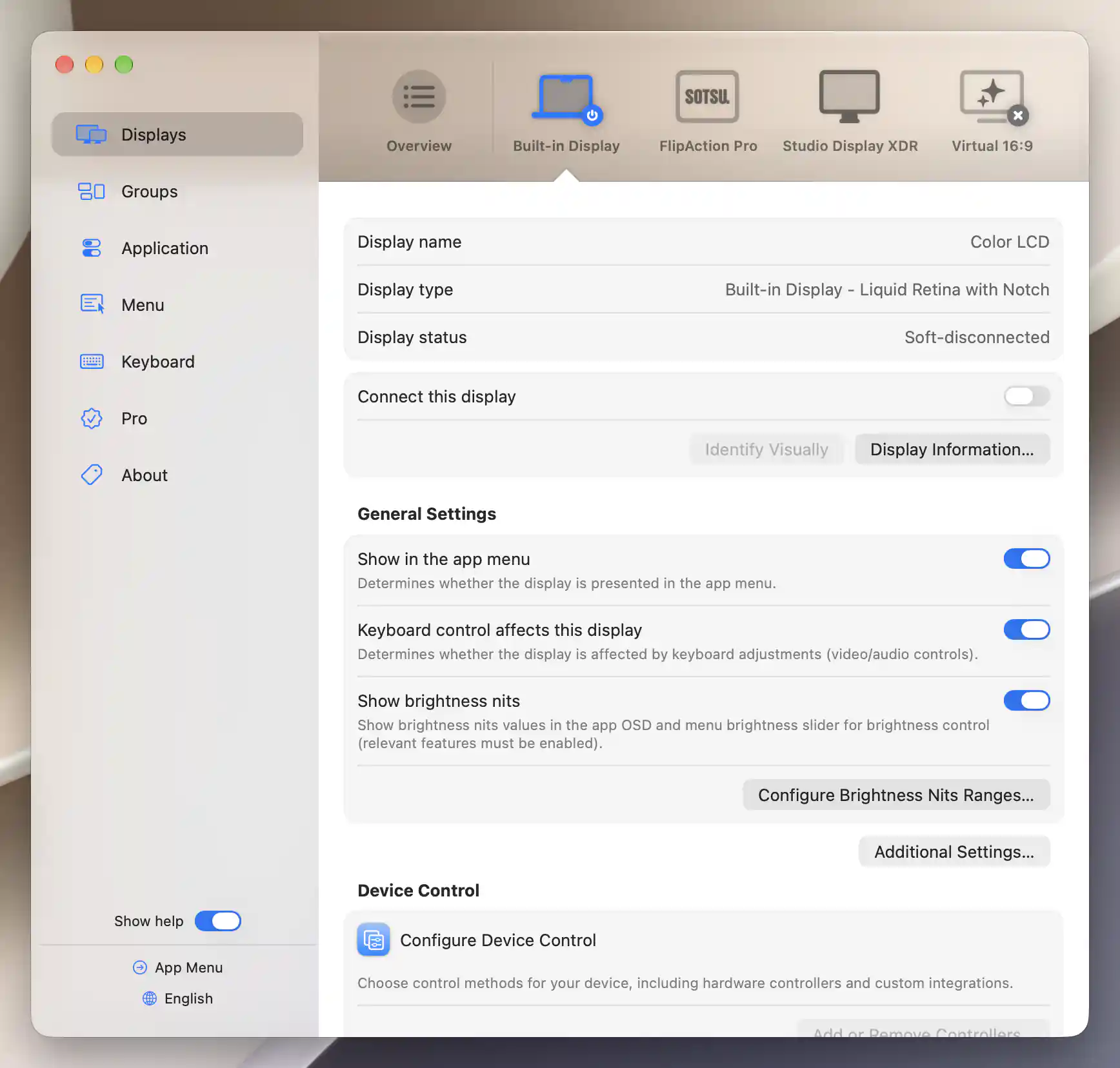
The built-in desktop is disconnected; its switch provides the manual return path.
Now test the return path: turn Connect this display back on and confirm that the built-in screen shows a desktop again. You can also use its header power switch in the app menu when that switch is configured for Connect/Disconnect or its normal Default behavior. Do not hold Shift while using the menu switch: that modifier can invert the connection state of other displays.
Repeat the manual disconnect only after reconnection works. A dark panel alone is not the result check: the screen should be removed from the active desktop layout, and the external desktop must remain accessible.
Disconnect automatically at your desk
Use the automatic rule if you normally want the built-in screen out of the way whenever a suitable external monitor is connected. The rule is off by default and applies to physical connection as well as reconnection through BetterDisplay.
- With the built-in display reconnected and an external desktop working, return to Settings > Displays > Overview > Display Connections > Connection Management Settings….
- Keep Allow disconnecting all connected displays off. Keep Auto-connect all displays when no connected displays left on, and retain the normal on settings for Auto-connect all displays on startup and Auto-connect all displays on quit unless you have a separate, planned workflow. Do not enable Disconnect reconnected displays upon wake or Aggressive disconnect merely for this tutorial.
- Under Built-in Display, enable Disconnect built-in display when an external display is connected. Close the sheet. The rule is saved without Apply or restart; it is evaluated when the display configuration changes.
- If the built-in desktop is still visible, disconnect and reconnect the native external monitor’s cable, then wait for configuration to settle. Confirm that the built-in screen disconnects when the external desktop returns. If an earlier configuration change has already disconnected it, you do not need to repeat the cable test. If you want to bring it back temporarily, use Connect this display or the app-menu header switch as described above.
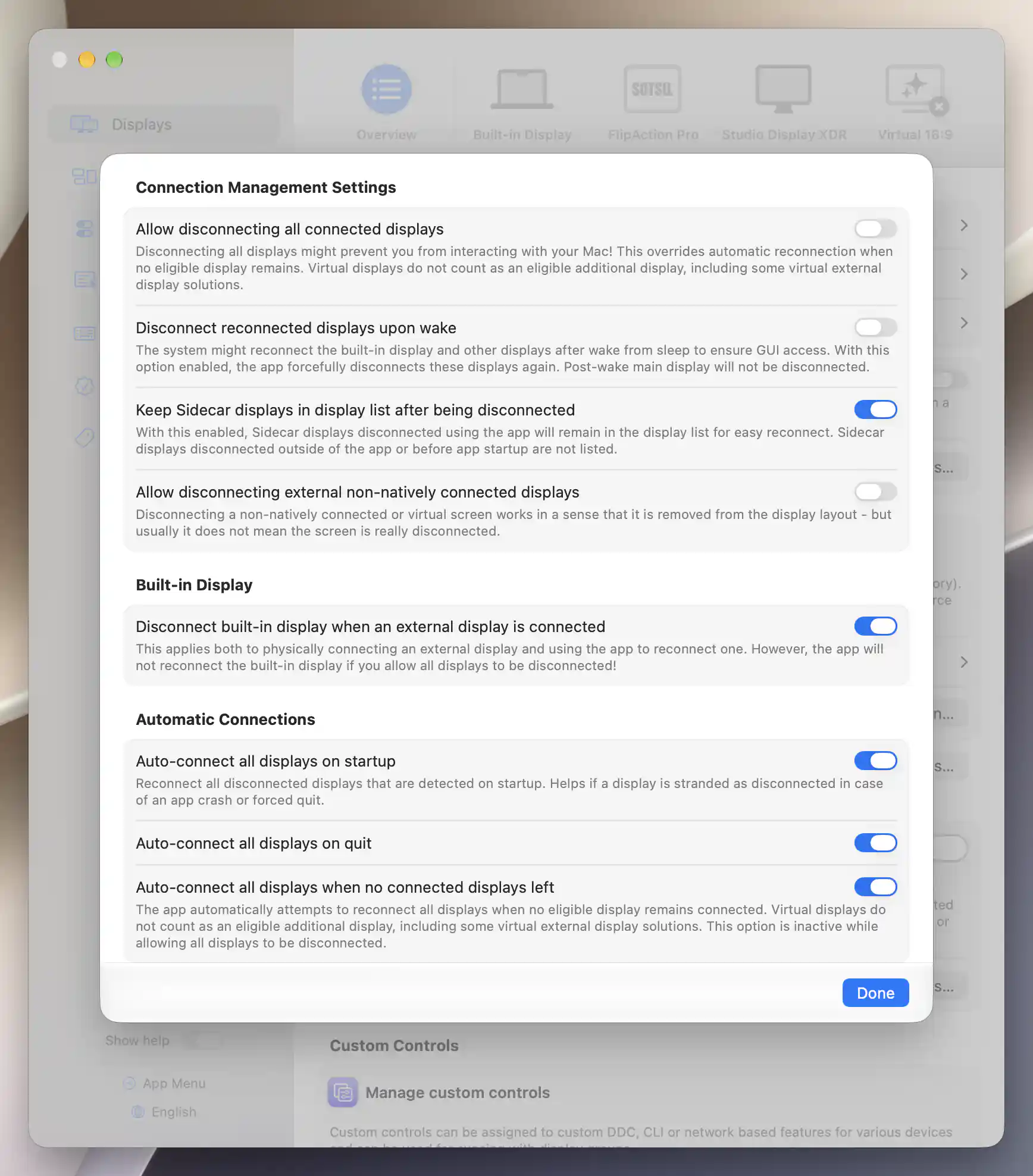
Enable the desk rule while retaining the normal disconnection and reconnection safeguards.
The trigger must be a connected external display that is neither a BetterDisplay virtual screen nor a system-virtual display, and that has no per-monitor exception. AirPlay and Sidecar therefore do not trigger it. A system-virtual DisplayLink screen does not trigger it either, even though a registered DisplayLink screen can count as the other eligible screen for a manual disconnect. On a mixed desk, a suitable native monitor can trigger the rule while DisplayLink monitors remain in use.
Choose which monitors trigger the rule
For example, you may want your desk monitor to disconnect the built-in screen, while a meeting-room projector leaves it available.
- Select the external display that should not trigger the rule in Settings > Displays > [display] > General Settings.
- Open Additional Settings…. Under Display Connections, enable Ignore for built-in display auto-disconnect. This exception is saved for that display.
- Leave that exception off for your desk monitor. If any qualifying connected monitor still has its exception off, the built-in display can still be disconnected. This is not a rule that requires every external monitor to participate.
- If you changed the exception to bring the built-in display back, reconnect it manually. Saving an exception prevents that monitor from triggering the rule; it does not itself reconnect an already disconnected screen.
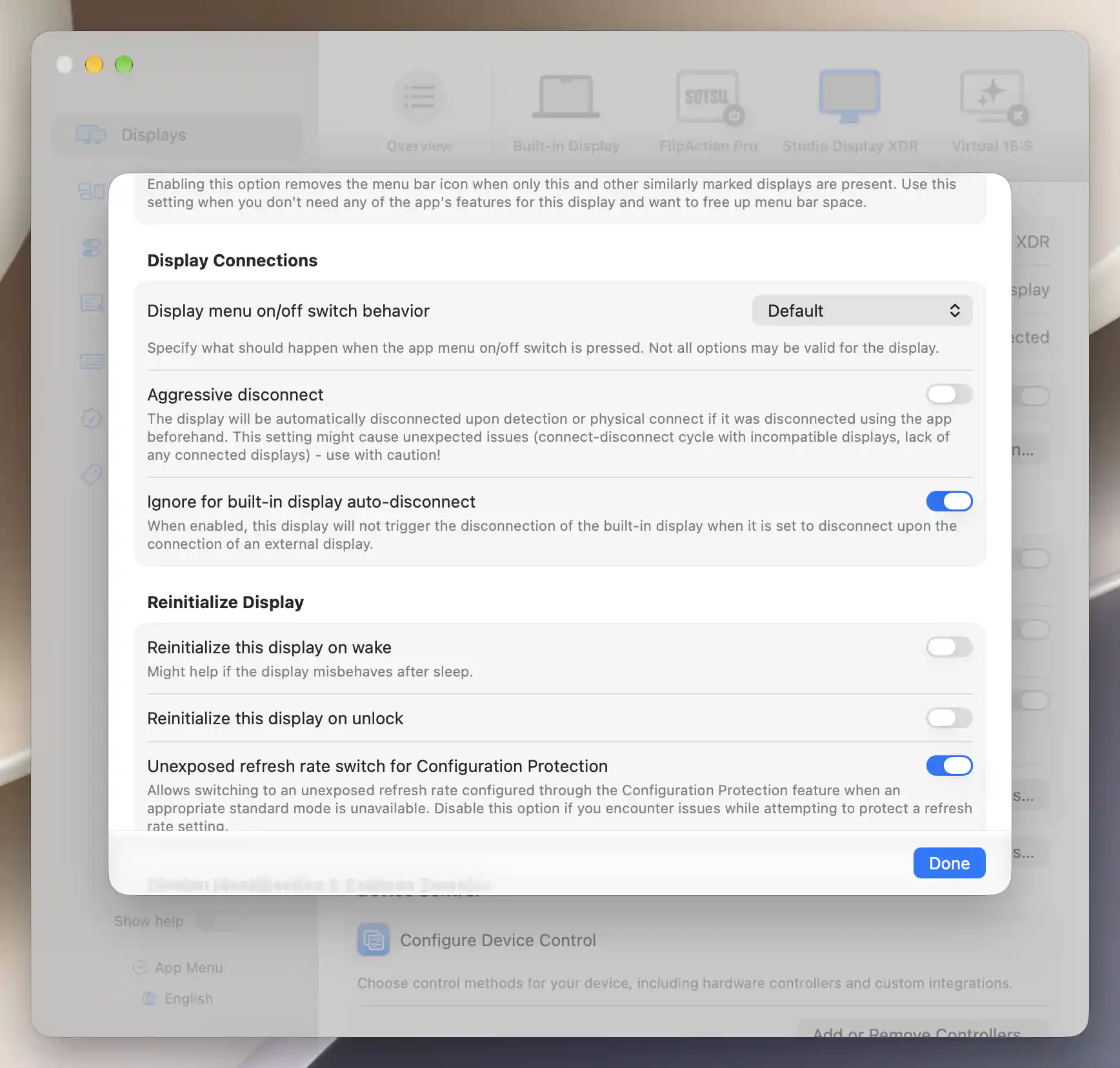
Exclude the sole qualifying external display from the built-in auto-disconnect rule; this does not itself reconnect the built-in screen.
Optional: use BetterDisplay's own keyboard toggle
Open Settings > Keyboard > Keyboard Shortcuts… > Display Connection and record an unused combination beside Toggle built-in display. For example, use Control–Option–Command–B if it is not already assigned. Close the recorder, press the combination to disconnect, then press it again to reconnect. Restore or clear your temporary binding when finished; see Custom Keyboard Shortcuts.
Manual reconnection through Settings, the app menu or this built-in keyboard action temporarily suspends the automatic rule. The suspension ends when the built-in screen is disconnected again, BetterDisplay restarts, or you change the automatic preference. The preference itself remains on during the suspension.
The macOS Shortcuts action Connect or Disconnect a Display and CLI connection commands do not apply that temporary suspension. With the automatic rule on and a qualifying external monitor connected, they can reconnect the built-in screen only for it to be disconnected again. If automation should decide when it stays on, turn the automatic rule off first. See why the built-in display turns off again after a Shortcut reconnects it.
Check the result
- At the desk: the lid remains open, the built-in screen has no active desktop, and the keyboard and trackpad operate the intended external desktop. Check all external monitors you intend to use; disconnecting the built-in display does not establish support for a larger monitor count.
- After manual reconnect: the built-in desktop returns and stays available while the automatic rule is temporarily suspended. Turn the rule off if you want this to be permanent.
- After sleep and wake: check whether the external monitor returns and the built-in screen is disconnected again. macOS may initially reconnect the built-in screen; it can remain on while the native external monitor is still waking. The automatic rule needs a qualifying connected monitor and does not run in BetterDisplay Safe Mode.
- When leaving the desk: with the recovery settings above retained, disconnect the last eligible external monitor and check that BetterDisplay attempts to reconnect the built-in display. Keep the lid open and wait for the layout to settle. If another eligible monitor remains, none-left recovery has no reason to run; reconnect the built-in display manually if you want it.
Automatic recovery is an attempt, not a guarantee. A generic wake-time display placeholder or a virtual-only desktop is not treated as ordinary evidence that a usable screen remains; a registered DisplayLink screen can count as eligible. An exclusive system virtual-display session can block physical reconnection until that session ends, and a closed lid prevents normal built-in reconnection.
Troubleshooting
- The disconnect switch is missing or cannot turn off: check connection management, license availability and that another eligible screen is connected. A virtual screen, AirPlay or Sidecar alone does not satisfy the ordinary safety check. On affected base M3 hardware, keep the safeguard intact and use the built-in screen or Apple's supported closed-lid setup instead.
- The built-in screen stays on with the automatic rule enabled: check that at least one native external monitor is connected, has its exception off, and that BetterDisplay is not in Safe Mode. A recent manual reconnect may have suspended the rule. Once your external desktop is ready, manually disconnect the built-in display again to resume the configured rule.
- A reconnect Shortcut only makes the built-in screen flash on: disable the automatic rule before using that automation, or use the manual Settings/menu/BetterDisplay keyboard return path. Changing the Shortcut from Toggle to On does not override the rule.
- The screen is black but windows still occupy it: verify Display status and the active desktop layout. Dimming or blanking is different from disconnecting. A missing external picture can also be a cable, dock, input or mode problem; see a second display not being detected.
- The external screen briefly goes black: allow the mode change to settle. See brief blackout after disconnecting the built-in display if it interrupts your work. A screen that stays black needs a separate connection or mode check.
- Disconnection does not remain stable, or reconnection fails: turn the automatic rule off using the working external desktop, reconnect the built-in screen, and return to a known usable setup. Do not disable none-left recovery or allow all screens to disconnect to force the result. See Display Connections for recovery limits and the Intel warning.
If you use an Intel MacBook
Manual soft disconnection is available, but it does not fully put an Intel display to sleep. Fully dim display on disconnect in Connection Management Settings… defaults to on and lowers the selected brightness control to zero; BetterDisplay retains the previous value for reconnection. The automatic built-in-disconnection rule is Apple silicon-only.
Undo the setup and restore the built-in display
- While an external desktop is usable, turn Disconnect built-in display when an external display is connected off in Connection Management Settings….
- Select the built-in display under Settings > Displays and turn Connect this display on, or use its connection-configured app-menu header switch. Confirm that the panel and desktop return before unplugging your recovery monitor.
- Restore any per-monitor exceptions and temporary keyboard binding you changed. Restore recorded connection preferences, brightness, main-display choice and arrangement as needed. If the automatic rule was originally on, restoring it can disconnect the built-in screen again at the next configuration change; first re-establish the original working external setup. Window positions may need manual correction after a desktop was removed.
- If you also want to disable connection management, first reconnect every display you need, then turn Enable connect/disconnect option for displays off. Do not rely on a prompt appearing at that point to reconnect stranded displays.
If app reconnection fails on Apple silicon, try closing and reopening the MacBook lid with the external monitor still available, then reassess the display state. Keep the automatic rule off for recovery. Ordinary BetterDisplay quit normally attempts reconnection when Auto-connect all displays on quit is enabled; forced termination cannot provide that cleanup. If access cannot be restored, a Mac restart may be necessary.
Related pages
- Display Connections — connection preferences, safeguards and recovery limits.
- Automatic built-in display disconnection — the rule and external-monitor exceptions.
- Why the built-in display turns off again after a Shortcut reconnects it — choosing between manual and automated return paths.
- Custom Keyboard Shortcuts — record or remove the built-in-display toggle.
Additional information
This section describes the license and hardware requirements for this workflow.
Features requiring Pro license
Display connection management, automatic built-in disconnection, per-monitor exceptions and the built-in-display keyboard action require Pro features, available with an active license or trial. Settings and the app-menu connection switch allow an app-disconnected display to be reconnected when Pro is unavailable. An already enabled automatic built-in preference remains available to turn off.
Platform compatibility
This tutorial documents BetterDisplay on macOS 26.3 or later. The automatic rule requires Apple silicon and a qualifying non-virtual external display. Manual soft disconnection is also available on Intel with the dimming and physical-recovery limitations above. Built-in model safeguards remain in force; native external-display counts, modes and standby behavior depend on the Mac and connection.