Custom Keyboard Shortcuts
Custom shortcuts put frequently used adjustments and actions within reach of a key combination you choose. You can make small brightness or volume changes, switch to a favorite resolution, manage displays and streams, or open an app interface without navigating its menus. The sheet groups these actions by purpose, so start with the ones you use most.
Where to find it: Settings > Keyboard > Keyboard Shortcuts…. The Keyboard pane also links to the macOS Shortcuts app, where you can search for BetterDisplay actions.
Saved shortcuts work while BetterDisplay is running. Recording a combination gives you a way to request an action; the action still needs its relevant display, control method and other prerequisites. Some actions follow the keyboard target preferences, while others use the display under the pointer or a separately configured target, as explained below.
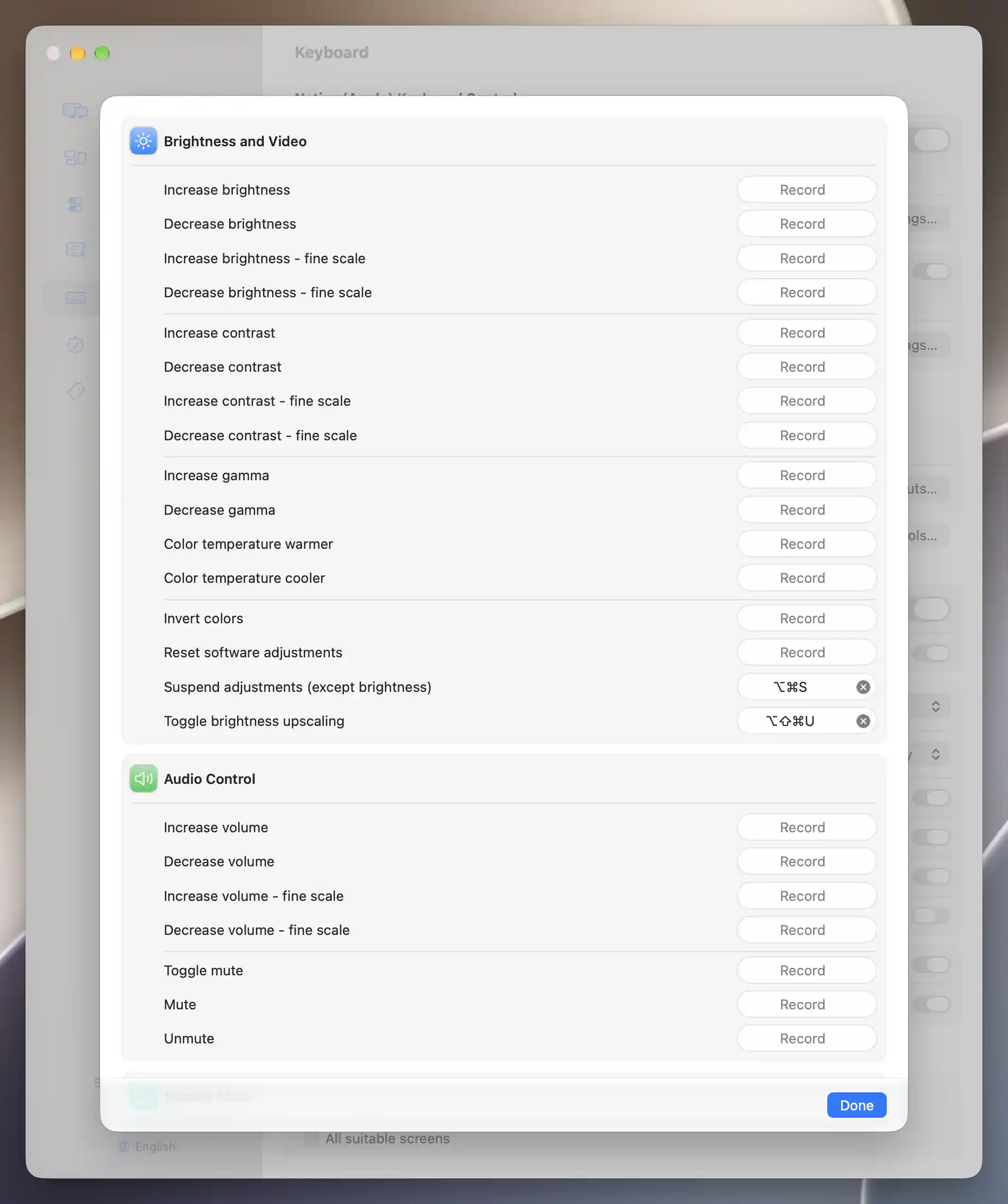
Saved bindings appear beside their actions; unassigned rows show Record.
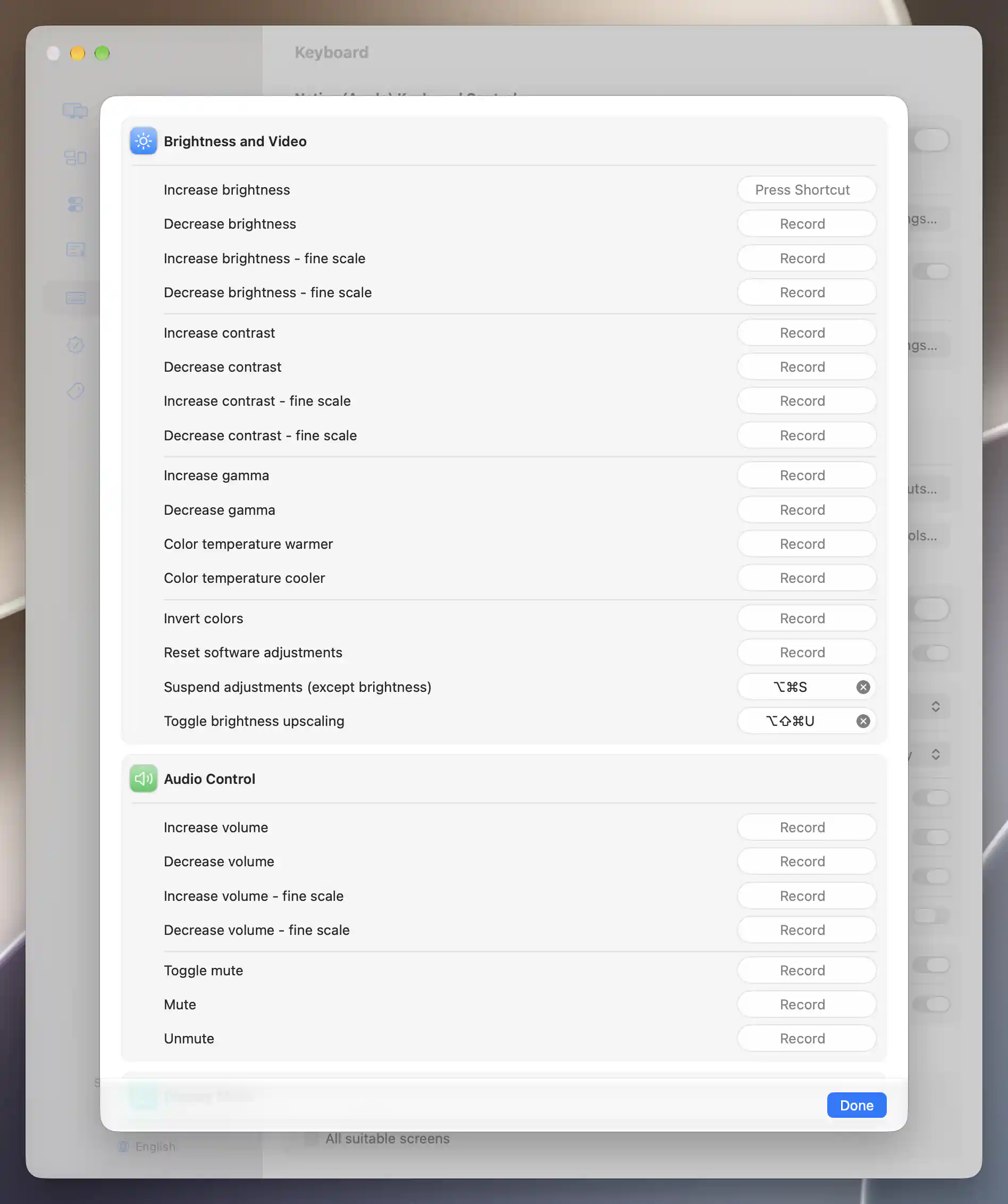
The Increase brightness row is waiting for a shortcut; existing bindings and unassigned rows remain visible.
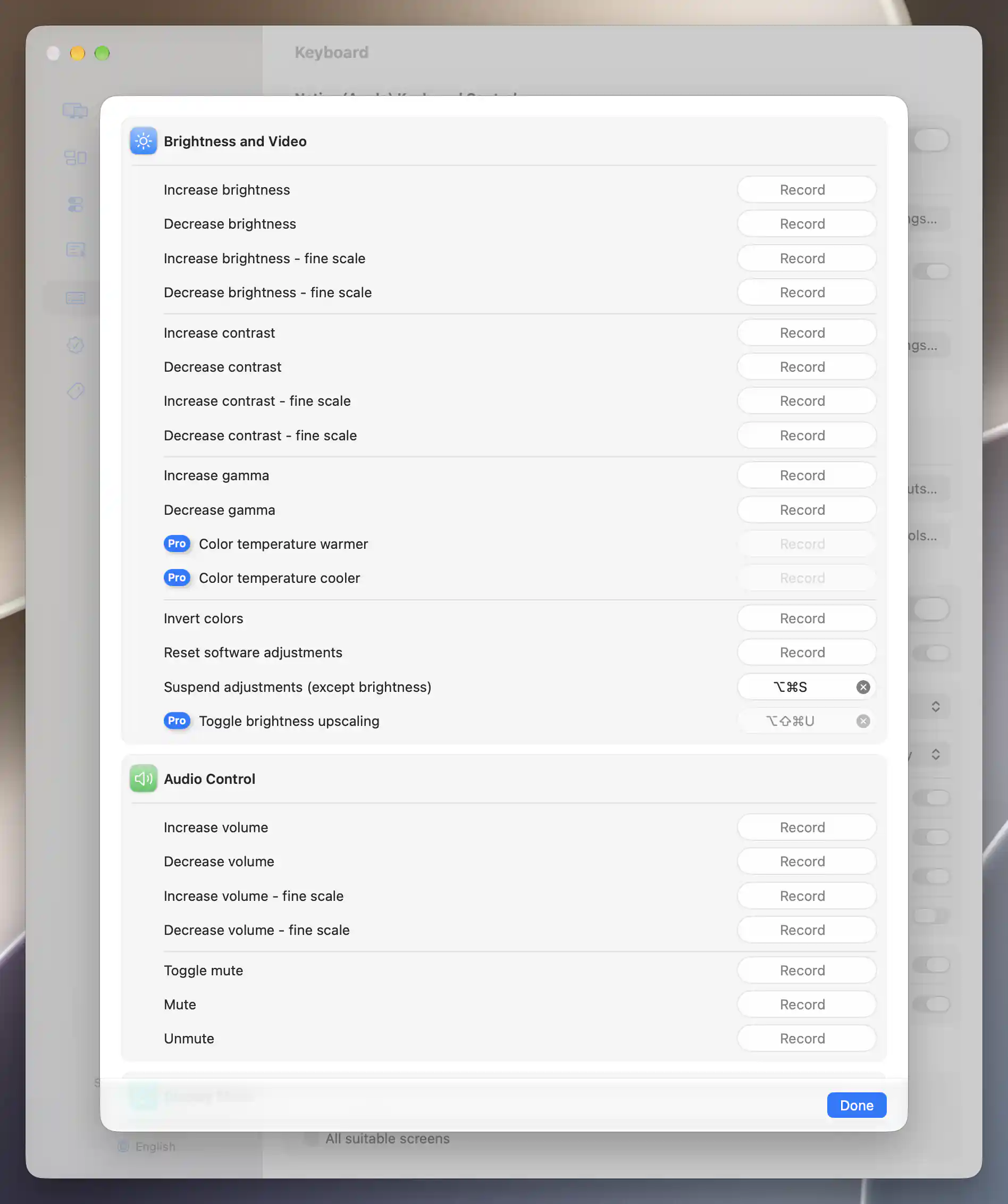
Without Pro features, Pro-only shortcut recorders are disabled and marked with a Pro badge.
Record, replace or clear a shortcut
To assign a shortcut, click the recorder beside an action and press your chosen combination. Use a modifier other than Shift alone, or a supported function key. A valid combination replaces any previous binding immediately and is saved across launches; an unsupported plain key beeps instead of being saved.
You can cancel recording with Escape without replacing the existing binding. To remove a binding, use the recorder's clear button or press Delete, Forward Delete or Backspace without modifiers while recording.
If a combination is already used by an app menu item or reserved by the system, the recorder shows a warning. The system-conflict warning points you to System Settings. Choose distinct combinations for different BetterDisplay actions: the recorder does not reject every duplicate between its own action rows, and one shared combination can run more than one action.
Two actions deliberately appear in more than one section: Pause all streams and Warp mouse cursor from screen. Each repeated row edits the same binding, so changing it in one location changes the other as well.
Brightness and Video
The brightness and contrast actions are useful when you want quick adjustments without reaching for a slider. Increase brightness, Decrease brightness, Increase contrast and Decrease contrast each have a separate fine scale row. Assign a standard action for larger changes and a fine action for more careful tuning; their increments come from Configure Steps for Range-Based Controls.
Other rows adjust the appearance of the image. Increase gamma and Decrease gamma change gamma through an available controller. Color temperature warmer and Color temperature cooler shift Color temperature, while Invert colors toggles the available color-table inversion control.
These video actions use the brightness/video target selection. Contrast follows the display's software-contrast preference, with a hardware or software fallback when available. Choosing a target does not create a control the display lacks.
Resetting, suspending and extending adjustments
Use Reset software adjustments to reset the selected displays' controllers. If you only want to set adjustments aside temporarily, Suspend adjustments (except brightness) toggles suspension while retaining the stored values. Brightness is excluded from that suspension.
Toggle brightness upscaling works on the display under the pointer. It turns the applicable upscaling method on or off, choosing supported direct Apple upscaling or software upscaling according to the display's current configuration. The shortcut has no effect when neither method is available.
Audio Control
Increase volume and Decrease volume each offer standard and fine scale bindings. Hold a ranged-adjustment shortcut to repeat the change; when feedback sound applies, it normally plays on release. A command-only volume controller sends its available up/down commands instead, so a fine-scale binding cannot guarantee a measured fine increment on that device.
Toggle mute, Mute and Unmute follow the audio target rules. With a stateful mute controller, the latter two can set a definite muted or unmuted state.
Display Mode and Resolution Favorites
These shortcuts act on the display under the pointer. They let you move between desktop sizes, return to a familiar mode, or call up a saved favorite. Resolution describes the desktop dimensions, HiDPI describes how those dimensions are rendered, and HDR is a separate aspect of the display mode.
For a worked comparison, see HiDPI versus LoDPI at the same desktop size.
Increase resolution or magnification and Decrease resolution or magnification follow the resolution slider's configured mode list and direction. This means their behavior follows your choice to work in terms of resolution or magnification, rather than assuming that “increase” always makes interface elements smaller. Feedback previews the choice; the mode changes after about a second without a newer choice. Holding the key repeats changes and briefly pauses at labeled notable resolutions.
For direct access to a known mode, use one of these actions:
- Set default resolution returns to a matching default choice and can fall back to the display's default mode.
- Set native resolution or Set native halved HiDPI resolution (if available) selects the corresponding matching mode. If no matching mode exists, the action does nothing.
- Apply resolution favorite 1 through Apply resolution favorite 5 uses the corresponding favorite assigned for that display in its Display Mode menu. An empty or unavailable favorite has no mode to apply.
The mode toggles each need an appropriate alternative: Toggle HiDPI resolution for display needs a HiDPI alternative, Toggle HDR for display needs HDR support, and Toggle notch for display needs a notched display and an available alternative mode.
Display Miscellaneous and Rotation
Set display as main screen makes the pointer screen the main screen. Swap identical displays handles an identical-display pair: it prefers a swappable pair containing the pointer screen, otherwise the first available pair.
The maintenance actions serve different purposes. Redetect displays requests fresh detection and configuration. Reinitialize external displays appears on Apple silicon. Perform VMM7100 HDMI adapter reset also appears on Apple silicon, when a supported adapter is present or its shortcut was already assigned; actually performing the reset still requires the adapter.
Rotation choices
The rotation rows let you go straight to an orientation: No screen rotation, Rotate screen by 90°, Rotate screen by 180°, and Rotate screen by 270°. They use the pointer screen and require orientation control.
Open Additional Rotation Shortcut Settings… if you want to refine this behavior. Treat shortcuts as rotation toggles makes a requested angle act as a toggle: a screen already at that angle returns to 0°. Do not apply to the internal display excludes the built-in display. Both preferences default to off and are saved.
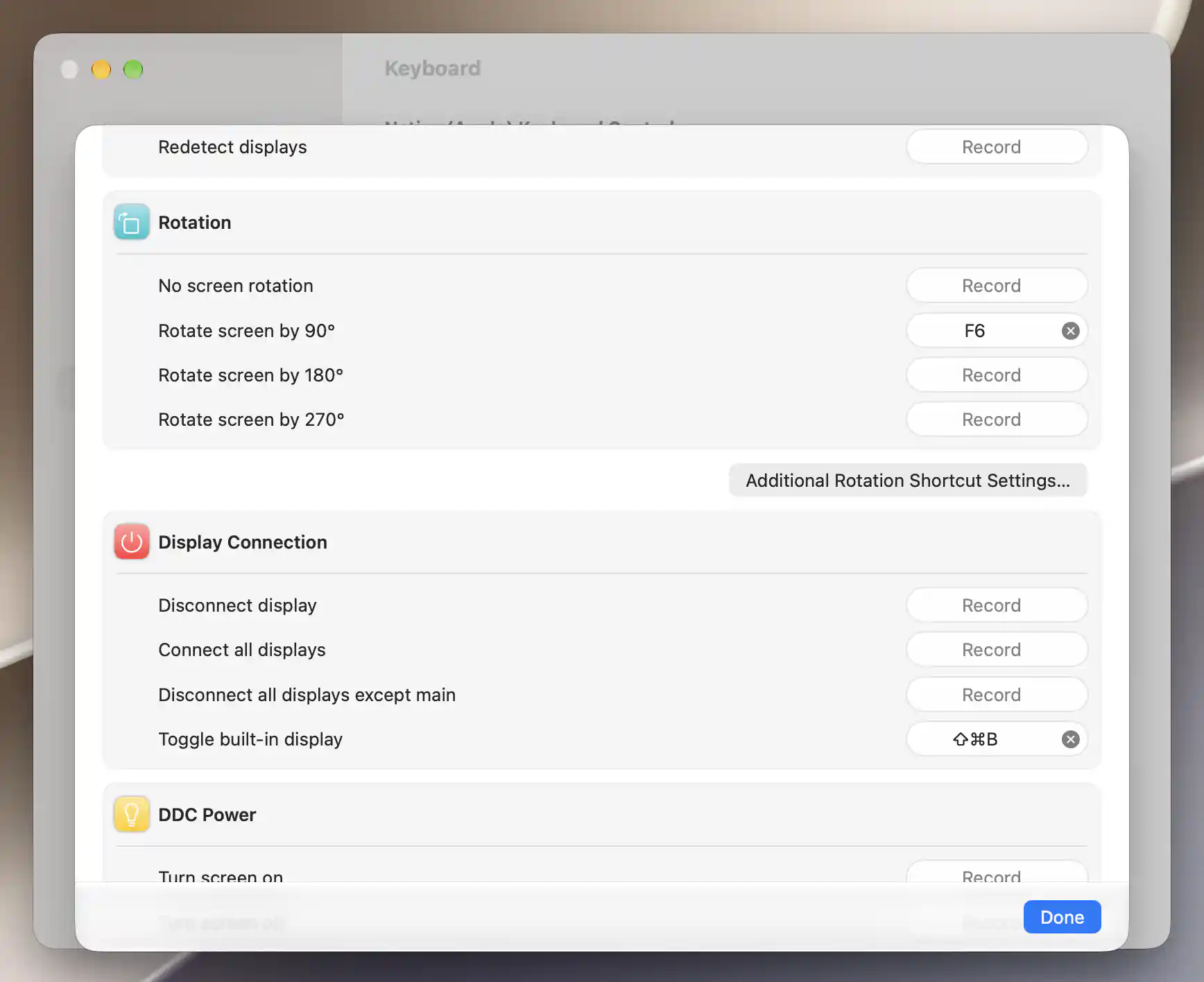
Rotation offers separate bindings for each angle and an additional-settings sheet.
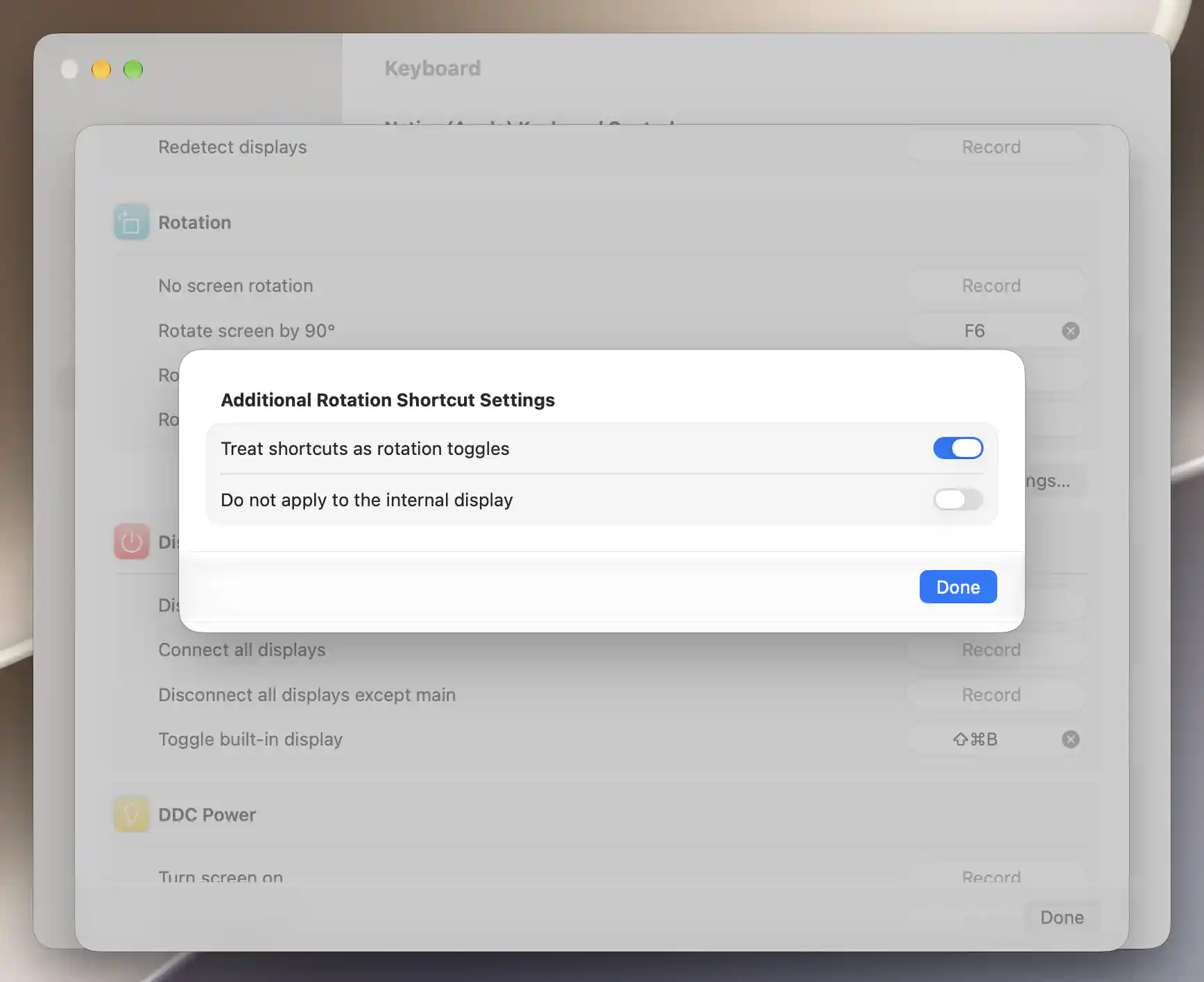
Rotation shortcuts can act as toggles and can exclude the internal display.
Display Connection and DDC Power
Connection shortcuts change which displays are connected to the desktop. Disconnect display uses the pointer display. Connect all displays, Disconnect all displays except main, and Toggle built-in display act on the sets named by their labels. Each needs enabled and supported connection management, and disconnection remains subject to the display's safety conditions.
If the built-in display was automatically disconnected because an external display is present, connecting it can suspend that automatic disconnection and show a notification. This allows the newly connected built-in display to remain available.
On Apple silicon, disconnection should remove the display from the layout and put it into standby, although some displays may not turn off or remain off. On Intel Macs, software disconnection does not fully put the display to sleep and may behave unexpectedly.
The DDC DDC Power actions control the monitor's screen or power instead. Turn screen on and Turn screen off use the display's screen/backlight controller, while Turn display off sends the DDC power-off operation. These actions use the pointer display and need the corresponding controller.
Virtual Screen Management
A virtual screen is a software-defined display. These shortcuts let you connect, disconnect or reconnect its definition without navigating the virtual-screen settings each time.
Disconnect virtual screen (if not associated) and Reconnect virtual screen use the connected virtual screen under the pointer. Reconnect cycles that screen through a disconnection and a new connection.
For several screens at once, Disconnect all disassociated virtual screens affects the corresponding connected definitions, and Connect all disassociated virtual screens affects the disconnected ones. The disassociated restriction also permits screens whose connection/disconnection association enforcement is disabled. Reconnect connected virtual screens cycles every connected virtual screen, including associated ones.
Full Screen Stream and Picture in Picture
These actions manage existing streams and Picture in Picture (PIP) windows, which show a stream in a window. They require the relevant streaming prerequisites. Some actions affect both kinds of stream even though they appear within one section:
- Stop all full screen streams stops both full-screen streams and PIP windows.
- Hide all full screen streams toggles the visibility of active full-screen streams.
- Pause all streams applies to both kinds. For each source display, its active streams are brought to the first active stream's newly toggled pause state.
Start/Stop PIP window uses the previously selected display/window when remembered, so you can return to that PIP without first moving the pointer. Without a remembered selection, it first looks for an active PIP on a virtual screen, then on a non-main screen, then any active PIP. If it needs to start a window instead, it chooses a virtual display, then a non-main display, then the first available display. It does not simply follow the pointer.
Adjusting a crop with the keyboard
Cropping selects the part of a source to show. Both sections have Toggle cropping, plus increase/decrease pairs for Crop area width, Crop area height, Crop origin X, and Crop origin Y. Width and height change the selected area's size; the origin moves that area across the source. Full-screen and PIP crop bindings are separate.
The shortcut first prefers the pointer display if it has an active stream of the relevant kind. Otherwise, it prefers a virtual source, then a non-main source, then any source with an applicable active stream. Toggle cropping applies a shared crop-enabled state to that source's active streams of the chosen kind.
Size and origin adjustments require cropping to be enabled already and apply to all applicable cropped streams of that source. Hold a key to accelerate the change. Dimensions stay between 1% and 100%, and BetterDisplay keeps the crop within the source bounds.
Input Source
Input-source shortcuts are useful when a monitor is shared between your Mac and another video source. Each of the ten slots stores a Select Display choice, a Select Input choice and a key binding. Displays appear in the picker when an external controller supplies input-source choices; input labels include their controller so you can distinguish similarly named inputs offered through different mechanisms.
Choose the display first, then an input and a binding. This only configures the shortcut. Pressing the assigned combination performs the switch, which may move the monitor away from your Mac's video signal.
Stored selections remain visible if a display or input is missing. Not Available means a current usable list could not be supplied; a remembered label does not establish that the input can currently be switched. The action needs the selected display and matching controller. If an explicitly selected display is missing, the shortcut does not redirect to another screen.
Clearing a selection or using the video targets
Select Select Input to clear the input choice. Returning the display to Select Display clears the explicit display target but retains any input selection. A retained configured input can then use the brightness/video target selection instead of a named display. A slot with no valid input or matching controller has nothing to switch.
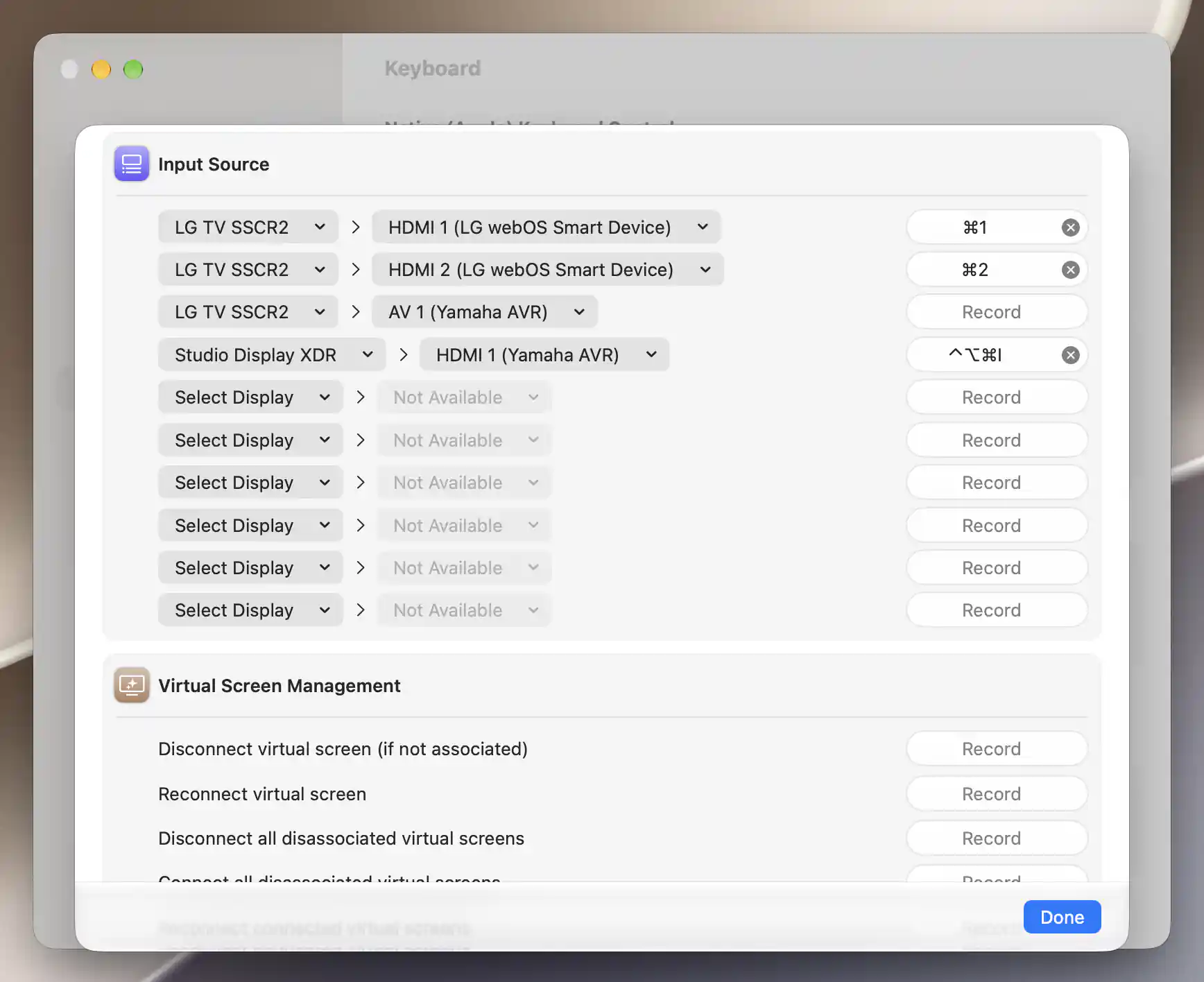
Each slot combines a display, a controller-qualified input and a shortcut; remembered targets remain listed.
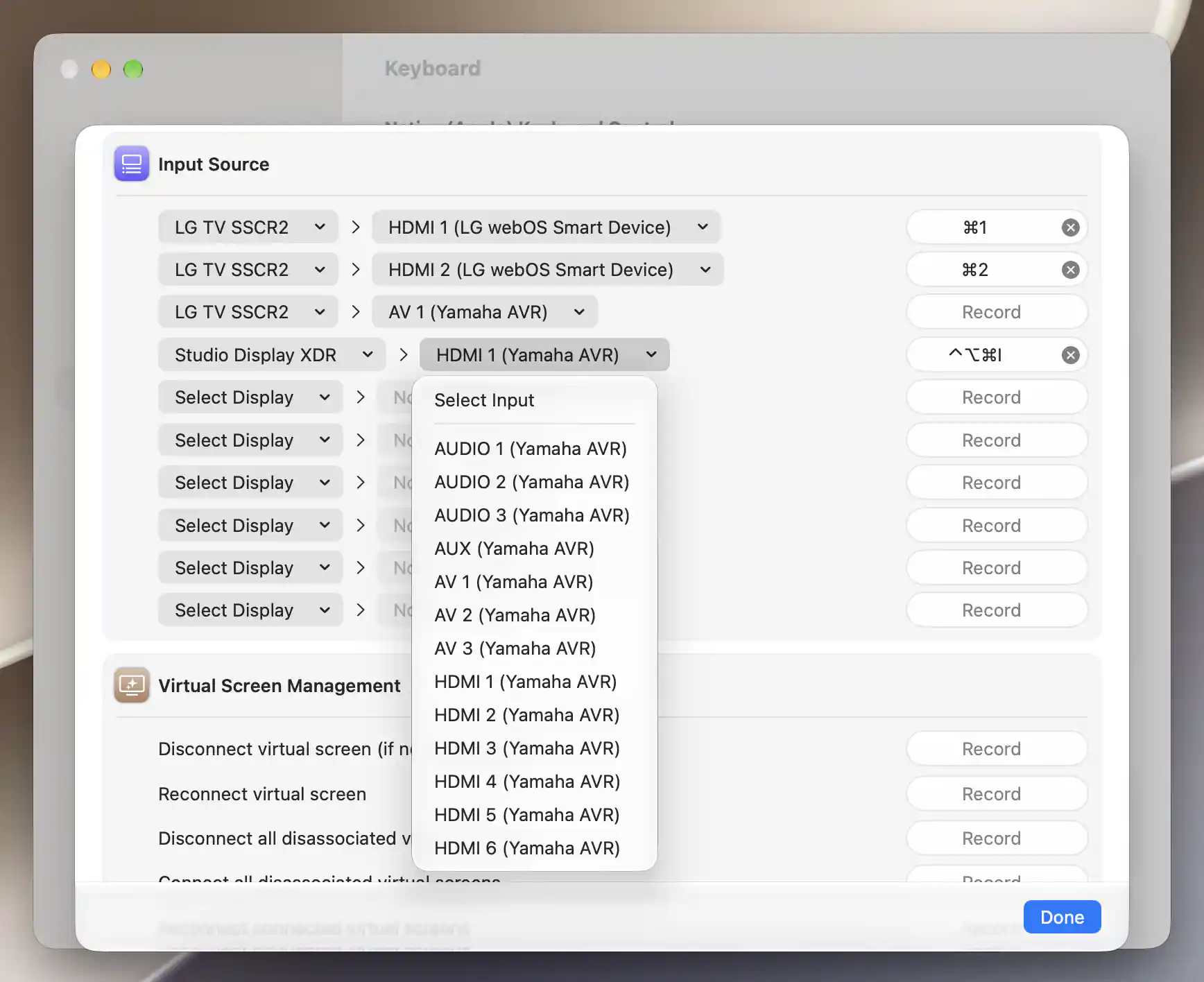
Input choices include the controller name, helping distinguish inputs supplied by different controllers.
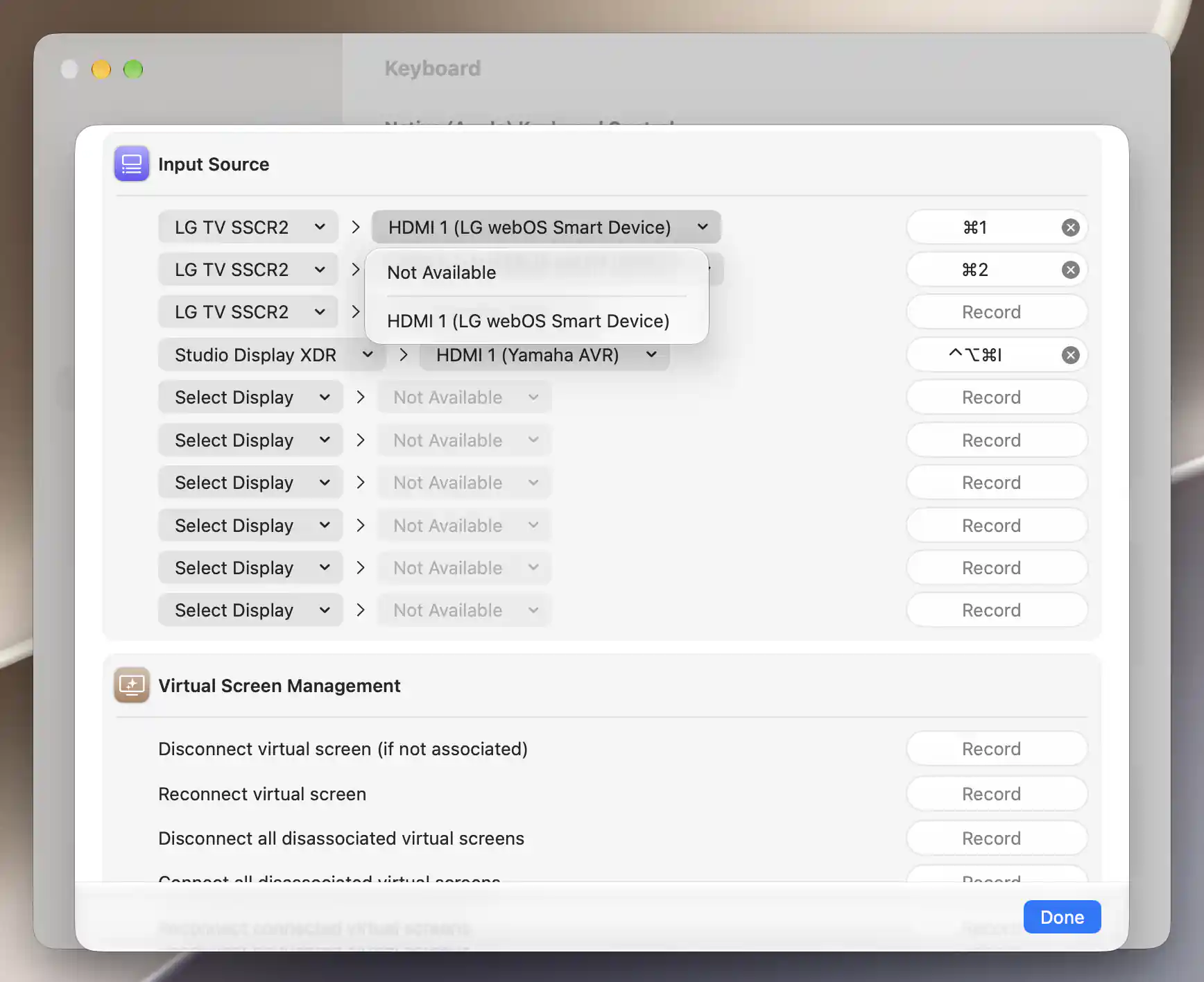
A remembered input remains visible when its display or controller is unavailable.
System Colors and Application
The System Colors actions adjust system-wide appearance rather than choosing a display target. Increase Night Shift effect and Decrease Night Shift effect change the strength of Night Shift while it is already on. Toggle Night Shift and Toggle True Tone need system support, and True Tone must also be currently available. Toggle Dark Mode switches the system appearance.
Increase Apple Keyboard brightness and Decrease Apple Keyboard brightness send Apple keyboard-backlight commands. They require a suitable keyboard; these actions affect its illumination, rather than a display's brightness.
The Application rows are shortcuts to BetterDisplay itself. Show app menu and Show console toggle their respective interfaces. Quit the app and Restart the app perform those actions directly, so choose combinations that are hard to press accidentally.
See Native (Apple) Keyboard Control for handling the keyboard's built-in media keys and OSD for visual feedback.
Additional information
This section explains which features require Pro and how availability differs between Mac platforms.
Features requiring Pro license
The following shortcuts require Pro:
- Color temperature warmer, Color temperature cooler and Toggle brightness upscaling.
- All Display Mode, Resolution Favorites and Rotation actions.
- Set display as main screen and Swap identical displays.
- All Display Connection, DDC Power and Virtual Screen Management actions.
- All Full Screen Stream, Picture in Picture, Input Source and System Colors actions.
Ordinary brightness, contrast, gamma, inversion, reset/suspend, volume and mute shortcuts, along with Reinitialize external displays, Redetect displays, Perform VMM7100 HDMI adapter reset and the Application actions, do not themselves require Pro. The underlying display feature still retains any license requirement of its own.
Without Pro, an unassigned recorder for a Pro action is disabled and marked with a Pro badge. An existing binding remains available to edit or clear, but the action still requires Pro.
Platform compatibility
Most shortcut families are available on both Apple silicon and Intel Macs, subject to the relevant display, controller and system capabilities. Reinitialize external displays and Perform VMM7100 HDMI adapter reset are Apple silicon actions; the reset also needs a supported adapter.
Brightness upscaling is display- and controller-dependent. Software HDR/XDR upscaling through a color table requires Apple silicon; Intel needs a supported alternative such as overlay upscaling. Direct XDR Upscaling requires a compatible built-in Apple display and its available preset/control capabilities. Display connection shortcuts retain the built-in-display safety restrictions, including the extra permission for affected Apple M3 built-in displays. Software disconnection on Intel does not fully put a display to sleep; observe the Intel warning in Display Connection and DDC Power before using it.
Mode changes, orientation, input switching and DDC power need their corresponding display capabilities. Streaming needs its applicable permissions and source. Night Shift and True Tone depend on system support, and keyboard-backlight actions require a suitable keyboard.