Display Connections
Use connection management when you want to remove a display from your desktop layout and bring it back later without changing its cable. Soft disconnection is the name for this operation. The global preferences decide which displays may be disconnected, how the built-in display behaves, and when BetterDisplay attempts to reconnect screens automatically.
Where to find it: Settings > Displays > Overview > Display Connections; open Connection Management Settings… for advanced options.
Removing a screen from the desktop and putting its panel to sleep are different results. Apple silicon can put compatible disconnected displays into standby; Intel soft disconnection does not fully put a display to sleep. Non-native or virtual connections may disappear from the layout while their physical screen remains active. What happens depends on the Mac, display and connection method.
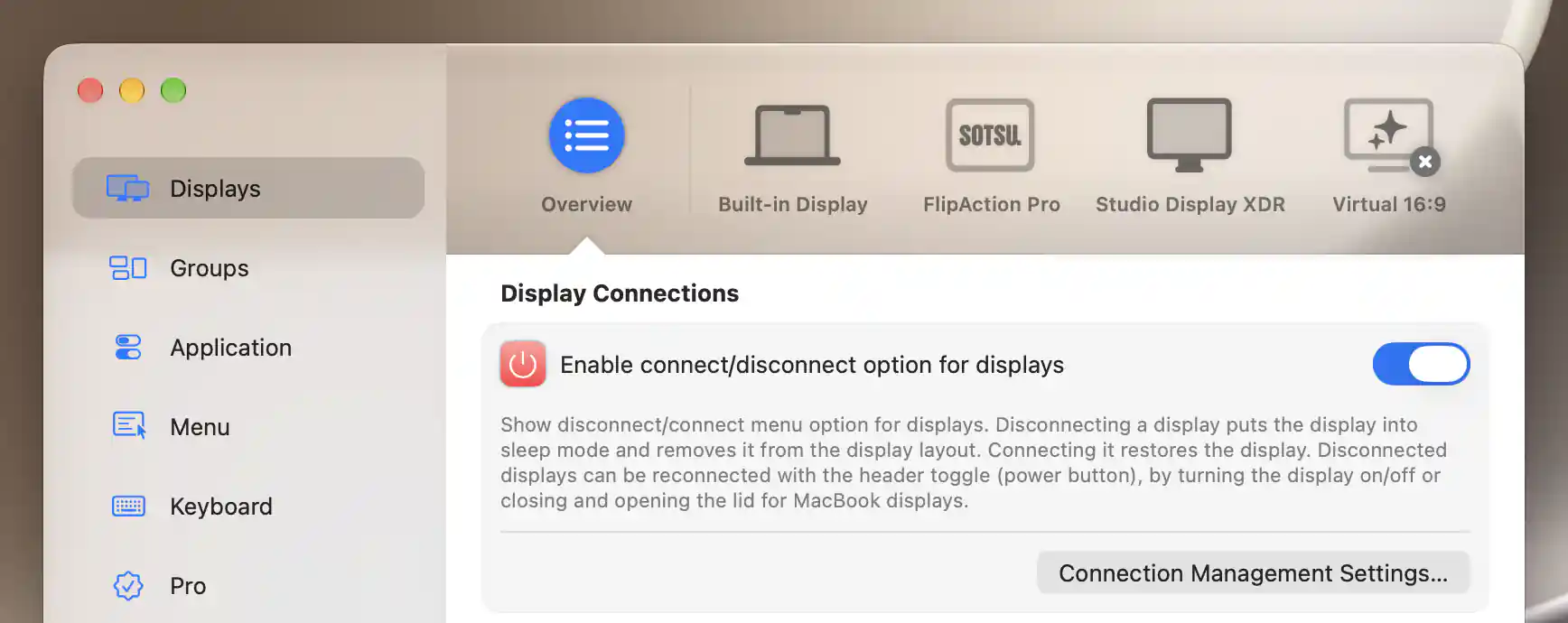
Enable connection management here, then open its advanced preferences.
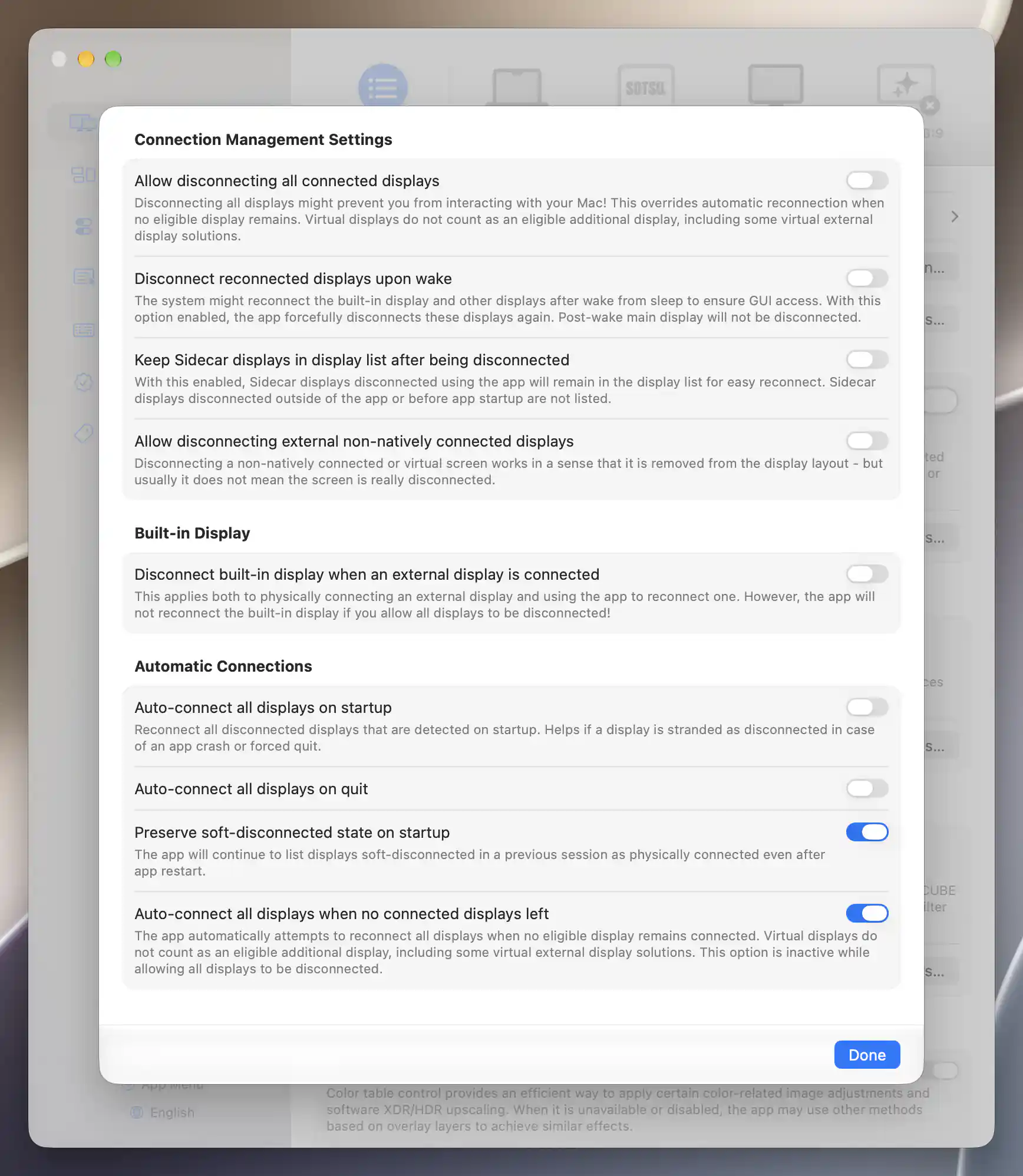
Connection preferences combine disconnection safeguards with automatic reconnection rules.
Enable connection management
Enable connect/disconnect option for displays is on by default. It exposes the supported connection actions and enables the options in Connection Management Settings…. Turning it off disables those options and reconfigures the app.
Before disabling management, explicitly reconnect any displays you still need. The Some displays are still disconnected! alert offers Reconnect, which attempts to connect all displays, or Do not reconnect, which leaves them disconnected. Although the alert's message refers to turning management off, the current condition presents it when enabling management with disconnected displays. Do not depend on a disable-time prompt to restore your screens.
A disconnected display can normally be restored with its app-menu header power switch or by reconnecting it physically. For a MacBook built-in display, closing and reopening the lid can also help. Compatibility varies, so these are recovery methods rather than a guarantee of success.
Connection Management Settings
The default safety rule keeps another eligible display connected before you disconnect the selected one. Allow disconnecting all connected displays, off by default, removes that protection and overrides automatic recovery when none remain. Enabling it can leave you with no visible desktop access.
An additional screen only satisfies the ordinary safety check if it is eligible. BetterDisplay virtual screens and most system-virtual displays do not count; a recognized DisplayLink display can.
Wake, dimming and other connection types
Disconnect reconnected displays upon wake defaults to off. macOS may reconnect screens after sleep to restore access. If you enable this preference, BetterDisplay disconnects app-disconnected screens again after the wake delay, except for the post-wake main display.
Fully dim display on disconnect appears on Intel and defaults to on. Because soft disconnection cannot fully sleep an Intel display, this option sets its selected brightness control to zero. When configured and supported, combined brightness can also turn off the backlight. BetterDisplay retains a previous brightness value for reconnection handling.
Keep Sidecar displays in display list after being disconnected defaults to on. It keeps Sidecar screens disconnected through BetterDisplay available for reconnection. It does not discover every Sidecar session that was disconnected outside the app or before launch.
Allow disconnecting external non-natively connected displays defaults to off. It permits removing those displays from the layout, but does not guarantee that their physical screen powers off or that their underlying remote or virtual session ends.
Built-in Display
Built-in screens need additional care because recovery may be harder than reconnecting a cable. This settings group appears on Apple silicon or an iMac.
Allow disconnecting the built-in display of the iMac is off by default. An iMac has neither a display cable to reconnect nor a lid to close, so an app failure can make recovery difficult.
On a non-iMac with an Apple M3 display GPU, Allow disconnecting the built-in display on this M3 Mac is also off by default. Its warning explains that reconnection may require restarting the Mac. This restriction is tied to the detected model; the same checkbox does not necessarily appear on every M3-family configuration.
Automatically using an external display instead
On Apple silicon, Disconnect built-in display when an external display is connected can remove the built-in screen when an appropriate external screen becomes available. It defaults to off and responds both to physical connection and app reconnection. The external display must be a suitable non-virtual display and must not have its per-display exception enabled.
On an iMac or an affected M3 Mac, the corresponding safety override must be enabled before this automatic option becomes available. Safe Mode suppresses automatic built-in disconnection.
Manually reconnecting the built-in display can suspend the rule. Changing the preference clears that suspension; disconnecting the built-in display again or restarting BetterDisplay can also restore the rule. Remember that automatic none-left recovery is unavailable while Allow disconnecting all connected displays is on.
Automatic Connections
Automatic reconnection can help restore access after a session ends or no usable screen remains. Auto-connect all displays on startup and Auto-connect all displays on quit are both on by default. Startup recovery can help after an app crash or forced quit. Quit recovery runs during ordinary termination, so it cannot be relied on after forced termination.
Auto-connect all displays when no connected displays left also defaults to on. It attempts recovery when no eligible display remains; generic or virtual-only screen states are not ordinary evidence that access has been preserved. The option is disabled while Allow disconnecting all connected displays is on.
Keeping a disconnected state across launches
Preserve soft-disconnected state on startup defaults to off. It appears when both startup and quit auto-connect are off, or while preservation is already enabled. This keeps app knowledge of a previously soft-disconnected display as physically present across launches; it does not make an absent screen physically connected.
Limits of automatic recovery
Reconnection does not force the built-in screen on while the Mac is in closed-lid mode. An exclusive system virtual-display session can also block physical reconnection until that session ends. Automatic recovery is therefore an attempt subject to these conditions, rather than a promise that every display can always be restored.
These preferences persist without an Apply button. For keyboard connection actions, see Custom Keyboard Shortcuts.
Additional information
This section explains which features require Pro and how availability differs between Mac platforms.
Features requiring Pro license
- Display connection management and the connection, safety and automatic-reconnection preferences on this page.
An already enabled Disconnect built-in display when an external display is connected preference remains available to turn off when Pro is unavailable.
Platform compatibility
Connection management is available on both Apple silicon and Intel Macs, but the result differs. Compatible Apple silicon displays can enter standby. Intel displays do not fully sleep through soft disconnection and have the separate Fully dim display on disconnect option; observe the Intel recovery warning above.
Automatic built-in disconnection is Apple silicon-only. The iMac override applies to iMacs, while the M3 override depends on an Apple M3 display GPU in a non-iMac. Sidecar, DisplayLink and other non-native connections retain their own availability and session constraints.