Mirror Display / Mirror Virtual Screen
Use mirroring when you want two displays to show the same desktop. BetterDisplay sends this display's desktop to another connected display through macOS display mirroring. If you want to crop or filter a separate captured copy instead, use Stream Display.
Where to find it: App Menu > [display] > Mirror Display, or Mirror Virtual Screen for a linked virtual screen. Its placement depends on your menu configuration.
The display you start from must be connected, with another connected display available to receive its desktop. Changes take effect in the system display arrangement immediately. Mirroring does not require Screen Recording permission.
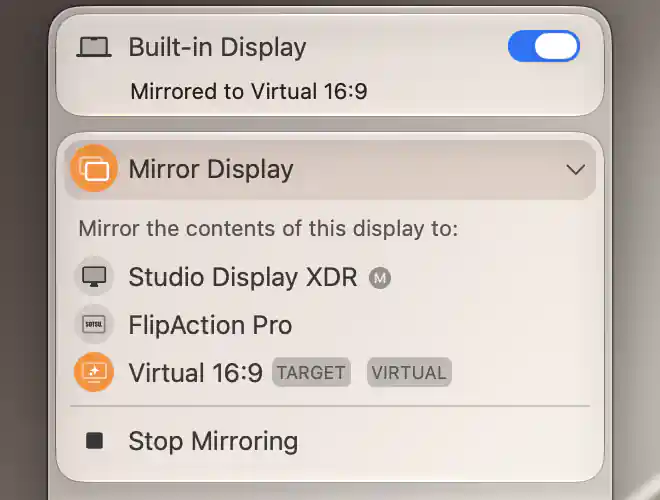
The target list identifies the active mirror destination, virtual screens and the main display.
Choose a target
Start with the display whose desktop you want to share. The instruction Mirror the contents of this display to: confirms the direction: this menu's display is the source, and the display you select is the target that receives its contents.
The list offers the other connected displays. Select a row to add that display as a mirror target. An active target's row is highlighted; selecting it again removes that target from mirroring. This lets you change one receiving display without choosing a different source.
The badges help you read the relationships from the perspective of the display whose menu is open:
- SOURCE identifies the display whose desktop this display currently mirrors.
- TARGET identifies a display that currently mirrors this display. Its row is highlighted as active.
- VIRTUAL identifies a linked virtual screen.
- The M icon identifies the current main display.
If there are no other connected displays to choose from, the menu shows No Mirror Targets Available.
Stop mirroring and automatic rules
Stop Mirroring requests that this display leave its current mirror relationship. The command is disabled when the display is not part of a mirror set. To remove a particular receiving display, select that target's active row instead.
What a mirroring change keeps
A mirroring change becomes part of the permanent macOS display configuration. It does not behave like a temporary stream whose output lasts only while a window is open. BetterDisplay also updates applicable configuration-protection rules when you change the relationship manually.
Changing a mirror set can change its resolution and which display is the main display. On Apple silicon, mirroring a virtual screen may also apply its enabled automatic mirroring configuration, so the resulting arrangement can reflect more than the target row you selected.
When an association controls mirroring
A virtual screen can have associated displays whose mirroring is managed automatically. Associated display mirroring is enforced! tells you that a linked virtual screen has such an enforced association.
The association can reapply its configured relationship after a manual change. To change that automatic behavior, review the virtual screen's Associated Displays settings; selecting a different relationship here does not disable the association rule.
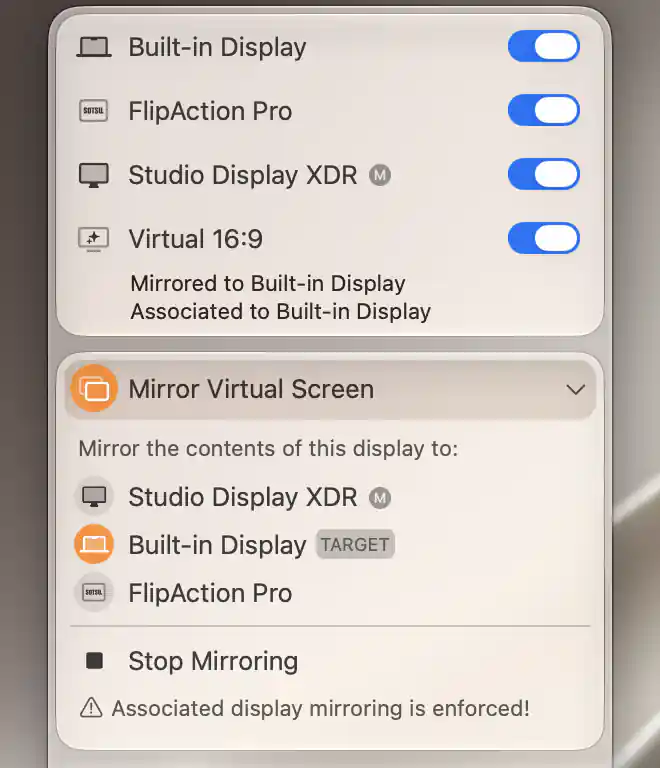
The active target remains subject to the virtual screen’s enforced mirroring association.
See Stream Display / Stream Virtual Screen for independently transformed output and Picture in Picture for a floating copy.
Additional information
This section explains which features require Pro and how availability differs between Mac platforms.
Features requiring Pro license
- Selecting or removing a mirroring target.
- Stop Mirroring.
Platform compatibility
Mirroring options are available on both Apple silicon and Intel Macs. The additional automatic mirroring configuration for a virtual-screen source applies on Apple silicon when that feature is enabled.
Mirroring requires connected source and target displays; their available arrangements depend on macOS and the displays. Screen Recording permission is not required.