Stream Display / Stream Virtual Screen
Streaming puts a live copy of one display onto another, with its own crop, rotation and image adjustments. Use it when the receiving display needs a different presentation of the source image. You can also choose Self-Stream + Video Filters to filter the source display itself.
Where to find it: App Menu > [display] > Stream Display, or Stream Virtual Screen. Additional configurations appear as numbered stream entries. Right-click or Control-click an ordinary stream's output to open its context menu.
The source must be connected. Targets must also be connected and must not be mirror targets. The section is hidden when the source is a mirror target and already has an active display stream.
Screen capture needs macOS Screen Recording permission. The app's permission alert points to System Settings > Privacy & Security > Screen Recording. A self-stream using Use Compositor Filter bypasses that capture permission check.
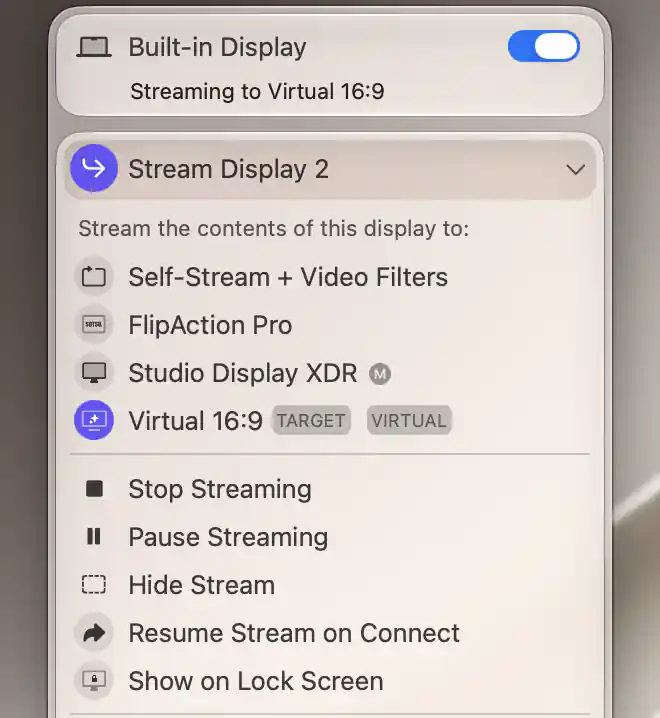
An active stream identifies its target and provides stop, pause, hide and reconnection options.
Target and current activity
Select a target to start streaming there. Selecting the active target again stops the stream. The badges help you read the list: M identifies the main display, SOURCE a reverse source relationship, TARGET the active receiver, and VIRTUAL a linked virtual screen. No Stream Targets Available means that the eligible list is empty.
Stop, pause or hide the output
These actions serve different purposes:
- Stop Streaming ends the output and clears this configuration's saved resume target.
- Pause Streaming / Unpause Streaming freezes or resumes capture while keeping the stream in place.
- Hide Stream / Unhide Stream hides or restores the overlay without deleting its configuration. It is absent in Full Screen Window Mode.
Pause is unavailable for self-streams. Hide is unavailable in Full Screen Window Mode. Stopping or hiding output does not reset its filters, crop or transforms.
Resume when the display connects
Enable Resume Stream on Connect to remember the selected target and resume streaming automatically. It starts off.
If an associated virtual screen starts streaming automatically, this switch is disabled and Stream auto-starts to associated display! explains the controlling rule. In that case the association, rather than this switch, manages automatic start.
What changes on the receiving display
Only one full-display stream can use a target at a time. Starting another stream there stops the competing stream. Selecting a display that is streaming back to this source also stops that reverse stream.
When the target is the main display, starting an ordinary stream can transfer main-display status to the source and move the pointer off the target. Stopping the stream restores a main-display swap that the stream made.
The shared setting to use the target's best resolution can also change the target's resolution temporarily. If that setting is enabled, stopping the stream restores the previous mode. The setting is off by default.
Presentation and advanced choices
An ordinary stream presents its image as an overlay on the target. Full Screen Window Mode uses a full-screen window instead. Change this choice while the stream is stopped: during streaming it is shown if already enabled or advanced options are exposed, but cannot be changed.
Show on Lock Screen, off by default, permits output above the lock screen. It is available for the ordinary overlay and self-stream, rather than the full-screen-window variant.
Fit the image to the target
For an ordinary stream, choose the sizing behavior that suits the source and target:
- 1:1 Pixel Mapping uses the source image dimensions instead of fitting it to the target. It disables Free Aspect Ratio. Both options start off.
- Free Aspect Ratio fills the available shape without preserving the source proportions. The separate horizontal and vertical alignment buttons are disabled while it is enabled.
- Integer Scaling selects nearest-neighbor sampling to retain hard pixel edges. It does not constrain the destination size to a whole-number multiple; see integer scaling.
Pointer and filtering choices
Show Mouse Pointer includes the source pointer and is on by default. Prevent Cursor Entering, initially off, requests a pointer boundary around the target display. When establishing this restriction, BetterDisplay checks permission to listen to input events and asks macOS for access if needed.
Video Filters reveals the shared adjustments. Switching it restarts the image-processing path. It starts off, although selected custom LUTs can also keep filtering active.
Filter the source itself
A self-stream always exposes its filters and omits pointer, scaling, crop and orientation options. Selecting the source itself also turns Full Screen Window Mode off.
Use Compositor Filter gives you an alternative way to filter the screen without capturing it. Alpha remains available on either path, while Target FPS appears only on the capture path.
Cropping
Enable Enable Cropping when only part of the source should be streamed. It starts off, and its choices are saved separately for each stream configuration. Picture in Picture uses the same selector and boundary interface.
Show Crop Rectangle Boundary draws the selected region's outline on the source display. The outline is off by default, with red selected as its color. The available swatches are red, green, blue, orange, yellow, purple, indigo, cyan, black, gray and white.
Select the source region
Choose Draw Crop Area On Screen… to hide the App Menu and open the selector on the source display. The corners show coordinates and the center shows the region's size.
- Drag the move region to position the rectangle, or drag its edges to resize it.
- Use the outward-arrows button if you want the whole display.
- Select the checkmark to accept the region, or the cross to cancel.
The rectangle stays within the source display. Its minimum size is 150 × 100 points unless the screen itself is smaller. The first unsaved selection starts centered at half the screen's width and height. Accepted coordinates are stored relative to the source display, so the selected region scales with its dimensions.
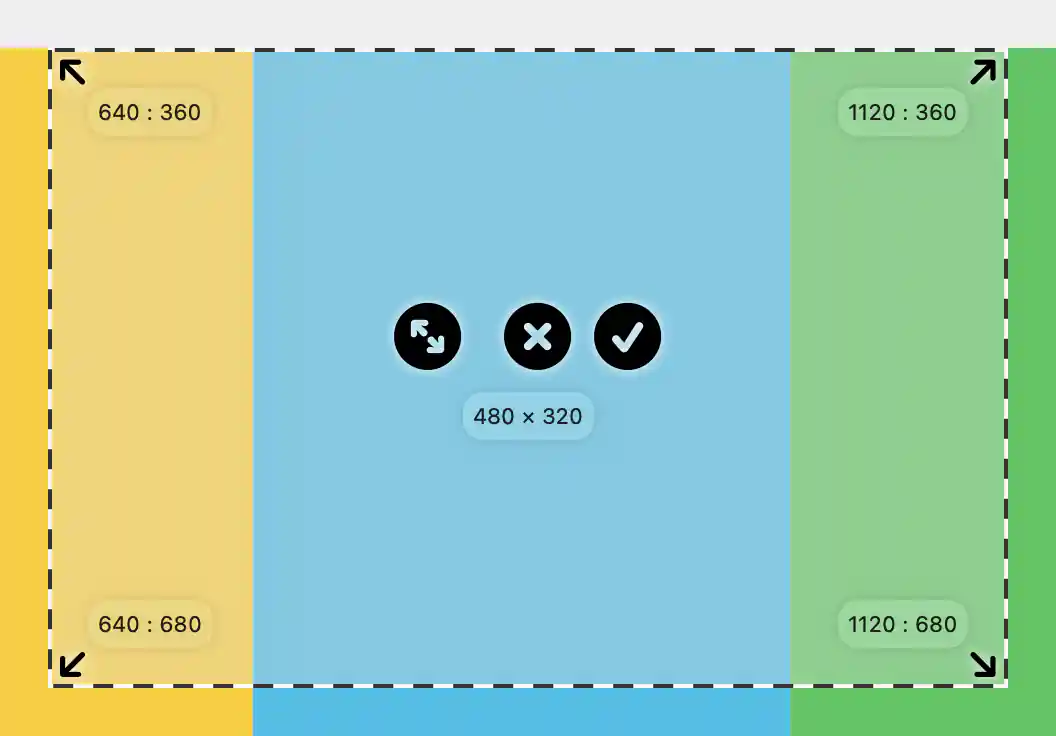
The crop selector shows the selected area and its size before you apply it.
Transformations, pointer and saved configurations
Orient and size the picture
The flip buttons reverse the image horizontally or vertically. Rotation buttons choose 90°, 180° or 270°; the reset button returns to 0°. Vertical and horizontal alignment start centered.
Zoom ranges from 10% to 300%, and Underscan from 10% to 200%. Both start at 100%. Alpha controls opacity from 0% to 100%, initially 100%.
Target FPS limits the captured frame rate to 1–200 fps or Unlimited (∞), the default. These transform and performance settings are explained together in Video Filters and Stream Transformations.
Move the pointer back to the source
Use Command-click on ordinary streamed content, or Warp Mouse Cursor in its context menu, to move the pointer to that point on the source display. Subsequent interaction takes place on the source desktop: this action relocates the pointer.
You can configure a return shortcut under Settings > Keyboard. Shared automatic pointer-warp settings can also move it when it enters the stream; those settings are off by default.
Keep different stream setups
Add Stream Configuration, in the original entry, creates another independently saved configuration. Use separate configurations when you want to keep different streaming setups for the same source.
Additional entries offer Remove Stream Configuration instead. The menu closes and a deferred action stops and removes only that configuration, without a confirmation dialog. Wait for its entry to disappear. These add/remove actions and target selection are omitted from the stream's context menu.
Settings persist per source and configuration. Stopping or hiding output preserves the filters, crop and transforms for later use.
Follow the portrait Sidecar tutorial for a complete virtual-source streaming setup.
Rehearse a presentation stream with Pause, Unpause, Hide and Stop, including checks on the actual audience display and cleanup.
Additional information
This section explains which features require Pro and how availability differs between Mac platforms.
Features requiring Pro license
- Starting a stream and changing its settings.
- Pausing or hiding an ordinary stream.
- Enabling automatic resumption and adding a configuration.
- The Warp Mouse Cursor context-menu command.
Stopping an active stream, including selecting its active target again, remains available without Pro. You can also turn off Resume Stream on Connect and remove an additional configuration without Pro.
Platform compatibility
Streaming is available on both Apple silicon and Intel Macs. The shared HDR Filter Pipeline for captured-image filtering requires Apple silicon.
The source and target must meet the connection and mirroring conditions above. Capture requires macOS Screen Recording permission; a self-stream using compositor filtering bypasses that capture check. Prevent Cursor Entering requests a pointer restriction but does not guarantee that the system establishes it.