Check for Updates, Settings and Quit
The bottom of Tools gives you quick access to updates, Settings and quitting BetterDisplay. These are app-wide actions rather than adjustments for one display. Menu customization and button-bar placement decide which entries appear here.
Where to find it: App Menu > Tools. Open the more-options chevron if the action is assigned to When Expanded.
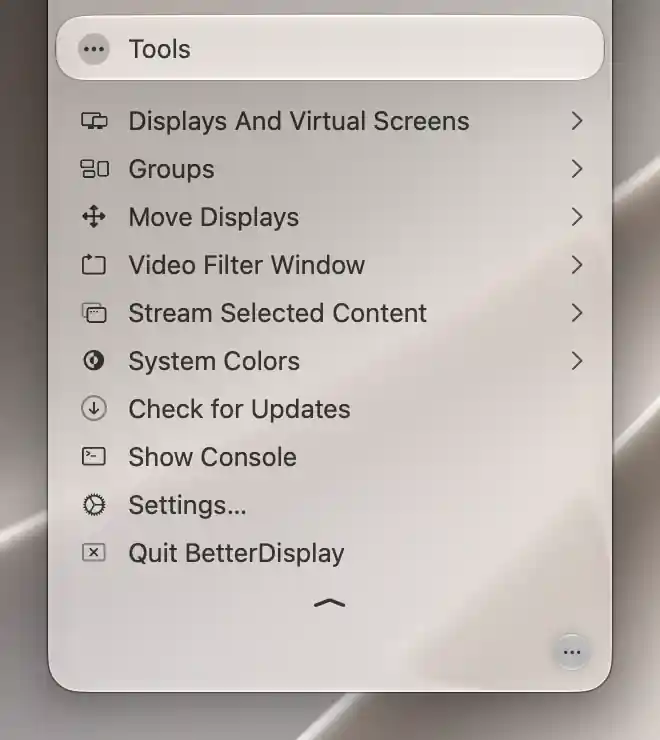
App actions can appear directly in Tools when their button-bar shortcuts are disabled.
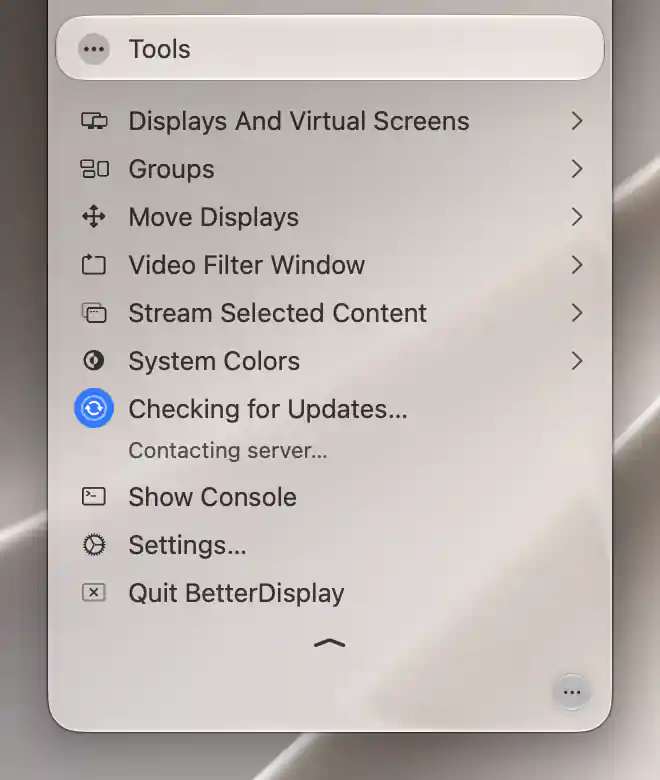
Tools shows the update check in progress while the app contacts the update server.
Updates
Select Check for Updates to look for an applicable release. While it runs, choose Checking for Updates… if you want to dismiss or cancel the check.
The result uses both a message and an icon: green for a known no-update result, red for an unknown or error result, or orange Install App Update… when a release is available. A failed check is a different outcome from finding no update.
Open the offered update
Choose Install App Update… to open the updater’s offer and review the next step. The attached App Menu closes to make room, while a detached menu can stay open. Opening the offer does not mean the installation has finished.
Click a completed no-update or error row when you want to check again.
Short-lived no-update/error feedback is cleared when the interface is revisited more than ten seconds after completion; available-update state remains relevant until it no longer describes a newer build. See About for the installed version and shared inline states, and Updates for automatic checks and release channels. The Update offer section explains release notes and install, remind and skip choices; Downloading, permission and installation covers progress and relaunch.
Settings and Quit
Choose Settings… to open the settings window. If the gear button already supplies it in the button bar, the duplicate Tools entry is omitted.
Quit the app
Quit BetterDisplay exits directly, stopping ongoing app control and monitoring. Closing the App Menu or Settings window instead leaves the app running. If Quit is placed in the button bar, its duplicate Tools entry is omitted.
If an update is prepared for Install on Quit, quitting also allows that installation to finish.
These actions follow Customize Menu Options; hiding an entry changes its location/accessibility, not the underlying operation.
Additional information
This section explains which features require Pro and how availability differs between Mac platforms.
Features requiring Pro license
Update checking, opening Settings and quitting do not require Pro. Individual Settings features and license compatibility for an offered version are separate.
Platform compatibility
All features described on this page are available on both Apple silicon and Intel Macs. Offered updates depend on the selected channels, architecture and supported macOS version; checking needs network access.