Customize Menu Options
Customize Menu Options lets you keep frequently used features close at hand while placing occasional ones behind a chevron. You can also hide items you do not want in their usual menu locations. The choices apply across applicable devices and change the menu’s presentation, not the underlying display feature or its support.
Where to find it: Settings > Menu > Customize Menu Options > Customize App Menu Contents….
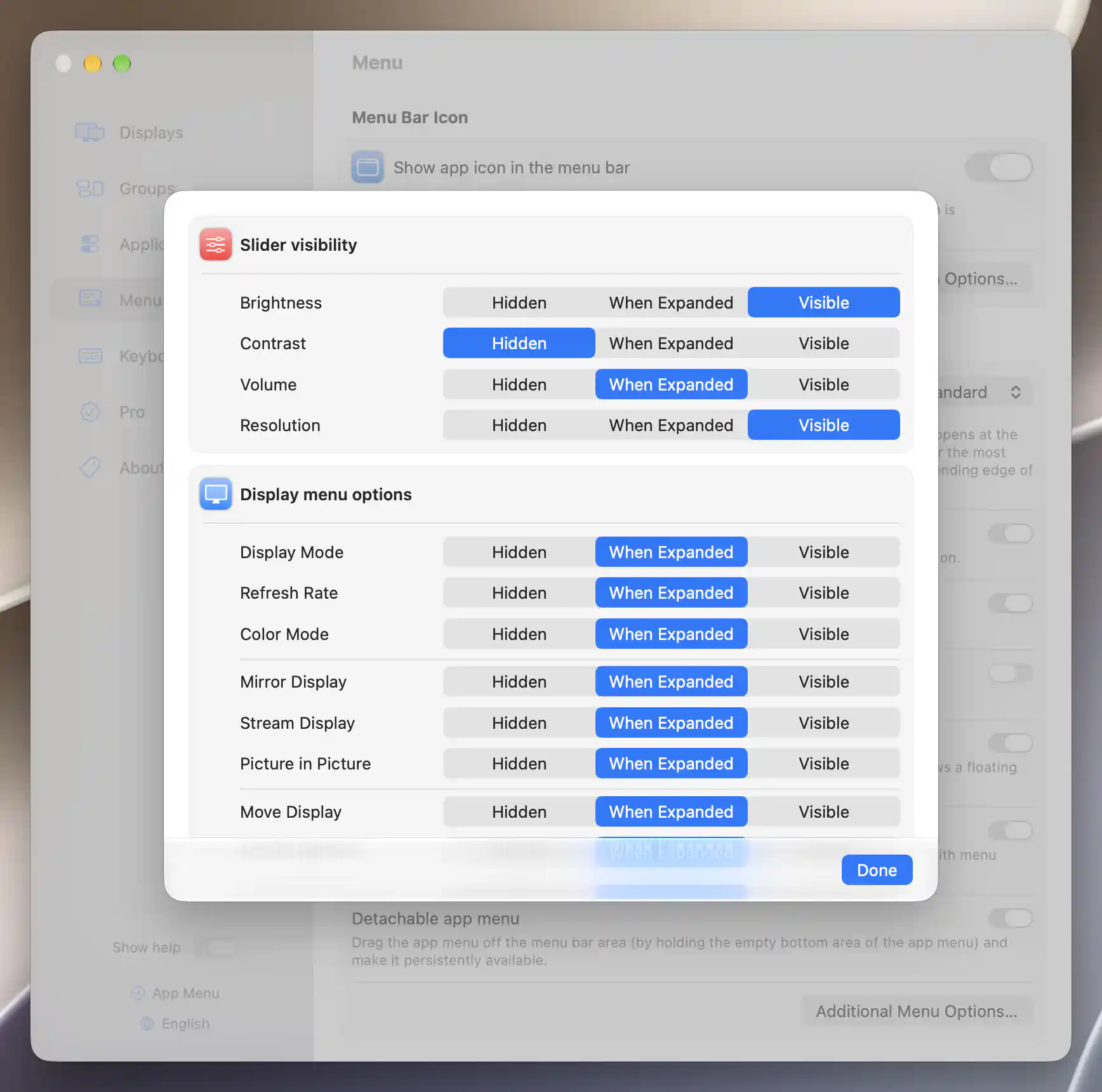
Menu visibility choices for sliders and display features.
Visibility choices
Each row has three choices:
| Choice | Effect |
|---|---|
| Hidden | Removes the item from its usual menu location. |
| When Expanded | Shows the item after opening that device or Tools block’s more-options chevron. |
| Visible | Includes it without opening more options. |
For example, you can keep a frequently used slider Visible and leave an occasional display command When Expanded. The chevron then separates the items you usually need from the ones you want to keep within reach.
When Expanded refers to that block’s more-options state. It does not choose whether a feature submenu floats beside the menu or expands inline; that separate behavior is configured in Menu Appearance & Behavior.
Changes are saved immediately, close expanded submenus and refresh the App Menu. Done closes the sheet.
Slider visibility
Set the visibility of Brightness, Contrast, Volume and Resolution independently. The defaults put Brightness and Resolution directly in view, hide Contrast and place Volume behind the more-options chevron.
A Visible resolution slider still needs more than one eligible mode. It is not supplied for a mirror target, so that preference cannot make a target’s slider appear.
Display menu options
The sheet follows the App Menu’s feature groups, making it possible to adjust a whole family of related features together:
- Display Mode, Refresh Rate, Color Depth and Color Mode. Color Depth customization appears only on Intel Macs.
- Mirror Display, Stream Display and Picture in Picture.
- Move Display and Screen Rotation.
- Image Adjustments, Hardware Control and Input Source. The Hardware Control row configures the submenu currently titled Device Control in the App Menu.
- Color Profile and Apple Display Preset.
- Configuration Protection, Manage Display and Manage Virtual Screen.
- Virtual Screen Connect, Virtual Screen Disconnect, Display Connect and Display Disconnect.
- Toggles, the device’s quick switches.
These rows default to When Expanded, except Virtual Screen Connect and Display Connect, which default to Visible. A connection or disconnection command still depends on the device’s current state and capability. Header switches can replace a redundant connect/disconnect entry unless you allow the duplicate through Additional Menu Options.
Tools
Tools collects shared actions rather than a single display’s features. Its customizable rows are Displays And Virtual Screens, Groups, Move Displays, Video Filter Window, Stream Selected Content, System Colors, Settings…, Check for Updates, Show Console and Quit BetterDisplay.
Displays And Virtual Screens, System Colors, Settings…, Check for Updates and Quit BetterDisplay default to Visible. The remaining Tools rows default to When Expanded.
If Settings or Quit is placed in the button bar, its ordinary Tools entry is omitted regardless of the choice here. Some entries also depend on the current setup. For example, arranging displays needs multiple eligible displays; setting the item to Visible does not remove that requirement.
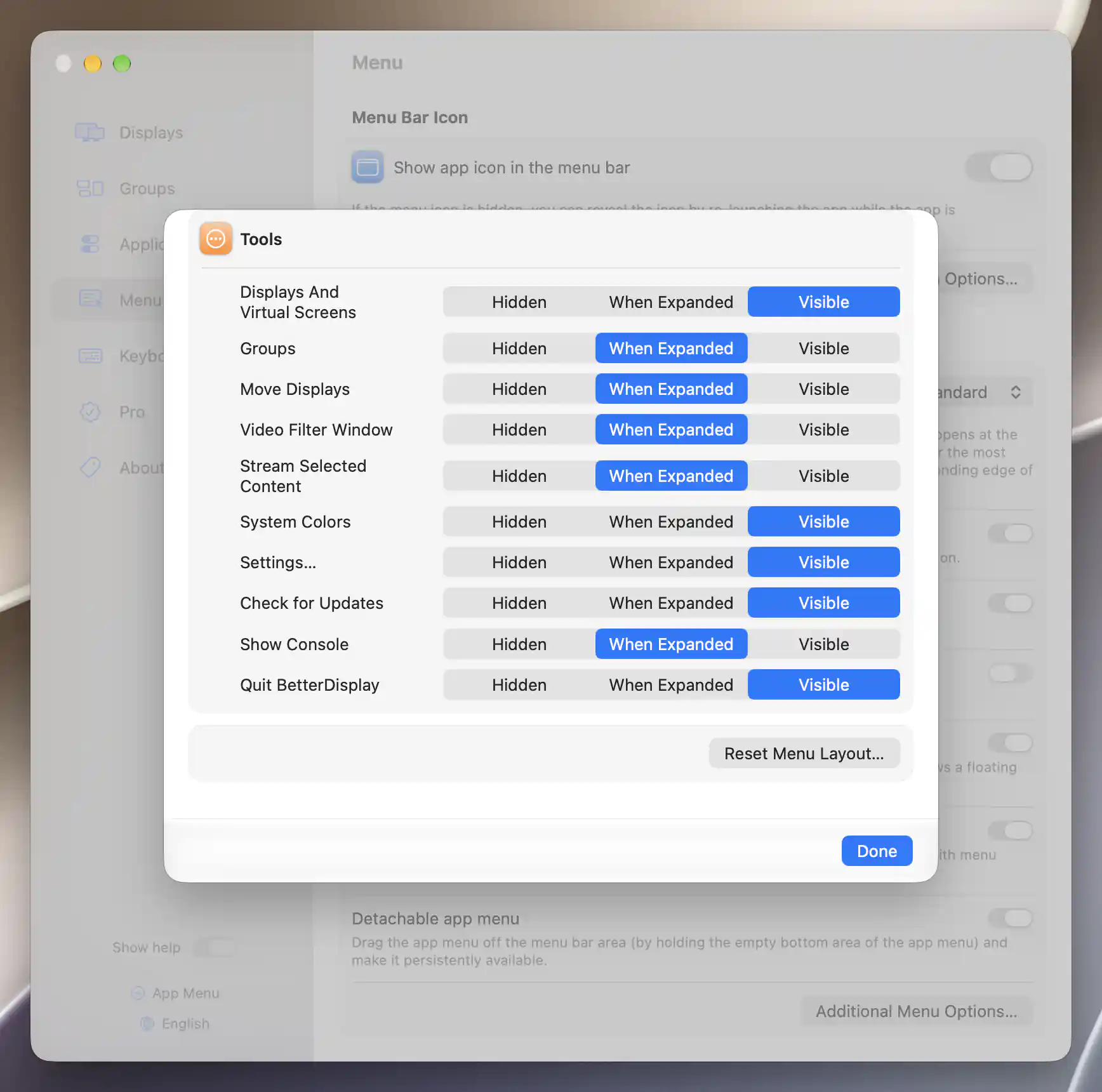
Tools visibility options and Reset Menu Layout.
Reset Menu Layout
Reset Menu Layout… restores the visibility defaults described above and closes expanded submenus. It can be useful when you want to return to the initial layout before arranging the menu again.
Additional information
This section explains which features require Pro and how availability differs between Mac platforms.
Features requiring Pro license
No Pro license is required to change these visibility preferences or use Reset Menu Layout…. The features you place in the menu retain their individual Pro requirements; making a feature Visible does not unlock it.
Platform compatibility
The visibility options are available on both Apple silicon and Intel Macs, except that the Color Depth customization row is Intel-only. The actual Color Mode interface requires Apple silicon even though its visibility can be configured here.
Other entries depend on the selected display, enabled control methods and available actions. Menu customization does not override those platform or device requirements.