Groups
Display groups let you coordinate a set of displays: share adjustments, keep a familiar arrangement, or match the physical size of text and interface elements. Each group has its own membership and activation rules. For example, you can give a desk setup different behavior from a travel setup without rebuilding those preferences each time.
Where to find it: Settings > Groups > Overview. App Menu > Tools > Groups > Configure Groups… opens the same pane.
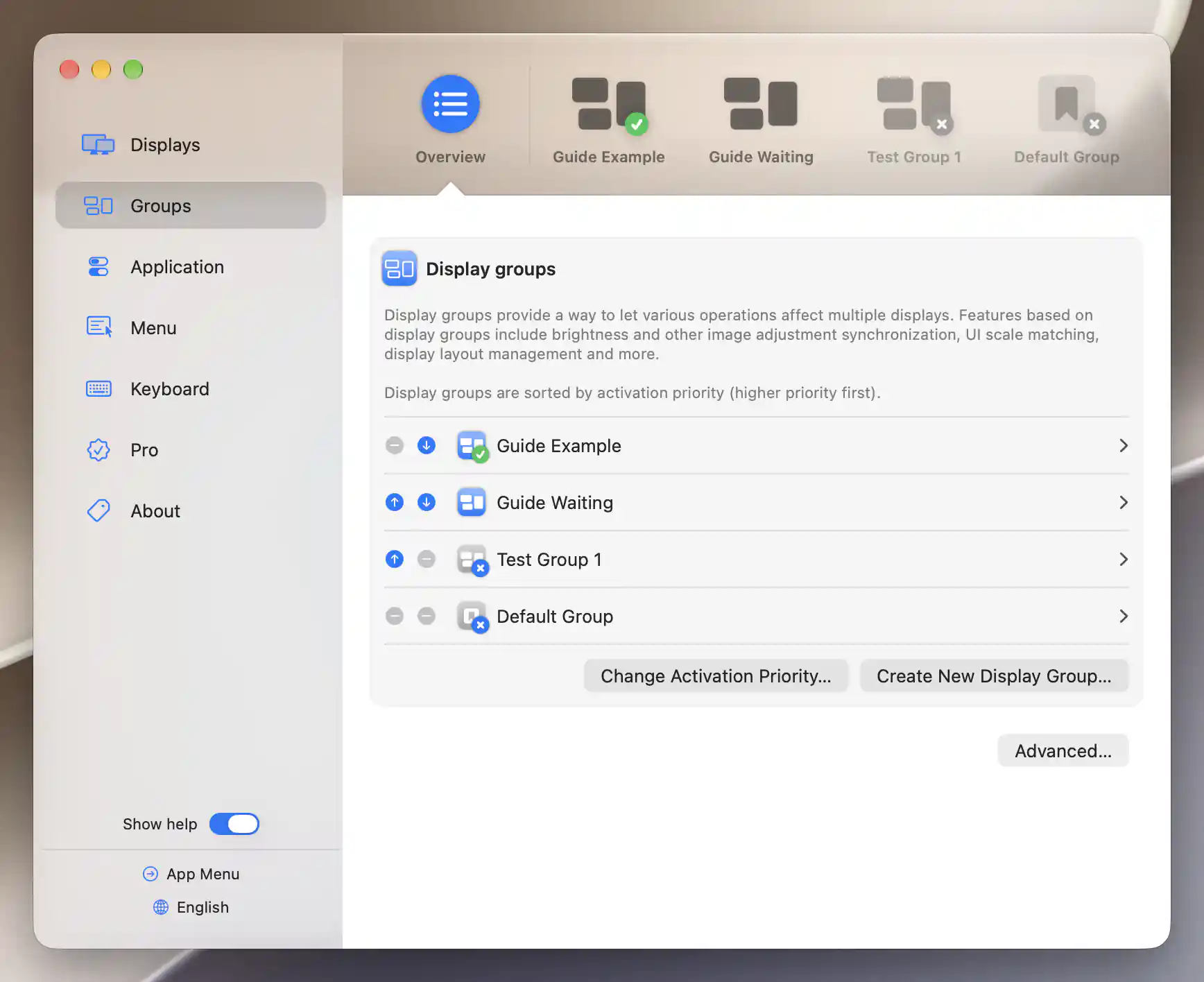
Status badges distinguish active groups from disabled groups; the arrows change activation priority.
Choose a group
Select Overview in the horizontal selector to see all groups, or select a group's name or icon to edit it. If the selector does not fit, scroll it or use its direction buttons. BetterDisplay remembers which group you selected.
The status indicators tell you what is happening now. A green checkmark marks an active group; a cross or less prominent appearance marks a disabled or unavailable group. A group can be enabled but inactive if its members, activation rule or priority do not currently let it run. Open its Activation section to see the explanation.
The individual group page explains how membership and activation work together. A group's synchronization, layout protection and UI scale matching have independent switches: turning on the group does not automatically turn on all three features.
Create or duplicate
Start with a new group
Choose Create New Display Group…, enter a Display group name, then select Create Display Group. You can leave the custom name blank to use a generated name. The new group's settings open after creation; Cancel closes the sheet without creating it.
A new group is enabled and treats all connected displays as members. Its activation rule requires all configured members to be present. It also starts with Only group members can be present and Exclusive display group enabled, unlike the Default Group.
Synchronization, layout protection and scale matching all start off. Review who belongs to the group and when it should activate before turning on the features you need.
Copy an existing setup
Open the group and choose Duplicate…. The sheet proposes its custom name followed by - Duplicate, and you can edit that name before selecting Duplicate Display Group.
The copy receives the original's saved configuration but starts disabled, so it cannot immediately take over from the original. You can copy the Default Group too, although the Default Group itself cannot be discarded.
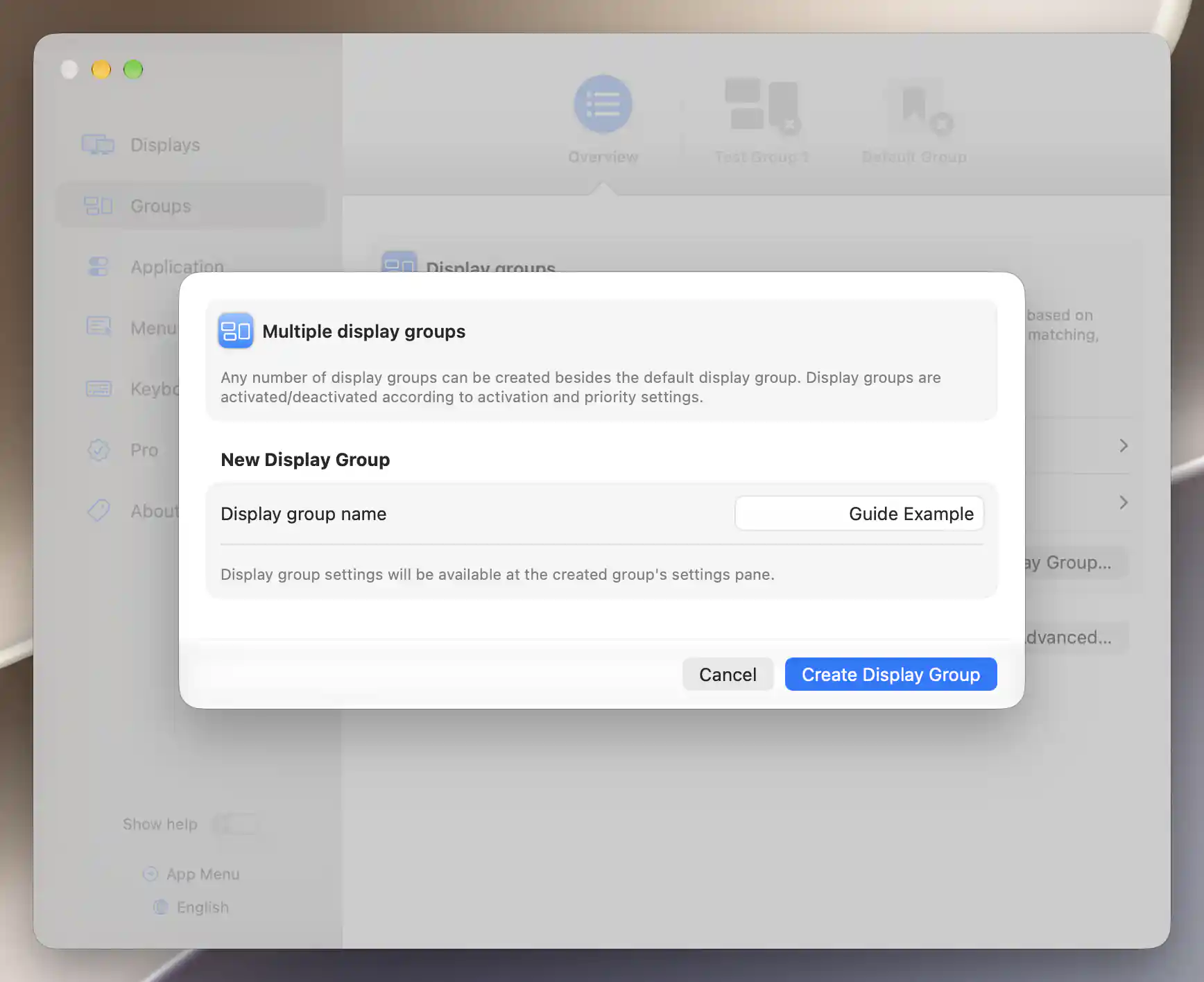
Name a new group before opening its settings.
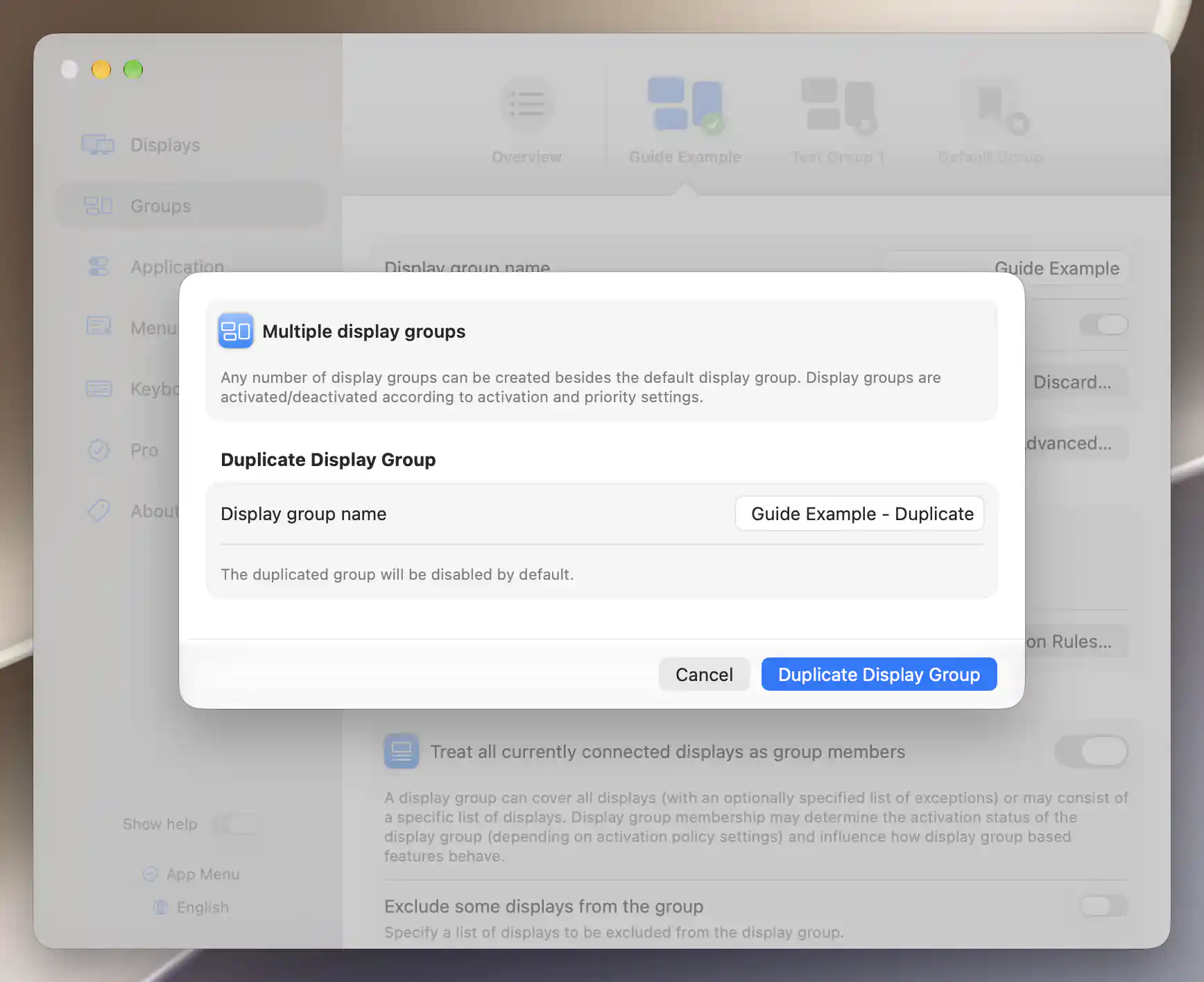
A duplicate starts disabled so you can review its settings before enabling it.
Activation priority
Priority decides which groups get the first opportunity to activate. They are normally listed from higher to lower priority. This matters particularly for exclusive groups: an active exclusive group prevents lower-priority groups from activating, and an exclusive group cannot activate if any higher-priority group is already active. Non-exclusive groups can operate together when their rules allow it.
Change Activation Priority… appears when you have at least two custom groups plus the Default Group. Select it to reveal the up/down buttons, and select it again to hide them. Moving a group saves the order and recalculates activation immediately.
The Default Group always keeps the bottom priority and cannot be moved. Each custom group's arrows stop at the first or last custom position.
Advanced
Advanced… > Apply all layout protections on startup lets BetterDisplay enforce configured group layouts shortly after startup. It is off by default. Only applicable rules from active groups run; this preference does not activate a disabled group or make a missing display available.
For an immediate layout change, use Apply All Protections in Layout Protection or the Groups menu. The menu's Apply Automatically option is separate: it applies protections after group changes made through that menu.
Additional information
This section explains which features require Pro and how availability differs between Mac platforms.
Features requiring Pro license
- Creating additional groups from Overview and using its activation-priority buttons.
- Activating custom groups, including a duplicate even when its creation sheet is accessible.
- Layout protection, including Apply all layout protections on startup, and UI scale matching.
- Synchronization features beyond the basic brightness option and certain advanced synchronization choices; see the individual feature pages for their requirements.
The Default Group can operate without Pro, including basic brightness synchronization. When Pro features are unavailable, custom groups are shown unavailable and the Default Group is listed first. Enabling a group does not grant access to features with their own Pro requirement.
Platform compatibility
All features described on this page are available on both Apple silicon and Intel Macs. A group's useful actions depend on its connected members, their controls and available display modes. The individual feature pages explain those requirements.