Display EDID
EDID is the data a display uses to describe its identity and advertised capabilities. BetterDisplay can retrieve it for inspection, store custom data, and on supported paths apply an override or write to the device itself. Start by distinguishing those operations: reading data, changing what macOS sees, and rewriting the device's memory have different consequences.
Where to find it: Settings > Displays > display > Display EDID. The section requires a framebuffer communication service. Retrieve EDID… opens the reading sheet. Load Custom EDID… on Apple silicon, or Write EDID to Device… on Intel, opens the custom-data sheet; the Apple-silicon custom entry is disabled for built-in Apple displays.
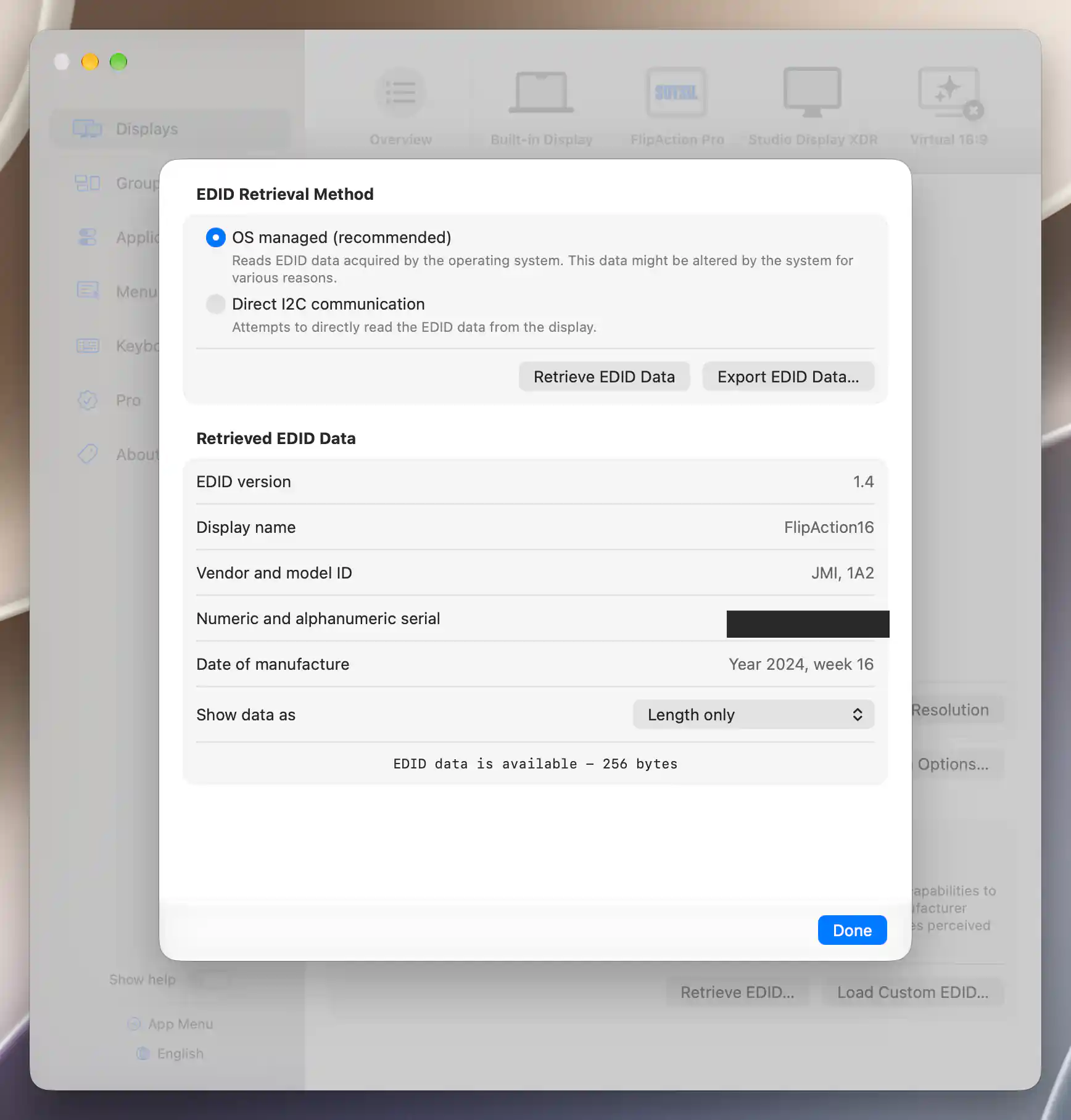
OS-managed retrieval shows decoded data and its byte length; the device serial is redacted.
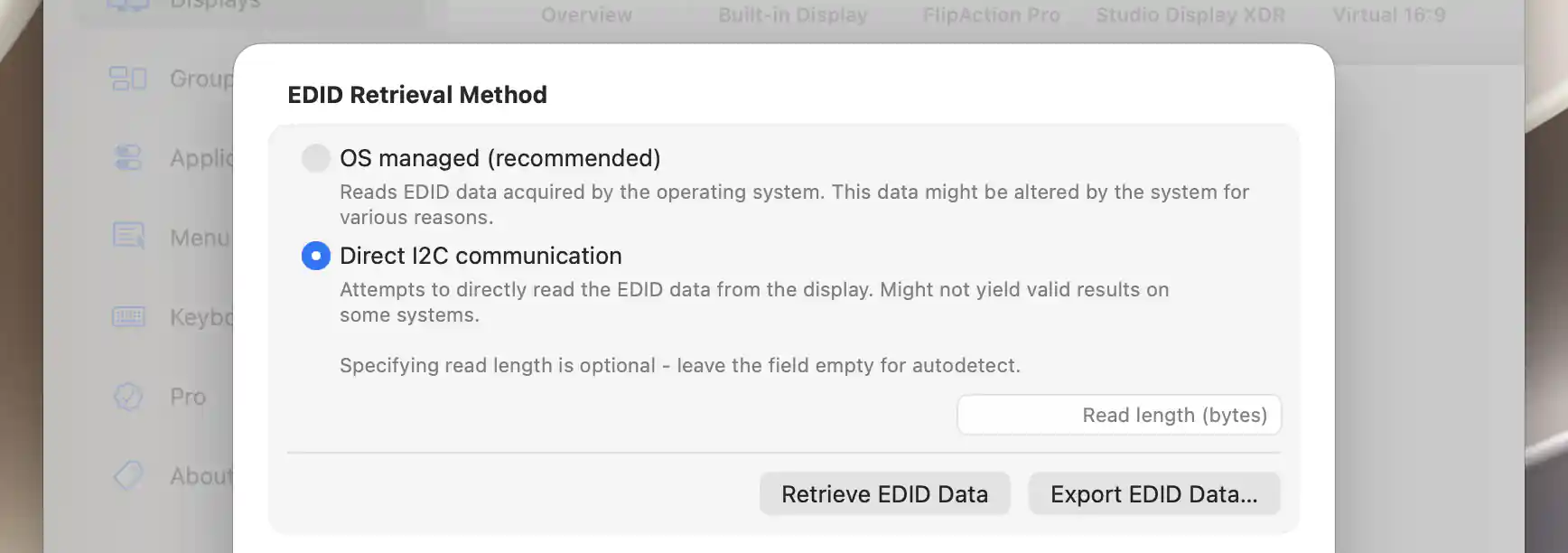
Leaving the read length blank lets Direct I2C retrieval detect the data length.
Retrieve and export
Read the display's data
Choose a retrieval method before selecting Retrieve EDID Data:
- OS managed (recommended) reads the data acquired by macOS. The system may have modified it.
- Direct I2C communication attempts to read from the display through I²C. Some systems cannot provide valid direct results.
For direct reading, leave Read length (bytes) blank or set it to zero for automatic length detection. If you supply a length, the read path limits it to 1–4096 bytes.
The sheet distinguishes EDID data not retrieved from EDID data retrieval failed. After a successful read, Export EDID Data… is enabled while the display is connected. The save dialog proposes a binary filename based on the display's name. A result alert reports success or the export error; OK closes it.
Interpret and copy the result
When the data can be interpreted, the sheet shows version, display name, vendor/model IDs, numeric and alphanumeric serial, and manufacture year/week. Otherwise, it warns that the data cannot be interpreted and might be invalid.
A successful read only means bytes were acquired. It does not guarantee a valid interpretation or that every advertised capability is correct.
Show data as changes the presentation of those same bytes. Choose Base64 encoded string, hexadecimal numbers, C style array, HEX editor styled blocks or Length only. Text can be selected for copying. The presentation preference is shared and remembered, while the retrieval method and length are remembered for the individual display.
Load and manage custom data
Load EDID Data… imports a binary image. Paste Base64 imports Base64 text from the clipboard, ignoring whitespace; a noncanonical or invalid encoding produces an alert. A successful import or paste stores the bytes, so inspect any interpreted-data warning before treating them as valid EDID. The loader does not provide individual EDID-field editing.
Export… saves the stored bytes to a binary file. Delete Data removes them immediately, without a separate confirmation. Both commands are disabled when no data is loaded. Import/export and clipboard errors appear in a result alert closed with OK.
When the loader belongs to a system override
If you open the loader from Intel System Configuration > Display EDID override, loading or deleting data marks that model override as pending. It then follows the shared Apply/activation workflow. This context does not show direct application or device-writing actions.
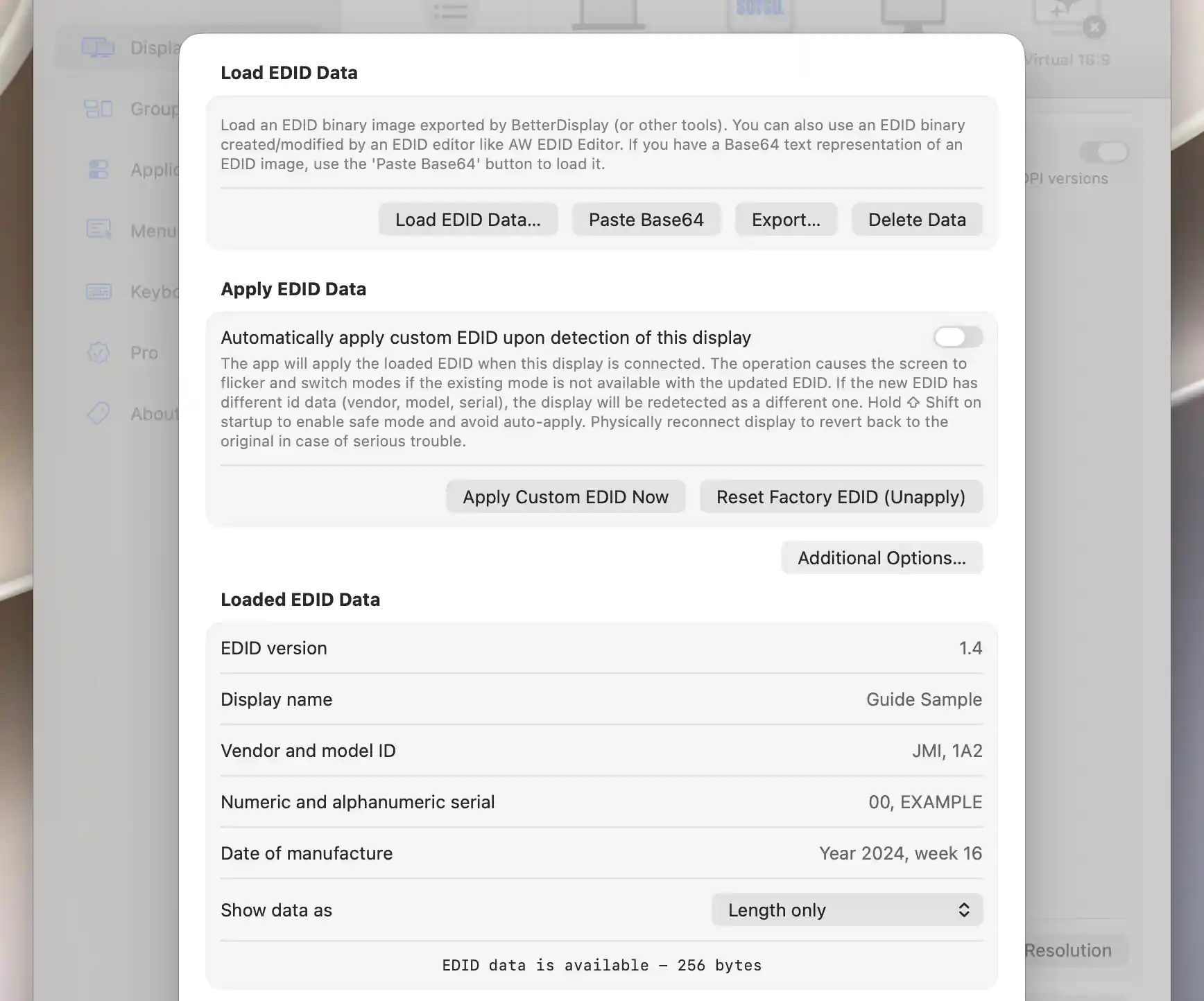
A shareable sample is loaded for inspection; automatic application is off and no EDID was applied or written.

An invalid stored sample produces a parsing warning.
Apply a custom EDID to macOS
On Apple silicon, the custom-data sheet provides Apply EDID Data options when opened outside the system-override loader. These change the data macOS uses without rewriting the display's permanent EDID memory.
Apply Custom EDID Now opens Apply Custom EDID, with Apply EDID and Cancel. Reset Factory EDID (Unapply) opens the corresponding Reset EDID / Cancel confirmation. Both operations require a connected display.
Apply on detection
Automatically apply custom EDID upon detection of this display reapplies loaded data on qualifying detection. It starts off and requires custom data to be loaded. Turn this preference off before using Reset Factory EDID (Unapply), which is disabled while automatic application remains enabled.
Safe Mode suppresses automatic application. Hold Shift while starting BetterDisplay to enter Safe Mode if needed.
Identity continuity and quit behavior
Additional Options… contains two preferences, both on by default:
- Preserve continuity in case of an EDID display identity change links the old and new identities within the current app session.
- Restore factory EDID on quit restores the factory data during normal quit cleanup. Without restoration, the next launch may identify the display differently.
A forced termination cannot be relied on to perform that normal cleanup.
Write EDID to Device
Device writing changes the display or adapter's own EDID memory. It is separate from applying a temporary macOS override.
Writing requires a connected display with the communication service, loaded data no larger than 256 bytes, and Unlock EDID write - I understand the risks involved. That unlock lasts only for the current sheet. Support depends on the device and transport: most displays restrict writes and may require service settings, while some EDID emulators expose writing.
Write EDID to Device opens a second destructive confirmation with Proceed With EDID Write and Cancel. A successful-send alert asks you to reconnect and verify the result. A failure warns that the device EDID may have been corrupted. A reported send is not verification of a working display configuration.
Communication timing
EDID Write Communication Settings… adjusts the current sheet's operation. Blank fields use these defaults:
- Chunk size: 16 bytes.
- Delay between commands: 10 ms.
- Number of retry attempts on failure: 4.
- Extra wait time after failure: 20 ms.
Suggested chunk sizes are 16, 8, 4, 2 or 1 bytes. The total data must be larger than and divisible by the chunk size. Delays are at least 1 ms, and retry counts are at least zero. These timing overrides are not saved as permanent display preferences.
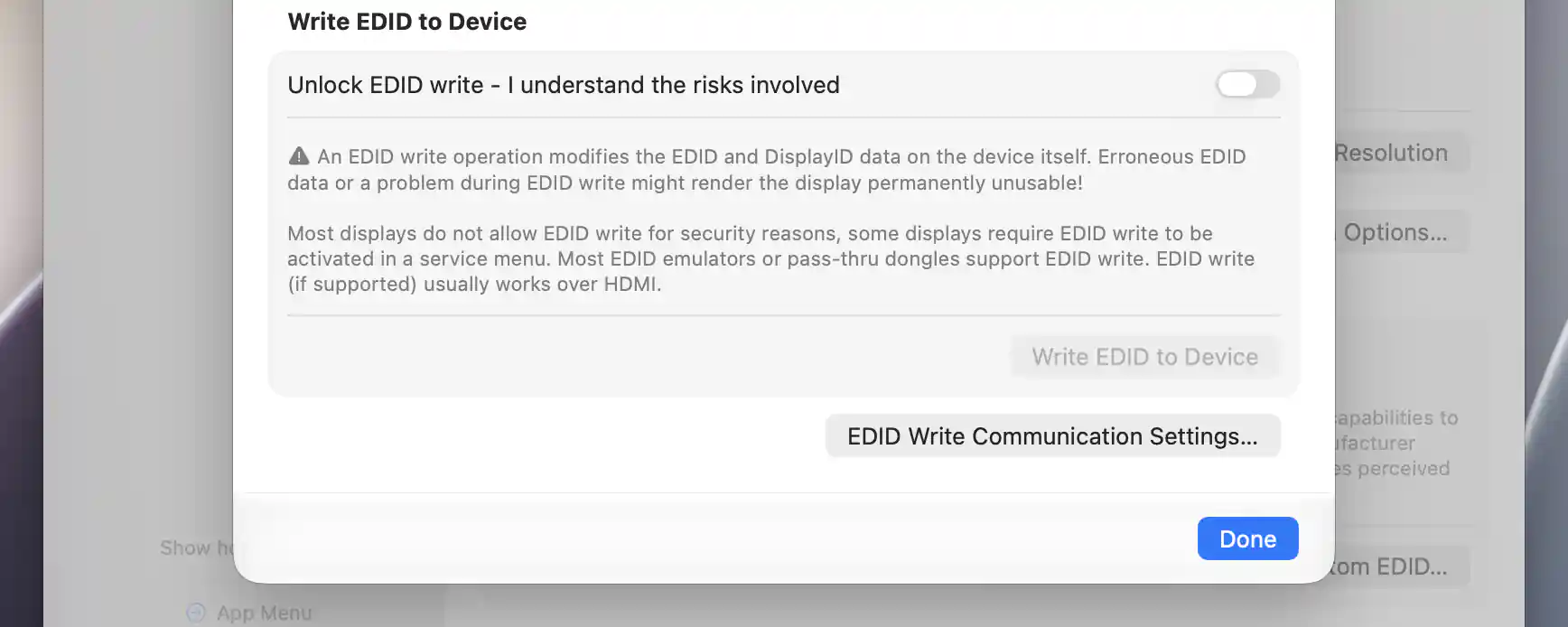
Device writing stays locked until its separate risk acknowledgment is enabled.
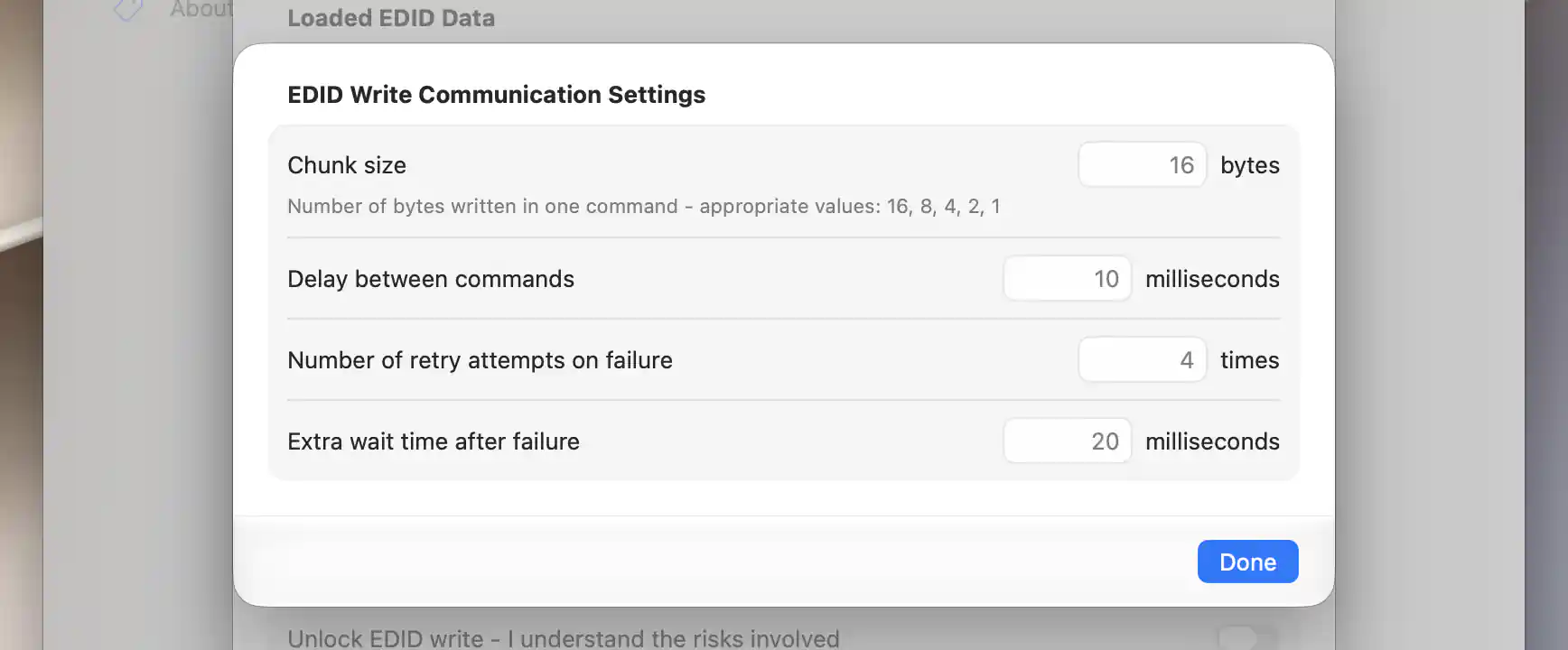
The timing sheet shows defaults for chunk size, command delay and retries; these fields do not perform a write.
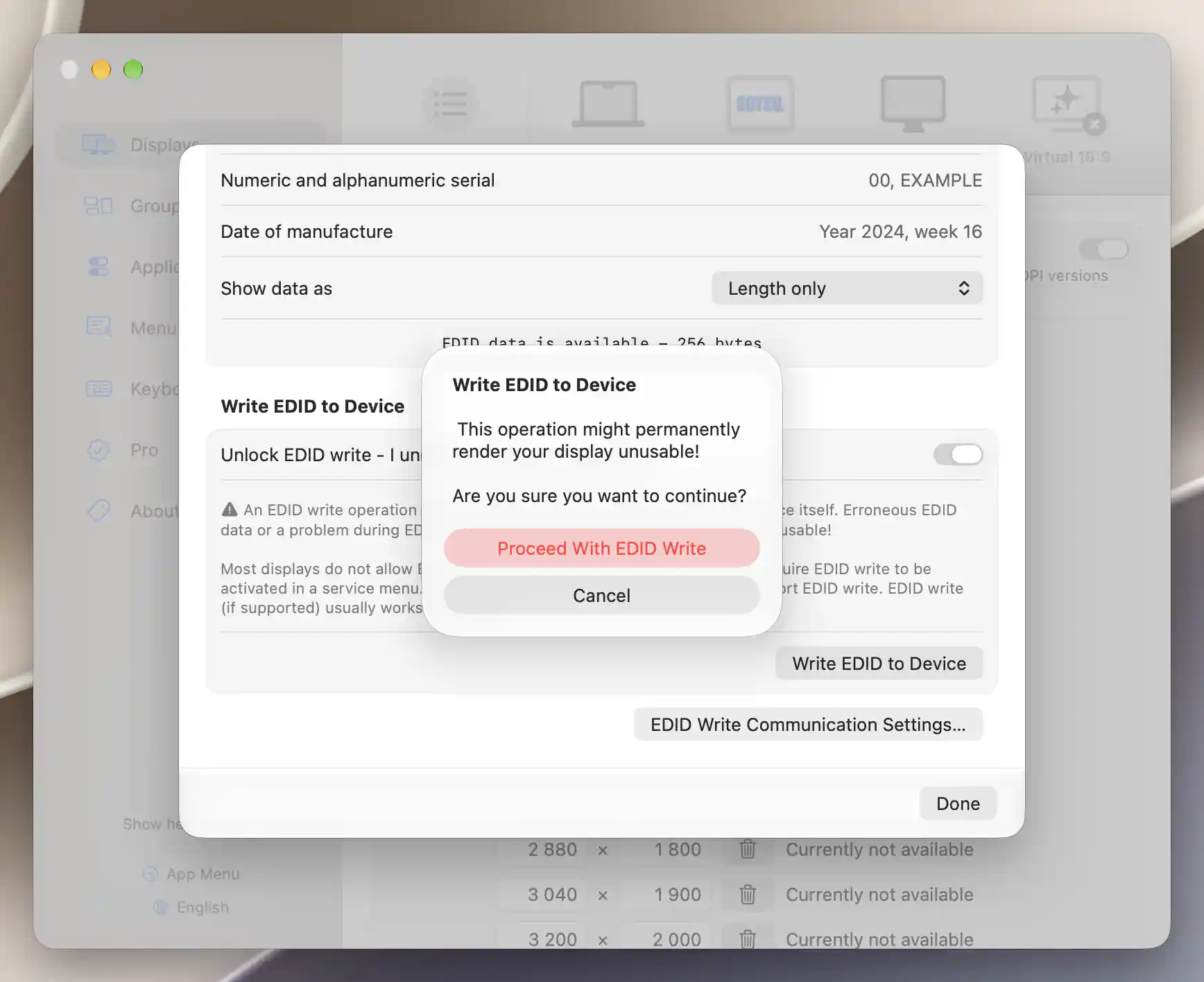
The final warning appears before an EDID write; Cancel leaves the device unchanged.
See System Configuration for the separate model-level override workflow.
Additional information
This section explains which features require Pro and how availability differs between Mac platforms.
Features requiring Pro license
- Applying, automatically applying or resetting custom EDID data through the Apple-silicon options.
- Preserve continuity in case of an EDID display identity change and Restore factory EDID on quit.
- Device writing and its communication settings.
- The separate Intel model-level Display EDID override workflow.
Retrieving/exporting EDID and managing stored custom bytes in these Settings sheets are not independently Pro-gated. The App Menu's custom-EDID entry points have their own Pro gating.
Platform compatibility
EDID reading and supported device writing are available on both Apple silicon and Intel Macs, subject to the communication service and device/transport support. The consequences of device writing are permanent on either platform.
Apple silicon offers direct application to macOS and automatic application on detection; its custom entry is disabled for built-in Apple displays. Intel offers model-level overrides through System Configuration. That override loader follows Apply/activation and omits direct application and device writing.