Individual Display Settings
Select a display to review its connection, inspect what macOS reports about it, and tailor its saved BetterDisplay preferences. The available sections follow the display's type, connection and hardware capabilities. A remembered disconnected display can still keep its settings even when it is no longer part of the desktop.
Where to find it: Settings > Displays > [display]. Display Information… opens the detailed report from the identity block at the top.
Ordinary displays, Sidecar devices and other non-native connections can offer different features. BetterDisplay-created virtual screens have a separate virtual-screen settings page, with some of the same settings for their connected desktop.
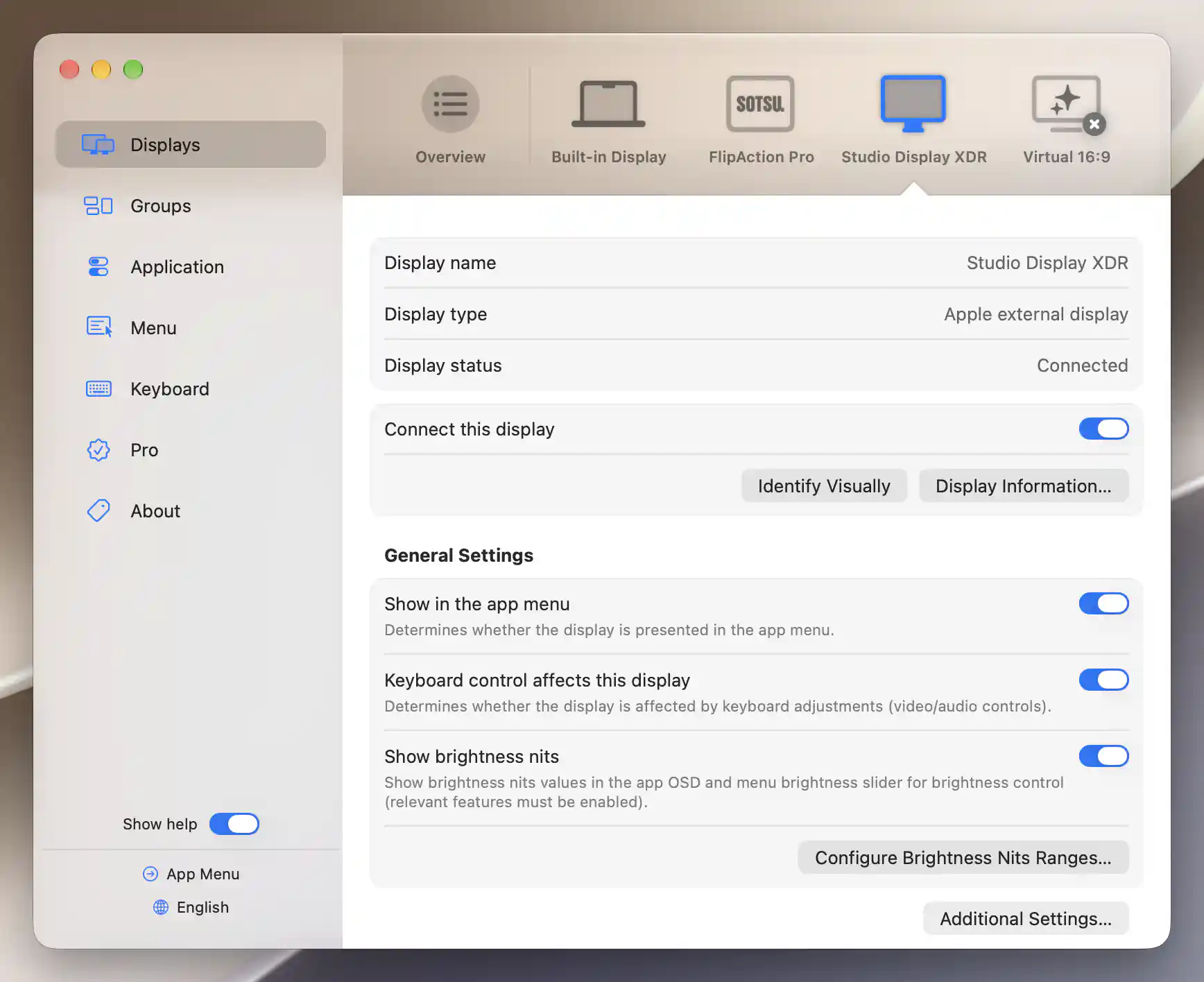
Studio Display XDR’s identity and connection actions appear above its general preferences.
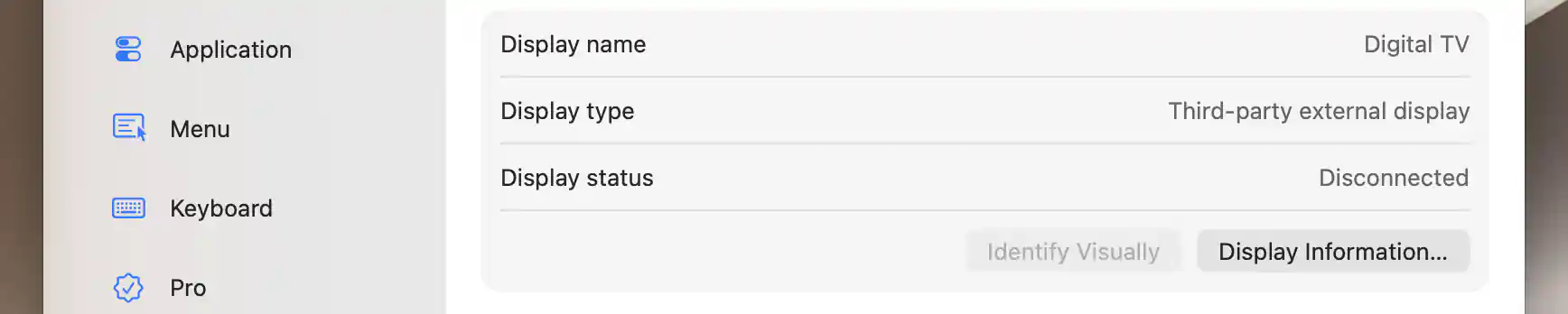
A remembered disconnected display retains its settings and information.
Identity and connection
Start with Display name, Display type and Display status to confirm which screen you are editing. If you assigned a custom name, the original follows it in parentheses. The type describes the detected kind of display.
Status distinguishes a connected desktop from saved information about one:
- Connected means the display is currently connected.
- Disconnected identifies a remembered absent display.
- Soft-disconnected identifies software disconnection.
- Soft-disconnected (system) means the system disconnected it without BetterDisplay recording an app disconnection.
Connect or disconnect this display
Connect this display appears when the present display supports connecting or disconnecting. Global connection-management preferences, built-in-display safety rules, another usable display and support for non-native connections can all affect availability. See Display Connections.
Turning the switch off opens Disconnecting a Display, with Cancel and Disconnect, unless that warning was previously dismissed. Cancel leaves the connection unchanged. After an attempted change, the switch follows the detected state.
Soft disconnection removes the display from the layout. A compatible connection on Apple silicon may also enter standby.
Reconnecting a built-in screen that was automatically disconnected for an external one suspends that automatic rule. Manually disconnecting the built-in screen again, or restarting the app, can restore it.
Identify or inspect a screen
Identify Visually briefly highlights a connected screen so you can find it. It is disabled when the display is disconnected.
Display Information… can inspect a connected display or the saved information for an absent one. It remains available in either case.
Display Information
Use this report to inspect the display's identity, capabilities and current mode. It combines BetterDisplay's saved record with system-reported information where available. Values can be selected for copying, and sections with no data are omitted.
Start with the basic information to confirm the screen, then use the mode sections for desktop and connection details. The report gathers its detailed data when the sheet opens; reopen it after changing the connection or mode to obtain a fresh report.
Identity and alternate identity
Basic Display Information repeats name, type and connection status.
Identifiers includes the app's tag ID, hardware serial/vendor/model/product data, alphanumeric serial and manufacture date, system UUID, unrotated physical dimensions, registry location, Metal device/platform, I2C service and DDC messaging method, current macOS display ID, configuration-run ID and first/last detection dates. A slash-separated second value can show a differing system/EDID value.
These identifiers have different scopes: the app tag identifies its saved record, while the current macOS display ID is a connection identifier. See Display identification.
Current (Alternate) Identifiers appears when an alternate identity is active. It reports the current serial, vendor, model, name, manufacture data and UUID alongside the retained original identifiers. An EDID identity change need not mean a physically different monitor.
Capabilities and desktop mode
Capabilities distinguishes software control, Apple hardware control, color-table support, potential DDC compatibility, HiDPI, orientation, variable refresh rate, Apple presets and color-profile support. “Potentially DDC compatible” does not confirm that every hardware command works. HDR rows distinguish display support, timing/scaling support and the enabled native, forced or EDR state. Current, potential and reference EDR values, reported HDR luminance and available GPU/allocation resolution limits provide further context. Luminance and limit rows appear only when data is available.
The macOS scaling explanation distinguishes desktop size, rendering pixels and physical output.
Current Display Mode reports logical and pixel resolution, HiDPI, bit depth and encoding, native/default flags, refresh rate including variable-rate bounds, and diagnostic mode number, fixed-point refresh value, row bytes, density and flags. Unsafe/invalid flags describe the reported mode rather than an instruction to select it.
Connection modes and profiles
Current Display Mode (Connection Level) and Preferred Display Mode (Connection Level) describe the connection's current and preferred modes separately from desktop scaling. They include dimensions, refresh/VRR, bit depth, color mode, YCbCr, HDR/SDR, gamut, virtual status, pixel aspect ratio and preferred scale. Maximum source dimensions/bandwidth appear when reported. A preferred mode is not necessarily the current desktop mode.
XDR Configuration lists the selected Apple reference preset index and available preset properties. Color Profile Configuration lists available ColorSync profile properties. Both depend on system support and returned data.
Other system and adaptation data
Sidecar Configuration provides a Sidecar device's identity, device/model/version, Home-button status, frame rate and USB/wireless link when its configuration is available. If it is unavailable, the section can contain only a name, UUID or “n/a”, and Unknown/Disconnected state; these fallback rows can also appear for a non-Sidecar screen and do not establish that it is a Sidecar connection. The additional Display Information section contains system, framebuffer and connection attributes supplied for that device. Its rows vary by hardware and macOS.
Display Adaptations lists applied, waiting-for-approval, opted-out and failed model-specific adaptations, including their versions, when adaptation records exist.
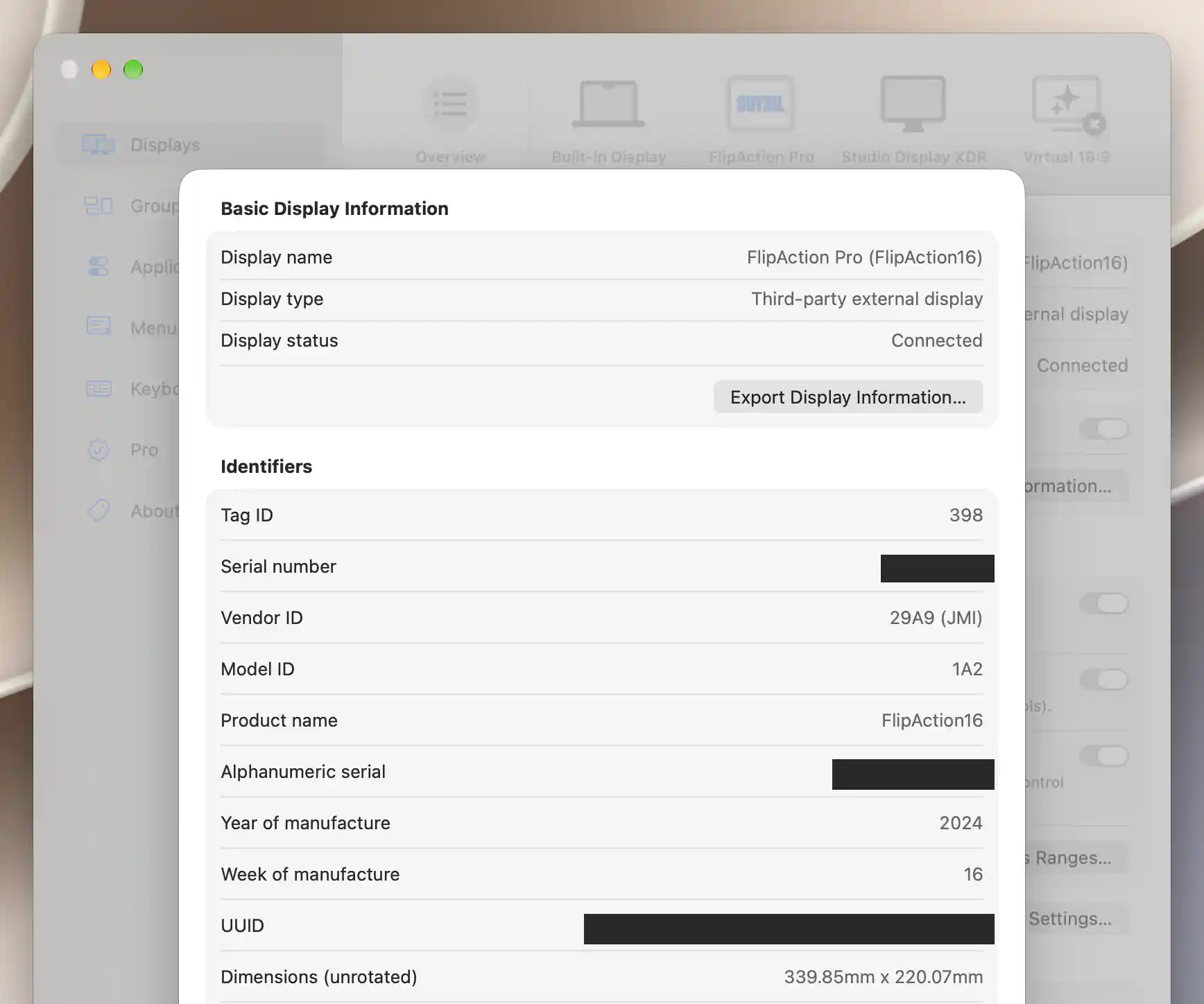
Display Information starts with the display’s identity and connection status. Private identifiers are concealed.
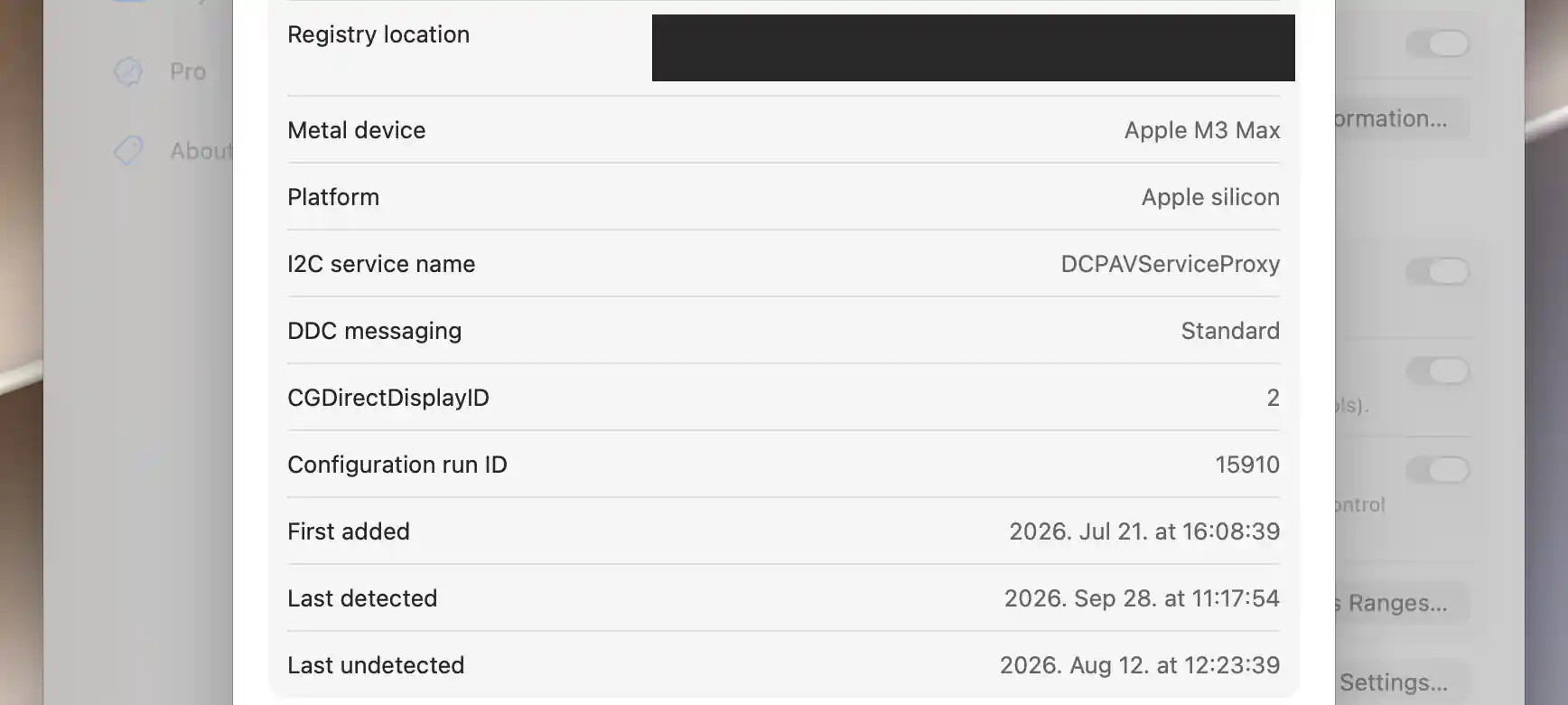
The remaining identifier rows describe the graphics device, communication path and detection history.
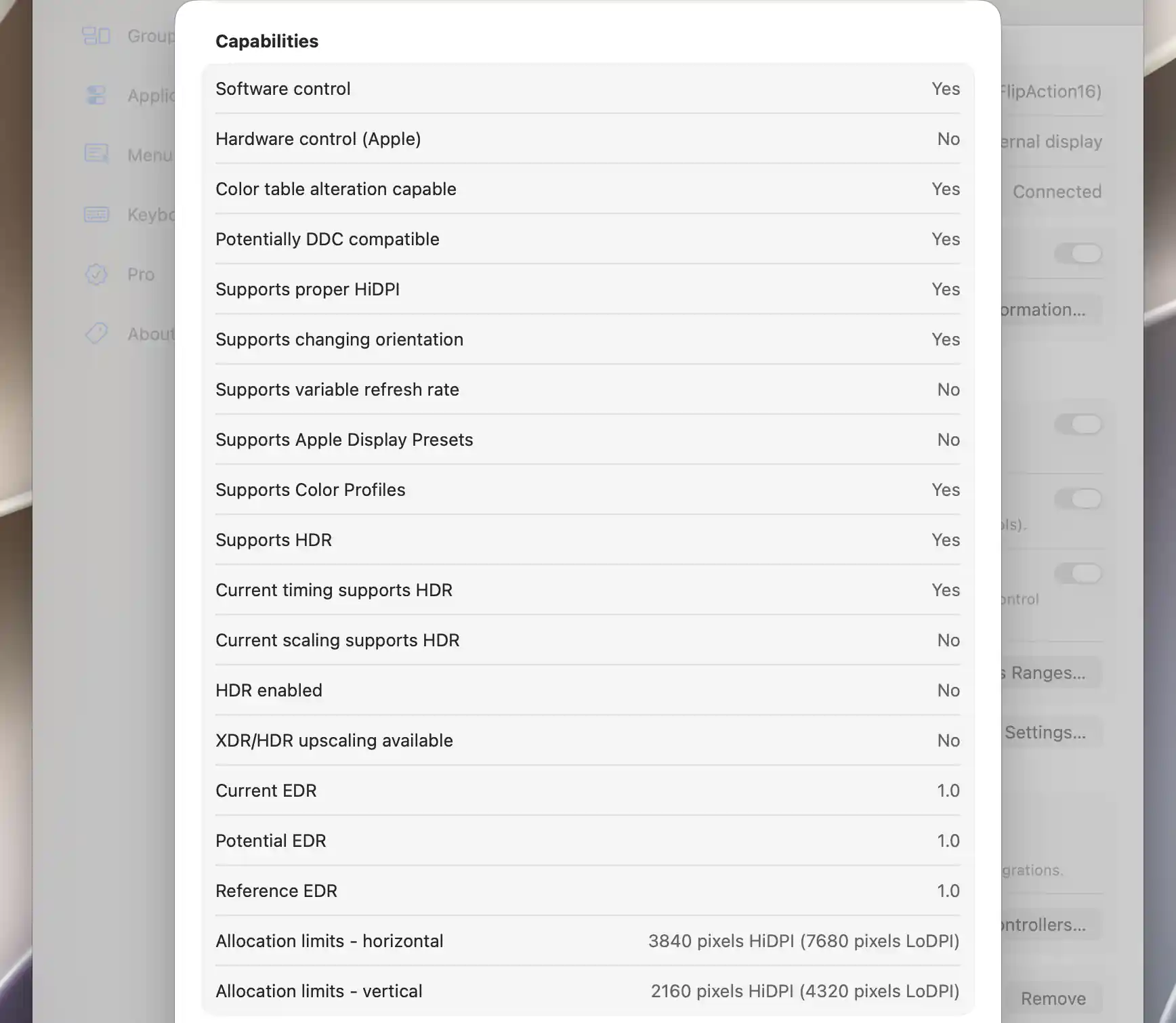
Capabilities distinguish hardware support from the current mode’s available features.
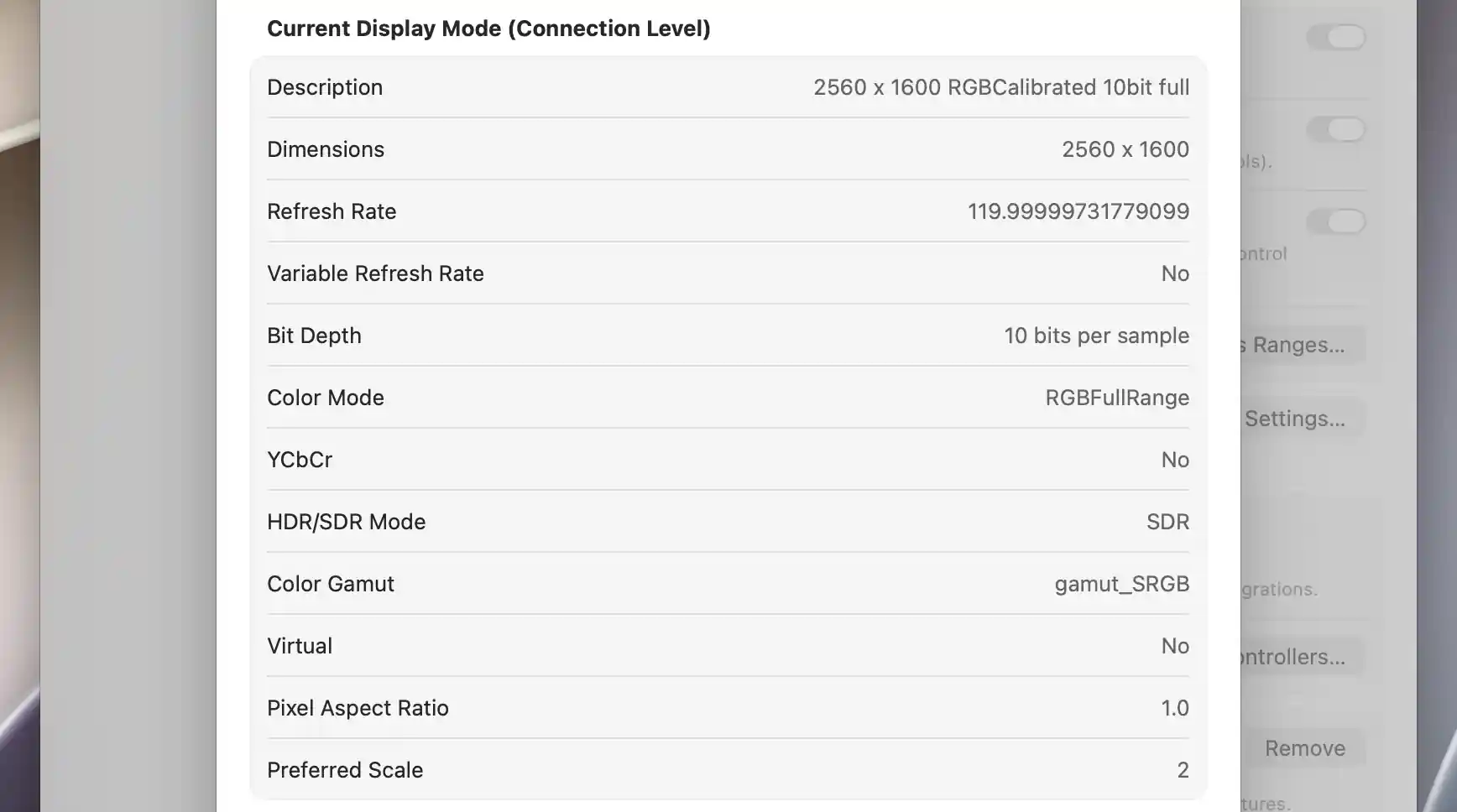
The connection-level mode describes the display link independently of desktop scaling.
Link Information
Link Information separates estimated image payload from the transport's link bandwidth. Estimated uncompressed payload, active Display Stream Compression (DSC), estimated compressed payload and compression ratio appear when the necessary data is available. These are reported or calculated diagnostics. They are useful for understanding the reported link, but they are not a throughput benchmark.
Transport rows can include connection type, transmission mode, link rate, lane count, raw/effective bandwidth, encoding and downspread. High-bandwidth Digital Content Protection (HDCP) rows describe supported protocol versions, not whether protected playback is currently authenticated. Receiver-capability data from DisplayPort Configuration Data (DPCD) can supply missing values or appear with a DPCD suffix when it differs from current transport information.
Do not read receiver maxima as proof that the present connection is using those maxima. Converter-side data may only identify its source.
Active DSC can add version, component/line-buffer depths, target bits per pixel, picture/slice dimensions and chunk size. When DSC is not reported active, available receiver capabilities can instead describe decompression/passthrough, formats, depths, slice counts and maximum slice width. Hinted tiling, tile size, maximum resolution, component depth and active/total pixel-rate limits appear only when supplied.
“Supported”, “hinted”, “estimated” and current-state rows answer different questions. Read those qualifiers with the values, rather than treating every row as a measurement of the current connection.
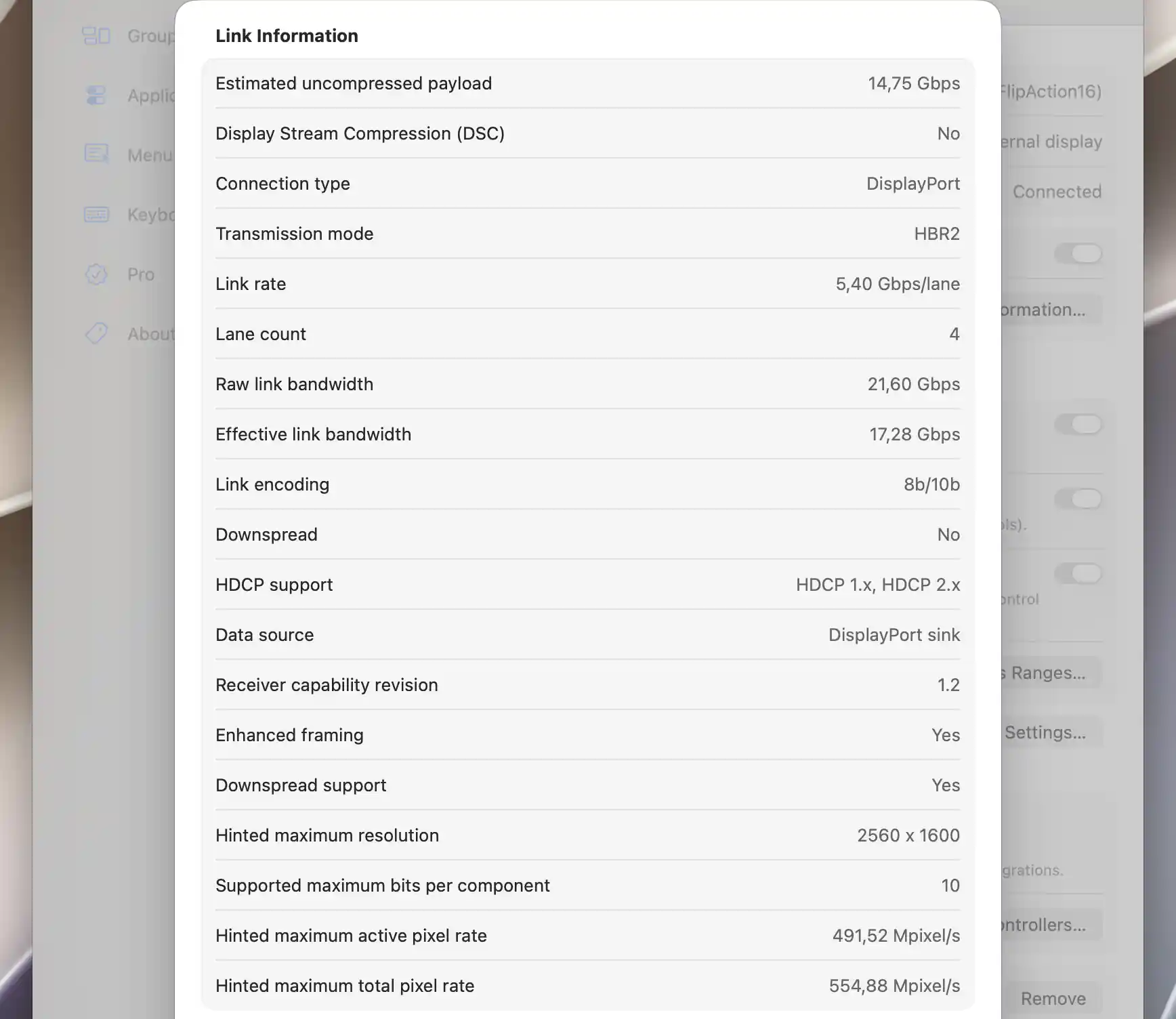
Link Information distinguishes current transport details from estimated payload and receiver limits.
Export
After the report is prepared, choose Export Display Information… to save a copy. The macOS save interface proposes a filename ending _report.txt for the UTF-8 text report. It includes app/version information, display identity and status, and the available detailed sections.
An alert reports whether export succeeded or failed. OK closes the sheet.
The report can contain serials, UUIDs, registry paths and other identifying details. Review these before sharing a report publicly. Hide any identifiers you do not intend to share when posting a screenshot.
Optional model-specific adaptations
Some detected models or setups offer an optional adaptation to prepare useful display settings. A banner appears when such an adaptation is awaiting approval. Read its description and choose Proceed to run the setup, or Dismiss to record an opt-out for that adaptation.
A result banner can report success, failure or that the operation cannot run at this time. Dismissing that result only closes the message; it does not undo changes. A deferred operation can remain pending, while a failed operation is recorded separately.
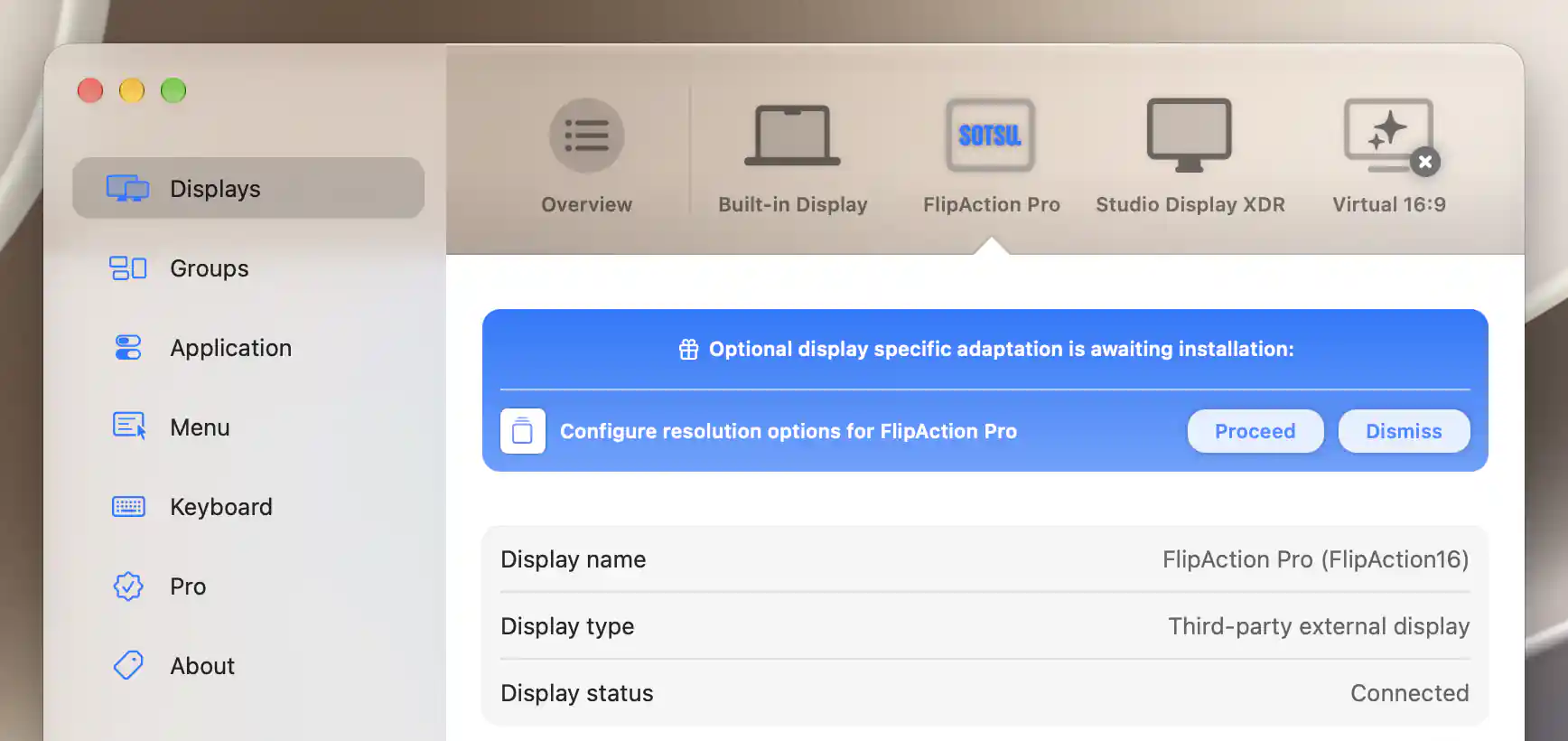
An optional model-specific adaptation offers to prepare resolution settings.
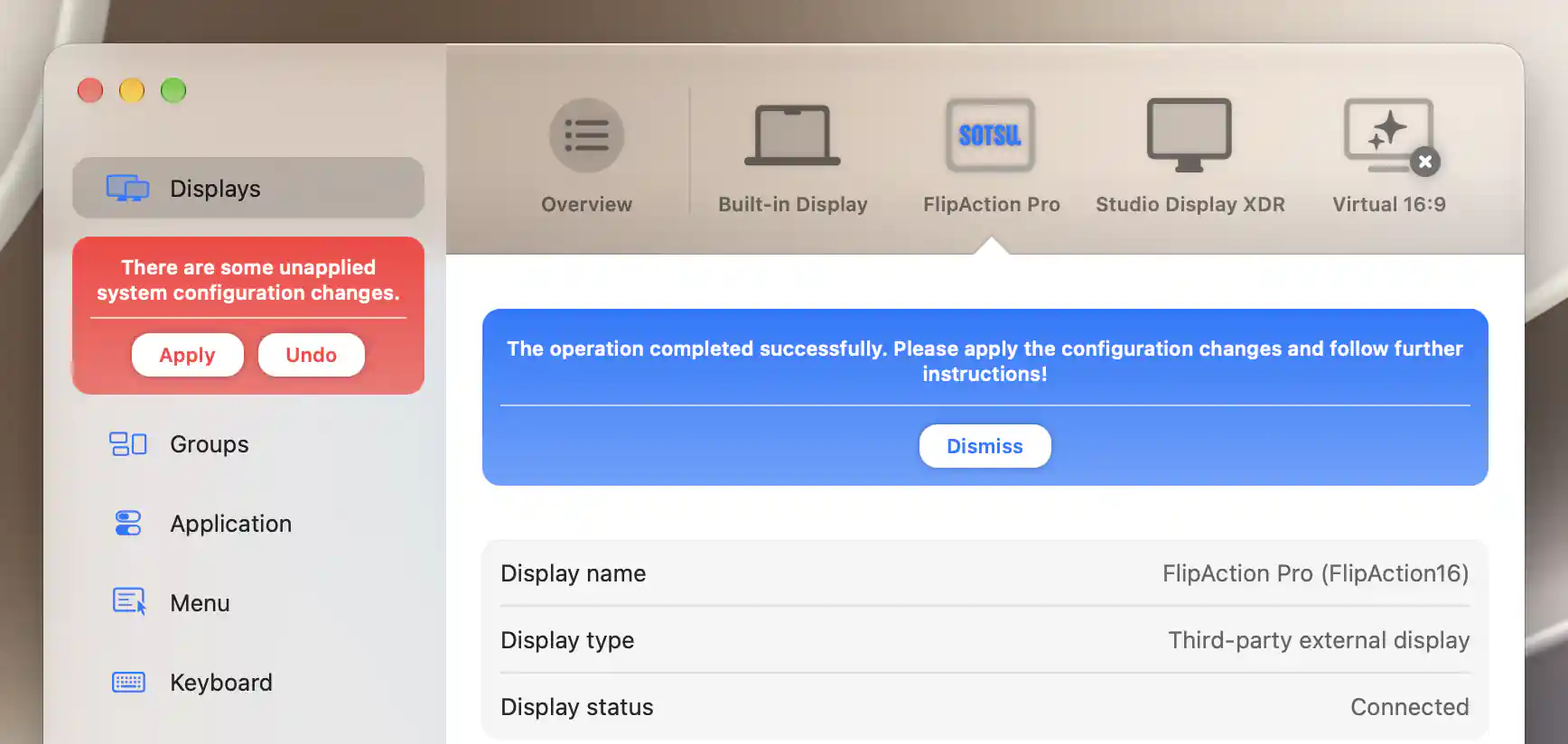
The adaptation prepared settings successfully; applying the system configuration is still a separate step.
Monduo tri-screen setup
Monduo tri-screen synchronization is offered on a built-in screen when compatible left and right Monduo screens are connected. It creates and enables a three-member group, protects the left/right layout, synchronizes brightness and matches scale from the built-in screen. It also attempts flexible scaling for eligible external members.
Missing side screens, pending system-configuration changes or an existing group with the same name block setup. A result can report that the group was created but some configuration changes could not be applied.
SOTSU resolution setup
SOTSU resolution options supports matching FlipAction/Elite models. It prepares flexible scaling and a predefined 16:10 resolution list from 1152 × 720 through 3360 × 2100. The default is 1920 × 1200 for the detected 3840-wide model, and 1600 × 1000 otherwise.
Follow the result's instruction to apply the system-configuration changes.
FlipGo layout and scaling
FlipGo DuoViews layout protection requires a uniquely matched pair. It creates a group with a landscape top/bottom relationship and a disabled portrait side-by-side rule. The group itself starts disabled; the result directs you to Settings > Groups to enable and configure it. Missing or ambiguous pairs, or an existing group of the same name, prevent setup.
FlipGo flexible scaling supports matching models with configuration-override support. It prepares flexible scaling and asks you to apply the changes. If flexible scaling is already enabled, it completes without further changes.
Model-specific automatic adaptations can also set names/icons and control defaults. Reapplying adaptations or resetting the display can therefore restore those model choices. The Additional Settings page covers the reapply and reset confirmations; System Configuration covers applying prepared overrides.
Additional information
This section explains which features require Pro and how availability differs between Mac platforms.
Features requiring Pro license
- Ordinary Connect this display connection/disconnection, except reconnecting a display disconnected by BetterDisplay.
- Monduo tri-screen synchronization, FlipGo DuoViews layout protection and FlipGo flexible scaling adaptations.
Identification, the Display Information report and its export are not independently Pro-gated. SOTSU resolution options is not marked Pro-only. Individual settings in the linked sections retain their own requirements.
Platform compatibility
Display identity, information and eligible connection actions are available on both Apple silicon and Intel Macs, but returned data and operations depend on the display and connection. Reported capability, an estimated value or a receiver maximum is not proof that the current connection supports every operation.
Compatible Apple-silicon disconnection may enter standby. Intel software disconnection does not fully sleep the screen and has the recovery risk described above. Optional adaptations require their matching models/setup; prepared system changes follow the relevant platform's application and activation workflow.