System Configuration and Flexible Scaling
Use System Configuration to change how macOS describes a display model and which scaled resolutions it offers. This is useful when you want more choices for interface size or need to correct the model's reported defaults. Unlike selecting a current mode, these settings prepare system overrides that must be applied and activated.
Where to find it: Settings > Displays > display > System Configuration and Flexible Scaling. The section appears for displays that support model overrides. App-managed and system virtual displays do not use this path.
For the underlying rendering method, see what flexible scaling and custom resolutions change.
Turn on Edit the system configuration of this display model to open the editor; it starts off. Its changes affect all displays with the same vendor and model identifiers, including matching displays connected later. If an alternate EDID identity is active, the notice explains that the override is tied to that identity.
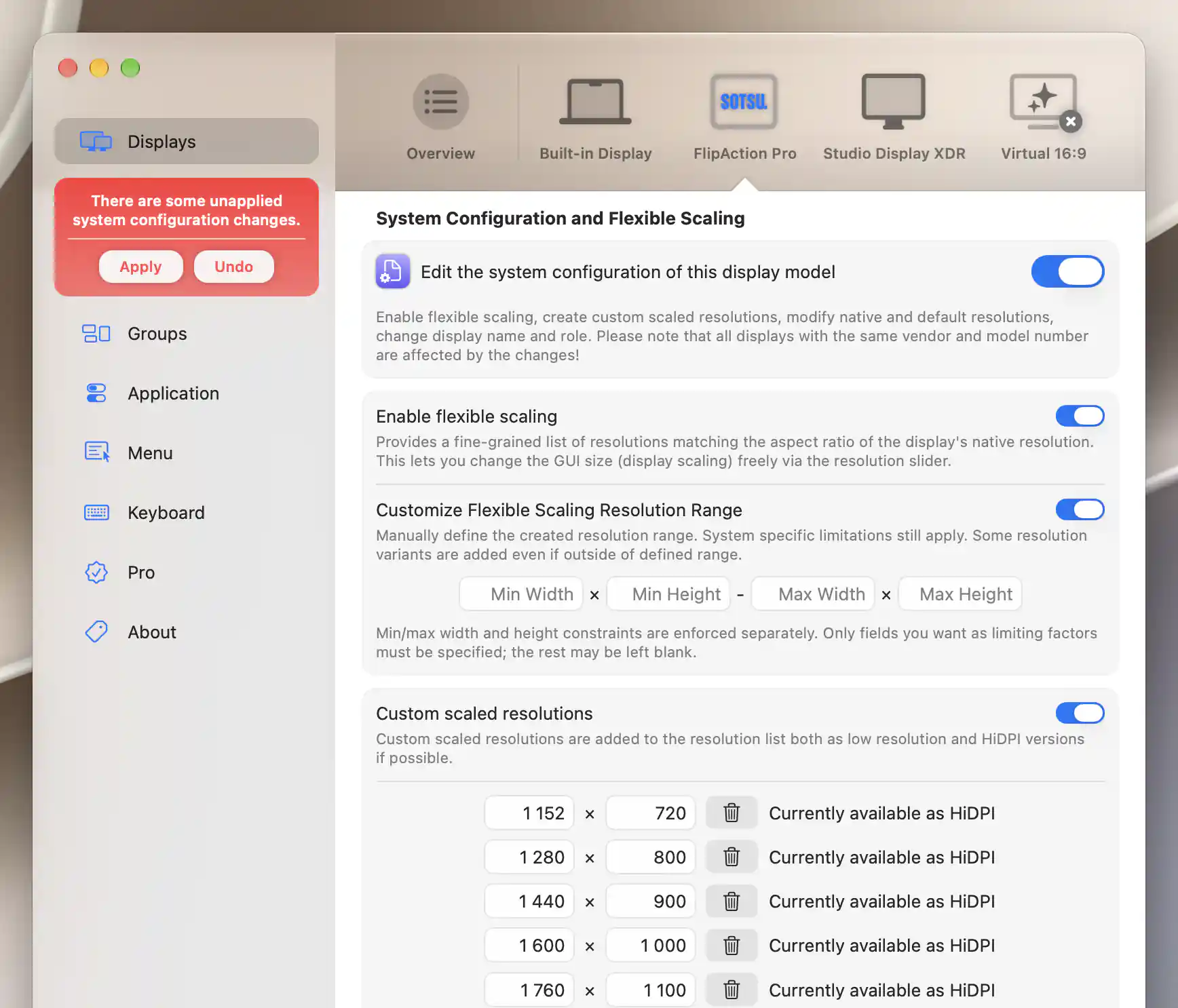
Scaling changes remain pending until Apply; the visible custom resolutions were already configured.
Flexible scaling
Enable flexible scaling generates a fine-grained set of scaled resolutions that follow the panel's native aspect ratio. This gives the resolution slider more choices for adjusting interface size. The preference starts off and is separate from the master editor switch.
Choose a useful resolution range
Customize Flexible Scaling Resolution Range reveals minimum and maximum width/height fields. Enter only the bounds you need; a blank field uses the generator's default for that bound. Width and height are considered separately.
System constraints still apply, and additional resolution variants can fall outside the logical range you entered. Feedback warns if a minimum is not below its maximum, the range has too little room, or its shape differs substantially from the native aspect ratio. Use these messages to refine the range; they are not a hardware compatibility test.
See Displays Overview for global resolution limits.
Custom scaled resolutions
Use Custom scaled resolutions when you want to supply particular sizes. Enable it and choose Add Custom Resolution to add a row with width and height fields. Add further rows as needed; the trash button removes a row. Both dimensions must be positive for an entry to be generated.
BetterDisplay requests both LoDPI and HiDPI variants when possible. The status beside each row helps you distinguish an invalid definition from a size that is simply not available yet:
- Invalid resolution (skipped) or Multiple identical entries flags a problem with the list.
- Currently available as HiDPI and Currently available as LoDPI identify available variants.
- Currently not available indicates that the size is not currently offered.
A newly added mode may not become available until its override is applied and activated. macOS may still reject it afterward, so an apparently accepted row is not proof that the display can use the mode.
Once custom sizes are available, the Display Mode menu can filter to them. Deleting a pending row only edits the override; it does not immediately change the desktop's current mode.
More System Configuration Options
More System Configuration Options… contains four independent overrides. Each starts off, allowing you to change only the properties you need.
Native panel dimensions
Edit native panel pixel resolution supplies the actual physical panel width and height. The current native size stays visible for comparison. This affects scaling calculations; it does not add physical pixels to the panel.
Default mode
Edit default resolution supplies the width, height and refresh rate for a newly arranged display. Blank fields use the current defaults, and the current default row shows size, DPI class and rate.
On Apple silicon, BetterDisplay requests HiDPI where available. On Intel, the fields describe a target and the result can be approximate. Aim for a HiDPI default resolution adds that preference on Intel, but some screens may instead receive pixel-doubled LoDPI.
System name and display role
Edit system display name changes the name macOS uses, separately from BetterDisplay's own custom name. Leaving the edited name empty does not supply a name override.
Edit display role chooses Computer monitor or Television. Television classification is excluded from Night Shift and True Tone. This changes a system classification, not the physical hardware.
Mark System Configuration As Unapplied makes the stored configuration eligible for reapplication. It does not immediately remove an installed override.
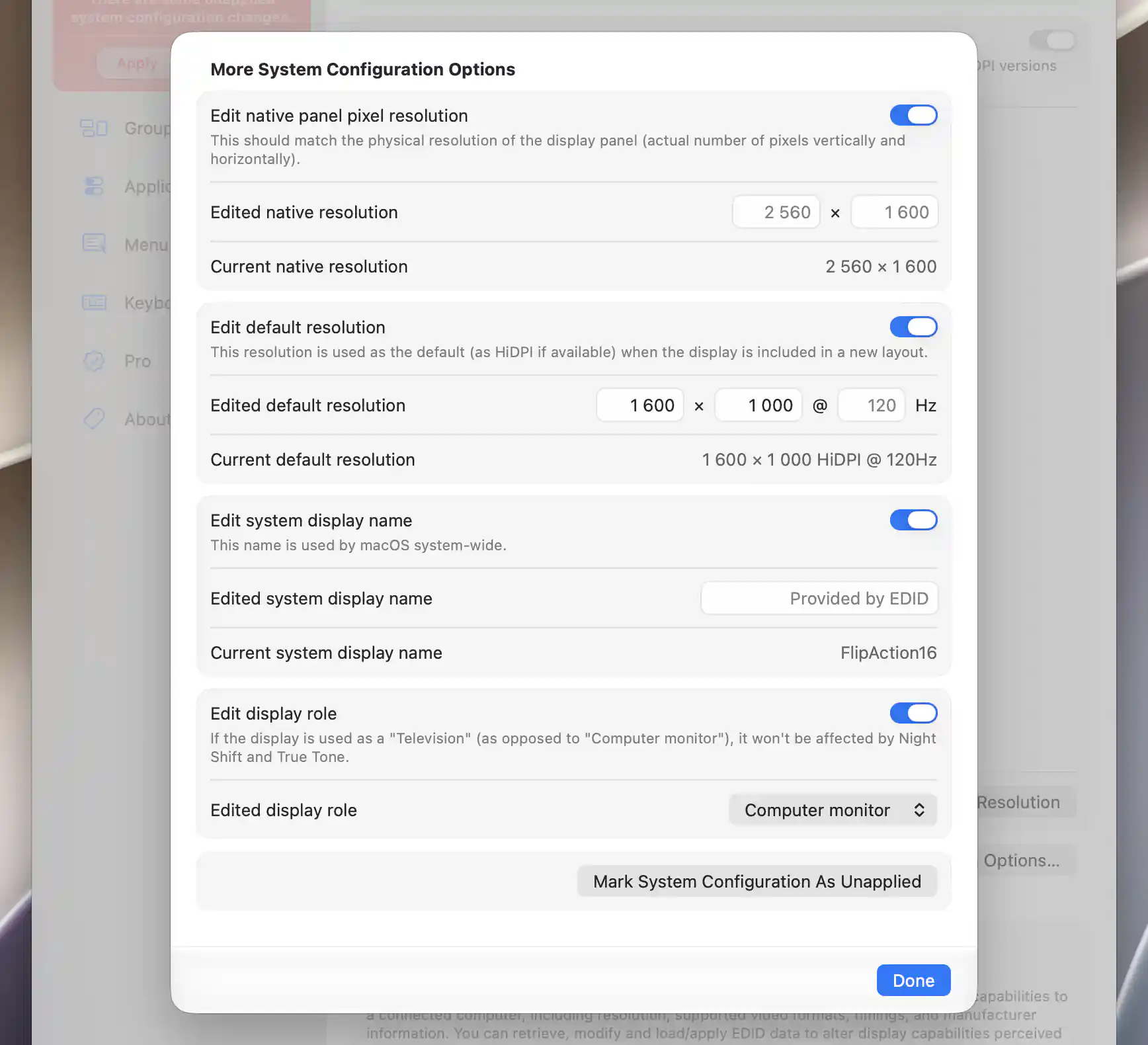
Each editor prepares a separate override; current-value rows show the active configuration.
EDID override and applying changes
Intel EDID overrides
On Intel, an external display can offer Display EDID override and Load Custom EDID…. This stores an EDID override to take effect on the next connection or restart after application. The loader is described in Display EDID. This model override is separate from physically writing the monitor's memory.
Apply and activate the prepared configuration
Edits are saved as pending changes. Use the shared Apply/Undo and activation actions when you are ready to install them. Apply installs the changed system configuration through helper/admin authorization; Undo restores the saved pre-edit configuration.
Depending on platform and state, the installed changes then need activation or a reboot. Closing the sheet does not apply or activate them. Turning model editing off also needs an Apply operation to remove its system effect.
Follow the fully scalable HiDPI desktop tutorial for a complete setup and result check.
Additional information
This section explains which features require Pro and how availability differs between Mac platforms.
Features requiring Pro license
- Enable flexible scaling and its customized resolution range.
- Intel Display EDID override.
The other model-editing options described here are not independently Pro-gated. Applying system changes still requires the relevant helper/admin authorization.
Platform compatibility
Model overrides are available for eligible displays on both Apple silicon and Intel Macs. App-managed and system virtual displays do not use this path.
Intel offers the external-display Display EDID override and Aim for a HiDPI default resolution options. Default resolution selection can be approximate on Intel; Apple silicon requests HiDPI where available. The installation's activation or reboot requirement depends on the platform and current configuration.