Menu Appearance & Behavior
These preferences let you shape the App Menu around the way you use it: choose where it opens, how much information its sliders show and how additional menu items are revealed. They apply across the menu, while each device still determines which controls it can provide.
Where to find it: Settings > Menu > Menu Appearance & Behavior, including Additional Menu Options….
The App menu presentation picker appears only when BetterDisplay can use Control Center-style glass support on macOS 26 or later.
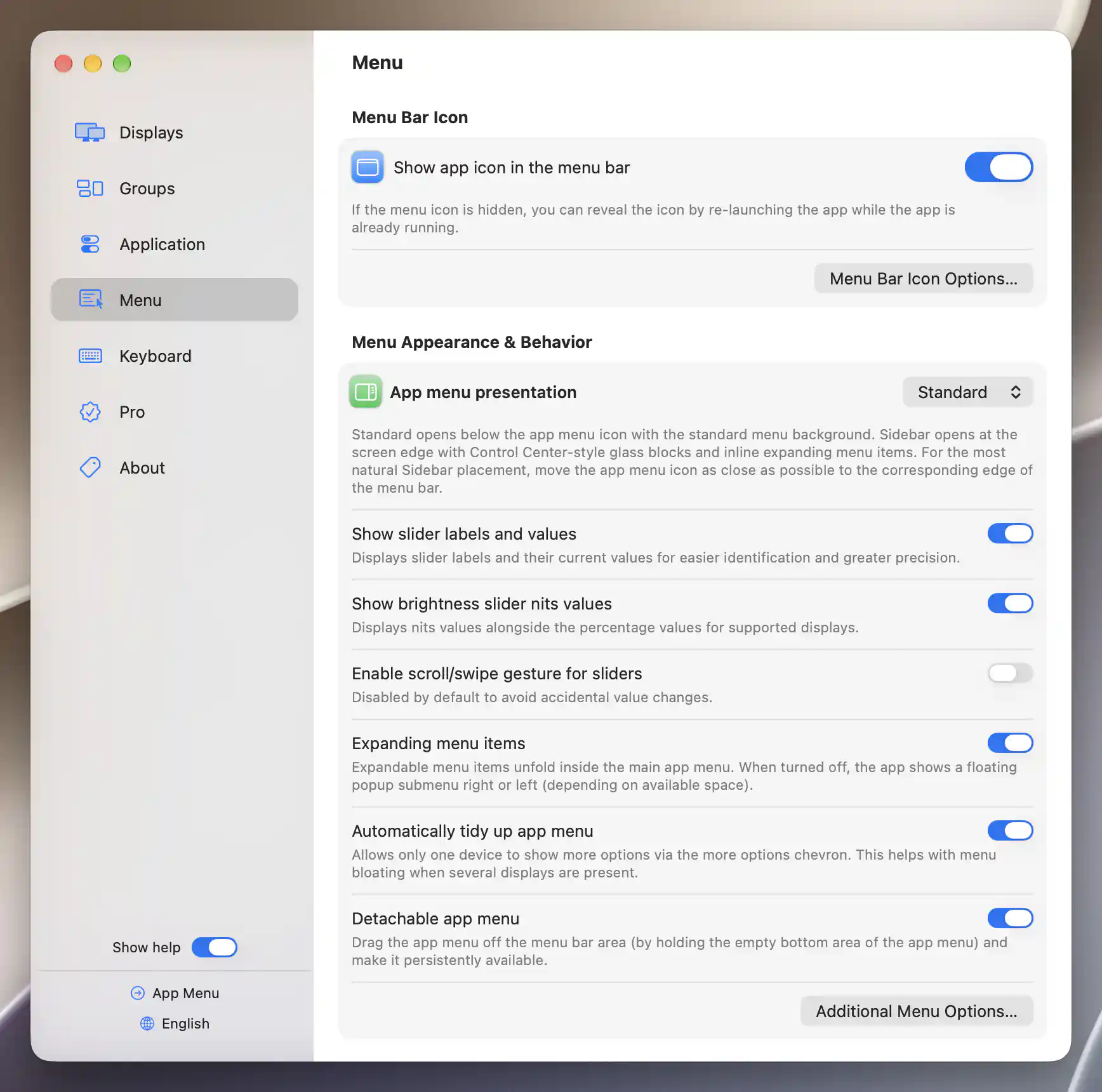
Menu appearance options with Standard presentation selected.
Presentation and sliders
App menu presentation offers two layouts. Standard, the default, opens below the menu-bar icon. Sidebar opens at the screen edge in glass blocks. Placing the icon near the corresponding edge of the menu bar gives Sidebar a natural opening location.
Sidebar always expands submenu content inline and keeps the button bar at the bottom. Options that conflict with that layout are disabled while it is active. A detached menu uses ordinary window presentation instead of Sidebar.
Make slider values easier to read
Show slider labels and values is on by default. The names identify each adjustment, while the current values help you make precise adjustments.
When labels and values are enabled, Show brightness slider nits values becomes available. This second option is off by default. It adds nits information only when the display supplies or supports it and is configured to show nits; turning on the menu preference does not create a brightness measurement.
Enable scroll/swipe gesture for sliders is also off by default, to avoid accidental adjustments. Turn it on if you want to adjust an enabled slider by scrolling or swiping over it. This gesture changes the slider value and is separate from scrolling through the menu.
Expanding and detaching
Expanding menu items chooses how a feature opens. It is on by default, so a submenu expands within its device or Tools block. Turn it off to use a floating submenu placed on the right or left, according to the available space. Changing this preference closes existing expanded items. Sidebar requires inline expansion.
Automatically tidy up app menu, on by default, keeps only one device’s more-options area open at a time. These are the extra options revealed by a device’s chevron, rather than a feature submenu such as Display Mode. Enabling the preference closes existing expanded items and extra-options sections.
Keep a floating menu on screen
Detachable app menu is enabled by default. Drag from the empty bottom area to detach the menu into a persistent floating window, so it can stay available while you work elsewhere.
In Additional Menu Options…, Detached app menu alpha level controls the floating window’s opacity. It starts at 100%, which is opaque, and accepts 10–100%; lower values let more of the content behind it show through. The field is disabled when detachment is turned off.
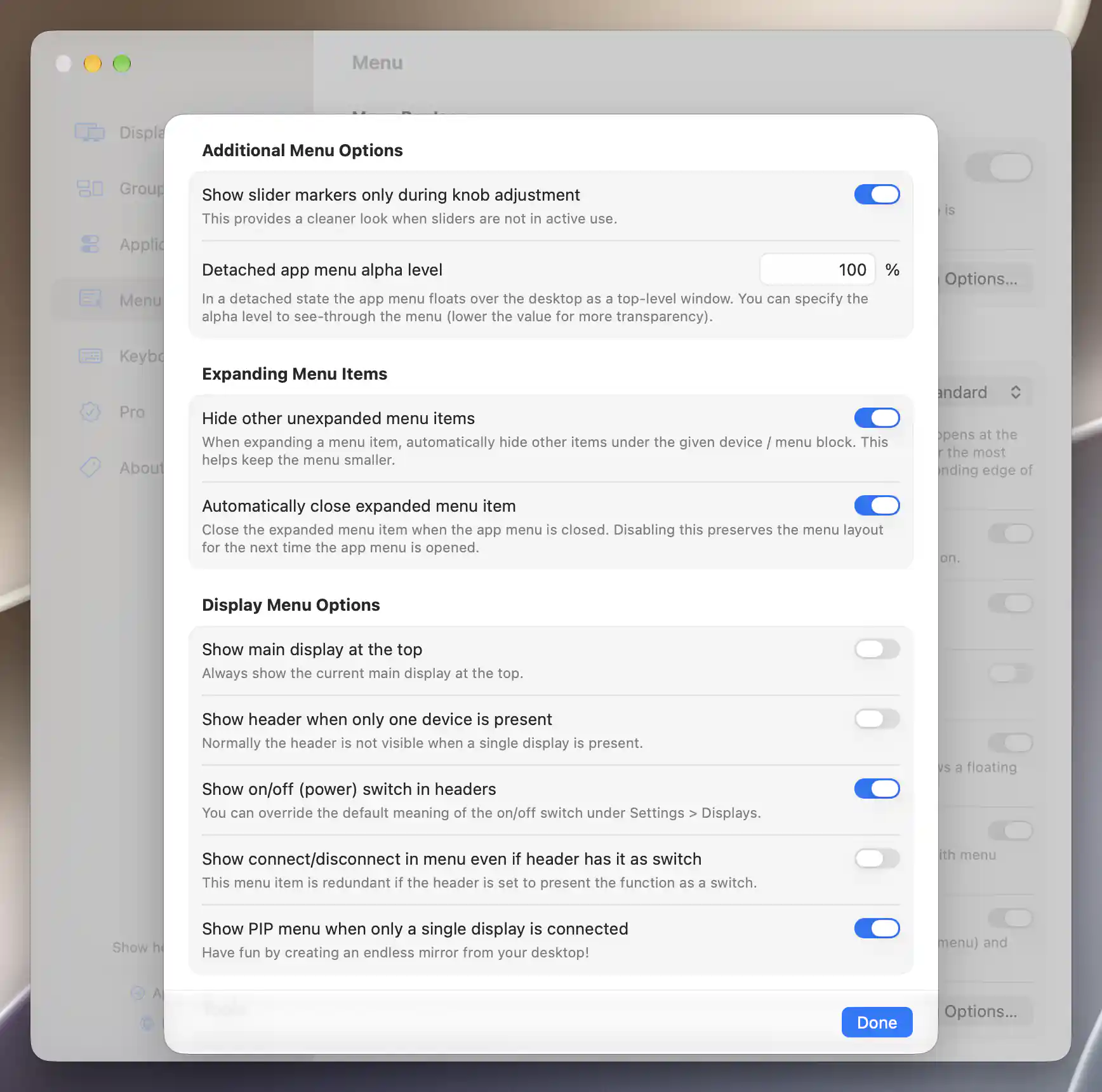
Additional menu options for markers, transparency and expansion.
Additional Menu Options
The additional options refine what stays visible and how the menu remembers its layout.
Show slider markers only during knob adjustment is on by default, keeping idle sliders less cluttered. Turn it off if you want their markers to remain visible.
Under Expanding Menu Items, two preferences control how inline submenus make room for themselves:
- Hide other unexpanded menu items temporarily hides the other items in the same device or menu block while a submenu is expanded.
- Automatically close expanded menu item closes expanded content when the App Menu closes. Turn it off to retain that layout for the next opening.
Both options are on by default. Enabling either closes existing expanded items, and both are unavailable when inline expansion is off.
Display Menu Options
These options control the structure of each display’s menu block:
- Show main display at the top places the current main display first. It is off by default.
- Show header when only one device is present keeps that device’s header visible, even when there is no other device to distinguish it from. It is off by default.
- Show on/off (power) switch in headers is on by default. The switch’s action depends on the display and its configured function, which can be overridden in Settings > Displays. A power-looking switch does not always perform the same operation.
- Show connect/disconnect in menu even if header has it as switch retains a duplicate menu action. It is off by default and unavailable when header switches are disabled. Menu visibility and device capability still determine whether that action can appear.
- Show PIP menu when only a single display is connected is on by default. It allows access to Picture in Picture without a second display, for example to view the desktop recursively inside itself.
Tools
Show button bar at the top of the menu can make the bar easier to reach. It is off by default and disabled in Sidebar presentation, where the bar stays at the bottom.
Make Tools menu collapsible instead of closable is off by default. When enabled, Tools keeps a header after its contents are collapsed and behaves like a device block.
Show Settings in the button bar is on by default; Show Quit BetterDisplay in the button bar is off. Each enabled option supplies that action in the bar instead of its ordinary Tools entry. When a bar option is off, the Tools entry still follows its menu item visibility setting.
Hide warnings in the button bar is off by default. It hides permission and licensing warnings in that location, but does not grant a permission or change the license state.
Menu Item Icons
Menu item icons and Menu header icons are both on by default. Turning off menu item icons removes command icons and inactive expandable-item icons; active-state and slider icons remain visible so they can still communicate their state.
App menu icon bounce animation on activity is on by default. macOS Reduce Motion suppresses the effective animation even when the saved preference remains enabled.
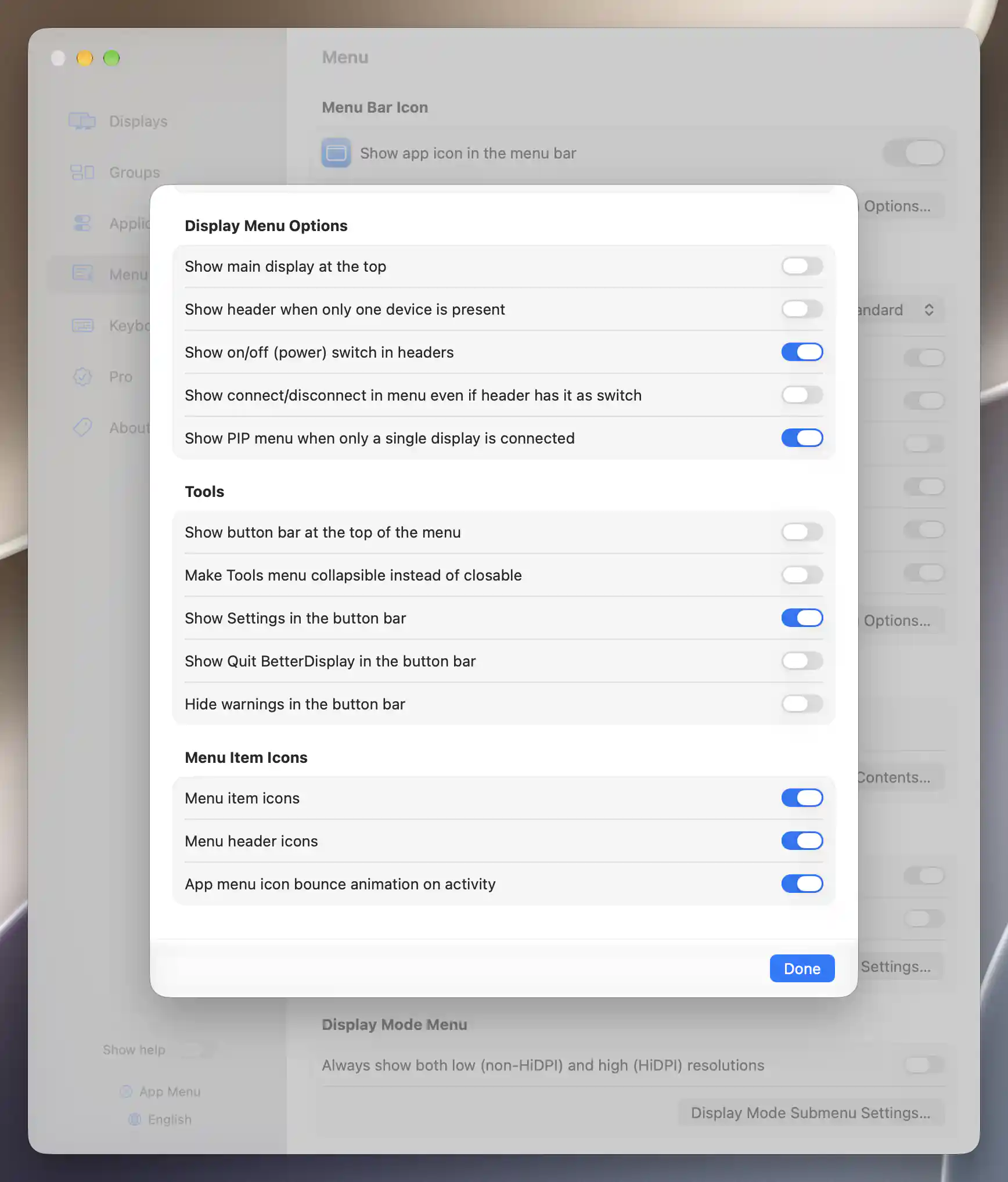
Display headers, Tools button bar and menu icon preferences.
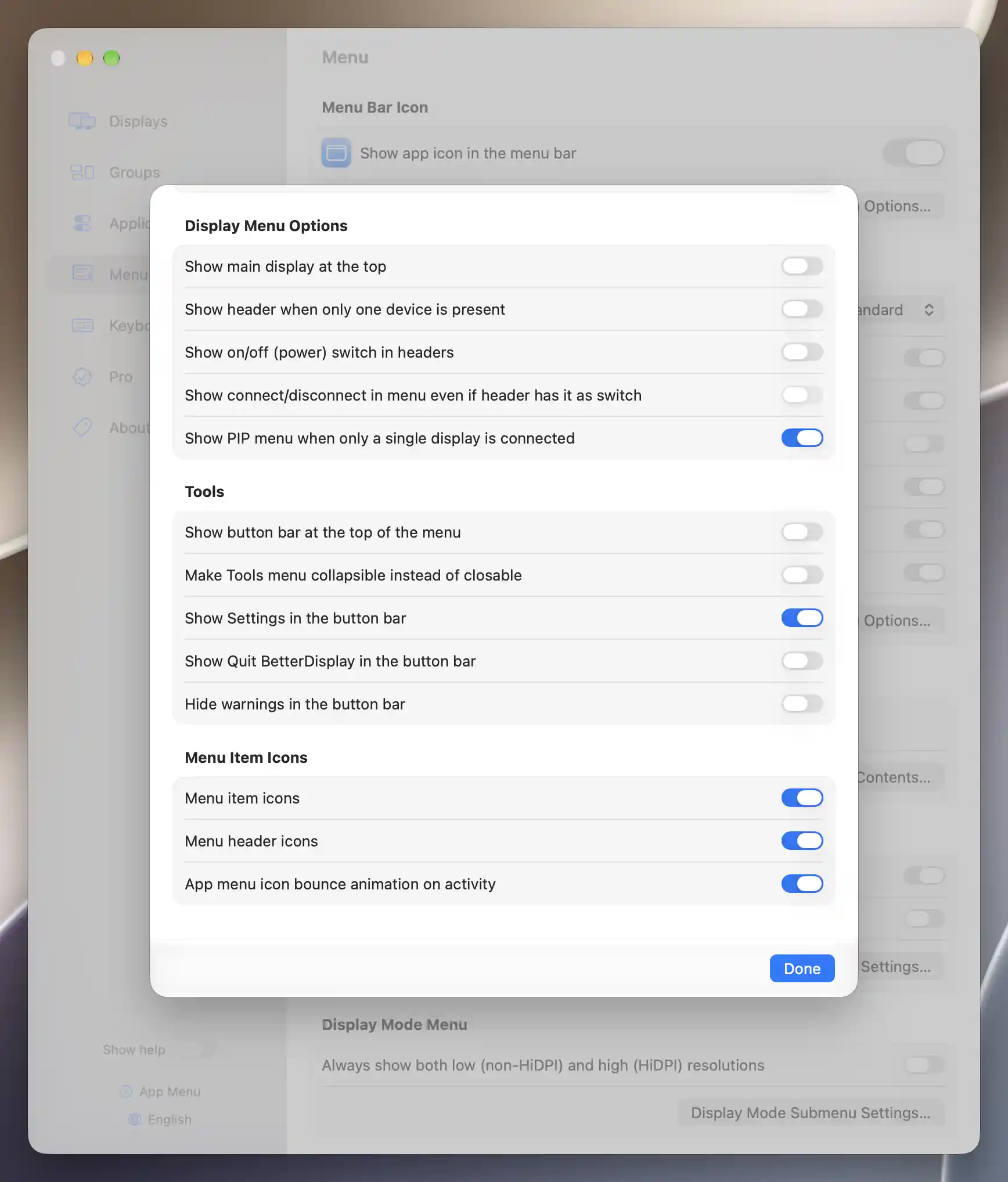
Redundant connection action disabled when header switches are off.
All preferences on this page are remembered and take effect without a separate Apply step. Closing a sheet with Done does not undo its changes.
Additional information
This section explains which features require Pro and how availability differs between Mac platforms.
Features requiring Pro license
- Detaching the menu with Detachable app menu.
- Setting Detached app menu alpha level.
- Picture in Picture itself; allowing its menu with one display does not remove its Pro requirement.
The other menu appearance and visibility preferences described here do not themselves require Pro. Individual display actions retain their own licensing requirements.
Platform compatibility
The menu appearance and behavior preferences are available on both Apple silicon and Intel Macs. Standard presentation remains the default; Sidebar and its presentation picker require available Control Center-style glass support on macOS 26 or later.
Display capabilities still determine which adjustments and nits information the menu can show. Reduce Motion affects animation on either platform.