Enable Night Shift for a television
If macOS treats your television—or an HDMI-connected monitor—as a TV, changing its display role to Computer monitor can remove the classification that prevents Night Shift from affecting it. The procedure changes macOS's description of the display, while preserving the physical device.
Before you begin
Use a natively connected display that offers model configuration editing. Night Shift also depends on the Mac and display characteristics; a role override does not guarantee support on every connection. It cannot enable native Night Shift for Sidecar or DisplayLink.
The override applies to all displays with the same vendor/model identifiers. Save work before activation and have helper or administrator authorization available. Apple's Night Shift instructions explain scheduling and warmth settings.
Change the display role
- Open Settings > Displays and select the television or affected monitor.
- Under System Configuration and Flexible Scaling, enable Edit the system configuration of this display model.
- Open More system configuration options….
- Enable Edit display role, then set Edited display role to Computer monitor.
- Close the sheet and select Apply in the sidebar. Review other pending model changes before applying and complete the requested authorization.
- Follow the activation/reboot notice. Use Activate only when offered for an eligible external display; it briefly blanks output. Otherwise reboot.
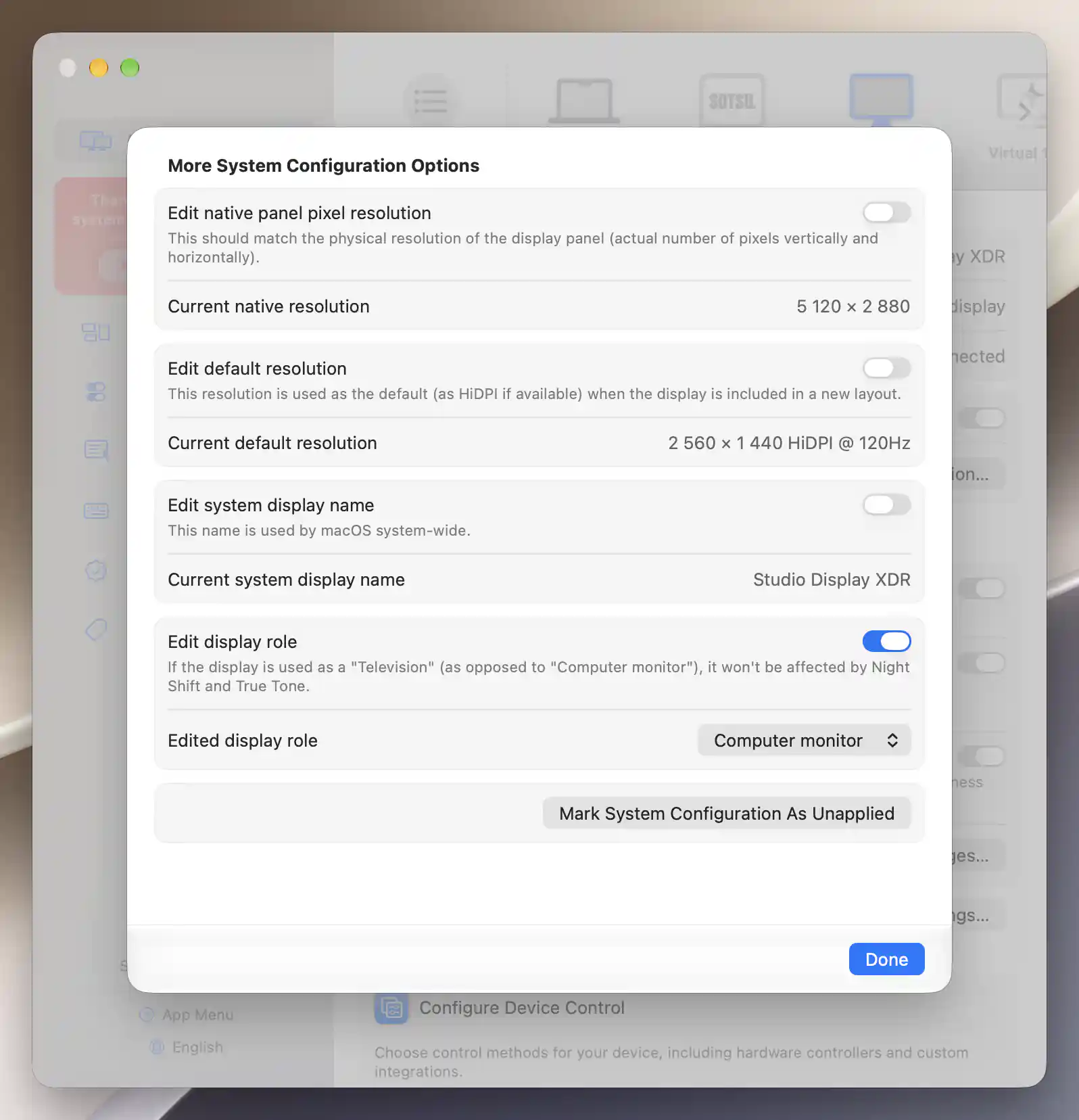
Computer monitor is selected in the display role editor.
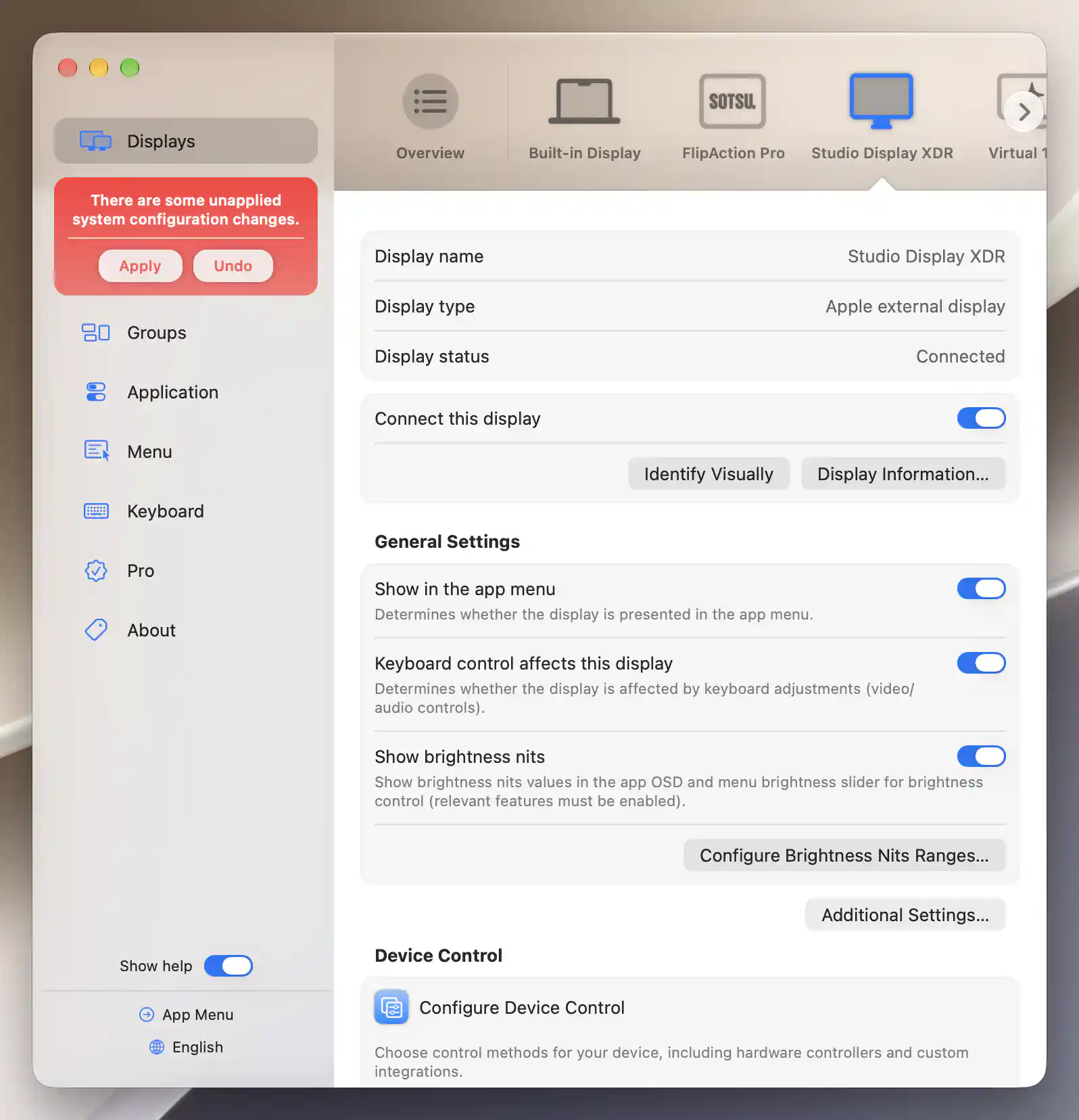
The staged display role awaits Apply; no override has been activated.
Check the result
Enable Night Shift under System Settings > Displays > Night Shift, or App Menu > Tools > System Colors > Enable Night Shift. Increase warmth briefly and compare the TV's appearance with Night Shift off and on, then choose your preferred schedule and strength.
The old article suggests looking for Current display role after applying. In the current interface, that row is shown when the display is classified as a television and may disappear after a successful override. Verify the visible Night Shift effect as well; the saved Edited display role alone does not prove activation.
Troubleshooting
If nothing changes, confirm that you applied and activated the correct display model, and check Apple's Night Shift requirements. An unavailable model-editing section means this method is not applicable to that connection.
If Night Shift disappears when you enable HDR, inspect Turn off Night Shift and True Tone in HDR mode under Settings > Displays > Overview. That option deliberately disables both effects for HDR viewing and restores them when returning to SDR.
For Sidecar, DisplayLink, or another unsupported path, use a software Color Temperature adjustment instead. Under the display's Image Adjustments settings, enable software adjustments and choose Use Metal for image adjustments when needed; then use the temperature slider in App Menu > [display] > Image Adjustments. This changes appearance independently of macOS Night Shift and its schedule.
Undo the setup
Disable Edit display role, then Apply and activate/reboot as requested to restore the model's original classification. Leave other model overrides enabled if you still need them. Restore any software temperature adjustment to its neutral setting separately.
Related pages
Additional information
This section explains feature access and platform requirements for this tutorial.
Features requiring Pro license
Editing the display role does not independently require Pro. The separate option that turns off Night Shift and True Tone in HDR mode requires Pro; the software Color Temperature slider also requires Pro.
Platform compatibility
Role editing is available on Apple silicon and Intel for eligible native displays. Sidecar and DisplayLink do not acquire native Night Shift from this procedure. Night Shift availability still depends on macOS, the Mac and display characteristics.