Screen Rotation
Screen Rotation turns a supported display's desktop to match the way you use the screen. This is useful when a monitor has been turned into portrait orientation, for example. The selected angle is measured from the normal, unrotated orientation; choosing 90° twice does not rotate the screen through two quarter turns.
Where to find it: App Menu > display > Screen Rotation, usually under the more-options chevron.
The display must be connected and macOS must report rotation support. BetterDisplay virtual screens use a separate width/height orientation setting, so this submenu is not offered for them.
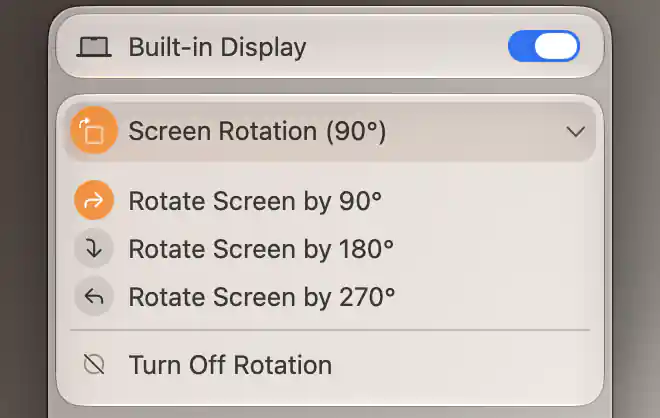
The selected rotation is highlighted, and Turn Off Rotation returns the display to its normal orientation.
Set an orientation
Choose Rotate Screen by 90°, Rotate Screen by 180° or Rotate Screen by 270° for the orientation you want. The submenu title includes a nonzero current angle, such as Screen Rotation (90°), and its activity indicator shows that rotation is enabled.
To return to the normal orientation, choose Turn Off Rotation. This restores 0° and is disabled when rotation is already off.
The change applies immediately, with no additional Apply step or confirmation countdown. BetterDisplay closes an attached App Menu during the reconfiguration and opens it again afterward. A detached menu remains separate.
Keeping an orientation protected
If Configuration Protection already protects rotation, an angle chosen here becomes the new protected angle. The protection can later restore it after a conflicting change. Choosing an angle by itself does not turn protection on.
Other kinds of rotation
Different rotation features act on different parts of the display setup. A virtual screen's Rotated Orientation quick toggle swaps its configured width and height. When that screen is active, it reconnects with the new dimensions. This changes the virtual screen's shape rather than applying physical-display rotation.
When a virtual screen follows the orientation of associated displays automatically, the toggle reads Rotated Orientation (Automatic) and cannot be changed manually. See Management and quick toggles for those options.
Rotating a captured stream or Picture in Picture changes the content shown by that stream or window. It does not necessarily change the source display's system orientation. Choose the option for the desktop or presented image that you actually intend to turn.
Additional information
This section explains which features require Pro and how availability differs between Mac platforms.
Features requiring Pro license
- Rotation Configuration Protection.
- The separate virtual-screen Rotated Orientation feature discussed above.
Ordinary Screen Rotation does not require Pro. Stream and Picture in Picture features have their own requirements.
Platform compatibility
Ordinary Screen Rotation is available on both Apple silicon and Intel Macs when macOS reports support for the connected display. BetterDisplay virtual screens use their separate orientation setting. Stream/window rotation depends on the corresponding streaming or Picture in Picture feature.