Configuration Protection
Configuration Protection helps keep a display set up the way you want when macOS or another configuration change alters its settings. Choose the properties that matter to you, and BetterDisplay remembers their values and attempts to restore them after an external change. The saved values appear beneath the enabled switches so you can see what is being protected.
Where to find it: App Menu > connected display > Configuration Protection, usually under the more-options chevron.
Protection acts on connected displays and is suspended in Safe Mode. It can restore only capabilities that remain available; it cannot supply a missing display mode, profile or other unsupported setting.
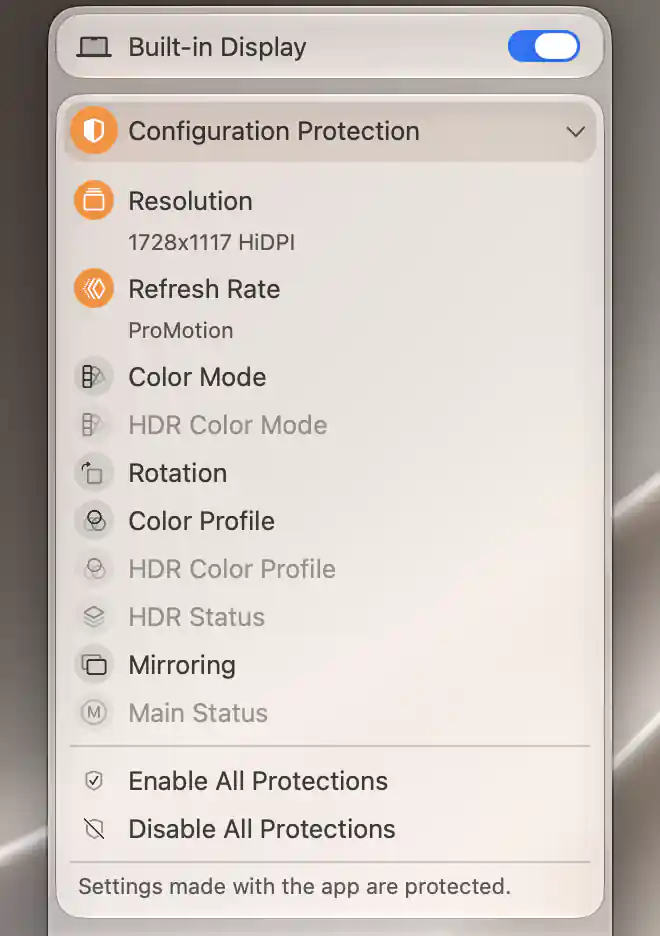
Enabled protections retain the selected resolution and refresh rate; unavailable HDR entries remain dimmed.
Capture and update protected values
First set the display to the configuration you want to keep. Turning on a protection switch captures its current value. Each individual protection starts off, and the choices are remembered separately for each display without an extra save step.
Turning a switch off stops protecting that property. It does not restore a value from before protection was enabled, so you can leave the current setting in place while allowing future changes.
The menu’s reminder, Settings made with the app are protected., explains how deliberate changes work. For example, if Resolution protection is on and you choose another Display Mode in BetterDisplay, the saved resolution updates to your new choice. Protection does not immediately undo it. The same principle applies to protected refresh-rate, rotation, color-profile and color-mode changes made with the app. A change made externally can instead trigger restoration of the stored value.
Properties
You can protect a few properties without protecting everything. For example, keeping a resolution stable does not require you to lock the display’s rotation or color profile. The switches cover these properties:
| Switch | What is stored and when it is available |
|---|---|
| Resolution | Width × height and HiDPI/LoDPI state. A mirror target requires the mirror-target resolution option to enable a new protection. |
| Refresh Rate | The selected fixed or variable rate, including supported unexposed rates. The same mirror-target restriction applies. |
| Color Mode | Connection format for the non-HDR state; shown when connection-mode information is available. |
| HDR Color Mode | Connection format for the app’s active HDR state; shown when connection-mode information is available. |
| Rotation | The current angle, when the display supports rotation. |
| Color Profile | The current non-HDR ColorSync profile, when profiles are supported. |
| HDR Color Profile | The current HDR ColorSync profile, when profiles are supported. |
| HDR Status | Whether HDR is on or off; available with HDR support or an existing stored HDR protection. |
| Mirroring | The current mirror-target list, or Keep unmirrored when the source has no targets. |
| Main Status | Keeps the current main display designated main; enable it on the display that is already main. |
For the rendering background, see how HiDPI and LoDPI differ at the same desktop size.
Separate SDR and HDR values
Color-mode and profile protections have separate entries for HDR and non-HDR use. To capture a new value, the corresponding state must be active. A new entry for the inactive state is disabled, although you can still turn off an entry that was saved earlier.
Use the switches’ actual enabled state and stored labels to tell which protection you can set. An HDR-looking connection tag or Apple preset alone is not proof that a state-specific switch will be enabled. The Color Mode and Color Profile pages explain the different settings those entries protect.
Resolution and rate on a mirror target
A mirror target needs the relevant low-level changes enabled before you can create a new Resolution or Refresh Rate protection. Use Display Mode Submenu Settings to enable that capability when you intend to change and protect those properties.
You can still turn off an already enabled Resolution or Refresh Rate protection on a mirror target when those low-level changes are not allowed.
Mirroring and main-display precedence
Keep a source’s mirroring arrangement
Mirroring protection belongs to the source display, not its mirrored target. The saved target names appear beneath the switch. If an eligible target is still connected, BetterDisplay can put it back into the saved mirror relationship; protection cannot connect an absent target for you.
When the source has no targets, the saved value is Keep unmirrored. It requests removal of a mirror relationship that was not part of that saved configuration.
A virtual screen can also enforce mirroring of its associated displays. In that case, Associated display mirroring is enforced! explains why individual mirroring protection is unavailable or overridden. The association rule takes precedence.
Keep the main display
The main display is the desktop’s primary screen. Enable Main Status on the display that is already main. The switch is disabled for a display that is not currently main, but Disable All Protections remains available to clear its saved protections.
Only one Main Status protection is authoritative at a time. Enabling it on the current main display supersedes an older main-display protection. If you choose a different main display through BetterDisplay, the app removes the old protection on another connected display and can show a notification about the change.
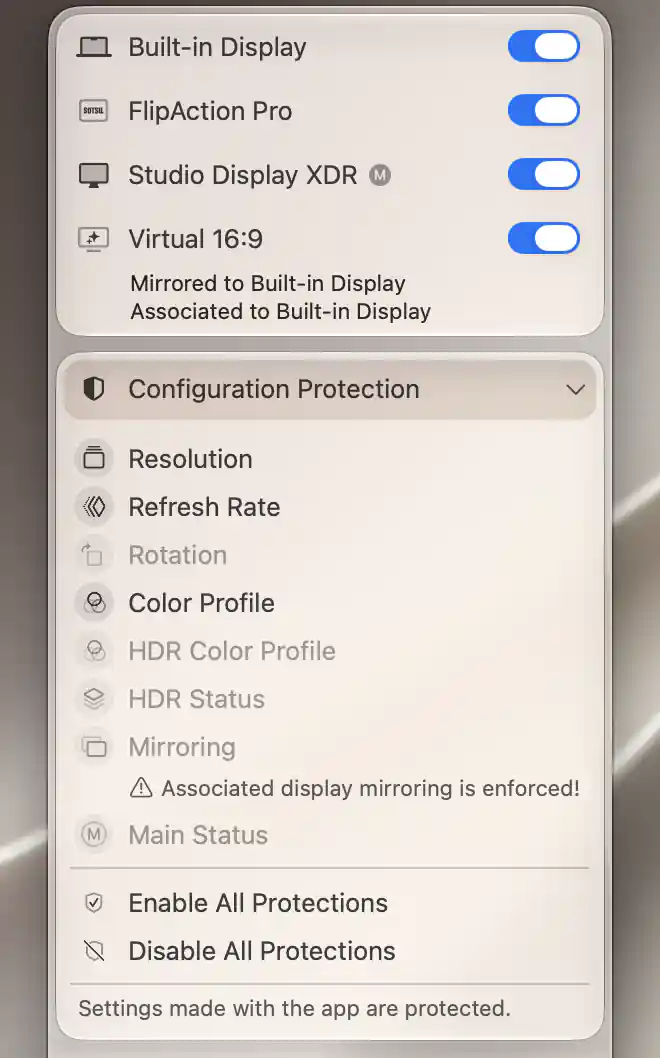
Enforced associated-display mirroring disables the independent Mirroring protection setting.
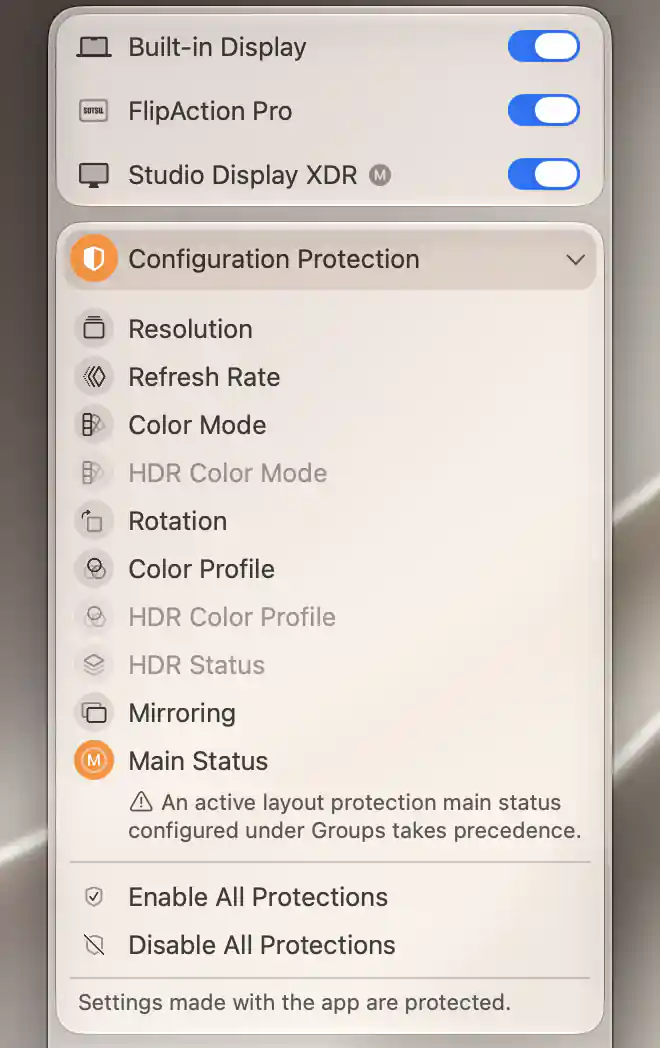
An active group rule takes precedence over the display’s Main Status protection.
Enable or disable all
Enable All Protections captures every applicable property in the current state. It is disabled for a mirror target and cannot fill in values that are unavailable, such as an inactive HDR/non-HDR profile or unsupported rotation. You can therefore enable all applicable protections without every switch necessarily acquiring a saved value.
Disable All Protections removes the selected display’s stored protections. Neither bulk action opens a separate confirmation dialog.
When restoration happens
BetterDisplay checks protection as it processes display configuration changes. It matches available modes and can retry related properties; enabled notifications can explain corrective changes.
If changes keep triggering each other rapidly, the app temporarily stops repeated enforcement attempts rather than continuing an endless loop. Treat the stored values as the configuration you want restored, not as proof that every restoration succeeded.
Additional information
This section explains which features require Pro and how availability differs between Mac platforms.
Features requiring Pro license
- All individual Configuration Protection switches.
- Enable All Protections and Disable All Protections.
- Group Layout Protection, which can take precedence over Main Status.
Platform compatibility
Resolution, refresh-rate, rotation, profile, HDR-status, mirroring and main-display protection are available on both Apple silicon and Intel Macs when the display supports the corresponding setting. Color Mode and HDR Color Mode protection require Apple silicon connection-mode information.
Support is still determined per property: a connected display, available modes/profiles, the relevant HDR state and any mirror-target restrictions must allow the requested protection. Safe Mode suspends protection on both platforms.