Combined Volume Control
Combined Volume Control is an optional part of the Software Audio controller that lets you select volume and mute providers independently or extend the quiet range below a monitor's minimum usable hardware volume. It coordinates existing component controls along one audio path.
Where to find it: Settings > Displays > [display] > Device Control > Configure Software Audio… > Combined Volume Control. Add Software Audio through Add or Remove Controllers… first if its card is absent.
Enable combined volume control overrides Software Audio’s hardware-priority preference. Its selected volume and mute methods determine the main providers. The priority switch becomes non-editable while combined routing is enabled, and its saved choice returns when combined routing is disabled.
Enable combined volume control starts off for a fresh configuration. Saved and migrated choices are retained. Turning it on reveals one group of closely spaced boxes for routing, mapping and mute/restoration, with reset in its own box at the bottom. The hardware part of the mapping needs an absolute volume control. Relative up/down commands cannot supply it, and device readback is optional. With software volume provision active, the combined slider remains usable when hardware is missing, with a warning. Missing components remain visible so you can add or configure them.
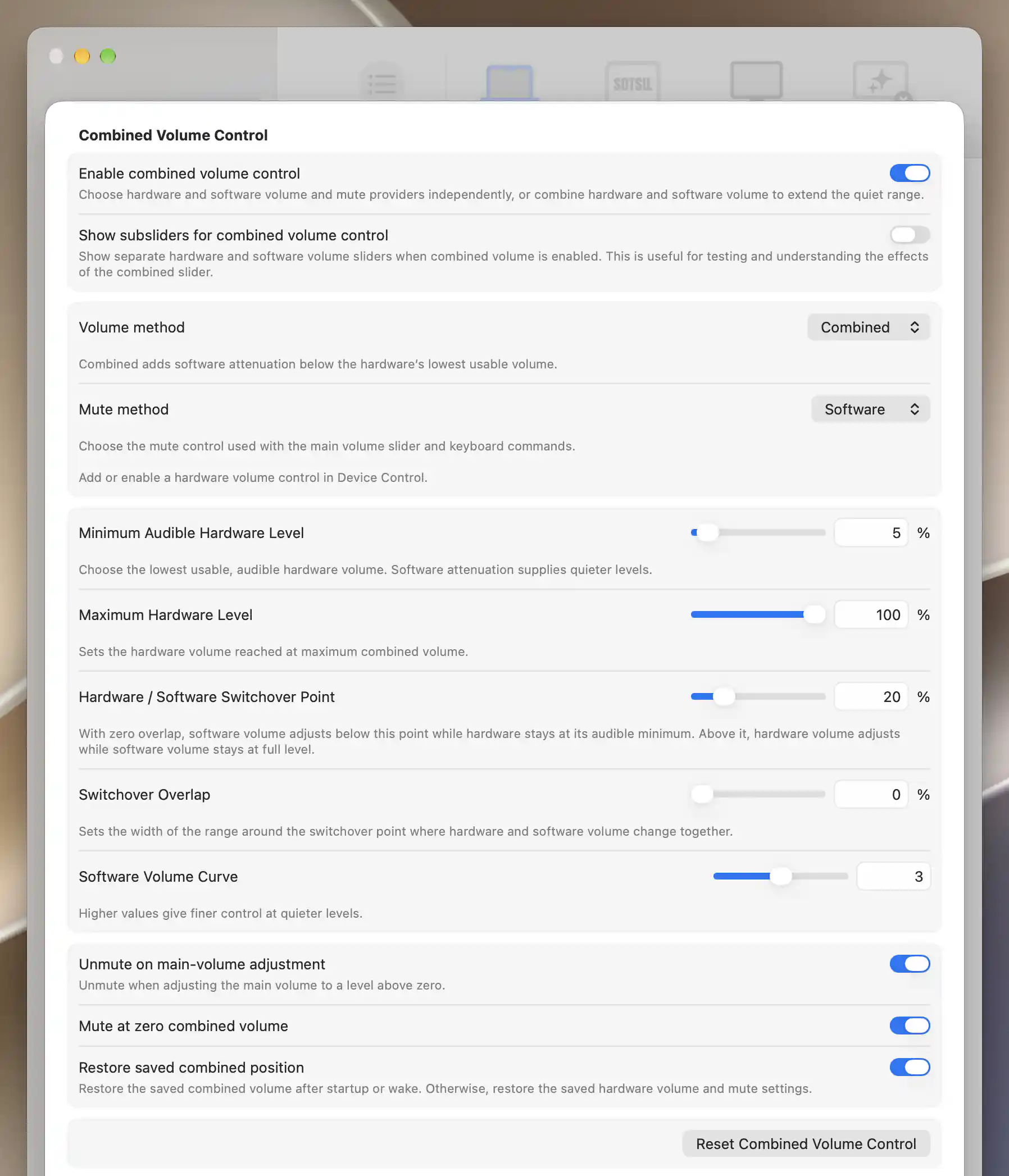
These combined mapping settings still require a hardware volume provider in this setup.
Select the providers
Volume method offers Hardware, Software and Combined. Mute method offers hardware or software independently. Hardware mute needs a controller that can set the mute state. Readback is optional. A toggle-only hardware command remains a toggle capability and cannot provide a definite on/off state.
After enabling the feature, the initial volume method is Combined, with software mute. Enable any required software capability in the provision switches above. Software volume includes software mute; mute can also be provided on its own when software volume is off. Choosing a method does not silently override a disabled component.
Extend the quiet range
Set Minimum Audible Hardware Level to a usable audible floor. It is not necessarily numeric zero. Some monitors mute at zero and others remain audible. Maximum Hardware Level sets the hardware volume reached at the top of the combined volume scale; direct hardware adjustments remain independent. Hardware / Software Switchover Point separates the software and hardware ranges when overlap is zero. The initial floor is 5%, the maximum is 100%, the switchover point is 20% and overlap is 0%.
With zero overlap, the lower part of the main slider holds hardware at that floor while software moves from silence to unity gain. Above the switchover point, software stays at unity while hardware advances to the configured maximum. Software attenuation supplies silence at zero regardless of the hardware floor.
Mapping settings appear only for the Combined volume method. Its Software Volume Curve is separate from the ordinary software volume curve. Switchover Overlap allows hardware and software to advance together through a region around that point. Zero keeps their ranges separate. Software Volume Curve distributes the software attenuation perceptually. The component curves are continuous, but they do not represent calibrated acoustic loudness.
Minimum and maximum hardware levels, the switchover point and overlap use percentage fields, with decimal entry available. The switchover point accepts 1–99% and overlap accepts 0–98%. Software Volume Curve remains a number from 1 to 5. Use the value fields for precise numbers; the shorter sliders provide a quick way to explore the mapping.
Normal combined-volume adjustments keep playback running without an added software mute. Software gain, mute and unmute changes follow the requested position immediately. Hardware readback checks the result without delaying these changes. Repeated movements below the switchover point reuse an identical hardware request already sent. Rapid direction changes replace an older pending target with the latest requested hardware level.
The Combined volume method uses software volume together with the available hardware volume provider. If hardware is missing or temporarily unavailable, the mapped software volume still applies and a warning remains visible. Hardware volume and mute providers do not need to report device state. Both combined and independent hardware requests are attempted with write-only providers. Startup, wake and configuration restoration use brief temporary muting while software attenuation takes effect. The transition is limited to half a second after processing becomes active and ends when requests are sent. Missing acknowledgements or hardware confirmation produce warnings without blocking adjustments or retaining temporary silence.
Edit components and restore
The combined volume slider appears in the display's Device Control menu when available. Turn on Show subsliders for combined volume control below Enable combined volume control to show separate hardware and software volume sliders while the Combined volume method is selected. This display-specific preference starts off and is retained when combined control is disabled. Other volume methods keep their ordinary sliders. Hiding subsliders preserves component values and processing. If their values do not fit the configured mapping, an information notice directly below Enable combined volume control explains that the hardware and software volume levels are being adjusted manually. Their current levels remain in place. Adjust combined volume to realign them with the mapping.
On first enabling combined audio, a representable component pair supplies its initial position. Otherwise the sound level remains at the current component combination until you move the main slider. Arbitrary hardware percentages are not converted into a claimed acoustic level.
Unmute on main-volume adjustment, Mute at zero combined volume and Restore saved combined position configure normal adjustment and restoration. Derived component writes preserve the selected mute policy and do not independently invoke hardware zero-volume mute behavior. During restoration, temporary muting ends when hardware requests are sent, without waiting for confirmation.
Reset Combined Volume Control has its own box below the other combined settings and restores the routing, mapping and mute/restoration defaults without removing Software Audio or resetting its tuning. Turning off Enable combined volume control returns the main routes to the software provision and hardware-priority preferences while retaining combined settings. Existing saved configurations from the former separate controller migrate into this section, including their enabled state.
Removing or rebuilding software processing can restore the original physical audio path. Software attenuation and mute cannot survive app exit or a crash. Review the physical level before removing a component. See permission and recovery when a component is unavailable.
The generic volume and mute routes follow these selections. Explicit hardwareVolume, softwareVolume, combinedVolume, hardwareMute and softwareMute targets remain separate. Mapping fields show percentages in Settings; integration values retain their normalized scale, so 20% corresponds to 0.2. See the CLI examples.
Additional information
This section explains feature availability and platform prerequisites.
Features requiring Pro license
Combined Volume Control introduces no additional Pro requirement. The licensing requirements of its existing component controllers and other features remain in effect.
Platform compatibility
All features described on this page are available on both Apple silicon and Intel Macs. Usable component controls, a supported audio output and audio permission are still required for combined processing.