Device Control
Device Control lets you choose how BetterDisplay communicates with a display or a related device. Different controllers can provide different functions—for example, native brightness, monitor volume, input switching or network remote-control commands. More than one controller can be enabled to cover the functions you need.
Where to find it: Settings > Displays > display > Device Control. A virtual-screen definition also exposes these settings when it has a linked display record.
The display must be connected to add or remove controllers. A controller being listed, being enabled and being able to perform a particular action are separate things: individual features can still depend on hardware support, permissions or a working external service.
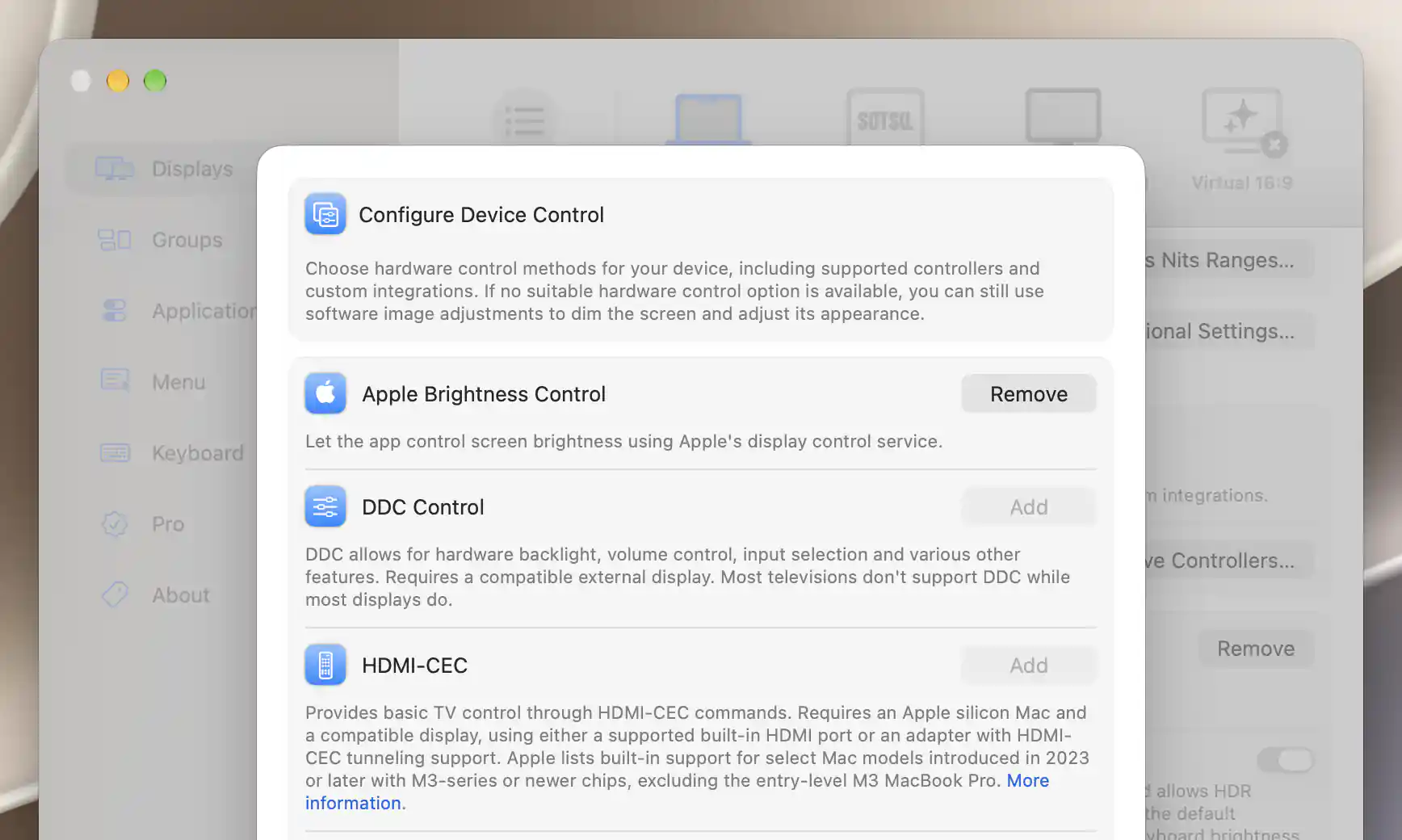
Available controller choices depend on the selected display.
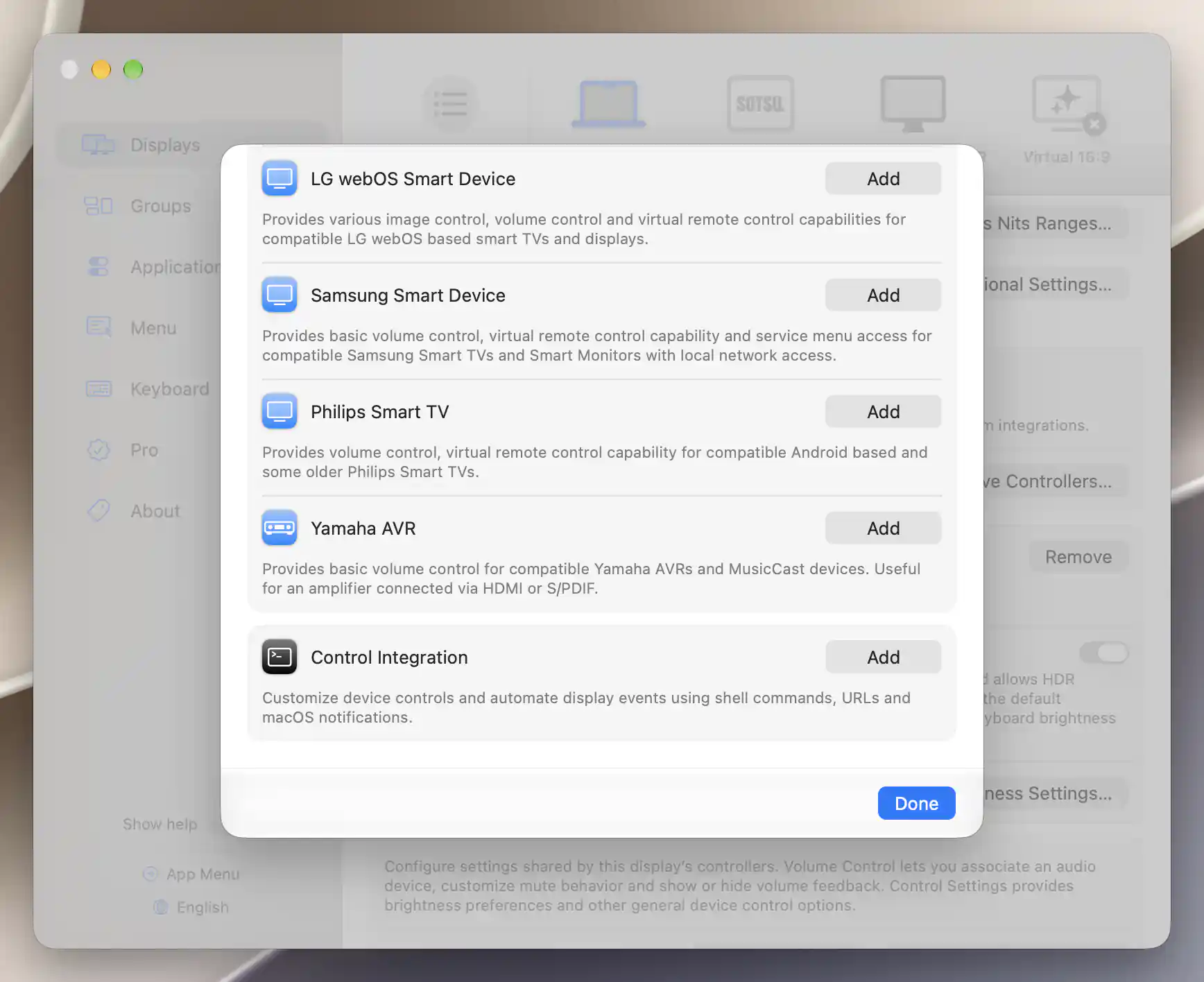
Control Integration appears separately below the network controller choices.
Add or remove controllers
Open Add or Remove Controllers… to see Configure Device Control. The list describes Apple Brightness Control, DDC, HDMI-CEC, DisplayLink, supported LG webOS, Samsung Tizen, Philips TV and Yamaha AVR controllers, and Control Integration. Each has an Add or Remove action; ineligible choices are disabled.
Adding a method enables it and refreshes the available controls. The picker then closes, and Settings scrolls to and highlights the controller's card so you can configure it.
Removing a controller disables that method and updates control selection. It does not delete the display or erase every saved setting for the method. Another enabled controller may take over the same control.
Availability after adding a controller
A DDC card can report Unable to enable DDC due to display or connection issues even with its preference enabled. Network controllers also need their own host and pairing configuration. When no suitable hardware brightness path exists, the app can use software Image Adjustments.
Automatically managed DisplayLink controllers cannot be removed here until Manual configuration is enabled in their settings. Removing DisplayLink also triggers BetterDisplay's check for a remaining eligible display connection.
Apple Brightness Control
The Apple controller supplies native hardware brightness when the display is eligible and the method is enabled. Remove disables the method and refreshes the controllers. A fixed-brightness Apple preset can still make ordinary brightness adjustment unavailable even on a display that otherwise supports Apple controls.
Allow experimental direct XDR control
On a compatible built-in XDR display, Allow direct control and XDR upscaling makes an experimental direct-control option available in the App Menu. It starts off. Allowing the option does not select direct upscaling; turning permission off also disables the active direct feature.
Direct control extends SDR brightness and dimming through hardware while preserving the HDR range. It is incompatible with normal macOS brightness-control behavior, so configure BetterDisplay to receive brightness keys before using it.
If software upscaling is already active, the notice tells you to turn it off before selecting Brightness Upscaling (Direct) in the menu. See Apple Display Preset for preset and automatic-brightness restoration.
Set the direct-control range
Additional Apple Brightness Settings… appears while direct control is allowed. Its range fields use nits, separately from software upscaling calibration and the ordinary percentage slider:
- Direct brightness scale minimum starts with a blank/default 0 nits. Zero permits continuous dimming to black; negative values do not extend below zero.
- Direct brightness scale maximum defaults to the reported HDR limit and remains bounded by the system's available maximum. The interface uses 1000 nits as a sustained-full-screen-range example, not a measured guarantee for every display or viewing condition.
- Force EDR mode during direct brightness control, on by default, keeps the system in extended dynamic range to avoid momentary changes after HDR content. It may also force other external Apple displays into EDR mode.
Editing the minimum or maximum reconfigures active direct brightness control.
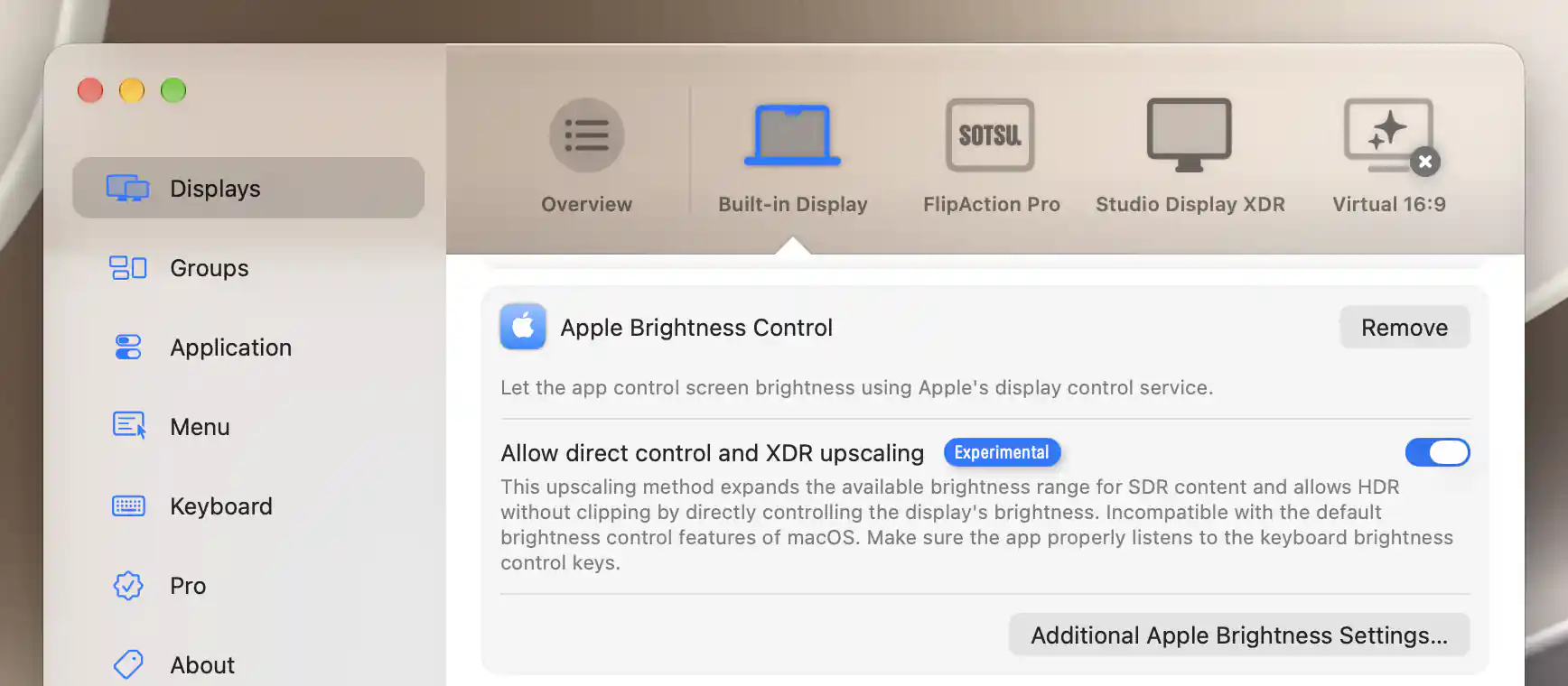
Compatible built-in displays offer direct brightness control and an extended XDR range.
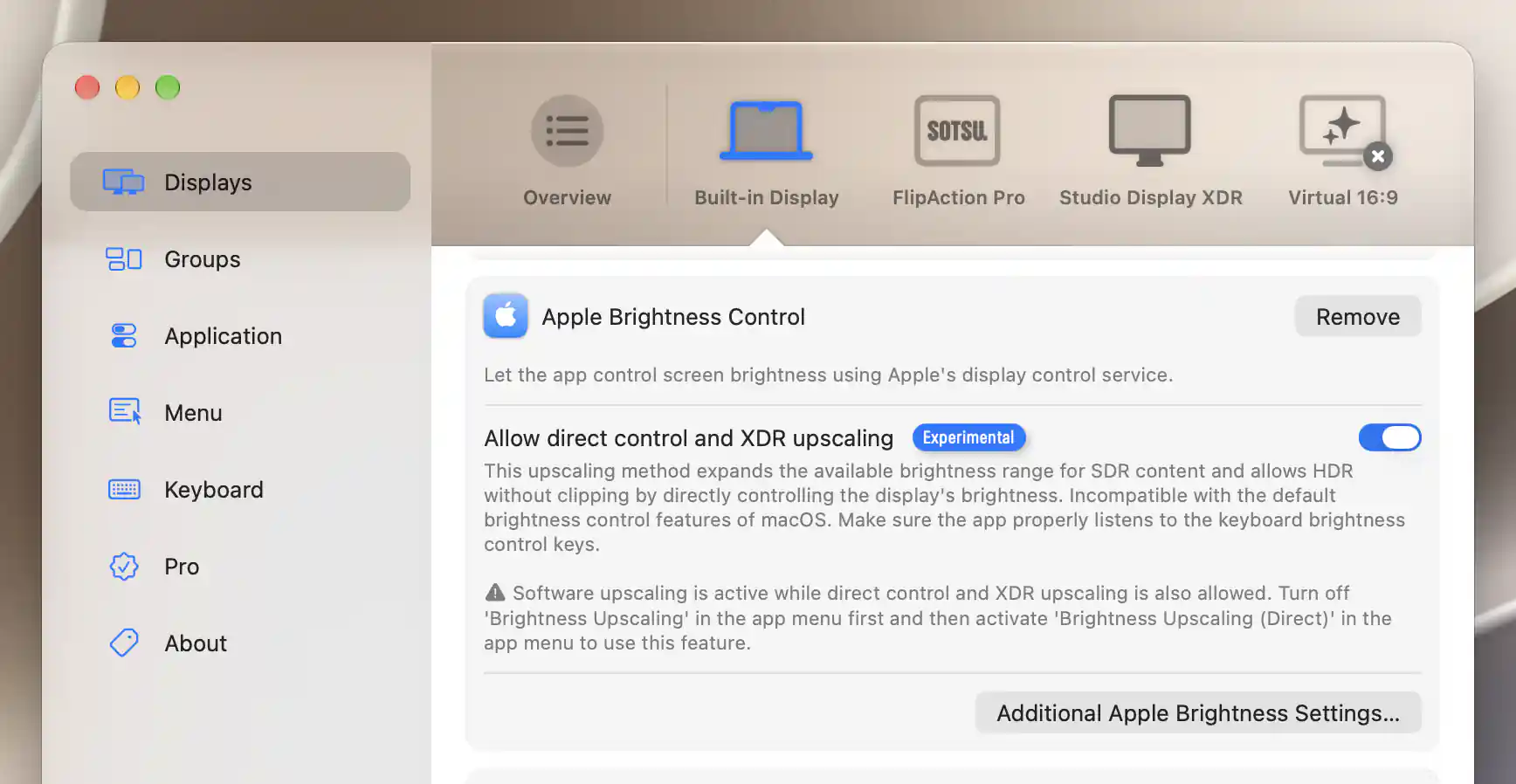
The warning explains how to switch from software upscaling to direct upscaling.
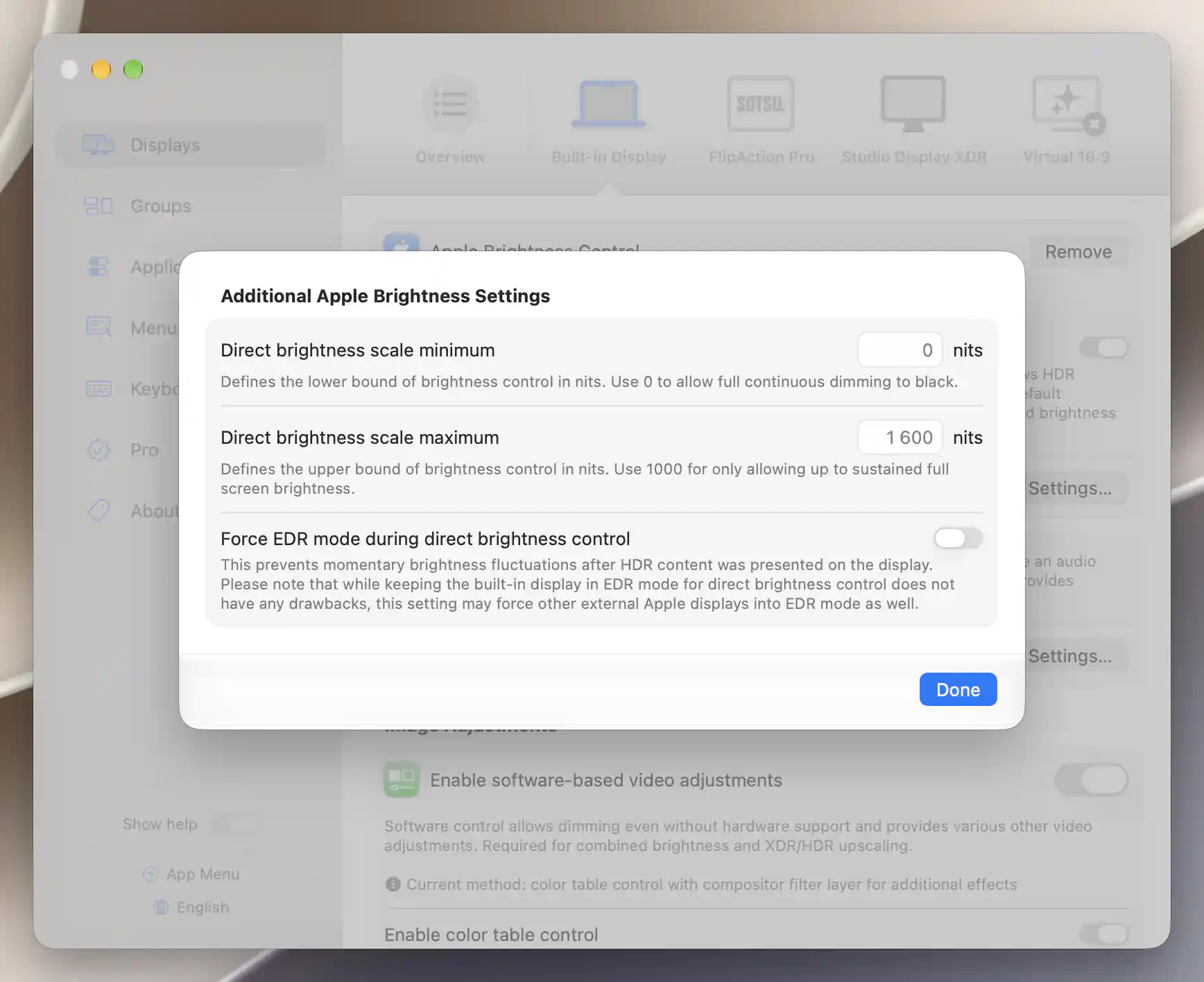
Set the direct brightness range in nits and choose whether to keep EDR active.
Shared and controller-specific settings
Each active controller card leads to the settings for its method. Choose the relevant page according to what you want to configure:
- DDC covers control mapping, input sources and Advanced options.
- Control Integration covers custom controls and events.
- HDMI-CEC covers HDMI remote commands, input selection and automatic power settings.
- DisplayLink covers commands through DisplayLink Manager and manual configuration.
- Network Controllers explains network setup, with separate articles for LG webOS Smart Device, Samsung Smart Device, Philips Smart TV and Yamaha AVR.
- Volume Control… associates audio devices and controls mute/feedback behavior.
- Device Control Settings… covers shared brightness preferences and restoration policies.
These preferences are saved per display and normally update control routing immediately. They are separate from model-level system overrides and do not use that override's Apply/Undo workflow.
Additional information
This section explains which features require Pro and how availability differs between Mac platforms.
Features requiring Pro license
- Allow direct control and XDR upscaling and its additional range/EDR settings.
- Controller-specific Pro features described on the linked child pages.
An already allowed direct-control feature can be switched off after Pro becomes unavailable. Ordinary controller selection and native Apple brightness are not independently Pro-gated; individual methods and controls keep their own requirements.
Platform compatibility
Controller selection is available on both Apple silicon and Intel Macs, but eligible methods depend on the display, connection and installed services.
Direct built-in XDR control requires a compatible built-in display with native Apple brightness, supported XDR presets and an HDR peak above the SDR peak. Eligibility is capability-based; being an Apple-silicon Mac alone is not sufficient. The controller-specific pages describe their additional hardware and platform restrictions.