Software Audio
Software Audio adds software volume, mute and audio tuning to one associated audio output device. Use it when the output lacks usable volume adjustment, when hardware mute does not work, or when you want to adjust the sound independently of the display's image settings.
Where to find it: Settings > Displays > [display] > Device Control > Add or Remove Controllers… > Software Audio > Add. Open Configure Software Audio… on its card or from the display's Device Control menu.
This controller is marked Experimental in Add or Remove Controllers… and on its enabled Device Control card. It requires an unambiguous stereo output in 32-bit floating-point PCM and the app-wide System Audio Recording Only permission. Built-in audio and compatible wired HDMI, DisplayPort and USB outputs are common choices. Bluetooth, AirPlay and aggregate outputs can be tried when Core Audio supplies usable stereo audio. Compatibility and physical playback need testing on the actual device.
Using a Bluetooth headset’s microphone can change its audio format. If processing stops because the new format is unsupported, return to stereo playback and use Restart Audio Session. Bluetooth playback and mode-change recovery still require testing on the actual device.
Stopping or restarting software audio can restore the physical output's original volume. Lower that volume first if the difference would be uncomfortable.
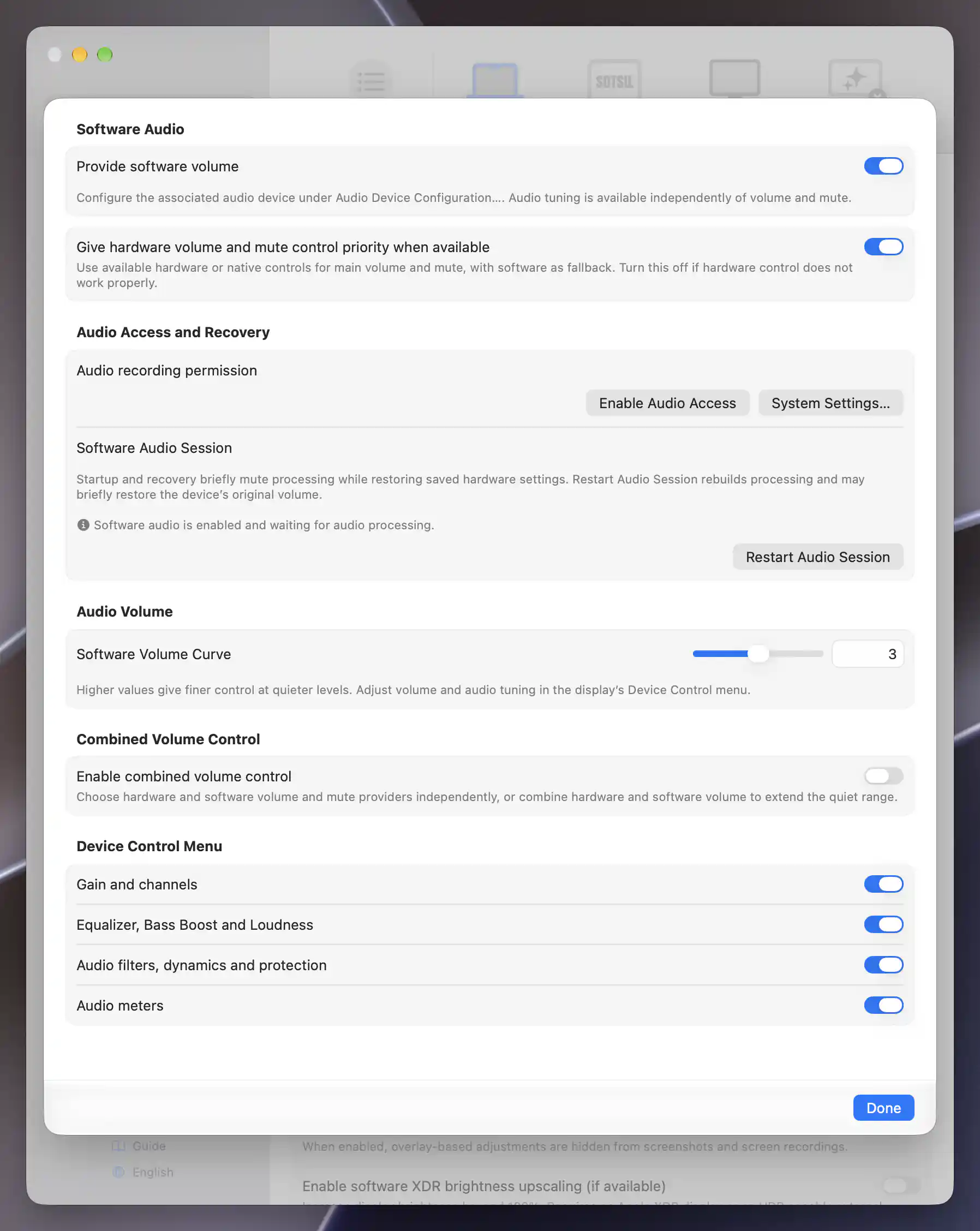
Software Audio provides volume, mute and tuning for the associated output.
Choose the associated output
Set Associated audio device in Audio Device Configuration…. This output is shared by software volume, mute and effects, optional native hardware audio control and keyboard audio-device matching. Software Audio has no separate output picker. An exact unique identifier takes precedence. Otherwise BetterDisplay uses the existing display-name or name-override matching rules and requires exactly one match. If several outputs match, refine the field or hold Option while using Copy Current Device Name to copy a unique identifier.
Changing the system default output does not move an existing software session. Keyboard settings still decide which displays receive volume commands. Separate outputs can have separate sessions. If two displays select the same output, the second reports the conflict instead of processing the audio twice.
Enable volume, mute or tuning
Provide software volume enables software volume and mute together. The separate Provide software mute switch appears only when volume provision is off, allowing mute without software volume. At 100% software volume has unity gain. At zero it supplies silence. The curve changes how the intermediate positions are distributed.
The first Software Audio box groups the provision switches and the help for configuring the associated audio device. Give hardware volume and mute control priority when available starts on in a separate, closely spaced box immediately below. The main menu slider and app-handled keyboard commands use available hardware or native volume and mute, falling back independently to each enabled software capability when its hardware counterpart is unavailable. Turn this preference off to prefer software when an enabled hardware controller does not work properly. An explicitly selected software route stays selected if processing fails.
The priority switch is not editable when both software capabilities are off. It is also not editable while Combined Volume Control is enabled, with an information message explaining that its volume and mute methods take precedence. The saved priority choice is retained.
For a mute substitute, turn off software volume provision and leave software mute enabled. Existing hardware volume remains selected. Turn off hardware priority to prefer software mute even when hardware mute remains enabled. For tuning only, turn off both provisions. Tuning continues in either case. Turning off software volume provision uses unity gain while retaining its saved slider setting.
Turn on Enable combined volume control in this sheet when you want an explicit choice of providers or software attenuation below a monitor's lowest usable hardware volume. It starts off for fresh configurations and reveals the Combined Volume Control routing and mapping settings when enabled. These form one group, with reset in its own box; saved choices are retained. An information notice below the switch appears when hardware and software volume levels do not fit the combined mapping. Adjust combined volume to realign them. Both software and combined volume belong to this one controller.
Device Control menu
Adjust volume, mute and tuning in App Menu > display > Device Control. Software volume uses an outlined speaker icon whose waves follow the slider level. Click it to mute or unmute; a separate mute item appears only when software volume provision is off. Tuning controls are grouped without section headings. Combined volume appears automatically when available. While its Combined volume method is selected, separate hardware/software volume sliders appear only with Show subsliders for combined volume control enabled below Enable combined volume control. This preference starts off. Other volume methods retain their usual sliders. The main volume slider still follows the selected provider.
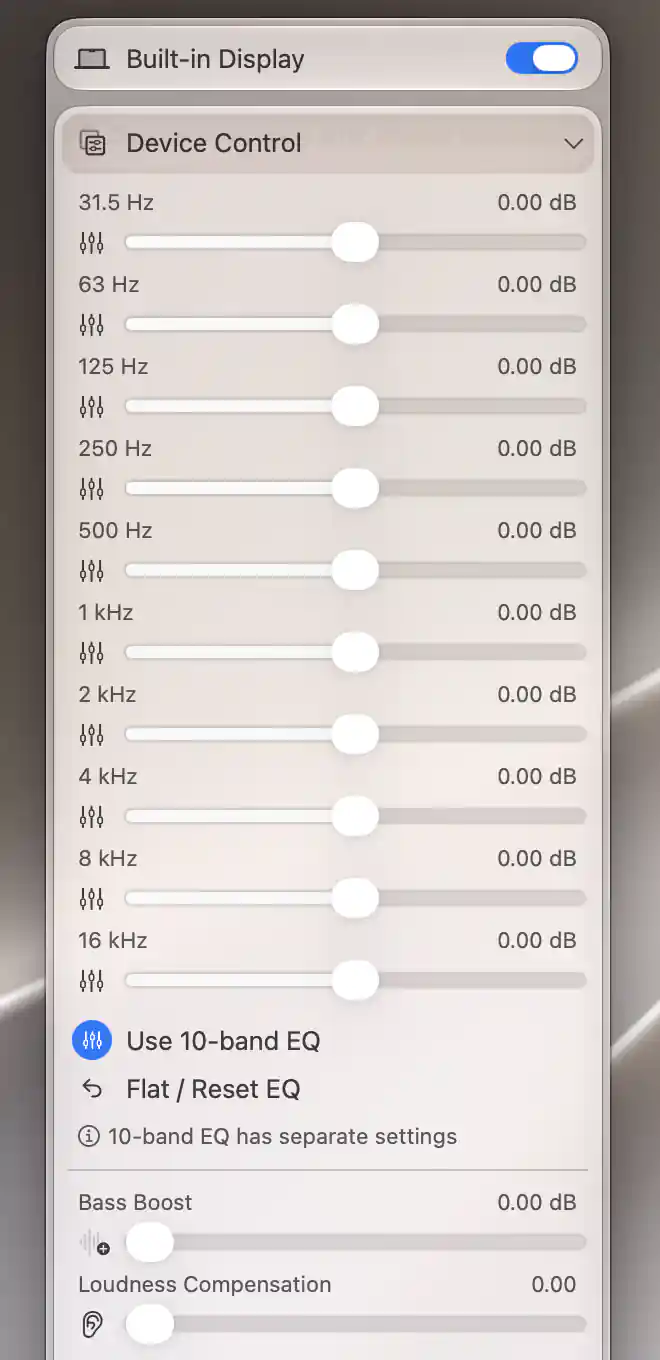
Software audio tuning appears in Device Control, with only the selected EQ bank shown.
Under Device Control Menu, Configure Software Audio… provides three section visibility switches: Gain and channels, Equalizer, Bass Boost and Loudness, and Audio filters, dynamics and protection. A separate Audio meters switch controls the meter block independently. All four switches start on for new configurations. Hiding a section preserves its values and does not stop its processing. The existing channel and processing visibility choices are retained.
Software volume is shown as a percentage. Gain, frequency and timing use their displayed units. Audio Balance uses a compact half-filled circle and retains physical left and right in either interface direction. Nearby help stays brief; the separate-settings EQ note appears only in 10-band mode, and notch, compressor, gate and soft-clipping explanations appear only when their feature is active. Sliders below the compressor and gate switches have the usual spacing. Expanded filter and dynamics groups have space between them without extra dividers. Disabled compressor and noise gate rows remain consecutive without an extra gap. Notes and meter readings have balanced vertical space, and slider groups have space after a divider.
Shape the sound
Optional tuning starts disabled or neutral. Audio Gain changes the preamp level. Audio Balance attenuates the opposite channel. Channel trims, width, mono, swapping and polarity inversion provide further channel adjustments. Left and right refer to the final physical output channels, including after swapping.
Simple EQ provides Bass and Treble sliders without an enable switch. Both start at zero, where EQ has no effect. Below the selected sliders, Use 10-band EQ sits directly above Flat / Reset EQ and switches between the simple shelves and ten frequency bands. Each mode retains its own values, and only the selected mode is processed. The note 10-band EQ has separate settings appears only in 10-band mode. Flat values bypass EQ processing entirely. Flat / Reset EQ clears both banks while preserving the selected mode. Frequencies too close to or above the output's Nyquist limit are bypassed.
Bass Boost is an additional low shelf that is separate from the selected EQ. Loudness Compensation applies an approximate volume-dependent contour when the logical volume is known. It is not a calibrated acoustic correction. Manual component combinations can leave that position unknown.
The high-pass, low-pass and notch filters use their frequency sliders directly, with no separate enable switches. High-pass and notch start at zero, which bypasses the filter. Low-pass starts at its maximum endpoint, displayed as ∞, which also bypasses filtering at every sample rate. Move a slider away from its neutral endpoint to apply the filter. Notch Q appears when Notch Frequency is above zero and adjusts the rejected band’s width. Returning the frequency to zero hides Q while preserving its value. See Audio processing for the signal terminology.
Advanced dynamics
Enable the compressor or noise gate to reveal its parameters. The compressor provides threshold, ratio, attack, release, knee and makeup gain. The noise gate provides threshold, attack, hold, release, hysteresis and attenuation range. Both link their detection across the stereo channels and measure the signal before the main software volume and mute stage.
These processors use no lookahead. A compressor cannot prevent every transient, and a gate can soften the beginning of a sound. Neither is a guaranteed brickwall limiter.
Headroom, bypass and meters
Use the separate Audio meters switch to show automatic headroom and digital input/output peak and RMS meters. The meter block has a divider above it and space before the first reading, with no modifier key required. Hiding Audio filters, dynamics and protection does not hide the meters. Readings require an active software audio session. Automatic headroom accounts for the combined response of EQ, bass boost, loudness compensation and stereo widening. User preamp, channel trims and compressor makeup remain intentional gain choices. Positive gain can still clip.
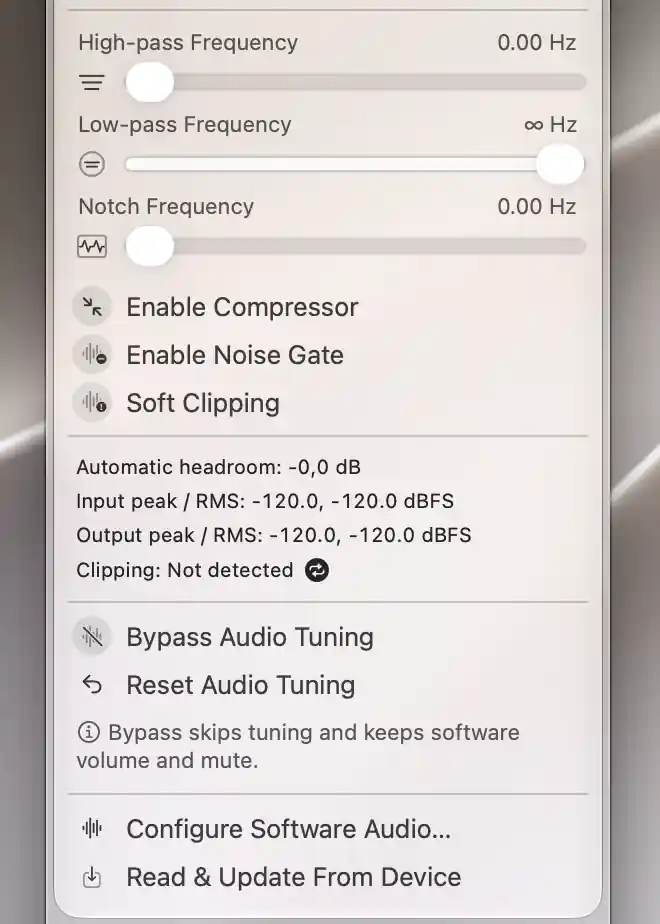
The software audio meters show silent input and output levels with no detected clipping.
Bypass Audio Tuning sits directly above Reset Audio Tuning at the bottom of the menu. The bypass explanation follows both controls at the bottom of this block. It remains available when tuning sections are hidden and bypasses tuning while retaining software volume, mute and temporary protection. Output protection rejects non-finite samples and limits sample values. Optional Soft Clipping has no true-peak guarantee. The clipping indicator stays visible until cleared. These are digital signal meters, not measurements of acoustic sound pressure.
The meter area always includes a Clipping status line. Its plain circular repeat icon beside the status clears the latched warning, with Clear Clipping Indicator as its tooltip. Normal clipping text matches the other readings; a detected warning is red. Reset Audio Tuning clears tuning parameters and returns the equalizer to Simple mode while preserving volume, mute, the volume curve, provision and menu visibility settings.
Startup and wake attempt to restore saved hardware volume and mute independently, including with providers that cannot report device state. Missing or mismatched readback produces a warning while processing continues. This allows software processing to remain usable on digital outputs whose native volume controls have no effect.
Hardware volume, mute and unmute requests remain available with a write-only provider. Main-volume adjustments follow the selected mute policy even when hardware state cannot be confirmed. An uncertain hardware result does not suppress a requested software unmute. Explicit software mute and zero-volume settings still apply.
Temporary muting during hardware changes
Normal volume, mute and audio tuning adjustments do not add a temporary software mute. Combined volume applies the requested software gain without waiting for hardware confirmation. Repeated adjustments in the quiet range reuse an identical hardware request already sent. A warning identifies an unconfirmed result without disabling further adjustments.
Startup, wake and configuration restoration can briefly mute the processed signal so software attenuation can take effect before hardware settings change. BetterDisplay allows up to half a second for this transition after processing becomes active. It sends the requested settings even if a complete silent buffer cannot be confirmed, then releases temporary muting without waiting for hardware readback. Your selected software volume and mute settings still apply afterward.
This brief transition reduces the chance of restoring a louder hardware setting before the intended software attenuation is ready. Temporary muting is separate from Soft Clipping, the noise gate and your mute setting. A processing acknowledgement describes digital silence in the processing path, rather than measuring sound at the speakers.
When no audio is playing, the controller can show Software audio is enabled and waiting for audio processing. with an information icon. Missing processing acknowledgement ends the brief transition with a warning that processing may be ineffective. It does not indefinitely postpone hardware requests or hold the temporary mute. Processing progress clears this warning automatically. Saved software volume, mute and tuning remain in effect.
Permission and recovery
The Software Audio card, configuration panel and Software Audio Controller row in Audio Device Configuration share the same status messages. An information icon marks startup, active, disabled, waiting for audio and system sleep states. Status updates continue when Device Control and its meters are closed. A filled warning triangle marks permission and output problems, unsupported formats and unconfirmed processing or hardware changes. If playback does not behave as expected, check the output association and use Restart Audio Session.
Under Audio recording permission, Enable Audio Access requests System Audio Recording Only permission and starts processing when access is granted. It sits beside System Settings…, which opens the audio recording privacy settings. The permission explanation is hidden once access is authorized or a software audio session is active. Both buttons remain available. After changing access there, return to the sheet and use Restart Audio Session.
The Software Audio Session area shows its explanation and current status above Restart Audio Session. This action rebuilds processing for the associated output using the current settings. The device’s original volume may briefly be audible during rebuilding; lower it using the device’s own controls first if needed.
Warnings explain when the associated output is unavailable, supplies an unsupported audio format or fails to confirm a hardware setting. A warning about automatic system sleep means macOS rejected an optional audio-process setting. Processing remains active. Uncertain permission preflight alone does not prevent a startup attempt, and macOS still enforces the actual audio permission. For a format warning, check the output’s stereo format in Audio MIDI Setup before restarting. If a warning reports that the session could not be released safely, quit and reopen BetterDisplay.
Detailed callback diagnostics, format requirements, the original failed macOS audio operation and its error number are written to the log as they change. Failed hardware confirmations also log the requested and observed volume or mute state. They remain available through the App console or macOS Console logging when diagnosing a recurring problem.
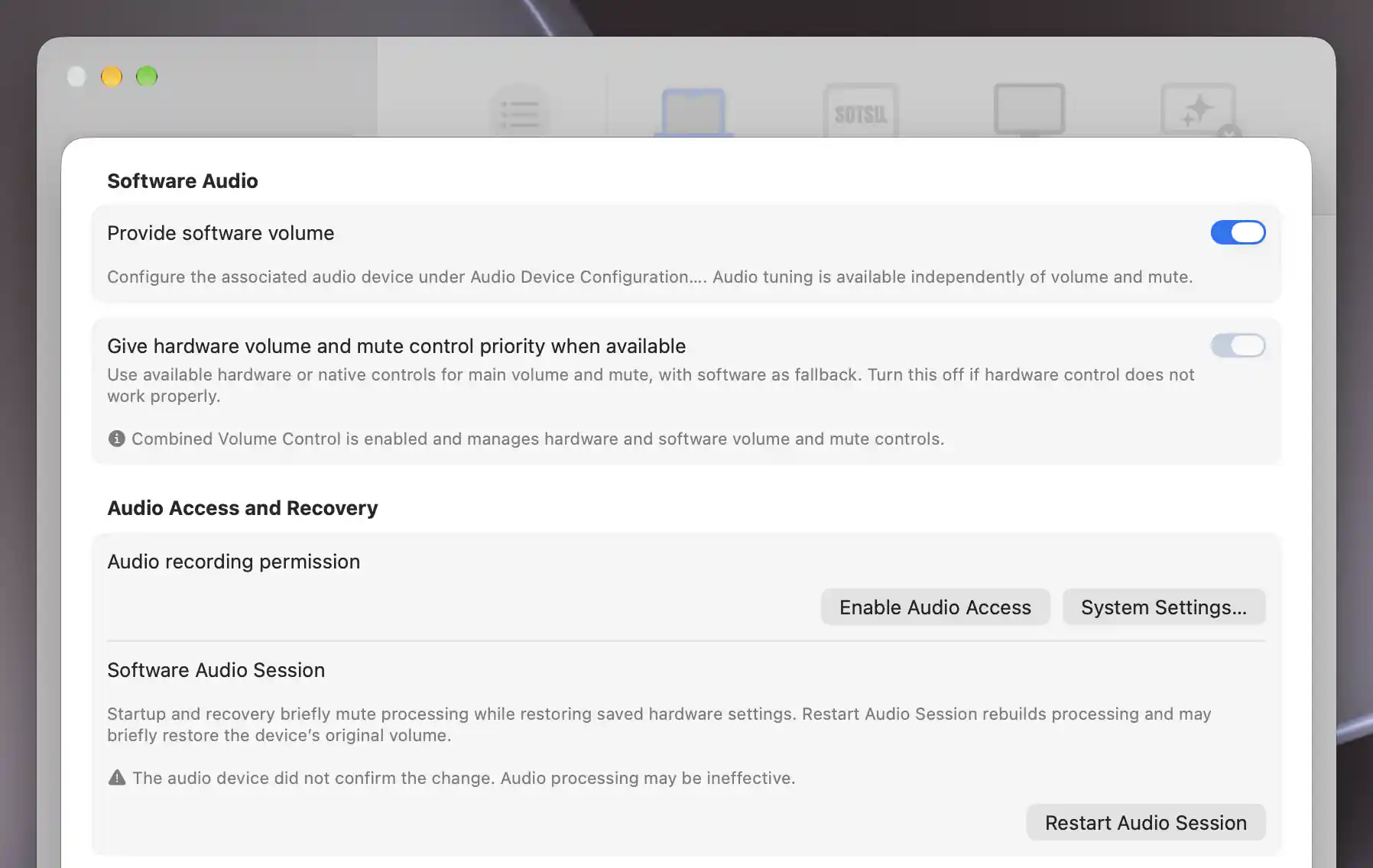
Combined Volume Control reports an unconfirmed audio-device change in this setup.
Ordinary silence and screen sleep do not stop a usable session. Actual system sleep suspends it. Output replacement, unplugging or a format change can require rebuilding. A failed session remains visible and does not silently replace a selected software route with native volume. An unconfirmed hardware setting leaves processing active with a warning.
No extra playback queue or lookahead is added. Core Audio and the output still have buffering, and filters have frequency-dependent delay. End-to-end latency and device reliability require testing with the actual output.
For commands and stable parameter names, see Software and combined audio CLI examples.
Additional information
This section explains feature availability and platform prerequisites.
Features requiring Pro license
Balance, channel trims, stereo width, mono audio, channel swapping, polarity inversion, 10-band EQ, Bass Boost, Loudness Compensation, frequency filters, compressor, noise gate and Soft Clipping require Pro. Without Pro, these settings use neutral values for processing. Their saved values and enabled switches remain intact and take effect again when Pro is available. Advanced sliders and their numeric value entry require Pro, as do the Mono Audio, Swap Audio Channels, polarity inversion and Soft Clipping menu items. Section visibility, EQ mode and compressor/gate enable switches remain available.
Software volume and mute, Audio Gain, simple Bass and Treble, meters and Combined Volume Control remain available without Pro. Existing licensing conditions for other features, such as group synchronization, still apply.
Platform compatibility
These features are available on both Apple silicon and Intel Macs with a usable stereo output. Core Audio taps require macOS 14.2 or later. The actual audio format and audio permission remain prerequisites. Connection metadata alone does not prevent a capture attempt, and physical device qualification is separate from processor architecture.