Yamaha AVR
The Yamaha controller lets BetterDisplay adjust a compatible Yamaha AVR or MusicCast device over your local network. Choose the receiver zone and Mac input, then configure volume, input selection and optional automatic power handling.
Where to find it: Settings > Displays > select a display > Device Control > Configure Yamaha AVR…. If the controller is not listed, add it through Add or Remove Controllers…. Its Configure… entry in the App Menu's Device Control section opens the same sheet.
The associated display must be connected to open and use these configuration sheets. The network device must also be reachable at its IP address and permit remote access. Settings persist per controller and associated display. Connection and refresh buttons communicate with the actual device. Remove on a controller card disables that controller while keeping its saved configuration; it does not automatically revoke authorization on the device.
If a precedence notice appears, another controller currently supplies that feature. Enabling volume here does not necessarily make this the method used by the app's volume control. Review Device Control and the audio-device configuration when deciding which method should take priority.
The Yamaha controller connects to compatible AVR/MusicCast network control without a pairing flow. Enter Device IP address and submit it or use refresh. The sheet also checks on opening, showing connection check pending, connection validated, or unable to connect.
Zone and input selection
Amplifier zone offers Main (the default), Zone 2, Zone 3, and Zone 4. The selected zone receives volume, ordinary power requests and status readback.
Choose the receiver input used by the Mac under Specify Mac input, initially Unspecified. Its choices come from the device. Enable volume control defaults to on.
Send power-on signal and switch input on volume change can prepare the receiver when you begin adjusting sound. It defaults to off and appears when volume is enabled and either power control is enabled or a Mac input is chosen. After more than ten seconds without a control application, the next volume or mute application can send those Main-zone requests before applying the control. Power-on still requires power control and permission to power on; switching input requires a specified Mac input.
Input source menu, off by default, adds the receiver's reported inputs to the App Menu's Input Source section. To follow receiver-side changes, enable Periodically read and update current value from device, also off by default. It updates volume, mute and receiver status.
Yamaha Power Control
Enable power control is off by default. Turn it on if you want automatic power handling, then choose the conditions below:
- Power control with matching audio device name only defaults off. When on, automatic power handling requires the current macOS audio device to match the display's configured audio association.
- Enable power control on detection defaults off and adds physical detection/loss after startup.
- Allow powering the device on and Switch to Mac input on power-on default on. Input switching requires a specified input and uses Main as described above.
- Do not steal input when already powered on defaults off and appears with input switching enabled. It checks current power and skips taking the input if the receiver is already on.
- Recheck connection on wake defaults off; it waits for the app's wake/configuration delays and checks the associated display before sending power-on.
- Allow putting the device to standby defaults on. Power-off on Mac input only, initially off, skips standby when the current input differs or cannot be obtained; specify the Mac input for this restriction to take effect.
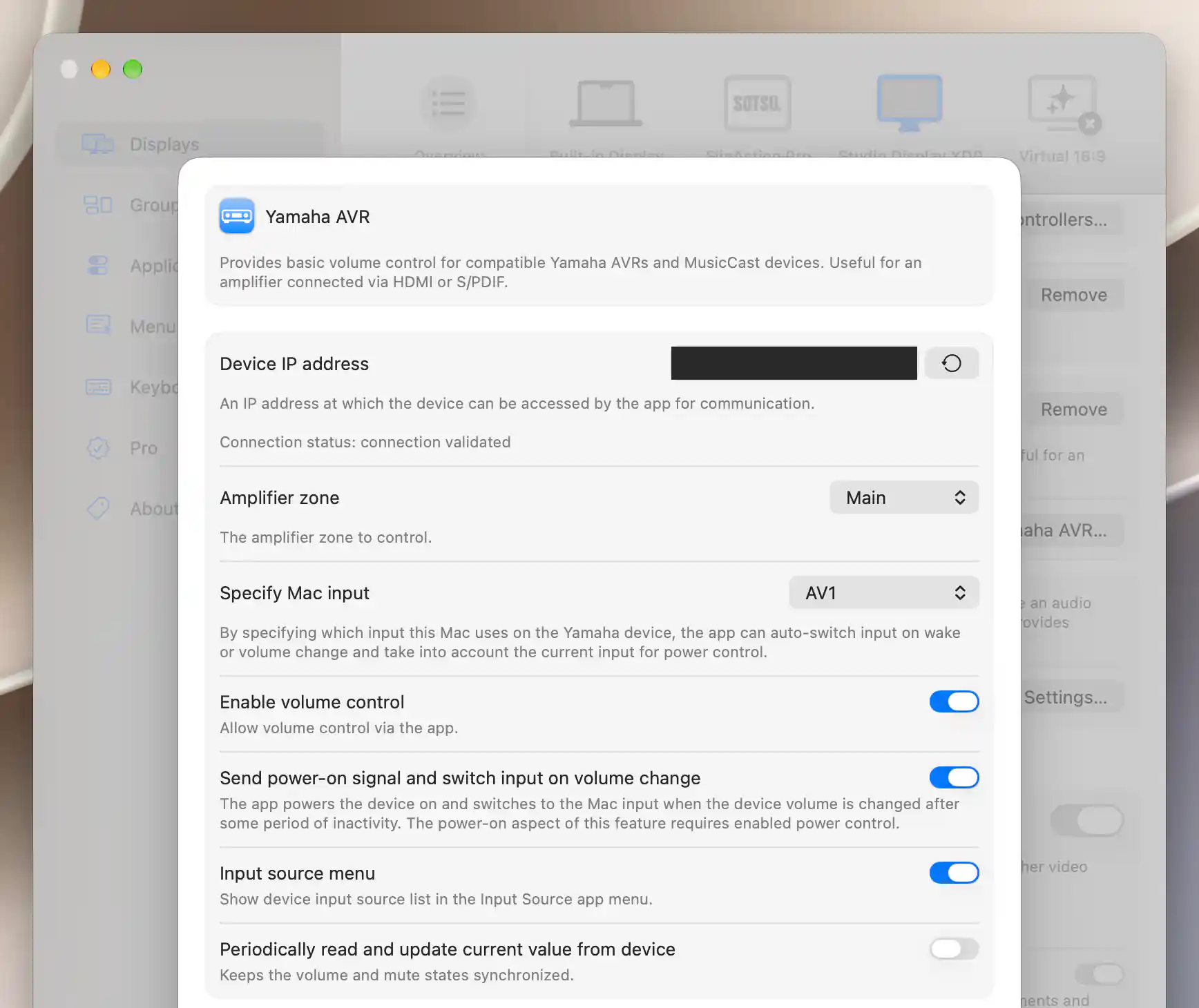
The Yamaha controller reports its connection and exposes zone, input and volume preferences.
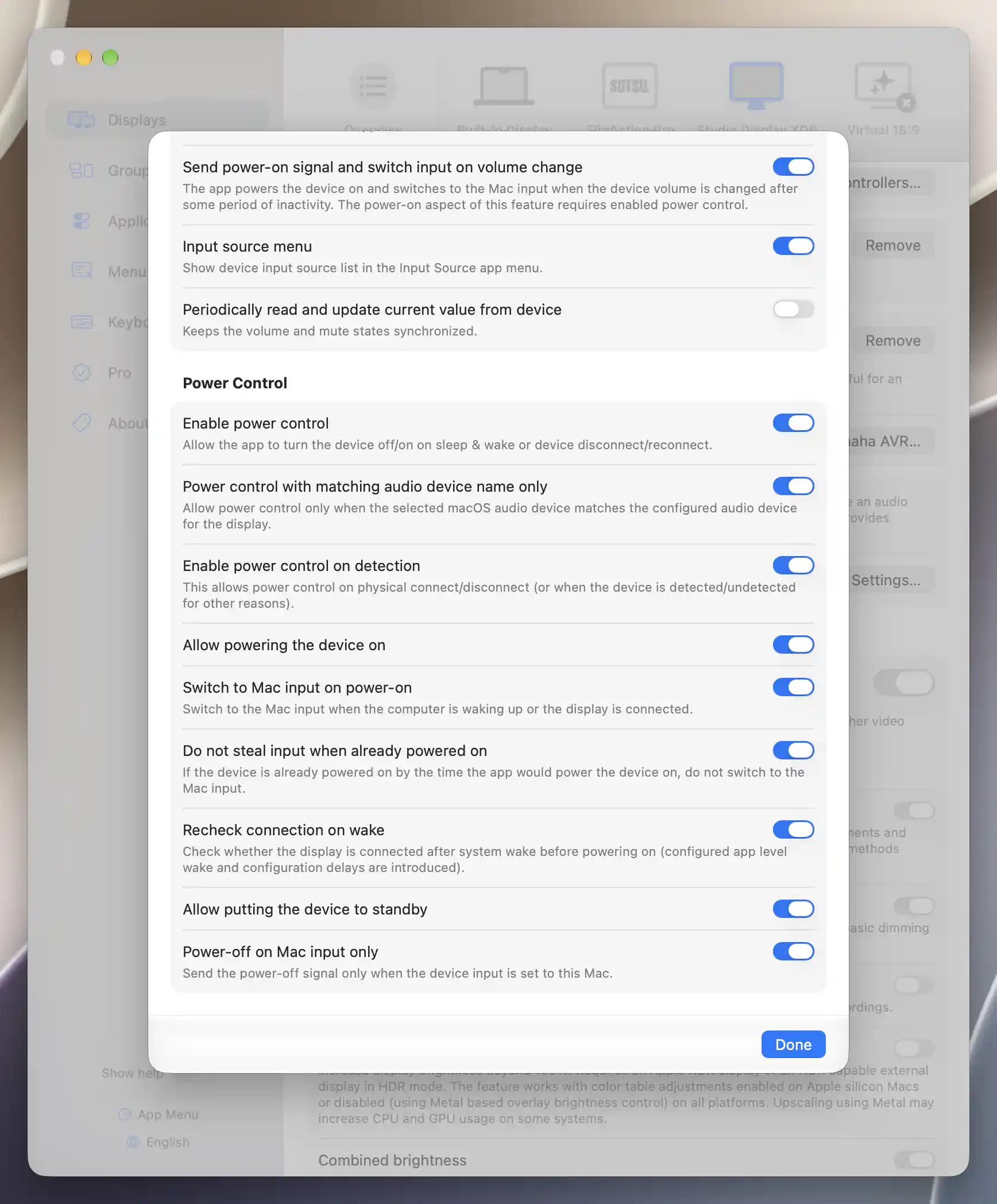
Yamaha power preferences define when automatic wake, input switching and standby may occur.
See Device Control for controller selection and startup value restoration. Remote buttons and direct input actions are available through the app's Device Control and Input Source menus; these send real commands independently of the automatic power preferences described here.
Additional information
This section explains which features require Pro and how availability differs between Mac platforms.
Features requiring Pro license
The network-controller settings, pairing and automatic control preferences described here have no separate Pro requirement. Other display features used alongside them retain their own requirements.
Platform compatibility
All features described on this page are available on both Apple silicon and Intel Macs. Each controller needs a compatible, reachable device and any required device-side authorization. TV firmware, picture mode, network standby and supported commands determine what actually works; pairing or a validated connection does not establish every capability.