Input Source
Input Source lets you choose which connection a display or its assigned external controller uses. You might switch a monitor from the Mac to another connected device, or choose an input on a receiver assigned to the display. The choices come from the configured DDC, HDMI-CEC, LG webOS or Yamaha controller, so they are not a universal list of ports.
Where to find it: App Menu > display > Input Source.
The display must be connected and have a controller that supplies an input list. This section belongs to physical/system displays, not BetterDisplay virtual screens. If several controllers supply inputs, their lists have separate controller headings. A single list appears without that extra grouping.
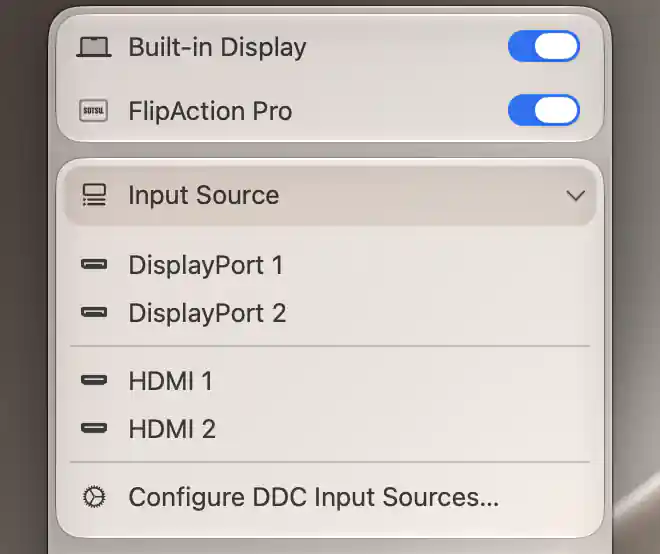
Customized DDC input visibility blocks separate DisplayPort and HDMI entries.
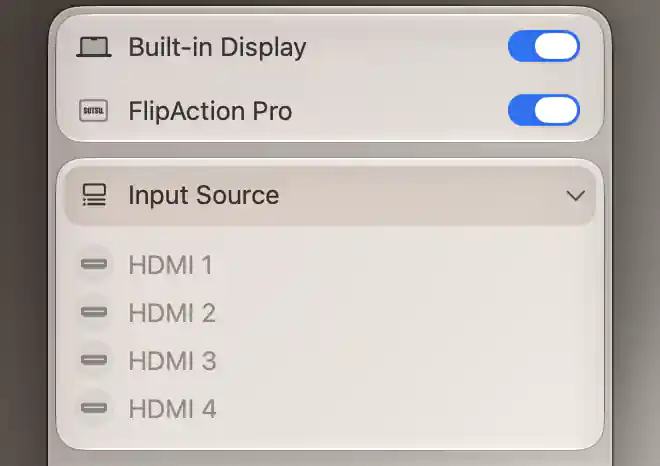
The disconnected LG input list shows its HDMI entries; active-input and signal indicators require a working connection.
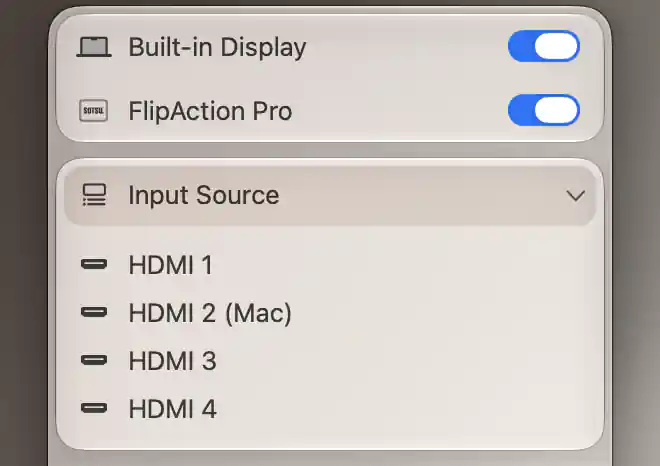
The configured CEC list marks HDMI 2 as the Mac input; switching requires a supported CEC connection.
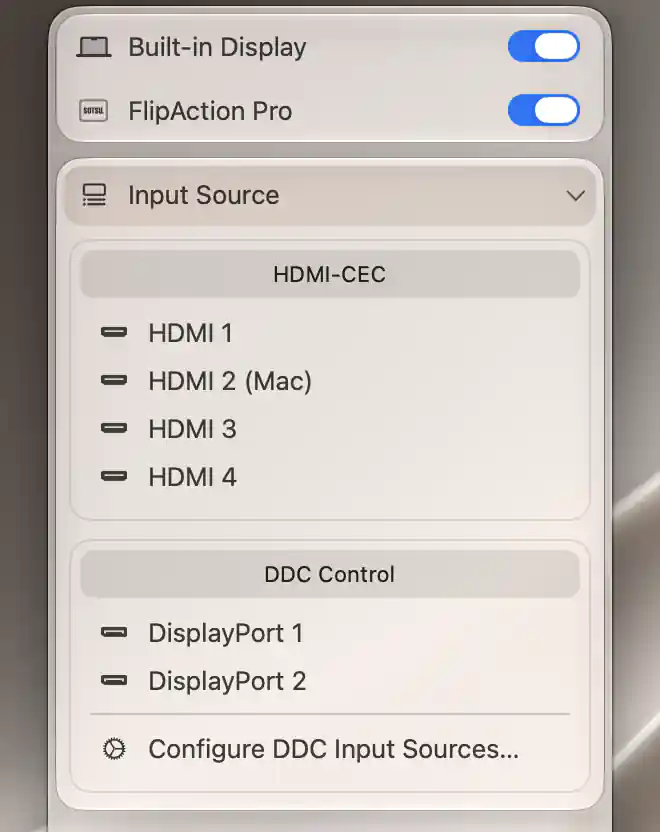
When multiple input controllers are configured, the menu groups their input lists by controller.
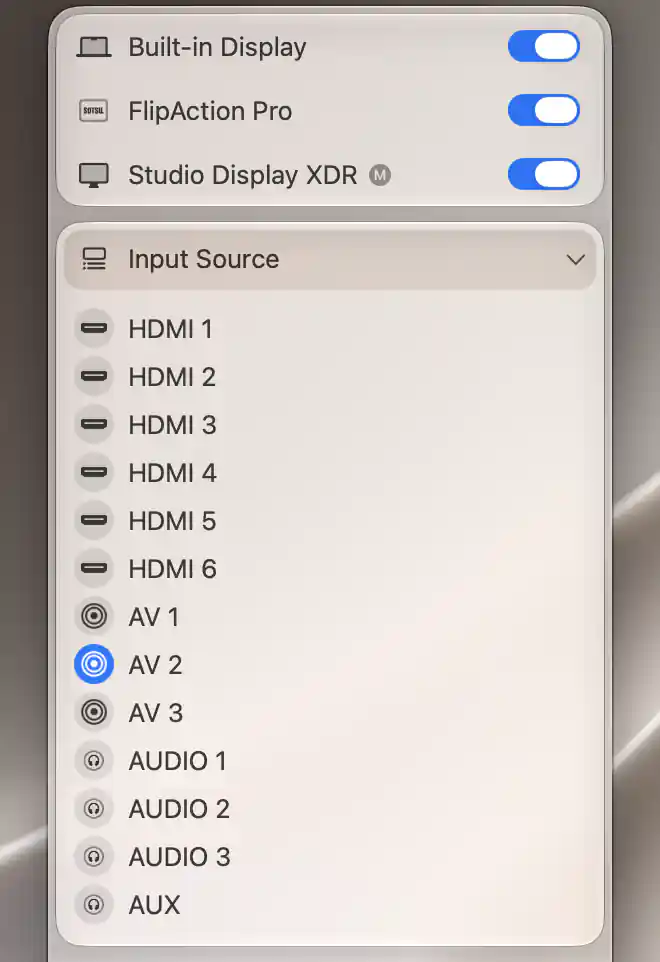
The Yamaha input list highlights the receiver’s active input, AV 2.
DDC inputs
DDC inputs are commands sent to the monitor. The menu uses either a predefined list of commonly assigned values or the custom list you configured for this display. Select a row to send its command immediately.
A familiar label can help you find a port, but the name itself is not a detected capability. HDMI 1, for example, means “send the value configured for HDMI 1”; it does not prove that the monitor has that connector or uses the same numeric assignment.
Custom names and grouping
Custom input settings let you choose a label, icon and placement in Block 1 through Block 4. The menu separates visible blocks and leaves out Hidden entries. LG alt on a row selects the alternate LG input command instead of the standard command.
The DDC list does not read back the active input to show a checkmark. Use the display's picture or its own controls to establish which input it is using.
Open Configure DDC Input Sources… to edit this display's Input Sources settings. If input-source control is unavailable, enable its support under Configure Controls… first.
HDMI-CEC inputs
HDMI-CEC lists HDMI 1 through the configured HDMI input count. The count can be 1–15 and starts at four.
A (Mac) label identifies the Mac's connection when BetterDisplay can determine it from the HDMI physical address. It is a useful return destination when choosing another device, but it is not a marker of the TV's currently selected input.
Rows are enabled while the display is connected. Whether the command works still depends on the HDMI path and receiving device. Configure the count and related behavior in HDMI-CEC settings.
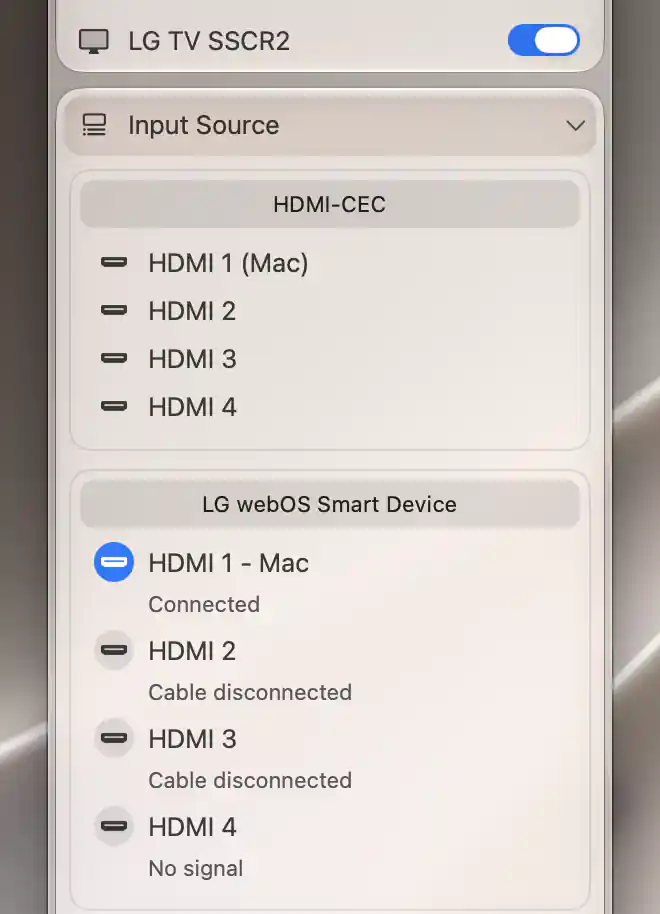
HDMI-CEC identifies HDMI 1 as the Mac input; LG webOS marks HDMI 1 active and reports each input’s signal state.
LG webOS and Yamaha inputs
LG webOS
LG input names come from the connected device. When a custom device label differs from the input name, BetterDisplay appends it to help identify the connection. Status below the input distinguishes Connected, No signal and Cable disconnected.
The active marker follows the device's foreground input app. Selecting an input updates the marker immediately, and later refreshes check the device's reported state. Entries remain disabled until the controller is ready. Opening the menu attempts reconnection, and the list continues refreshing while the menu is visible.
Yamaha receiver
Yamaha choices come from the receiver's reported input list, with a marker for the selected source. Enable Input source menu, which is initially off, to show the list. Input information and status refresh while the menu remains visible.
Switching away from the Mac
Choosing another input can immediately remove the Mac's picture from the display. Before switching, make sure you can select the Mac again: use another usable Mac display, a configured input shortcut, or the display/receiver's own controls or remote.
Input selection is an immediate device action. The DDC names, icons and visibility, HDMI-CEC input count, and Yamaha menu/zone choices are saved preferences. Current-input markers describe controller state rather than those saved choices.
Related: Device Control · DDC Control
Configure pairing, network access and automatic power behavior in the LG webOS and Yamaha AVR articles.
Additional information
This section explains which features require Pro and how availability differs between Mac platforms.
Features requiring Pro license
- The configured input shortcut discussed as a return method.
Selecting an input from the DDC, HDMI-CEC, LG webOS or Yamaha menu does not itself require Pro.
Platform compatibility
DDC, LG webOS and Yamaha input control can be available on both Apple silicon and Intel Macs with a suitable configured controller and device. HDMI-CEC requires Apple silicon and a supported HDMI connection path. Controller readiness and device compatibility still determine whether a listed command works.