Rotate Sidecar into portrait orientation
Use a portrait virtual desktop streamed to your Sidecar iPad for a taller workspace. BetterDisplay rotates the streamed image, so the setup can work even when Sidecar does not offer native portrait rotation.
Before you begin
Connect your iPad as an extended/separate Sidecar desktop using Apple's Sidecar instructions, rather than mirroring another display. Hide the Sidecar sidebar and Touch Bar. Start with Sidecar displaying its normal landscape desktop; unexpected iPad orientation changes can crop the session, so fix that before adding the virtual stream.
Grant BetterDisplay Screen Recording permission and leave another desktop accessible. The virtual screen will be the source you work on; Sidecar is the target showing that source's rotated image.
Create the portrait stream
- Open Settings > Displays > Overview > Create New Virtual Screen….
- Choose Match aspect ratio of and associate to a display, then select your Sidecar display in Display to match.
- Keep Associate the virtual screen with this display and Configure full screen stream to this display enabled.
- Under Rotation (portrait mode) choose Portrait 90° (Sidecar port down) or Portrait 270° (Sidecar port up) to suit the way you will position the iPad.
- Select Create Virtual Screen. If the permission warning prevents setup, grant permission, reopen the sheet, and retry after checking for an already-created definition.
- Stand the iPad in the chosen physical orientation. Move a sample document to Virtual - [Sidecar display name] and check its presentation.
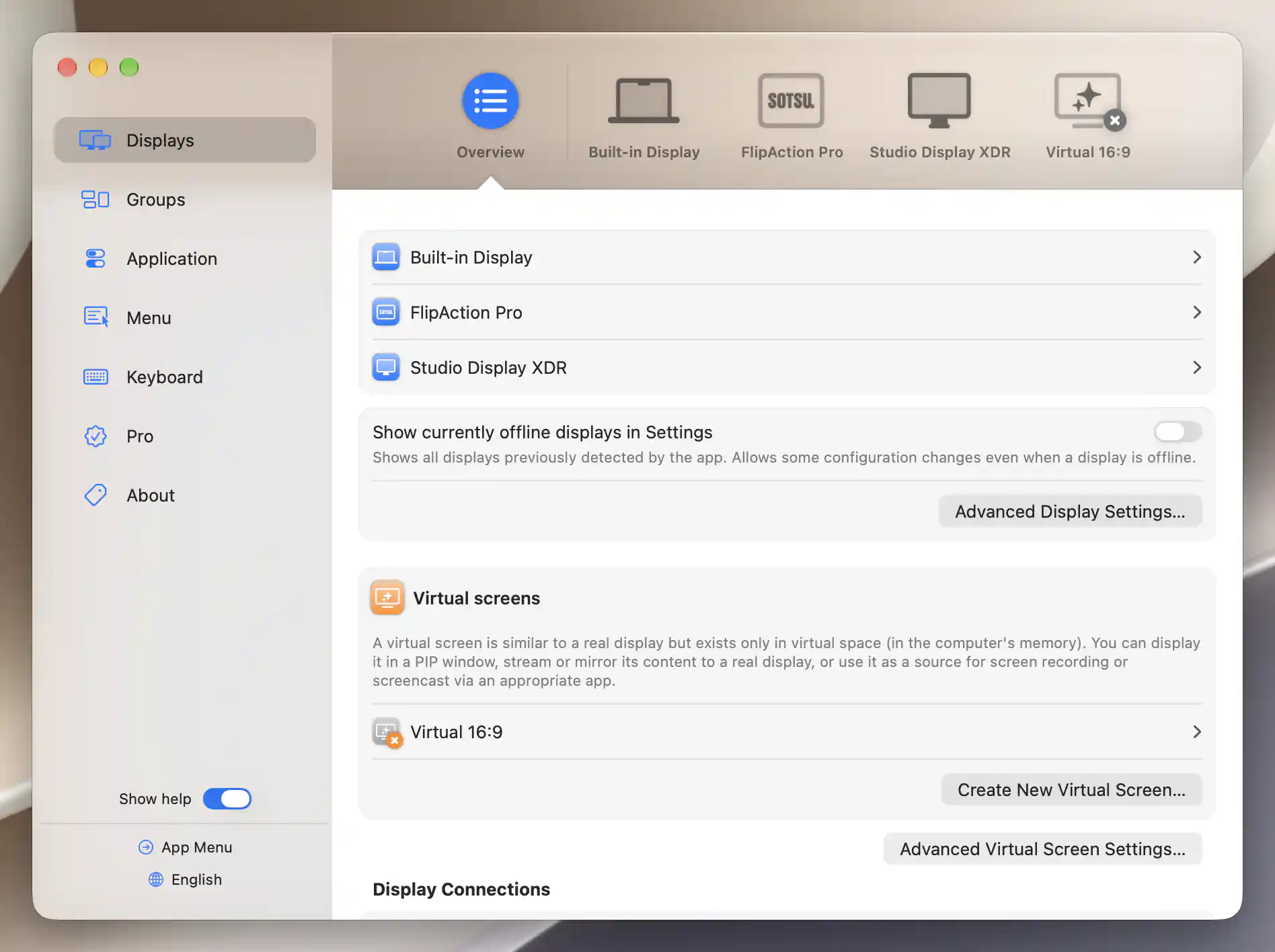
Create New Virtual Screen… is in Displays Overview.
Check and refine the result
The virtual source should have a portrait-shaped desktop, while its stream fills the Sidecar display with upright content when the iPad is physically positioned as chosen. Use the virtual source's resolution slider for a comfortable text size.
To switch between portrait and landscape later, use Rotated Orientation on the virtual source. This changes source geometry. Separately set the 0°/90°/180°/270° buttons in Stream Virtual Screen so the output faces the correct way. A source orientation and a stream rotation are different settings: changing only one can leave the picture sideways or with the wrong shape.
Troubleshooting
The pointer is sideways or cannot interact
It may be on Sidecar's underlying target desktop instead of the virtual source. Command-click the streamed image, or use Warp Mouse Cursor in its context menu, to move to the corresponding point on the source. Place the virtual source next to your main screen in display arrangement and Sidecar farther away to reduce accidental entry onto the target.
Hold Option or Shift to reveal Prevent Cursor Entering if you want a dedicated target. Verify the restriction in practice; the preference does not guarantee macOS establishes it.
The image is cropped, sideways or slow
Check the selected source geometry and stream rotation together, then confirm Sidebar and Touch Bar are hidden in Sidecar settings. If Sidecar itself changed orientation unexpectedly, return it to its normal landscape session and reconnect before restoring the stream.
For responsiveness, try Sidecar over USB, reduce virtual-source resolution, or lower Target FPS if necessary. Sidecar and the stream each add work; an offered resolution does not guarantee smooth output on every Mac/iPad combination.
Remove the portrait setup
Move wanted windows back to a normal desktop, then choose Stop Streaming under the virtual source. You can leave its definition saved for later. To remove it entirely, select Manage Virtual Screen > Discard Virtual Screen, or Settings > Displays > [virtual screen] > Discard…, and read the confirmation. This removes the virtual configuration; Sidecar is still managed separately by macOS.
Related pages
- Create New Virtual Screen
- Stream Virtual Screen
- Flip a teleprompter screen
- MacOS scaling, HiDPI, LoDPI explanation
Additional information
This section explains feature access and platform requirements for this tutorial.
Features requiring Pro license
Matched virtual-screen creation/association and streaming, including orientation and stream transformations used here, require Pro. Stopping an active stream remains available without Pro.
Platform compatibility
The virtual-source and streaming features are available on Apple silicon and Intel. Sidecar requires a compatible Mac/iPad and supported operating systems; Apple Account, transport and other Sidecar prerequisites still apply. Streaming requires Screen Recording permission. This is a rotated stream, not native Sidecar portrait support.