Set up a flipped screen for a DIY teleprompter
Flip a virtual desktop before sending it to your teleprompter display, so text reads correctly through the reflecting glass. The same setup works with a physical monitor or an iPad connected through Sidecar.
Before you begin
The source is a virtual screen containing your script app. The target is the physical display or Sidecar iPad that shows the flipped stream. Keep those names distinct: interact with the source desktop and use the target to view its transformed image.
Connect the target as a separate desktop. For an iPad, follow Apple's Sidecar setup, choose an extended/separate display rather than mirroring, and hide the Sidecar sidebar and Touch Bar to use the full area. Begin with a landscape Sidecar image; if it is unexpectedly cropped after turning the iPad, return it to landscape and reconnect before configuring the stream.
Grant BetterDisplay Screen Recording permission, and keep another desktop accessible while setting up the stream. Prepare a short sample script with a recognizable left/right marker so you can check the reflection.
Create the virtual source and stream
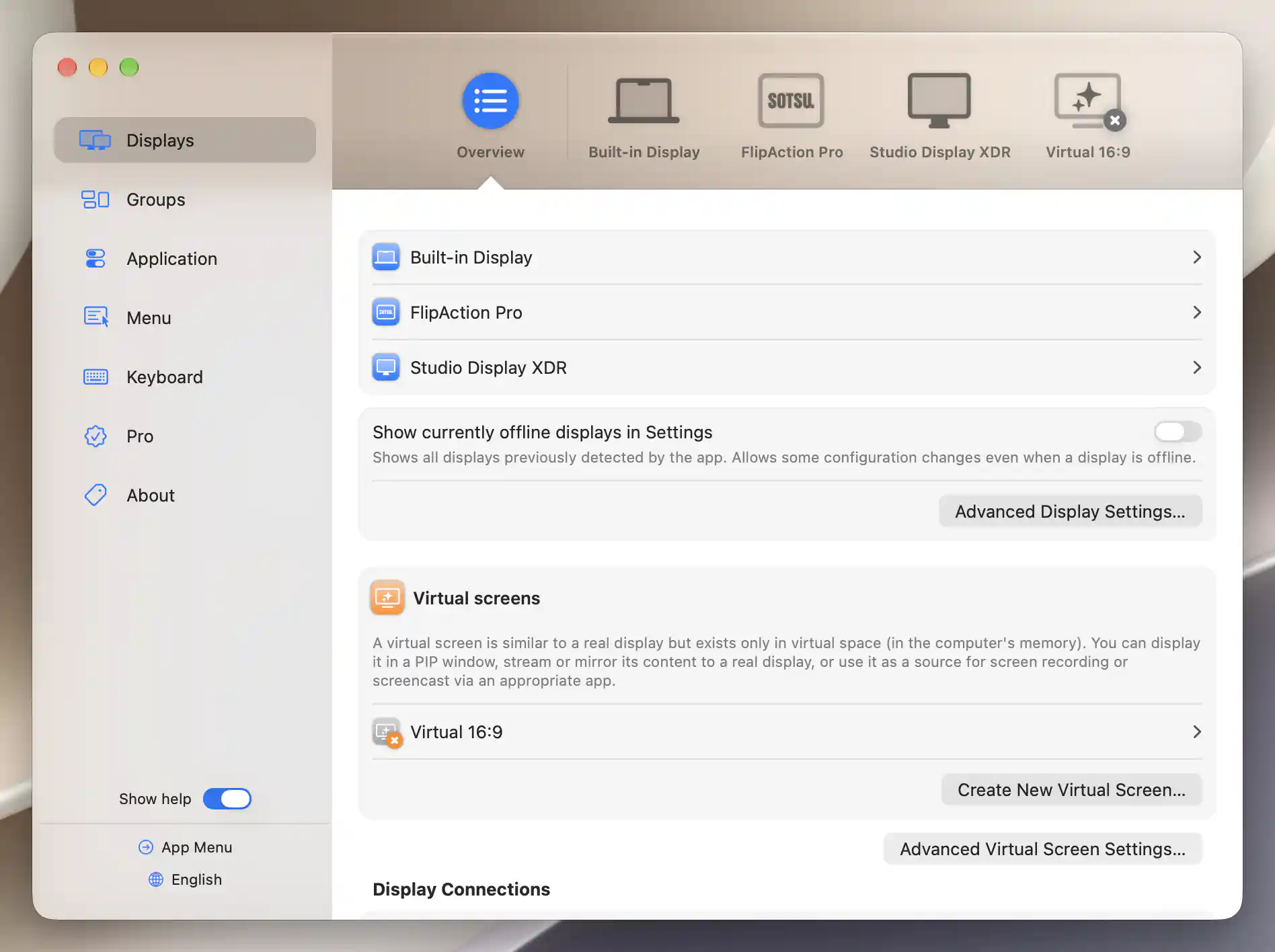
Start virtual-screen creation from Displays Overview.
- Open Settings > Displays > Overview > Create New Virtual Screen….
- Choose Match aspect ratio of and associate to a display.
- Set Display to match to your teleprompter monitor or Sidecar display.
- Keep Associate the virtual screen with this display and Configure full screen stream to this display enabled. Start with Landscape - no rotation unless the rig needs portrait output.
- Select Create Virtual Screen. Check that Virtual - [target name] is connected and its stream appears on the target. If permission is missing, grant it and reopen the creation sheet before retrying; check the screen list to avoid creating duplicate definitions.
- Move the script app to the new virtual desktop. Use its resolution slider to choose a readable script size.
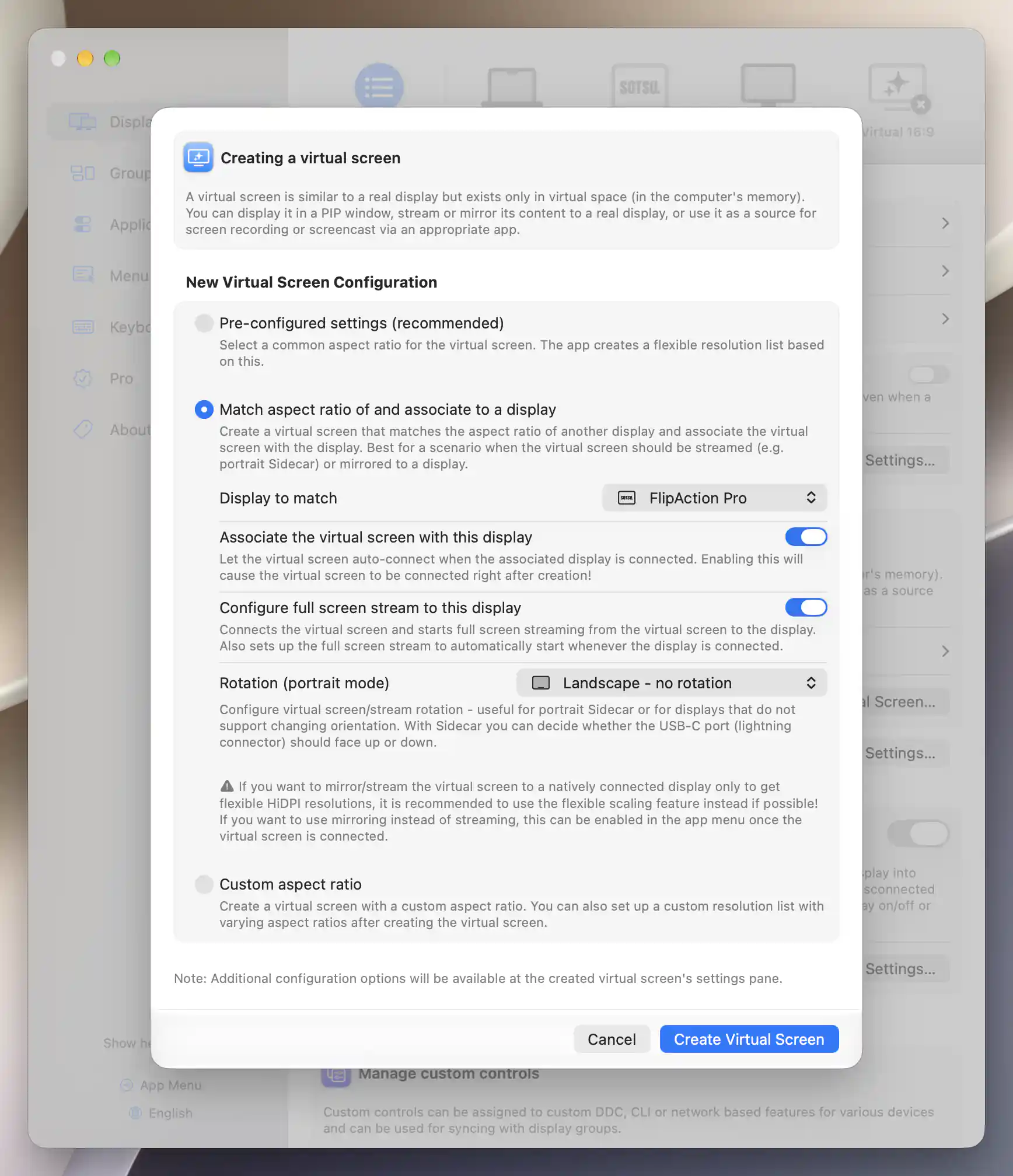
Match the source to the output and configure its full-screen stream.
Flip the streamed image
- In App Menu, expand Stream Virtual Screen under the virtual source, rather than the target display.
- Use the horizontal Flip button to reverse left and right. Use vertical Flip only if your optical arrangement also needs an up/down reversal.
- Adjust stream rotation if the rig requires it, and check the reflected script through the glass.
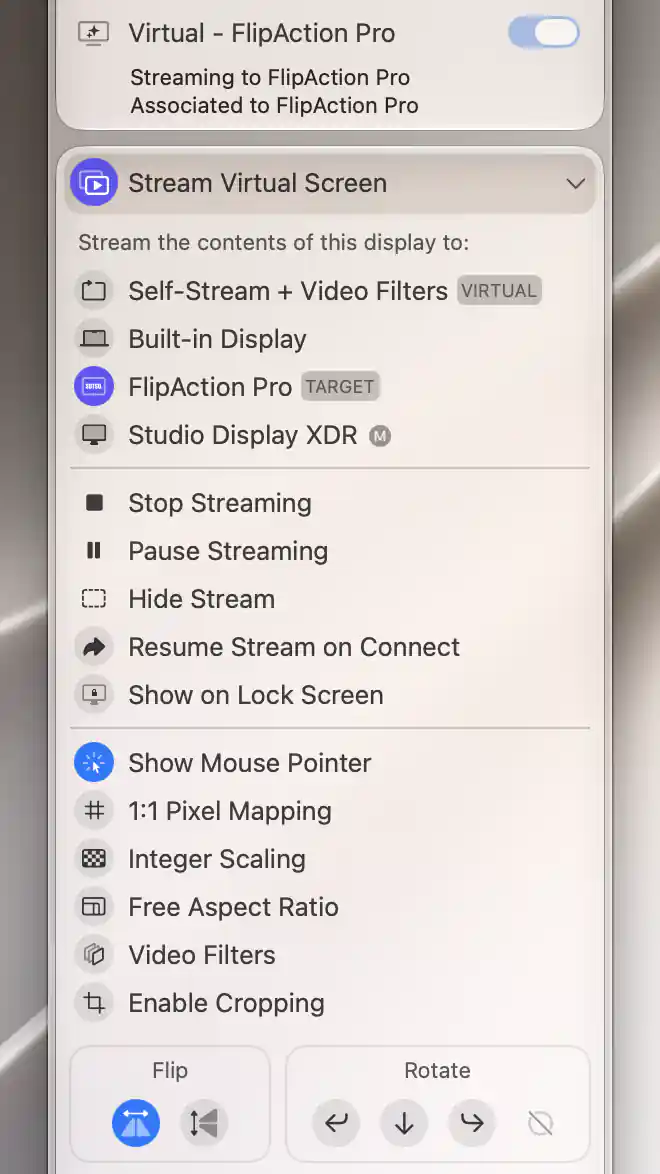
The virtual source streams to FlipAction Pro with horizontal Flip enabled.
Check the result
The reflected words should read normally, while the source desktop remains convenient to edit. Scroll the script and confirm that the target follows smoothly. Adjust the source resolution or the script app's font size for readability, then choose the stream's Zoom/Underscan only if you need to fit its output.
Troubleshooting
The pointer is unflipped or clicks do not reach the script
The pointer may be on the target's separate desktop, above the stream. Command-click the streamed content, or use its Warp Mouse Cursor context-menu action, to move to that point on the source. Keep the virtual source beside your main screen in the display arrangement and the physical target farther away.
For a dedicated output, hold Option or Shift to reveal Prevent Cursor Entering in the streaming section. This requests a restriction; verify that it actually works in your session. See stream pointer behavior.
The video or scrolling is slow
Try a direct USB connection for Sidecar, reduce the source resolution, or lower Target FPS in the streaming section if the workload is too high. A healthy Wi-Fi connection can work, but performance depends on the connection and hardware. Keep unnecessary filters off while checking the basic stream.
Stop or remove the setup
Use Stop Streaming under the virtual source to return the target to its normal desktop. The virtual desktop still exists, so move any wanted windows back before disconnecting it. To delete the task's definition, choose Manage Virtual Screen > Discard Virtual Screen and read the confirmation; discard removes the reusable configuration.
Earlier video walkthrough
Use Your iPad as a Teleprompter with BetterDisplay 2.0, by Self-Employment Sidekick, shows the physical teleprompter workflow. Its older app interface needs a new recording; follow the current steps above for labels and setup. The third-party video remains linked to its creator.
Related pages
Additional information
This section explains feature access and platform requirements for this tutorial.
Features requiring Pro license
Matching/association and virtual-screen streaming, including flip and other stream settings, require Pro. Stopping an active stream remains available without Pro.
Platform compatibility
Virtual-screen streaming and flipping are available on Apple silicon and Intel. Sidecar additionally needs a compatible Mac/iPad and Apple Sidecar connection requirements. Streaming needs Screen Recording permission and connected source/target displays; output quality and latency depend on the hardware and link.