Create New Virtual Screen
A virtual screen gives macOS another desktop without adding a physical monitor. Start with a preset shape, match a connected display, or enter your own aspect ratio; BetterDisplay generates a set of display modes for it. Creating the screen saves its reusable definition, while connecting it makes the desktop available to macOS.
Where to find it: Settings > Displays > Overview > Create New Virtual Screen…, or App Menu > Tools > Displays and Virtual Screens > Create New Virtual Screen.
If you also want to set up full-screen streaming, BetterDisplay needs Screen Recording permission. A definition can be created independently of a working stream, so check the resulting screen and connection after setup.
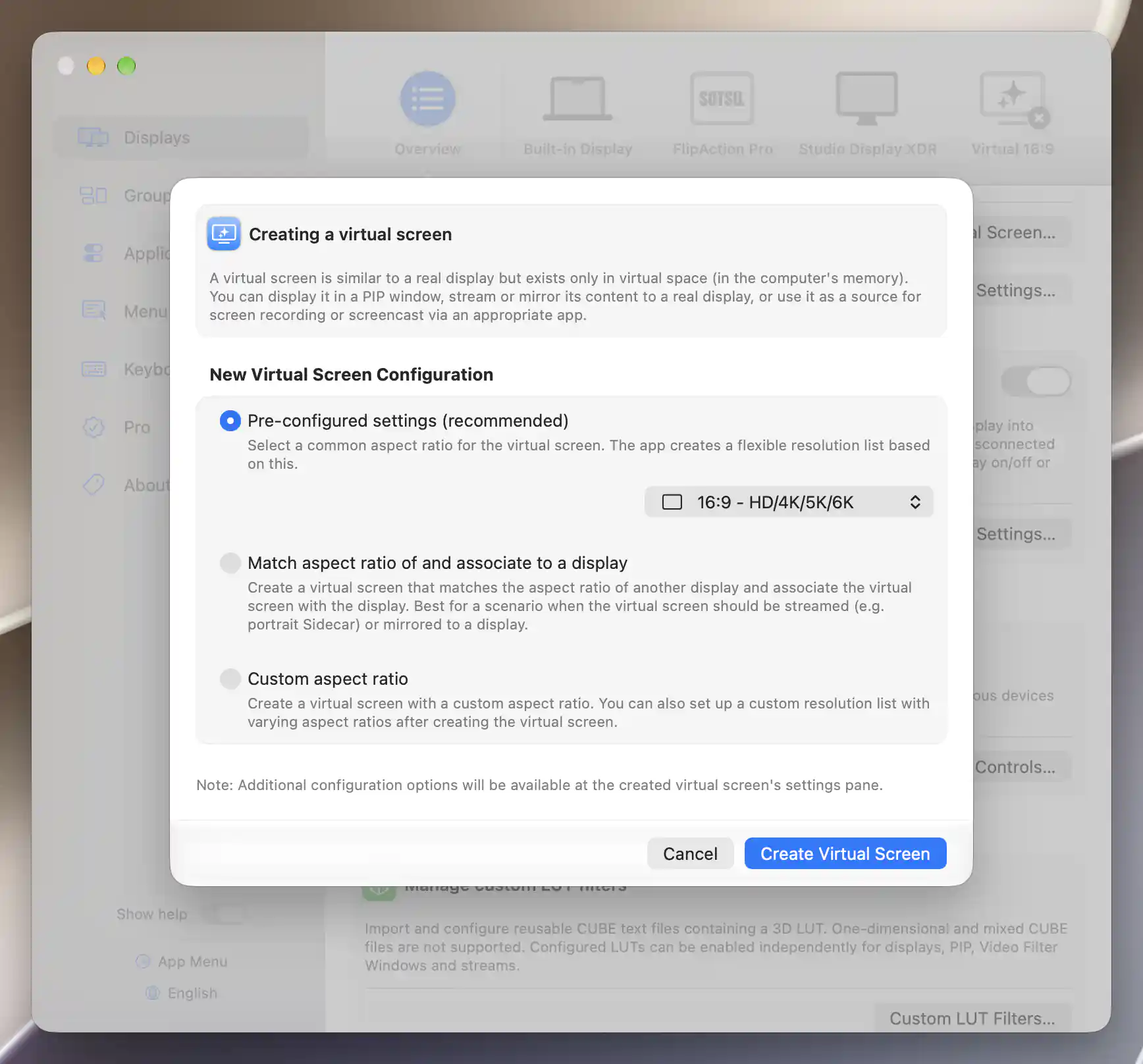
Start with a preset ratio, match a display, or specify a custom aspect ratio.
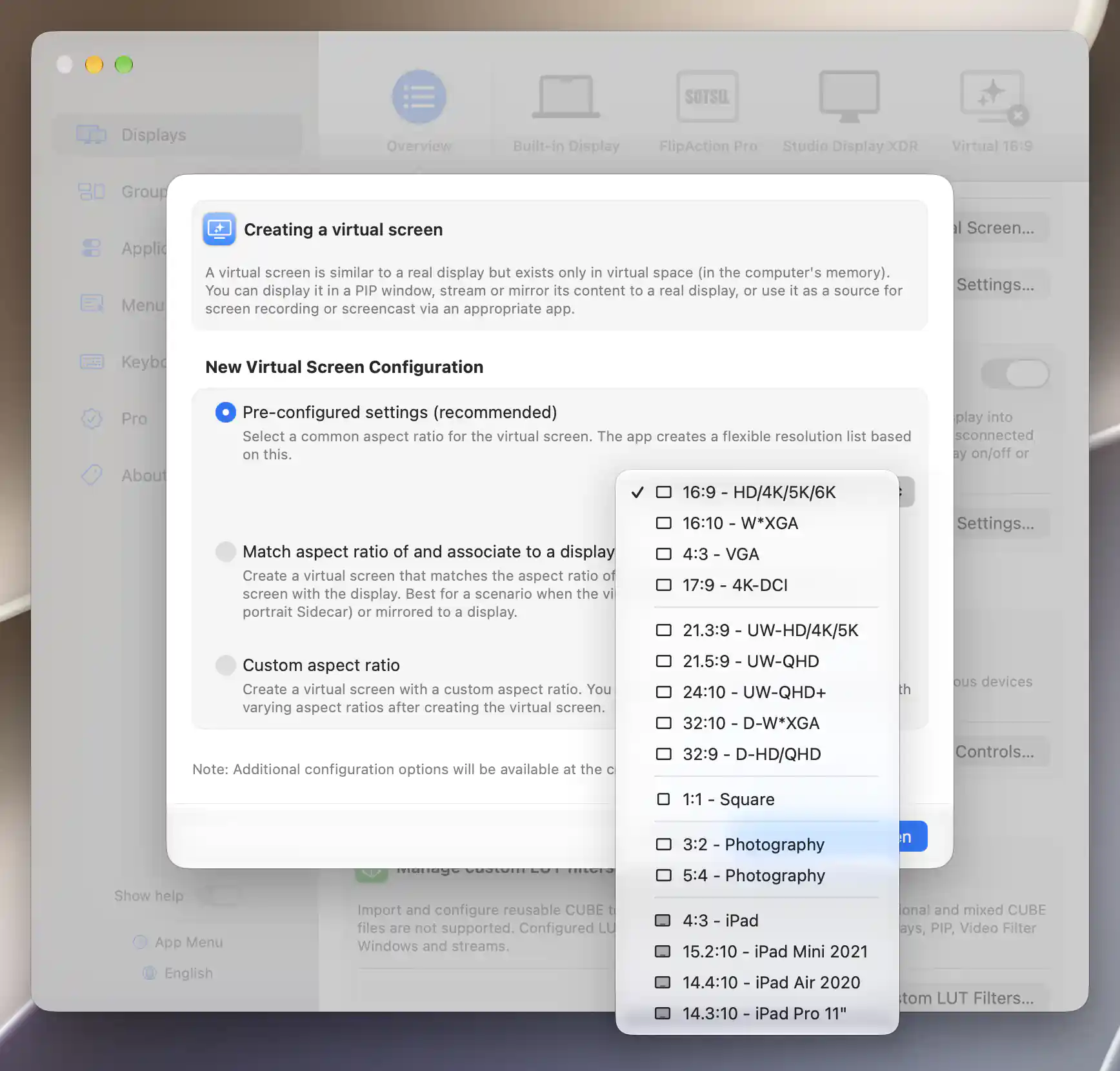
The preset menu includes common display and iPad aspect ratios.
Pre-configured settings
Pre-configured settings (recommended) is the simplest starting point when you already know the shape you want. It starts with 16:9 - HD/4K/5K/6K. Each preset supplies a common aspect ratio and resolution spacing, rather than one fixed desktop size:
| Group | Available presets |
|---|---|
| Standard | 16:9 - HD/4K/5K/6K; 16:10 - W*XGA; 4:3 - VGA; 17:9 - 4K-DCI |
| Ultrawide | 21.3:9 - UW-HD/4K/5K; 21.5:9 - UW-QHD; 24:10 - UW-QHD+; 32:10 - D-W*XGA; 32:9 - D-HD/QHD |
| Other shapes | 1:1 - Square; 3:2 - Photography; 5:4 - Photography |
| iPad | 4:3 - iPad; 15.2:10 - iPad Mini 2021; 14.4:10 - iPad Air 2020; 14.3:10 - iPad Pro 11" |
Choose a preset, then select Create Virtual Screen to save its definition and open the new screen's settings. A preset definition initially remains disconnected. Use Connect this virtual screen when you are ready to make its desktop available.
The preset describes the shape and generated modes; it does not guarantee that your Mac can connect every possible resolution.
Match a display
Choose Match aspect ratio of and associate to a display when the virtual desktop should fit a particular connected screen. Select that screen in Display to match. BetterDisplay derives an aspect ratio from its native dimensions, with specific corrections for supported notched MacBook and iPad Mini sizes. The new definition's name starts with Virtual -, followed by the selected display's name.
Associate the virtual screen with this display is on by default. An association links the virtual screen's behavior to the physical display: it configures automatic connection when that display is connected, so creation can connect the virtual screen immediately. Turn association off if you only want a matching definition without that automatic relationship.
Presenting the virtual desktop on the matched display
With association enabled, you can choose a presentation setup:
- Configure full screen stream to this display connects the virtual screen and starts a stream to the chosen display. It also enables automatic streaming for later connections. The setup attempts to select a nearby HiDPI mode matching the target's current desktop dimensions. If the target was the main display, the virtual screen becomes main.
- Configure virtual screen mirroring sets up automatic mirroring from the virtual screen to the associated display. It appears when streaming is off and defaults to off. Enabling streaming clears the mirroring choice.
For streaming, Rotation (portrait mode) offers Landscape - no rotation, Portrait 90° (Sidecar port down) and Portrait 270° (Sidecar port up). A portrait choice swaps the virtual screen's width and height and rotates the stream. This can give you a portrait image even when the target lacks native orientation control.
Screen Recording permission
If access is missing, the sheet shows a warning and disables the rotation choice. Grant permission under System Settings > Privacy & Security > Screen Recording, then reopen the creation sheet so it can refresh its permission state. Trying to create a streaming setup without access produces an explanatory error rather than completing the stream.
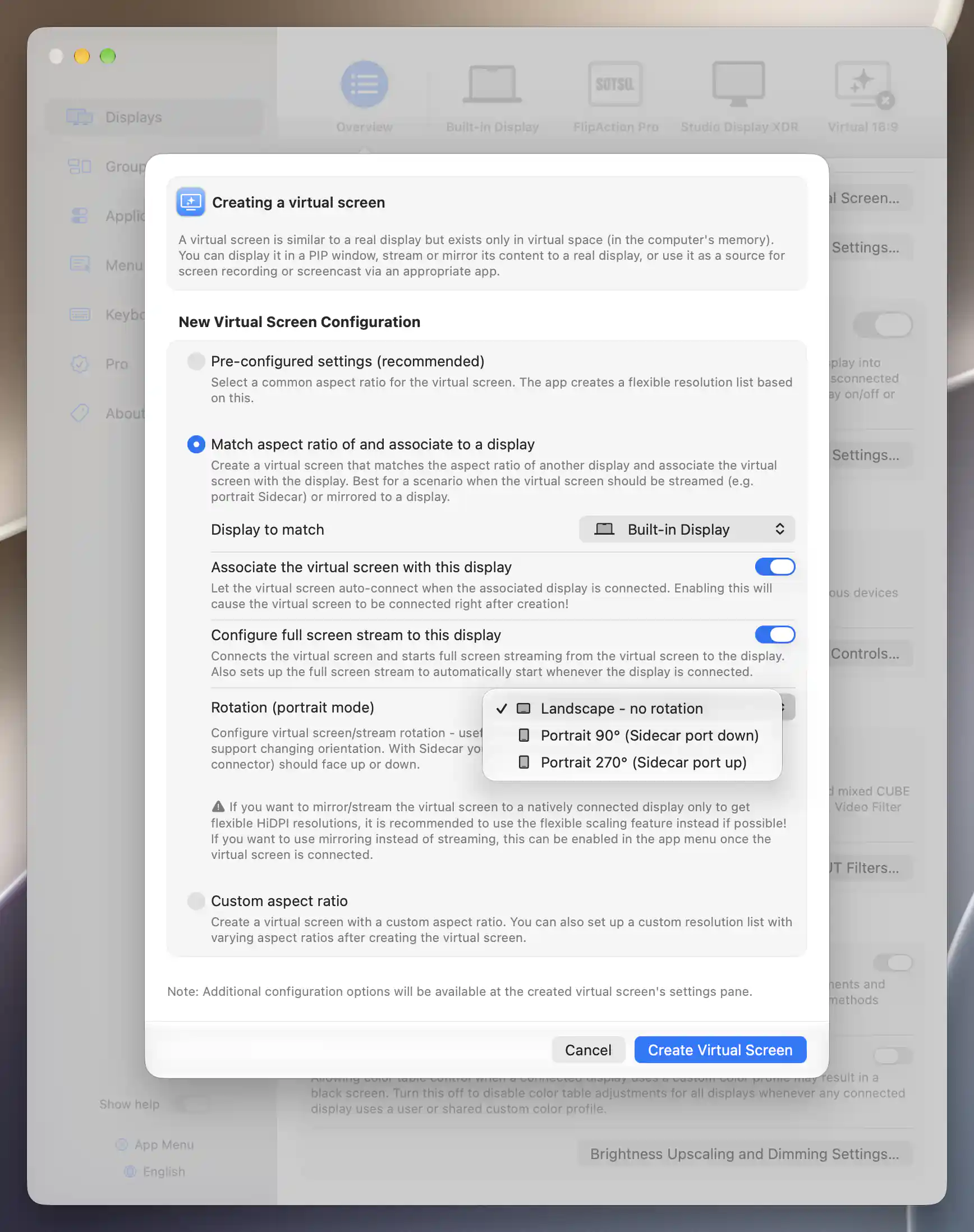
Matching a display reveals association, streaming and portrait-rotation options.
If you only want flexible HiDPI resolutions on a natively connected display, the sheet recommends that display's flexible scaling feature where possible. A virtual-screen presentation remains useful in other situations, including portrait Sidecar.
For the underlying rendering method, see what flexible scaling and custom resolutions change.
Custom aspect ratio
Use Custom aspect ratio when none of the presets has the shape you need. The width and height fields describe a ratio, not the final pixel dimensions: 16 × 9, for example, specifies the shape of the desktop rather than a 16-pixel-wide image.
Blank fields use 16 × 9 defaults, and entered components are constrained to 1–16384. BetterDisplay chooses suitable resolution spacing for that ratio. You can later enable a custom resolution list containing different ratios if needed.
Create Virtual Screen saves the definition and selects its settings; Cancel closes the sheet without creating one. A custom definition initially stays disconnected unless later association settings connect it.
Completion and errors
Successful creation selects the virtual-screen settings after the display list updates. From there you can change the name, connection and modes, or configure associations.
If the match target is missing or unavailable, choose another display. Invalid native dimensions can prevent BetterDisplay from deriving the matching ratio; manual creation is an alternative in that case.
A saved definition and a working presentation are separate results. If connection or streaming setup fails after the definition was saved, it may still appear in the virtual-screen list. Inspect that list before creating another screen so a failed presentation does not lead you to create duplicate definitions.
Follow the teleprompter tutorial to create a matched virtual source and flip its streamed image.
Additional information
This section explains which features require Pro and how availability differs between Mac platforms.
Features requiring Pro license
- Match aspect ratio of and associate to a display, including its association, full-screen streaming and mirroring setup.
- Custom aspect ratio.
Pre-configured settings (recommended) can create a preset definition without Pro.
Platform compatibility
All features described on this page are available on both Apple silicon and Intel Macs. Available virtual-screen resolutions depend on macOS and the GPU. Matching needs a currently connected display, while streaming needs Screen Recording permission and a usable source/target configuration. Portrait streaming does not depend on the target offering native rotation.