Associated Displays
Associations let a virtual-screen definition respond to the displays in your setup. You choose the display identities it should remember, then decide whether their presence controls its connection, presentation or orientation. For example, a virtual desktop can connect when a particular display is available and show its content there automatically.
Where to find it: Settings > Displays > [virtual screen] > Associated Displays; open Association Settings… for behavior options.
A saved association remembers a display; it does not mean that display is currently connected. Full-screen streaming also needs Screen Recording permission.
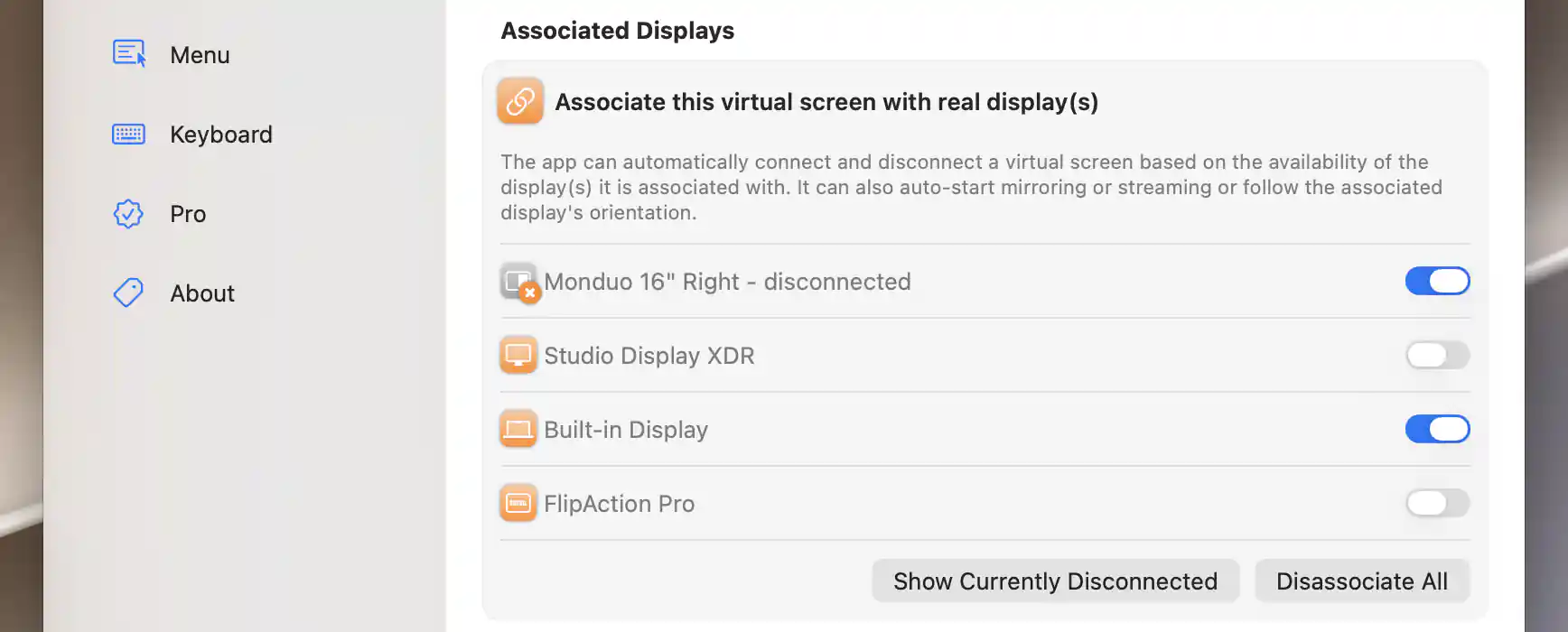
Associated offline displays remain listed alongside connected targets.
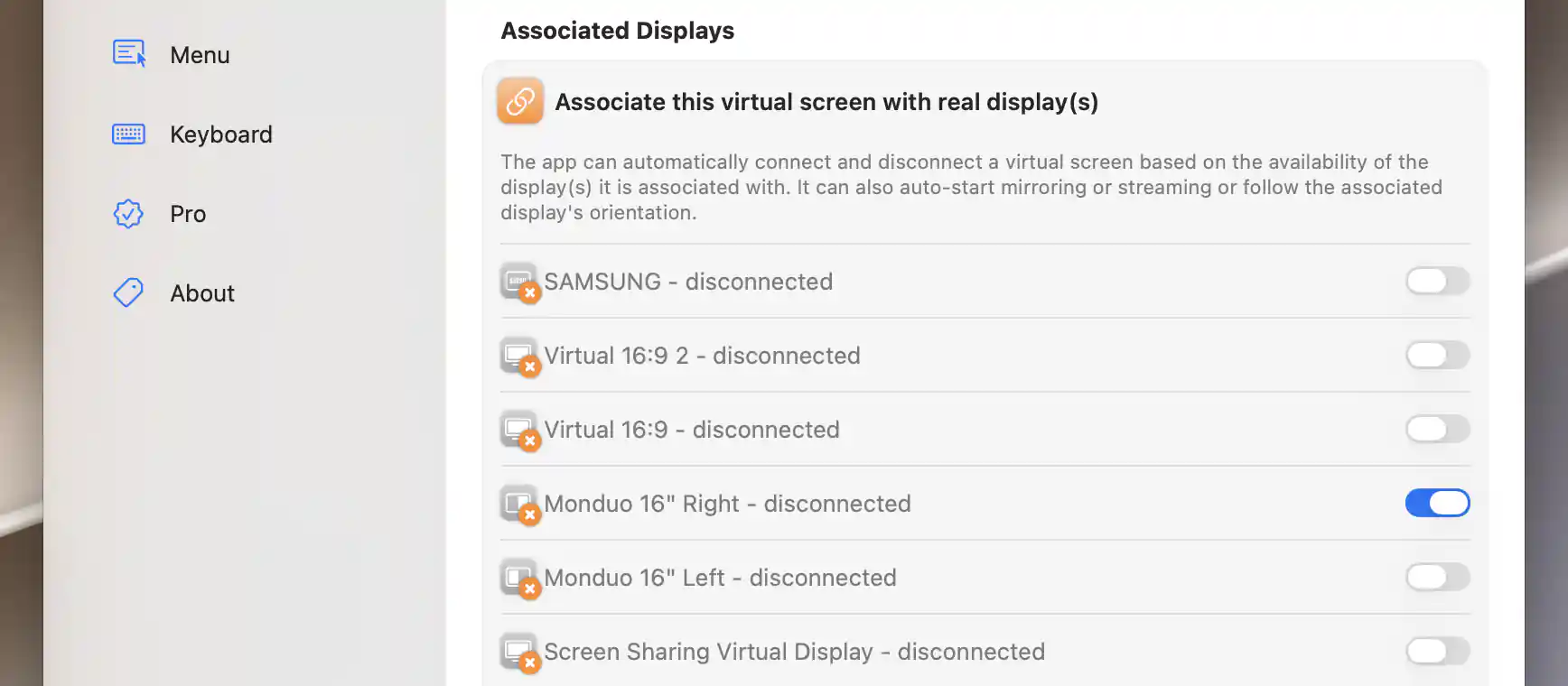
Show Currently Disconnected reveals additional remembered targets; the enabled Monduo association remains selected.
Choose associated displays
Turn on a display's switch to associate it with this definition, or turn the switch off to remove the relationship. The choices include current and remembered display identities, excluding BetterDisplay's own virtual-screen definitions. BetterDisplay saves the identity and a fallback name, so an unavailable associated screen remains listed rather than silently losing its assignment.
The status icons help you distinguish a currently connected display, an app-disconnected display and a remembered offline display. Already associated offline entries remain visible. Show Currently Disconnected appears when there are additional remembered offline displays that are not associated and are hidden; select it to reveal those choices for this view.
Disassociate All immediately removes every association from this definition. It does not discard or disconnect the virtual screen. The global version under Advanced Virtual Screen Settings affects every definition and has its own confirmation.
Association Settings
The settings answer separate questions: when should the virtual desktop be connected, how should its content reach the associated display, and should its shape follow that display? Choose a connection policy first, then add presentation or orientation behavior if you need it. These choices are saved with the definition.
Connect when an associated display is available
Auto-connect virtual screen is on by default. With at least one association, the virtual screen connects while any associated display is connected and disconnects when none are connected. With no associations, there is no display relationship for the preference to enforce.
This is useful when the virtual desktop belongs to a particular display setup. You can leave the definition saved and let the associated display's presence decide when the desktop is needed.
Connect when all associated displays are absent
Auto-connect virtual screen when all associated screens are offline reverses the connection policy. It defaults to off. Enable it to connect the virtual desktop when every associated display is absent and disconnect it when one returns.
Turning on this inverse policy turns off ordinary auto-connect, mirroring, automatic streaming and orientation following. Enabling ordinary auto-connect turns the inverse policy off. The two policies therefore cannot require opposing connection states at the same time.
How automatic policies affect manual actions
With associations present, either enabled connection policy takes precedence over the virtual screen's manual connection switch and bulk Connect All/Disconnect All actions. Those actions cannot override the relationship. Reconnect All can still cycle a screen that is already connected.
Show the virtual desktop on an associated display
Enforce virtual screen mirroring establishes mirroring so the associated target shows the virtual desktop. It defaults to off. Turning it on disables inverse auto-connect and automatic streaming.
Auto-start full screen streaming is the alternative presentation choice and also defaults to off. Turning it on disables inverse auto-connect and mirroring. It requires Screen Recording permission and a connected virtual source; enabling this switch neither grants the permission nor independently guarantees that the source will connect.
Follow the display's orientation
Virtual screen follows display orientation changes the virtual desktop between landscape and portrait shape according to an associated display. It defaults to off, and a square definition does not need the aspect flip. Turning it on disables inverse auto-connect.
If a connected virtual screen needs a shape change, BetterDisplay cycles its connection and attempts to restart its active PIP windows. Manual Rotated orientation in the definition is unavailable while this following policy is active and associations exist.
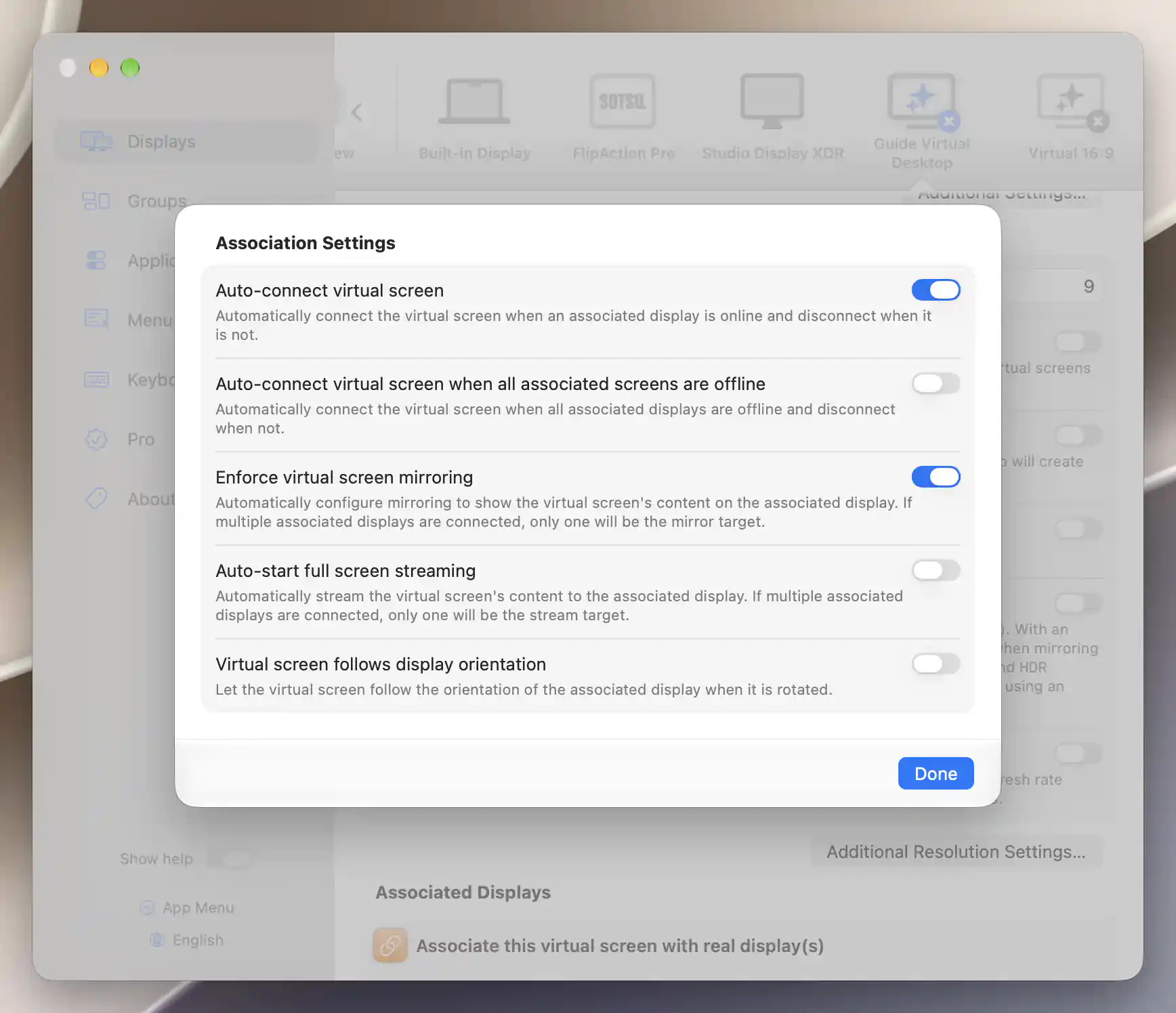
Association policies can connect a virtual screen and enforce mirroring when an associated display is available.
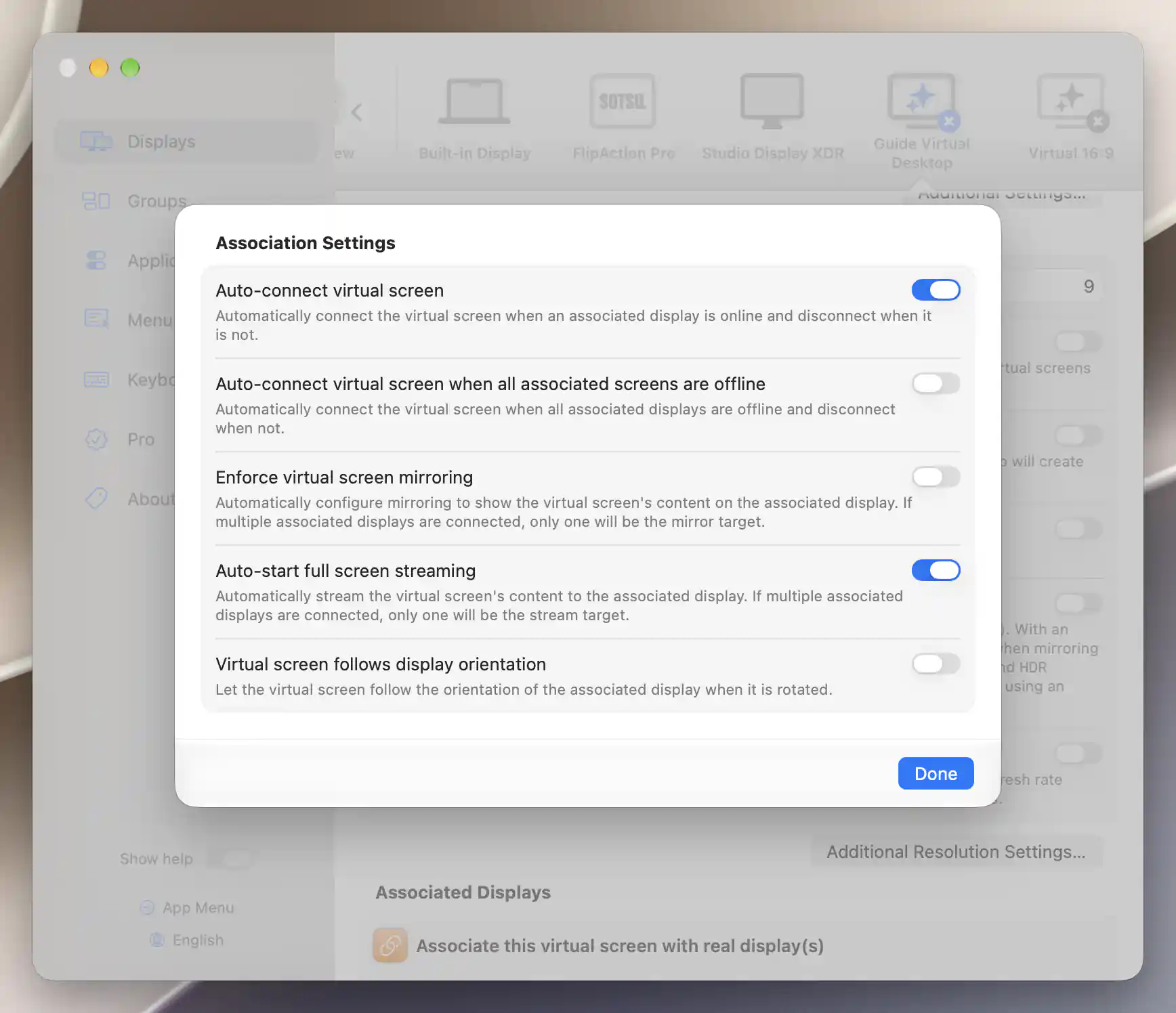
Auto-start streaming is an alternative association policy to mirroring.
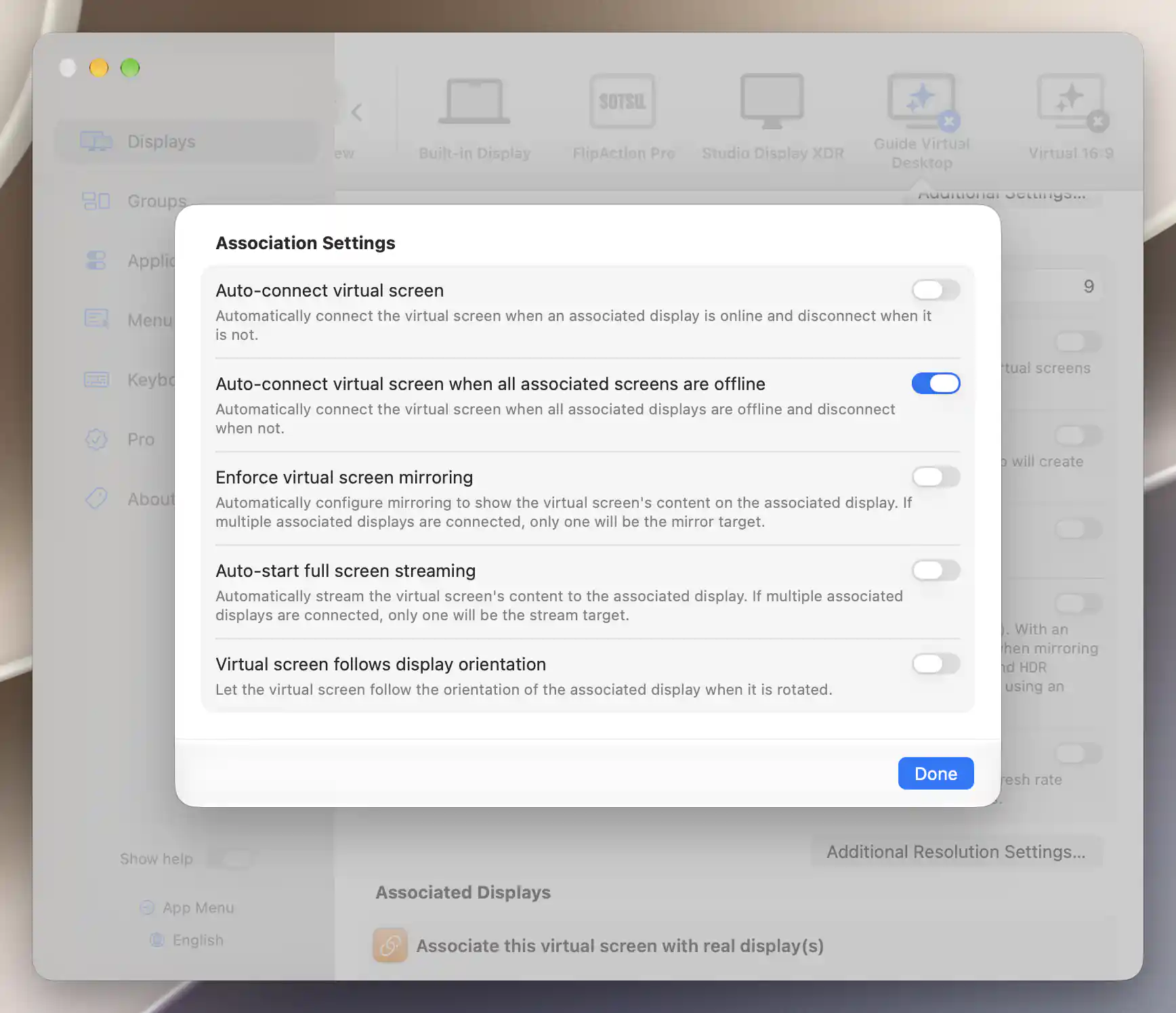
Inverse auto-connect keeps the virtual screen connected when its associated displays are unavailable.
More than one associated display
Multiple associations broaden the connection policy: it checks whether any associated display is connected. Presentation works differently. Mirroring, streaming and orientation following use a single target rather than every associated screen. The interface has no target-priority selector, and you should not rely on a stable selection order.
An unavailable associated entry can even prevent automatic mirroring from reaching another connected candidate. If automatic presentation needs to go to a specific screen, keep that screen as the sole association or configure its presentation explicitly. The connection policy's “any associated display” rule does not guarantee the same target selection for mirroring or streaming.
Connection-state prompts
When you add an association or enable a connection policy, the desktop's current state may disagree with the saved rule. BetterDisplay can then ask you to bring the current state into line with the policy:
- This virtual screen should now be connected offers Connect and Disable Auto-Connect.
- This virtual screen should now be disconnected offers Disconnect and Disable Auto-Connect.
Connect or Disconnect applies the requested change to the current state. Disable Auto-Connect turns off both ordinary and inverse connection policies while preserving the associations. The other association settings remain separate.
The relationship may be evaluated again during later display configuration. Accepting a connection change is therefore not a permanent override of an enabled policy.
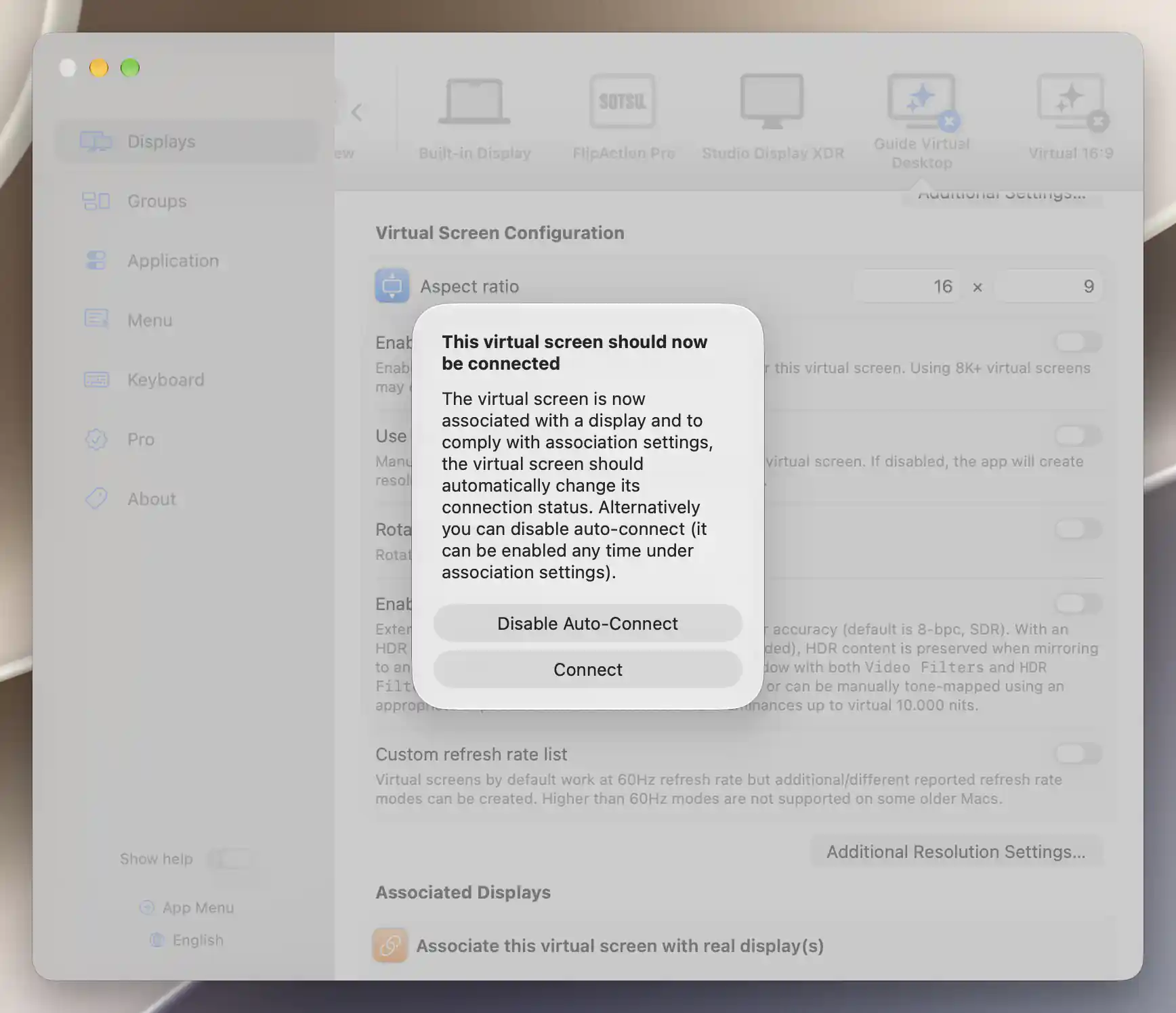
An association change can prompt you to connect the virtual screen or disable automatic connection.
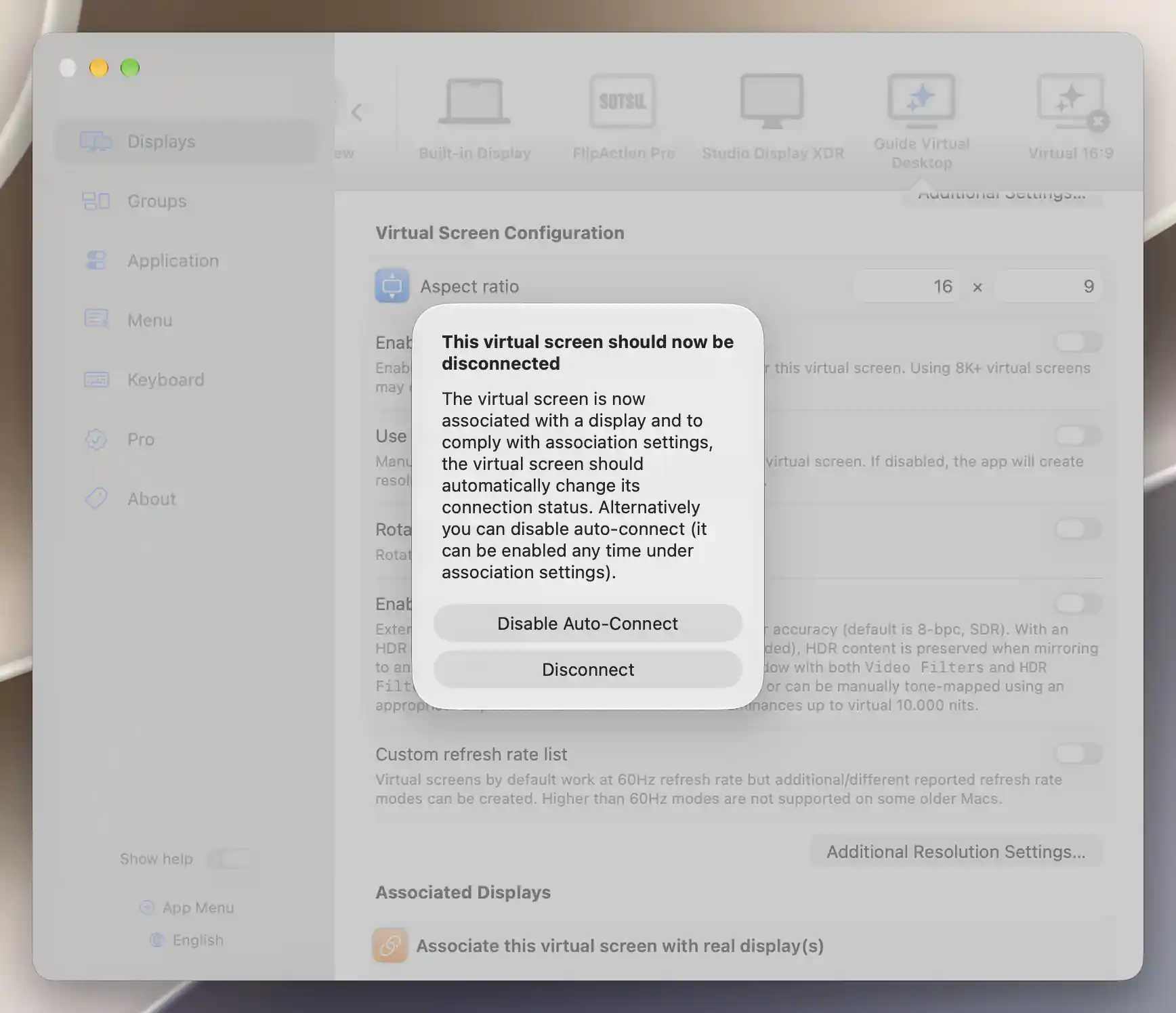
Inverse association settings can instead prompt you to disconnect the virtual screen.
See Create New Virtual Screen for creating a matched association, Advanced Virtual Screen Settings for bulk operations, and Display Connections for the physical-display policies that can change target availability.
For a complete example with both connection policies off and enforced mirroring on, follow Keep a desktop available while a KVM switches away from your Mac.
Additional information
This section explains which features require Pro and how availability differs between Mac platforms.
Features requiring Pro license
- Adding or removing individual display associations.
- Both automatic connection policies, enforced mirroring, automatic full-screen streaming and orientation following.
Viewing associations, identifying an available display and using Disassociate All have no Pro requirement of their own.
Platform compatibility
All features described on this page are available on both Apple silicon and Intel Macs. They still depend on the associated display's availability and the virtual screen's ability to connect. Streaming requires Screen Recording permission. Additional virtual-screen mirroring auto-configuration is specific to Apple silicon; that does not make the association settings themselves Apple-silicon-only.