Samsung Smart Device
The Samsung controller sends remote-style commands to compatible Samsung Smart TVs and Smart Monitors over your local network. Use it for volume keys, the virtual remote and optional automatic power handling.
Where to find it: Settings > Displays > select a display > Device Control > Configure Samsung Smart Device…. If the controller is not listed, add it through Add or Remove Controllers…. Its Configure… entry in the App Menu's Device Control section opens the same sheet.
The associated display must be connected to open and use these configuration sheets. The network device must also be reachable at its IP address and permit remote access. Settings persist per controller and associated display. Connection and refresh buttons communicate with the actual device. Remove on a controller card disables that controller while keeping its saved configuration; it does not automatically revoke authorization on the device.
If a precedence notice appears, another controller currently supplies that feature. Enabling volume here does not necessarily make this the method used by the app's volume control. Review Device Control and the audio-device configuration when deciding which method should take priority.
The Samsung controller sends remote-style keys over the network. Enter Device IP address and submit it, or use the reconnect icon. Editing the address disconnects the current session. The TV may ask you to authorize the first connection on its screen; BetterDisplay remembers the returned token.
Connection status distinguishes disconnected, unable to connect, no authorization, authorized, unauthorized, and reconnecting. This sheet does not have the LG controller's PIN field or Delete Pairing Data button.
Volume keys and automatic power
Enable volume control is on by default and sends volume-up, volume-down and mute-toggle keys. This protocol has no absolute volume slider. Forwarding volume to a receiver through HDMI-CEC can affect how well the keys work, and a precedence warning identifies any other controller currently supplying the feature.
Enable power control defaults to off. Avoid duplicating existing Anynet+ HDMI-CEC automation from the Mac. When you enable it, choose the action for each direction:
- On sleep or disconnect offers Take no action, Send Power toggle key signal (recommended) (the default), or Send Power-Off key signal.
- On wake or connect offers Take no action, the same default toggle signal, Send Power-On key signal, or Use Wake-on-LAN.
These actions apply to system sleep/wake and app-initiated connection changes, rather than physical detection/loss events. On system wake, key actions wait for the delayed wake pass and reconnection; WOL can be sent during both wake passes.
Reconnect on network error defaults to on. For WOL, Device MAC address override supplies a manual address and Detected MAC address shows the detected one. The detected address is used when the override is empty.
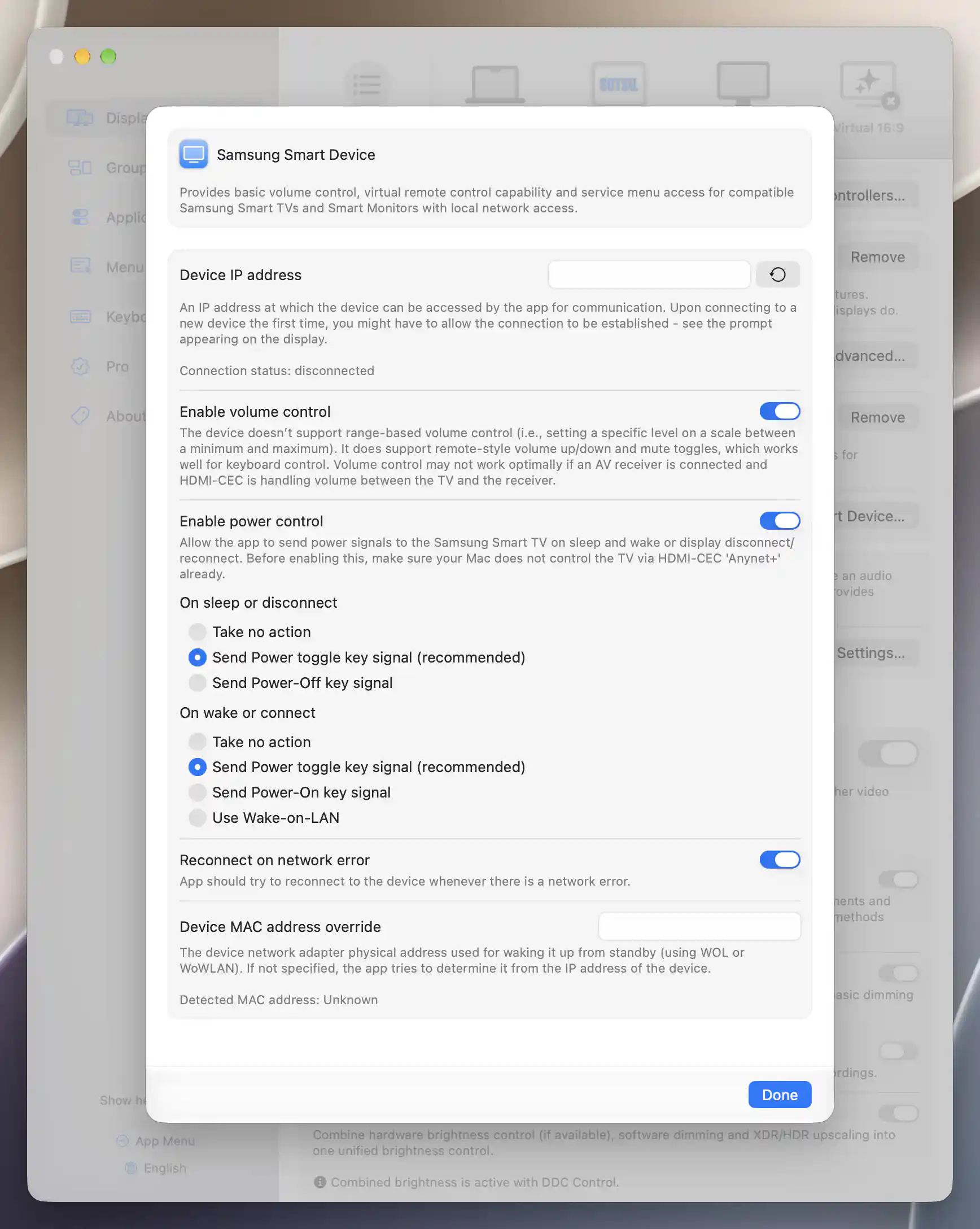
Samsung power preferences offer separate sleep and wake actions; this example has no device address configured.
See Device Control for controller selection and startup value restoration. Remote buttons and direct input actions are available through the app's Device Control and Input Source menus; these send real commands independently of the automatic power preferences described here.
Additional information
This section explains which features require Pro and how availability differs between Mac platforms.
Features requiring Pro license
The network-controller settings, pairing and automatic control preferences described here have no separate Pro requirement. Other display features used alongside them retain their own requirements.
Platform compatibility
All features described on this page are available on both Apple silicon and Intel Macs. Each controller needs a compatible, reachable device and any required device-side authorization. TV firmware, picture mode, network standby and supported commands determine what actually works; pairing or a validated connection does not establish every capability.