General Settings
Use General Settings to decide whether a display appears in the app menu, participates in keyboard adjustments, and shows brightness in nits. Nits describe luminance, making them useful for understanding brightness across different displays. BetterDisplay may use controller reports or estimates from configured ranges, so the displayed number alone is not a physical measurement.
Where to find it: Settings > Displays > [display] > General Settings. Open Configure Brightness Nits Ranges… for the per-display brightness calibration fields.
A connected BetterDisplay virtual screen has the same brightness and keyboard preferences. Its menu visibility is managed by the virtual-screen definition instead, so the ordinary Show in the app menu switch is omitted there.
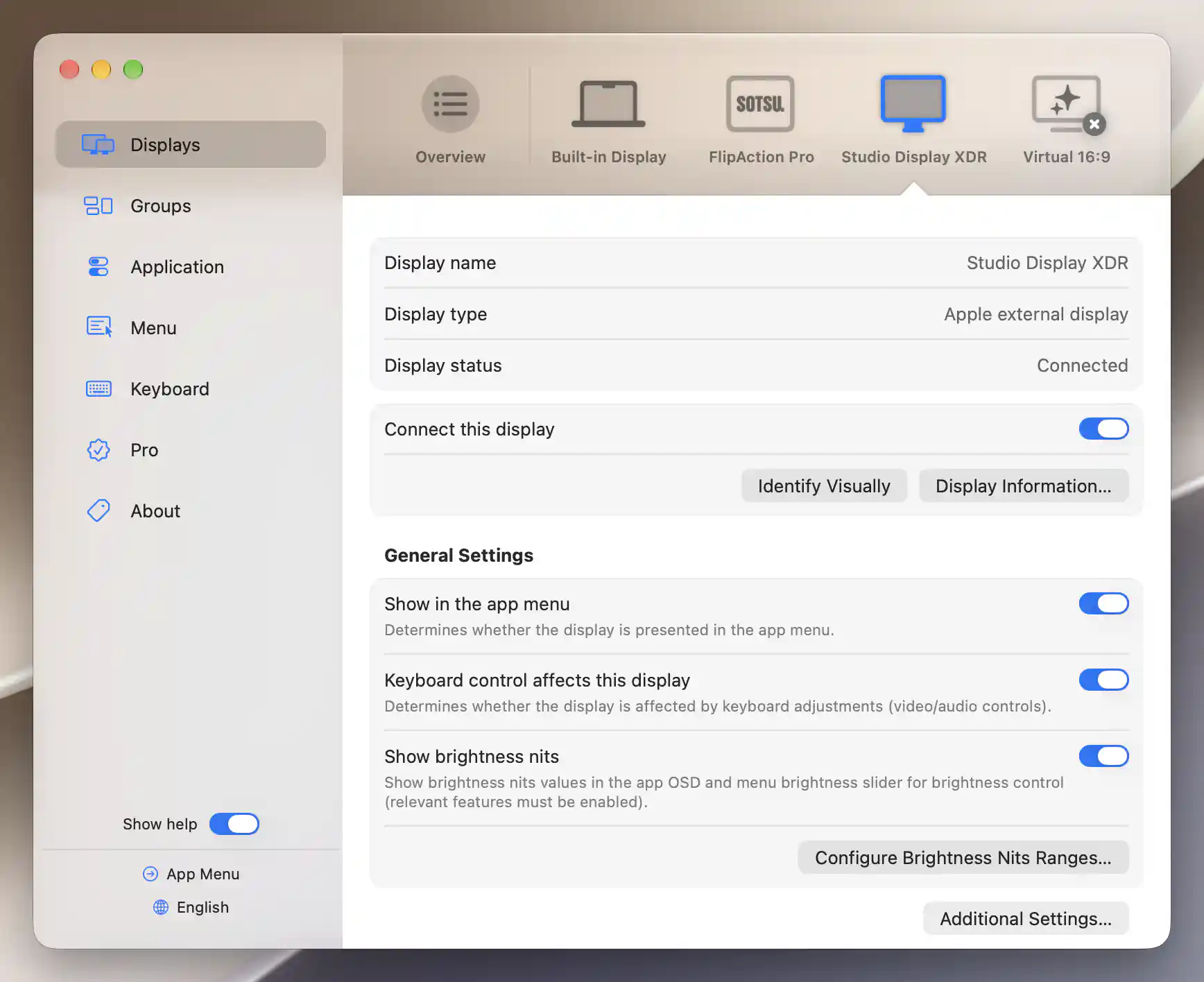
General Settings determines menu visibility, keyboard participation and brightness-nits reporting for the selected display.
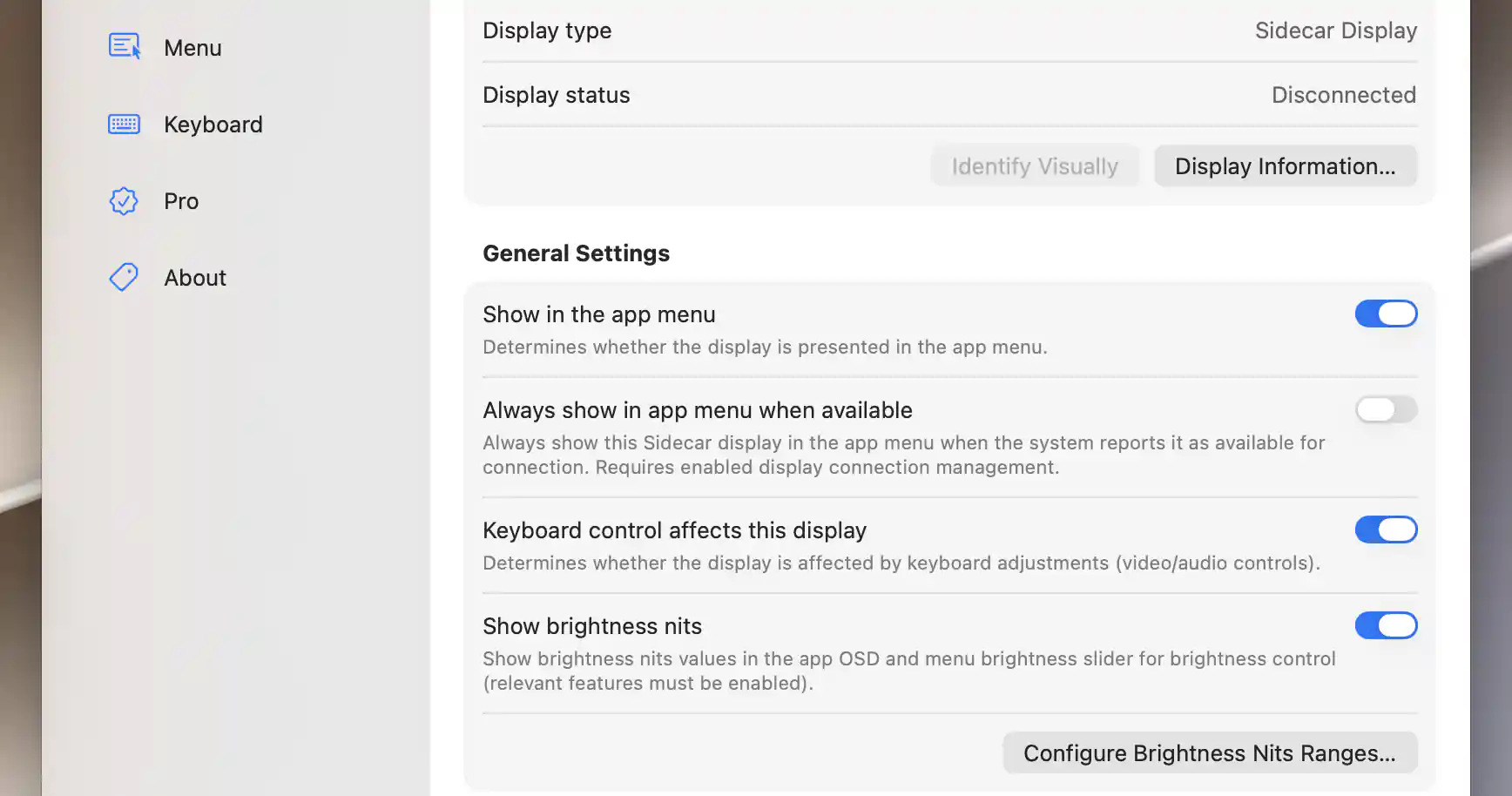
Sidecar displays can remain listed in the app menu whenever macOS makes them available for connection.
Menu and keyboard participation
Show in the app menu starts on. Turn it off when you want to hide this display's menu section while keeping the screen connected and its settings saved.
Keyboard control affects this display is a separate preference, also on by default. It allows the display to participate in keyboard video and audio adjustments. The relevant keyboard feature must be enabled too, and its target-display policy decides which eligible display receives the adjustment. Hiding a menu section does not by itself exclude that display from keyboard control.
Keep an available Sidecar device in the menu
For Sidecar, Always show in app menu when available keeps the device in the menu when macOS says it can be connected. The preference starts off and requires enabled display connection management. It does not make an unreachable iPad discoverable.
Brightness nits
Show brightness nits, on by default, permits nits to appear in the brightness slider and OSD. The global menu display-value/nits options and controller support still determine where they can be shown. This switch does not replace every percentage value or enable an unsupported brightness controller.
Set the brightness anchors
Open Configure Brightness Nits Ranges… when you need to correct the values used to relate brightness controls to luminance. Manual nits range configuration starts on, but its individual overrides are initially unspecified. The suggestions can therefore still be automatic values until you enter your own.
Turning manual configuration off disables the fields and ignores the stored overrides without deleting them.
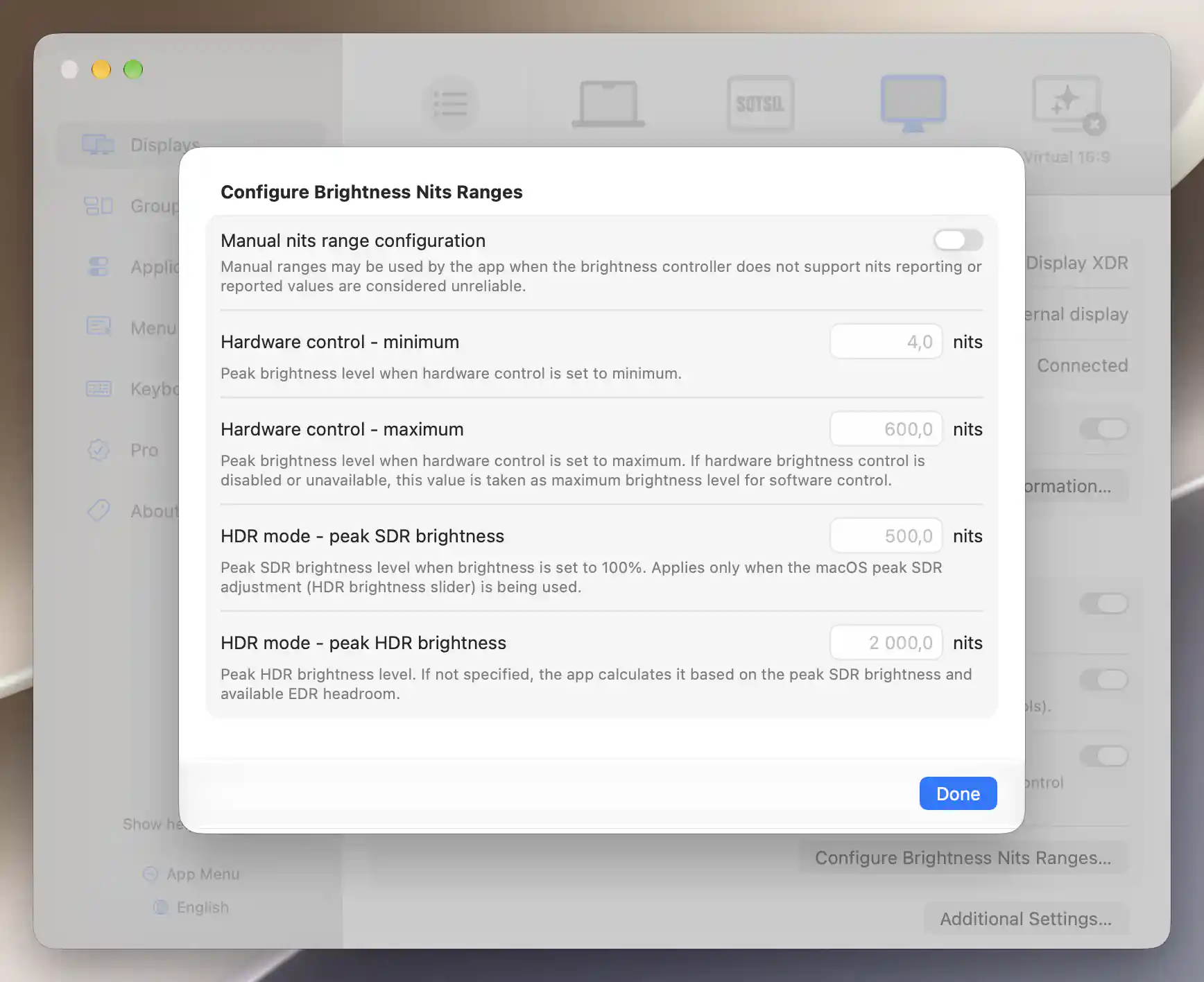
Manual nits range configuration is off; these displayed defaults are not measured calibration results.
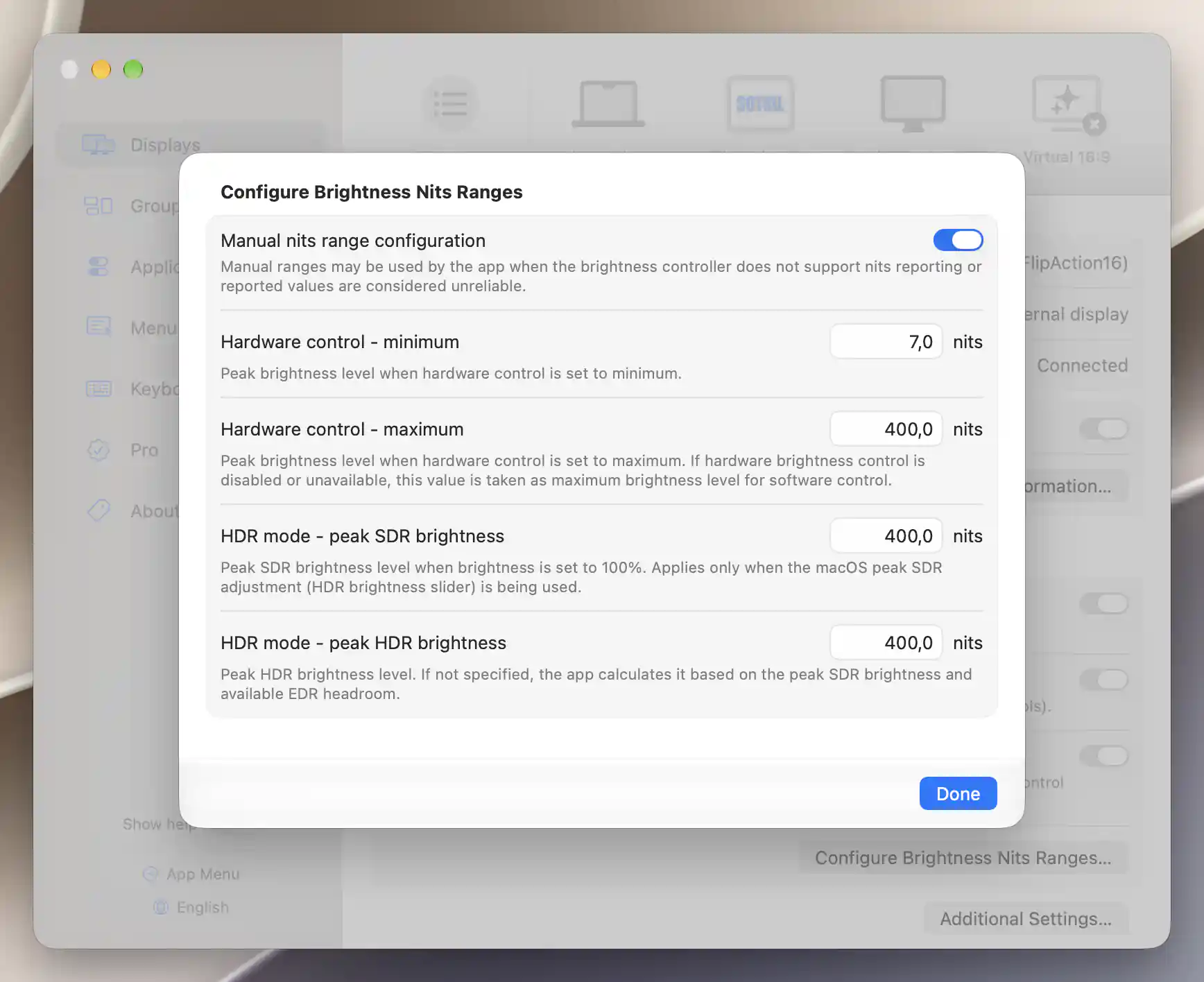
Manual configuration exposes the display’s stored brightness anchors; these are not measured calibration results.
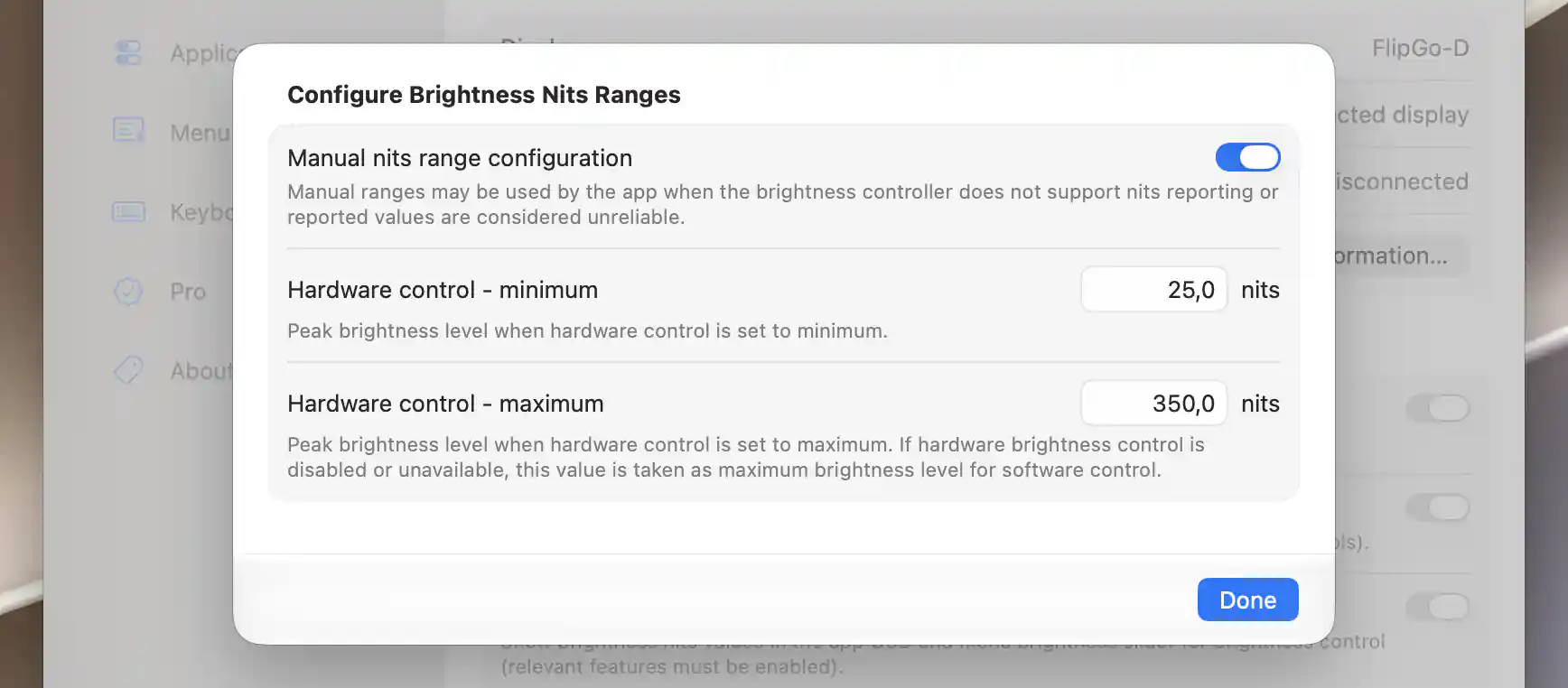
The SDR-only configuration has hardware minimum and maximum fields.
The fields describe these brightness anchors:
- Hardware control - minimum: estimated peak brightness when hardware control is at its minimum.
- Hardware control - maximum: estimated peak brightness at maximum hardware control. If hardware brightness is disabled or unavailable, this is also the maximum-brightness basis for software control.
- HDR mode - peak SDR brightness: the 100% SDR anchor used by the macOS peak-SDR adjustment in HDR mode. The app limits the effective custom anchor to 500 nits, even if the field retains a higher entered value. That is an app calculation limit, not a universal panel-luminance limit.
- HDR mode - peak HDR brightness: the HDR peak anchor. Without an override, available reported or preset HDR data, or the controller's SDR/EDR calculation, provides the basis.
The HDR fields appear for an HDR-capable or active display, or one whose default XDR preset has a higher HDR peak than SDR peak. They describe HDR and SDR brightness relationships. Entering a number does not enable HDR or increase the panel's rated capabilities.
Commit or clear an override
Press Return or leave a numeric field to commit its value. Escape restores an uncommitted edit; clearing a field removes the override so an automatic value can appear again. Values are saved without an Apply step, and closing the sheet is not Cancel.
Negative values are constrained to zero. If both hardware bounds have overrides, moving one past the other moves the opposite bound to match. The HDR/SDR pair is kept in order the same way when both values are overridden.
Understand automatic estimates
Automatic values depend on the controller, display reports and known model data. General fallbacks are 25–350 nits, and the automatically inferred hardware maximum is capped at 600 nits on the fallback path. Preset or manual values can differ. Use actual display information or measurements when correcting these estimates; the fallback numbers are not panel specifications.
On supported Apple controllers, manual anchors also recalibrate reported nits and the conversion from a requested nits target. Direct built-in control uses the custom HDR peak for this calibration. Other Apple-controller paths can use minimum, SDR-maximum and HDR anchors.
These settings can therefore affect nits-based group brightness matching as well as the number you see. Actual output remains limited by the controller, active preset and display.
For resolution bounds, physical-size correction, menu naming, connection exceptions and reset, open Additional Settings.
Additional information
This section explains which features require Pro and how availability differs between Mac platforms.
Features requiring Pro license
The menu/keyboard participation, nits visibility and manual nits-range preferences described here do not independently require Pro. Features that use those values, such as nits-based group matching or direct XDR upscaling, have their own Pro requirements.
Platform compatibility
All features described on this page are available on both Apple silicon and Intel Macs. Nits reporting and calibration effects depend on the available controller and display data. HDR fields need the capabilities or state described above, and Sidecar menu availability depends on macOS reporting a connectable device.