Target Displays
With more than one display connected, a brightness key needs a destination. These preferences let you follow the pointer, follow the window you are working in, or adjust all suitable screens together. Audio has its own target choice, so you can change the screen in front of you while keeping volume keys associated with the current sound output.
These are saved destination preferences. The native-key switches separately decide whether BetterDisplay handles the keyboard's brightness and audio keys in the first place.
Where to find it: Settings > Keyboard, under Brightness Keys, Video Adjustment Shortcuts Affect: and Volume Control Affects:.
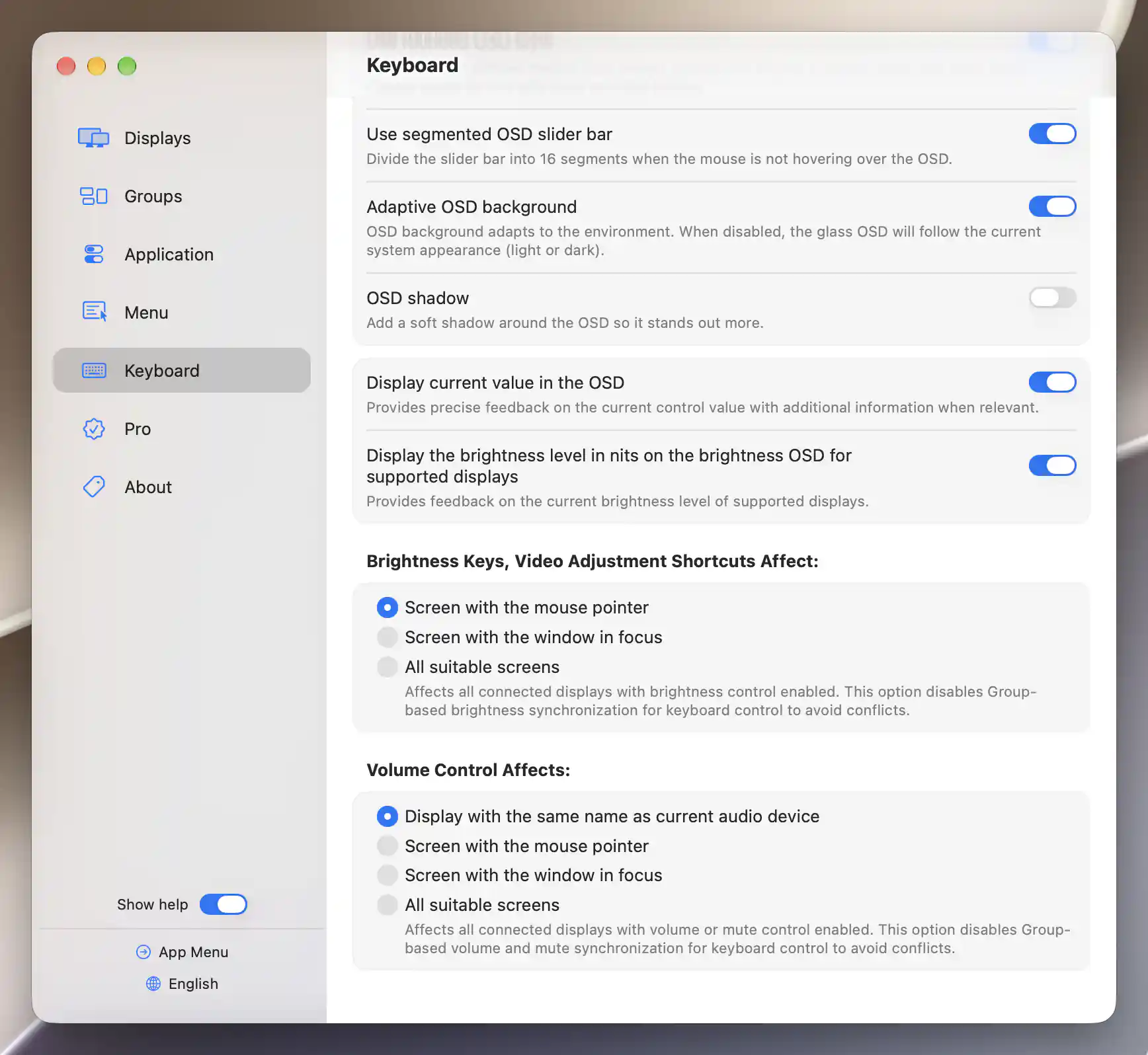
Brightness follows the pointer, while volume matches the current audio device; all-screen targeting bypasses the corresponding group synchronization.
Brightness and video adjustments
Choose the rule that best matches how you move between your displays:
- Screen with the mouse pointer is the default. Move the pointer onto the display you intend to change before pressing a key. This gives you a direct way to choose a screen without making one of its windows active.
- Screen with the window in focus follows the screen macOS identifies with the focused application/window. Use it when you want adjustments to follow where you are working.
- All suitable screens selects all available displays allowed for keyboard control. Each operation still needs an appropriate controller—a way for BetterDisplay to make that adjustment—so selecting all cannot add brightness or image-adjustment capabilities to a display.
Ordinary targeting respects Keyboard control affects this display in that display's General Settings. If no screen or suitable control is found, the video operation has nothing to adjust; it does not silently choose a different arbitrary display.
Mirrors and streamed displays
A chosen screen may also supply an image to other screens. In pointer or focus mode, selecting a mirror source brings its mirror targets into the candidate set. Active full-screen streaming targets of the chosen display are included as well.
Brightness control takes these relationships into account. BetterDisplay chooses suitable hardware, software or combined controls, avoiding an ineffective overlay on a mirror/stream target and avoiding a second adjustment to the source when a target was already adjusted. External HDR mode and the display's brightness-controller preferences can change which brightness component is available.
Audio controls
Volume usually belongs with the sound output, which may be on a different display from the pointer. The default, Display with the same name as current audio device, associates volume keys with that output by matching its name to a display's product name. The comparison normalizes the names and ignores letter case.
You can use a display's audio-device override when names alone are not enough. An override can match part of the device name or its unique identifier. More than one eligible display can match, and all matching displays can receive the operation; use their individual audio settings to distinguish similarly named devices when needed.
If you would rather choose audio targets spatially, select Screen with the mouse pointer, Screen with the window in focus, or All suitable screens. Pointer and focus choices include the mirror and active stream relationships described above. Keyboard-disabled displays are filtered out, and volume and mute each require their corresponding controls.
When the current audio device is used instead
With Handle devices with native volume control enabled, BetterDisplay can fall back to the current macOS audio device when the display target cannot provide ranged volume or stateful mute control. Ranged volume means a setting with a level; stateful mute means a setting whose on/off state can be read and set. If neither a suitable display nor the relevant native audio control is available, nothing is adjusted.
Group synchronization and scope
A display group can normally carry an adjustment from one display to others. All suitable screens already selects the displays directly, so keyboard brightness changes bypass group brightness synchronization in this mode. Keyboard volume and mute changes likewise bypass their group synchronization. This prevents the same adjustment from arriving through both paths; the group's saved synchronization settings remain available for other operations.
These radio groups govern brightness, video-adjustment and audio targeting, but some shortcuts deliberately choose their own destination. Mode, rotation, power and several display-management shortcuts use the pointer screen. Input-source slots can name a display explicitly, while streaming shortcuts have their own selection rules. See Custom Keyboard Shortcuts for those actions.
For per-display audio association, mute methods and the volume-overlay preference, see Volume Control.
Additional information
This section explains which features require Pro and how availability differs between Mac platforms.
Features requiring Pro license
- Custom display groups and group synchronization of contrast, volume, mute or separately selected hardware/software brightness controls.
Choosing keyboard target displays does not require Pro. The selected adjustment still follows its own license requirements. Basic Brightness synchronization in the default group remains available without Pro.
Platform compatibility
All features described on this page are available on both Apple silicon and Intel Macs. A chosen display or audio device must still provide the control the operation needs; selecting it does not establish that capability.